A download tool wants your Cookie: which kind of pass is it asking for
When you use a download tool, you may have run into this kind of prompt: it asks you to sign in to your platform account, or to paste in a string of Cookie, saying that once authorized the download will work. The interface looks proper and the wording is polite, but the request itself is worth pausing on — what it wants is not a video link, it is your identity on that platform. This piece explains why some tools open this door at all, then gives you a self-check to run before handing anything over, and a saving route that never requires handing it over.
Cookie and login state: once handed over, the identity is no longer under your control
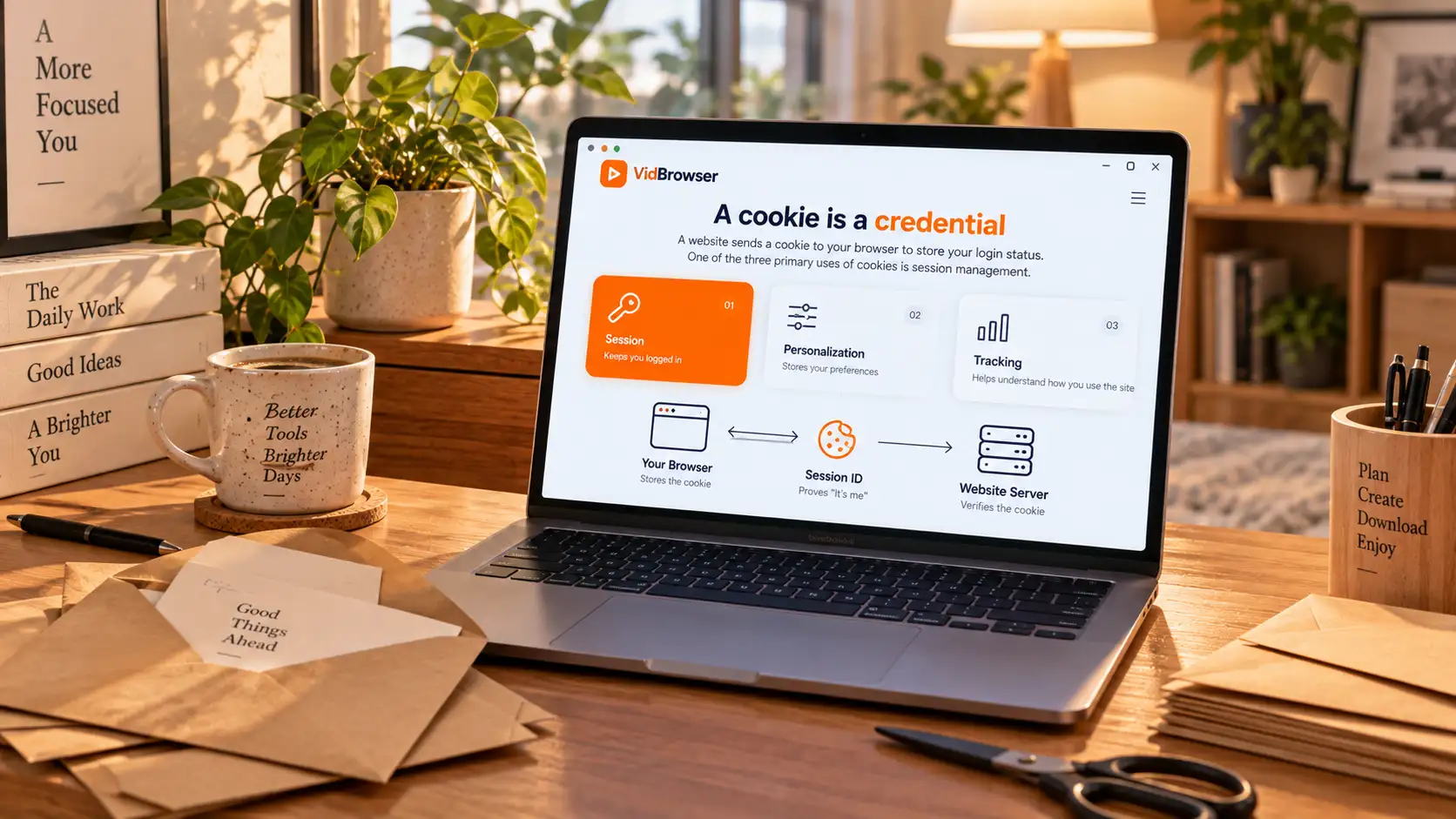
A Cookie is a credential your browser receives from a website, and the login state lives on it; once a tool holds it, the tool walks into the site as you.By the MDN official documentation, one of the three main uses of Cookie is session management — after you sign in, the server sends back a Cookie carrying a session ID, the browser stores it, and every request after that relies on it to prove this is you. The Chrome Help Center puts it more plainly: websites use Cookie to keep you signed in, and deleting Cookie is the same as signing out.
The weight can also be seen from the other side: MDN writes in its security section that once a session ID is stolen, the impersonator can sign in as you, with consequences ranging from odd app behavior all the way to a bank or shopping account being taken over; and the values inside a Cookie are visible and editable by the person using the device by default. In other words, to the platform this string of characters is you, and what the tool does with it or passes it on to is something you cannot see from your side.
Three kinds of tools ask for your login state, and the risks are not in the same league
The same request to sign in lands on three kinds of tools, and the risk ranking is clear.The motive is no mystery: pages behind a login wall cannot be entered by a parsing layer, and borrowing your identity is the shortcut. The first kind is a web-based download site that asks for your account and password — the heaviest of the three. A password is a full credential: whoever holds it can change settings, read private messages, spend your balance, and after it is handed over, login alerts and new-device notices all go to a device that is not yours. The second kind is a browser extension, which once installed can read the page context and watch session data pass by. The third kind is the copy-Cookie / migrate-login type of tool, which has you export session data from your browser profile and hand it over — it never asks for the password, yet what it receives counts as the password in the eyes of the platform.
One counterintuitive point along the way: plenty of tools claim that we never ask for your password, only the Cookie, so it is safe. That claim does not hold. To the platform, the session Cookie is the carrier of the login state; the two are two faces of the same pass. The standard is not which kind of credential it wants, but whose hands the credential passes through and where it is stored after it leaves your device.
Three checks before you hand it over, and a saving route that needs no hand-over
When a tool asks for your login state, run these three checks before deciding:
- Who develops this tool — do the official site, the privacy policy and the company entity line up;
- Does it explain what the credential is for and where it is stored — claims like used locally or never uploaded should come with technical substance;
- Is there community feedback about unexpected logins or stolen accounts — search the tool name plus account security and read the first page of results.
If you have already handed something over, the remedy is still available — the Chrome Help Center sentence works in reverse: deleting Cookie equals signing out, so on the platform side sign out of every signed-in device and change the password to void the session credential you gave away; then go through the account login history and handle unfamiliar devices and locations on the spot. For any new tool you have never heard of, try it with a throwaway account first; the main account does not scout.
Now the other route. A desktop video browser works on the opposite idea: the sign-in happens between you and the platform, the tool never receives your account or password, and the session Cookie stays in the browser profile on your own device — there is no export-and-hand-it-to-someone step anywhere, and you can verify this yourself, since it never asks for any platform credential the whole time you use it. The article on what a video browser is covers this positioning: runs locally, credentials never pass through a third-party server. As for protected content the parsing layer cannot enter, that goes through the recording route, which is a separate matter from handing over a login state.
Here is how it goes, four steps:
Step 1: Download and install VidBrowser
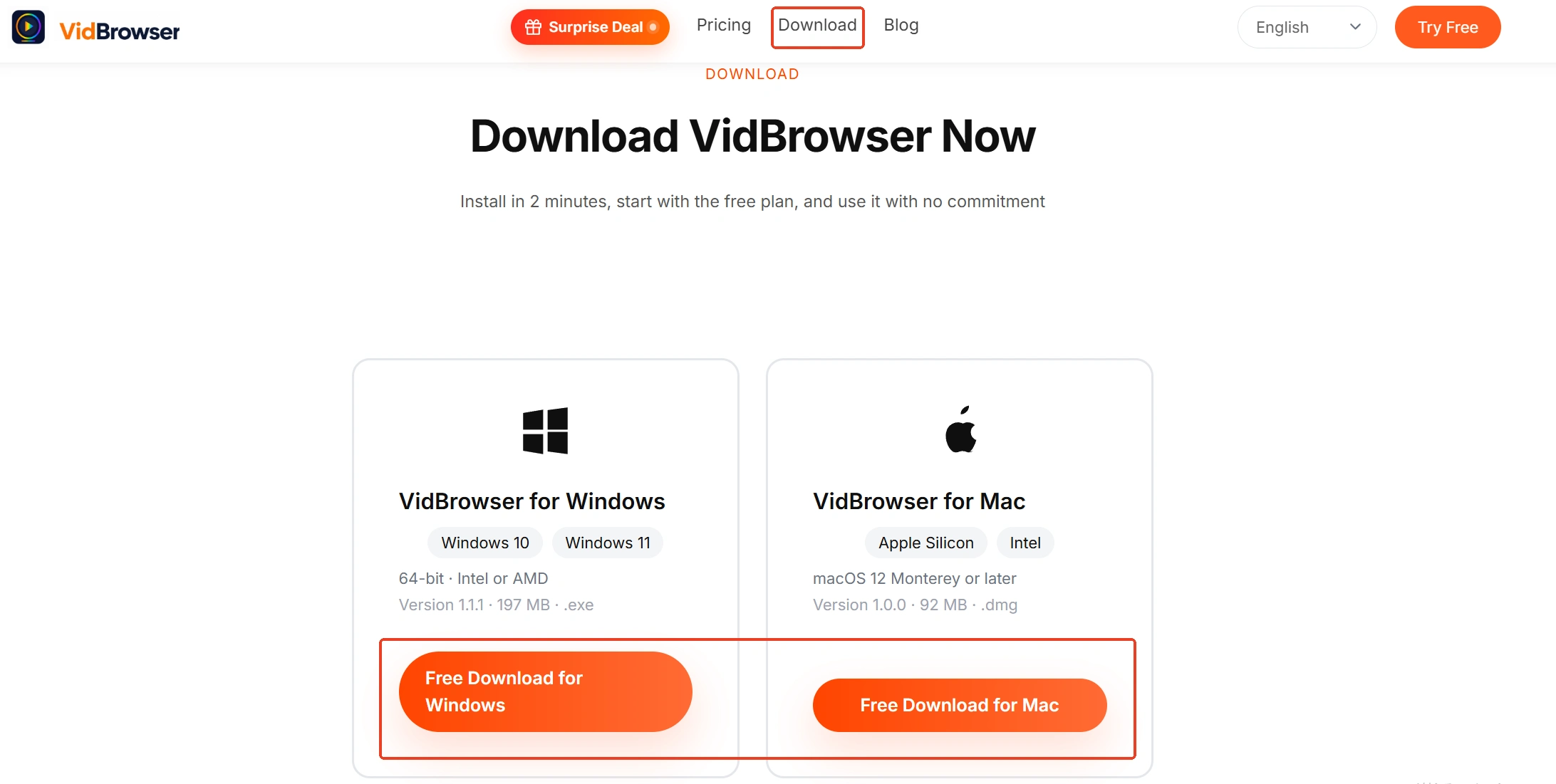
Visit the VidBrowser website, download the version for Windows or Mac and finish the installation; it is a desktop video browser for watching videos, clipping segments and saving them locally, with downloading and recording built in, all done in minutes.
Step 2: Open the platform page in the built-in browser and sign in to your own account
The sign-in happens between you and the platform; the account and password you enter pass through no middleman, and the browser session is managed by you inside the software.
Step 3: Choose the saving method by the type of content
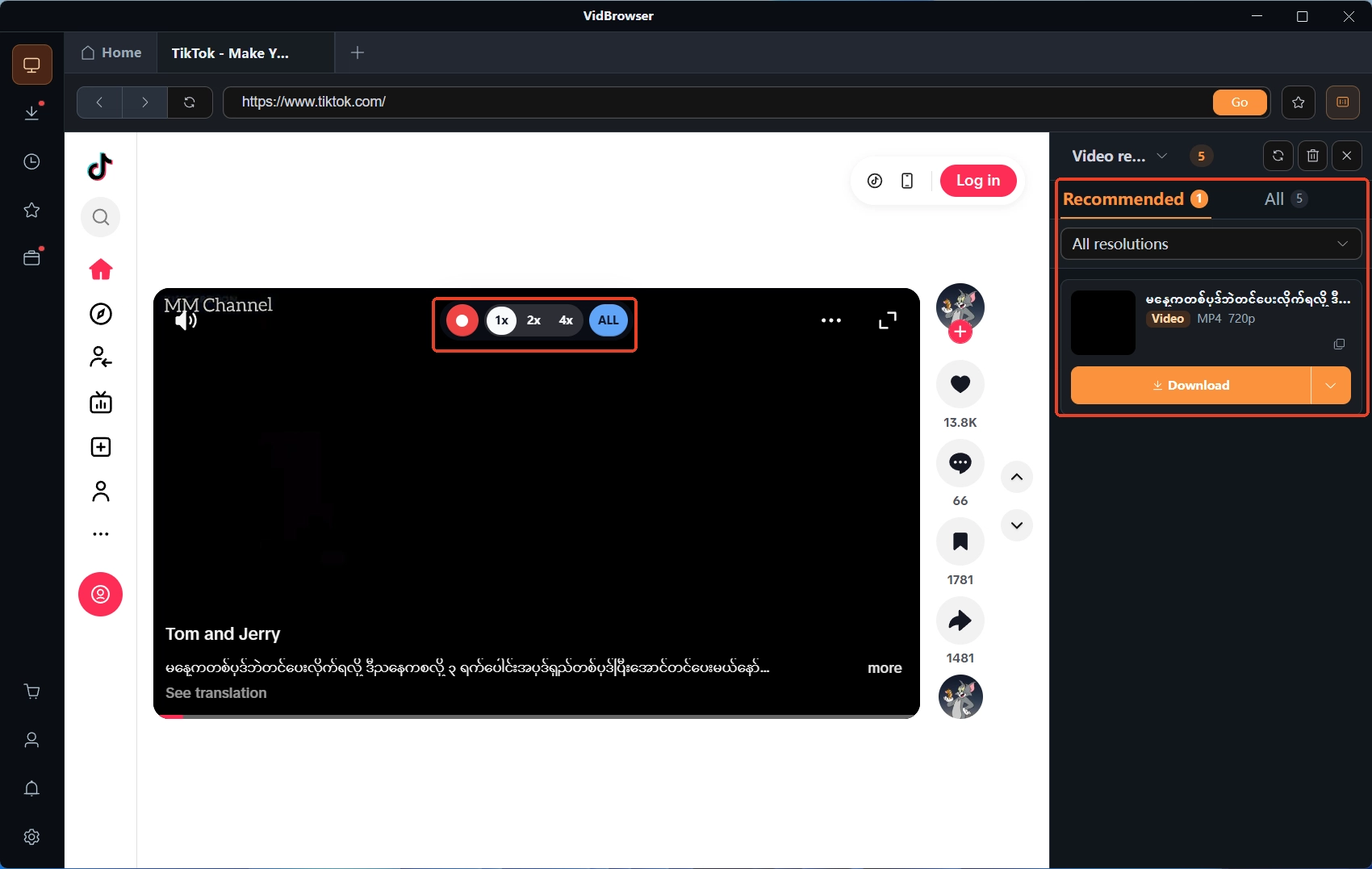
For ordinary videos, click the orange download button in the video library on the right, and pick a level in the resolution filter first if you like; for protected content whose platform offers no download entry, move the mouse over the playing frame and the recording controls appear — choose a recording speed (1x real time, or 2x / 4x to finish faster), click record-all to capture from start to end, and the recording button on the left can pause at any time.
Step 4: Check the download history
The clock icon in the left navigation opens the download history; confirm status, size and save location item by item, and fix anything odd on the spot.

In the subscription-platform context this self-check matters even more. The article on the OnlyFans download tool comparison breaks down why tools fail on subscription platforms: they stall on encryption and authorization, not on the login state — in other words, asking for your login does not let a tool cross that boundary. A fuller checklist for account and privacy protection is compiled in the article on the OnlyFans privacy and security guide.
FAQ
A web download site asks me to sign in to my platform account. Can I trust it?
Treat it as no by default. An account and password are a full credential, and once they are handed over you have no way to see what happens next; a proper tool has no reason to sign in on your behalf. If you insist on trying, use a throwaway account, and keep the main account out of it.
Are browser extensions that read Cookie all dangerous?
Not across the board, but look at the permissions. An extension with broad read permission can in theory touch session data from all your sites; one whose permission scope is narrow and whose source is checkable carries a much smaller risk surface. Check the permission list and developer info before installing, and watch for permission-change prompts after.
What does VidBrowser do with my account?
There is no taking step at all. You sign in to the platform inside its built-in browser; the session Cookie is kept by the browser profile on your own machine, and the software does not collect it or upload it — you can verify this yourself, since it never asks for any platform credential during use. Protected content goes through the recording route, which likewise needs no credential from you.