The Space ends and the audio is gone? Survival is decided at showtime
The host you follow runs an X Space every Wednesday night on exactly the topic you wanted to hear, and that evening something came up. The next day you open the profile to look for the replay: some hosts have the full recording up, others have nothing at all — the difference is not about you, it is whether the host flipped the recording switch before going live. An X Space is a voice-only live broadcast, and whether it can be kept is decided the moment the host presses the start button. This piece lays out the official replay rules, the checks to run before and after a session ends, the routes open to hosts and to listeners, and ends with a save walkthrough you can follow step by step.
An X Space is a voice-only live, and the save switch sits in the host's hands
Recording on X Space is an optional feature, off by default, turned on by the host before the session starts. According to the X Help Center, once recording is on, participants in the live room see a REC badge; the recording captures the host, co-hosts and speaking guests, and the listeners' spot never enters that audio. In other words, whether a replay exists and when it disappears — the lead is always in the host's hands, and listeners accept the outcome from the passive side.
How long a replay can stay, the official answer comes in tiers:
- Hosts who go live from a newer app version (iOS 9.15 and above, Android 9.46 and above) can keep the recording replayable indefinitely, unless they delete it themselves;
- A Space recorded from an older app version has a replay window of 30 days;
- There is also a moderation rule: X keeps an audio copy for 30 days after a Space ends to review violations, extendable to 120 days in total when something is found — that is internal retention on the platform side, a separate matter from whether the replay can still be played.
One more layer to watch: even when a recording exists, if the host broke the X rules the replay can be restricted from listening. The host once turned on recording does not equal you can play it whenever you like — deletion, violations and app version all three can change the ending.
Look once before and once after the session: whether a replay exists decides which route you take
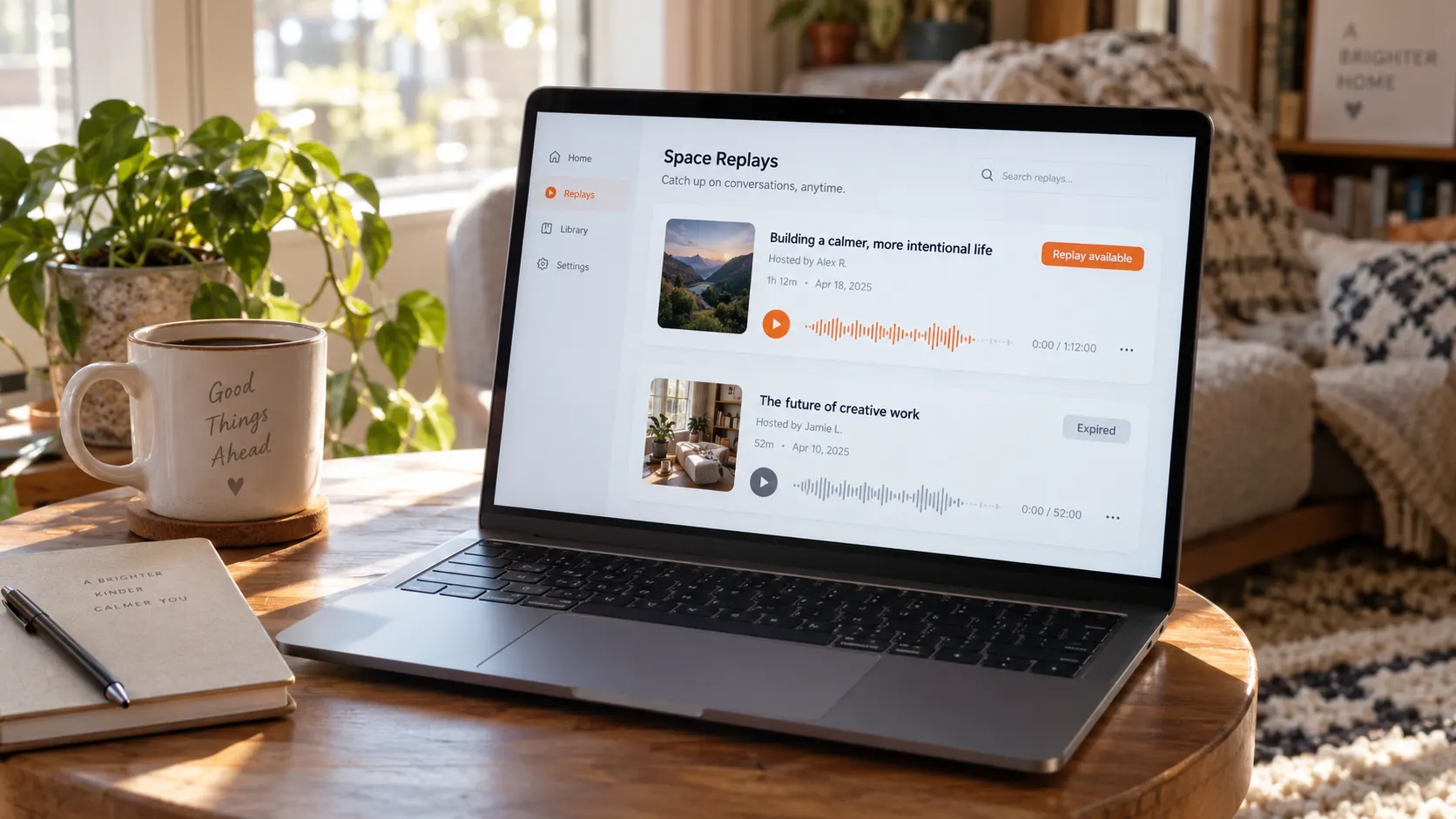
To judge whether a Space can be saved, one action is enough: open the Space page and see whether the replay entry is there. While the live session is running, a pulsing purple avatar appears at the top of the timeline — tap it to enter the live room; after the session ends, the same entry turns into the replay page, a recorded Space shows a button to play the audio, and an unrecorded one leaves nothing behind. Playing a replay requires a signed-in state; in a signed-out browser it stays silent.
Two routes split from here: with a replay, you can calmly catch up and save within the replay window; without one, being present in real time is the only chance left — the sound arrives as a live stream and stops when the session ends. Why this kind of real-time stream does not sit on the page like an ordinary file waiting to be saved, the earlier piece on streaming mechanics explains from the ground up. One side note: you may have seen hosts re-cut Space highlights into video posts on the timeline — that belongs to saving X videos, and the video walkthrough covers it.
Hosts can take the data archive route; listeners have the replay window
If you are the host yourself, the official side leaves one proper road: the data archive. The X Help Center states in the Spaces notes that hosts can download their own recording within the retention period through the "your X data" tool; the process is requesting an account archive, and once X prepares it, a .zip download link arrives by email with the Space audio inside. The drawback of this road is speed — the archive can take days to prepare, so it does not suit rescuing a session that just ended, but it fits backing up your audio assets on a schedule.
Listeners have no archive access; what they rely on is the replay window and quick hands. A Space does not block download tools with protected content the way subscription platforms do — its real barrier is timing: the host can delete the recording at any moment, and old-version replays expire when the window closes. When you hear something worth keeping, turn it into an audio file on your side while the replay is still up; one step late and the trip is wasted.
The boundary also needs saying: keeping a recording for your own re-listening counts as personal use; re-uploading, redistributing or commercially using the audio crosses the line, especially when the voice belongs to someone else.
Four steps to save a whole X Space
Step 1: Download and install VidBrowser
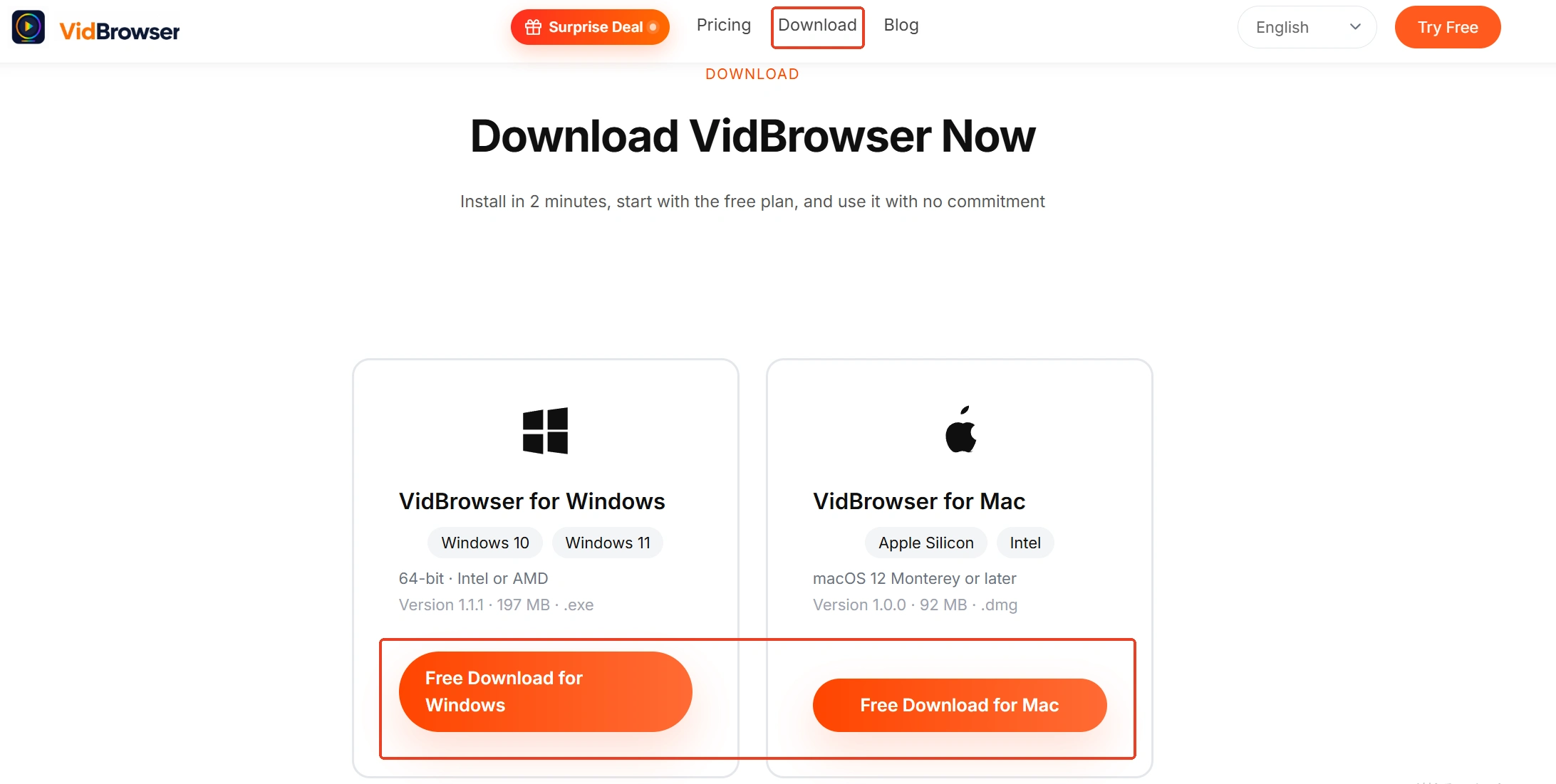
Visit VidBrowser, download the version for Windows or Mac and finish the installation; it takes a few minutes. VidBrowser is a desktop video browser with downloading and recording built in.
Step 2: Sign in to X in the built-in browser and get into that Space
While the live session runs, enter the live room from the purple badge at the top of the timeline; for a replay, open the Space page. Replays play only in a signed-in state, so first sign in to your X account inside the VidBrowser built-in browser.
Step 3: Tell whether the audio in hand is a live stream or a replay
Present in real time, you hear a continuously arriving audio stream — the recording function works on the sound and picture themselves, so you can start recording from the moment you enter; a replay is more relaxed, and recording it during the replay window works fine, though listen to a few seconds first to confirm the content is complete.
Step 4: Save it with the recording function (the main route for audio)
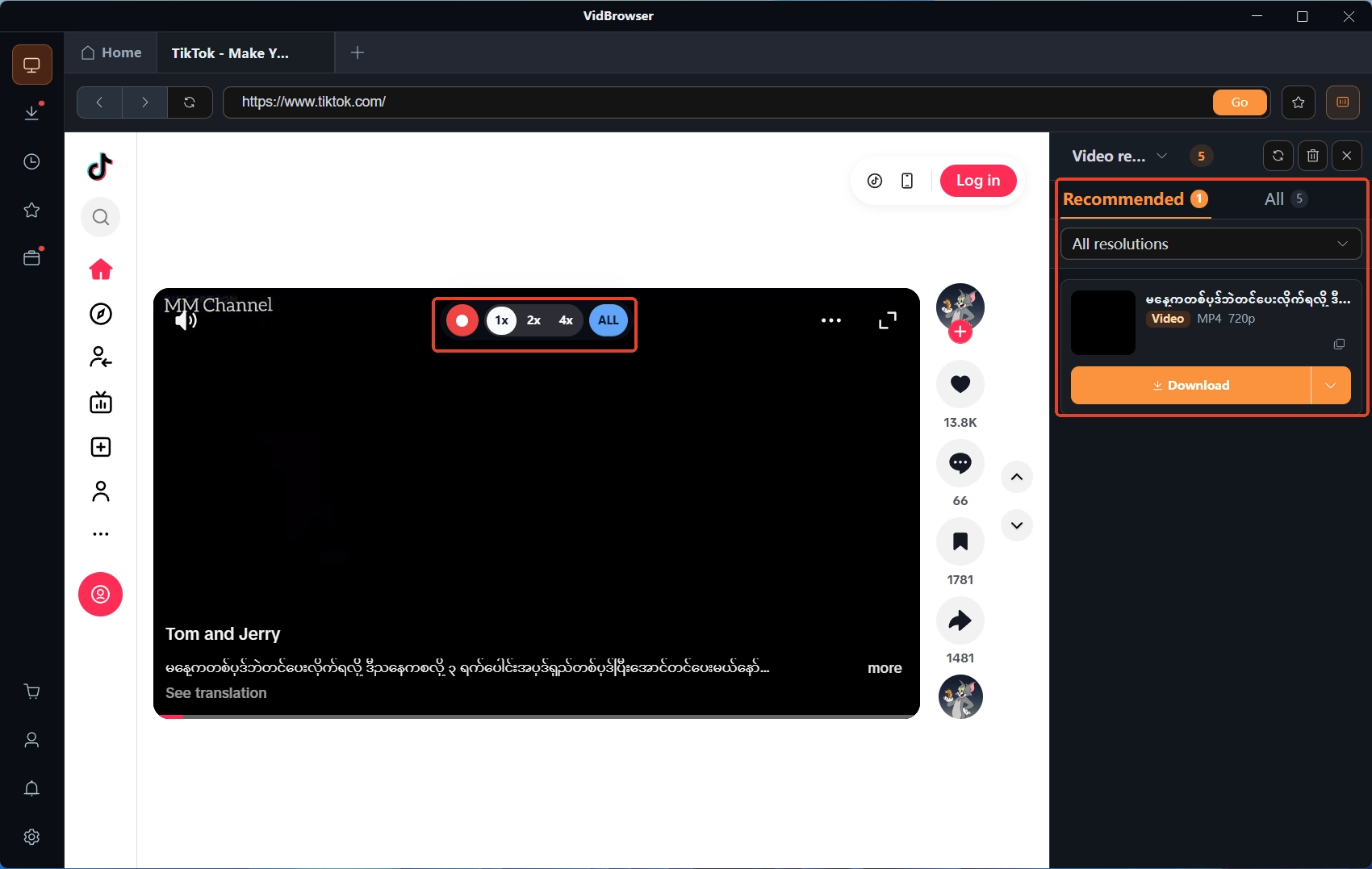
A Space is audio only, so the video library panel may not list an entry, and recording is the steadier main route: move the mouse over the frame and the recording controls appear — choose a recording speed (1x real time, or 2x and 4x to finish faster), click record-all to capture the whole session, and the recording button on the left can start or pause at any time. If the panel does show an entry with an orange download button (some replays surface as a media stream this way), one click saves it directly. After recording, open the download history from the clock icon in the left navigation, check the file size and status, and a complete audio archive is settled.
FAQ
The host never turned on recording. Any remedy after the session ends?
No. The official note says recording is optional and off by default; if the host never turned it on, the replay never existed, and there is no remedy entry on the listener side. The exception is the host re-posting the content as a video post afterwards — at that point follow the X video saving flow.
How long can an X Space replay be played?
It splits by version: recordings from newer apps (iOS 9.15 and above, Android 9.46 and above) stay replayable indefinitely, while recordings from older app versions have a 30-day replay window; the replay goes offline when the host deletes it or it is restricted for violations. The platform 30-day review retention and the replay window are two different things — do not mix them up.
Will the host know if I listen to the replay?
In the official notes, the recording captures the host, co-hosts and speaking guests, and listeners never appear in it. Being present live is different: your avatar shows at the top of the live room, unless you open the privacy and safety settings, find the Spaces option and turn on anonymous listening.