Trovo shut down: where to find the old VOD you want to rewatch
Six months later you want to rewatch a stream you followed on Trovo, you type trovo vod download into the search box, scroll a few pages and then it hits you: the platform has shut down its live service entirely, and the official servers are unlikely to help with that old replay. Do not close the tab just yet — the official copy being gone does not mean the recording itself is unreachable. This piece walks the three places still worth checking, in the order that saves the most time, then covers how to store the file safely on your machine once it turns up.
The Trovo replay download route is closed: first understand where the official copies went
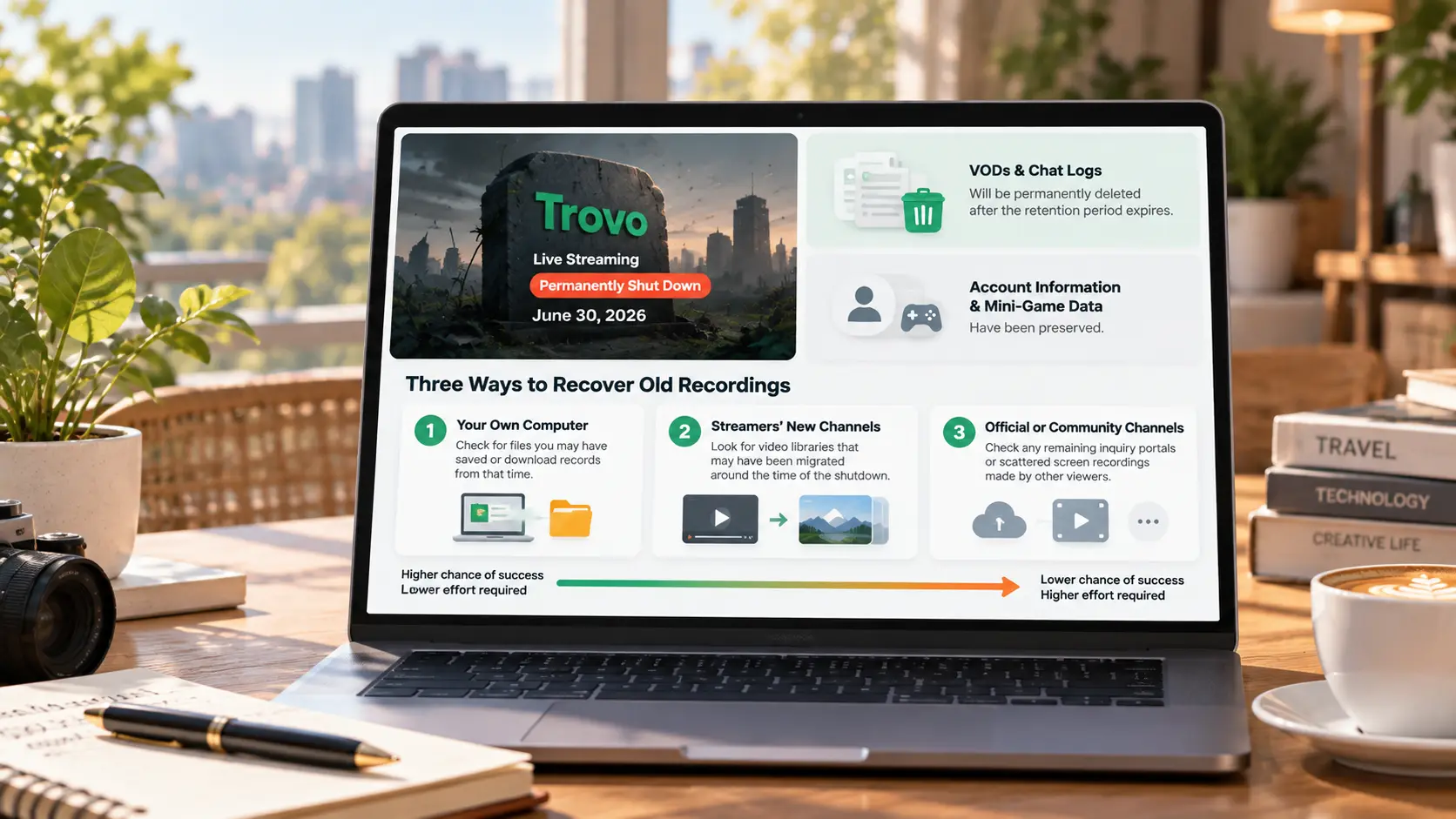
Trovo permanently shut down its live streaming module on June 30, 2026; VODs and chat logs will be deleted once the statutory retention period ends, and the platform asked users to download their own copies before the cutoff.
According to the official Trovo support center notice, the handling of live-streaming data (VOD replays, watch history, chat logs) is settled: permanent deletion after the retention period, while account and mini-game data remain in place. How long that period lasts has never been published — open Trovo today and the live section is already gone. The full rise-and-fall story and shutdown timeline are covered in detail in the Trovo retrospective guide, so this piece will not repeat them.
With the official copy out of reach, the realistic recovery routes come down to three places:
- Your own computer — files you happened to save back then and your download history;
- The streamer's new channel — the archive library they moved before or after the shutdown;
- Official and community channels — the inquiry windows still open and viewer recordings scattered around.
Success rates fall in that order, and so does the effort of checking, so work through them in sequence and you lose the least time.
First place: search your own computer — do not skip the download history and old files
If you saved anything while watching, the fastest recovery route is your own hard drive, and this check takes only a few minutes to rule out.
Work through the checks in this order:
- Open the clock icon in the left navigation of VidBrowser — the download history lists every file with its name, size, time, status and save path; the records from before the Trovo shutdown are the inventory of what you rescued back then;
- Sort the browser's default download folder by date and focus on the window from March 2026 to the end of June;
- Search the whole drive for the streamer's ID or keywords from the stream title — file names often keep whatever name you gave them at the time.
One easily missed corner: the record can still be in the download history while the file itself has been cleaned up — the source address kept in the record is still useful, because it points to which streamer it came from, exactly the lead the second place needs. If you find a file but cannot remember where it went, the guide to locating downloaded files has a full by-system walkthrough.
Second place: the streamer's new channel — most of the moved archives ended up there
Judging by the public discussion around this shutdown wave, streamers moving their old archives in bulk to a new platform is the repeatedly mentioned pattern — a good share of your target replays are still sitting in the streamer's new channel.
Most Trovo streamers picked their new home before or around the shutdown notice, and the move usually involves two things: posting the new channel address on social media, and uploading the old replays worth keeping. YouTube is the most common landing spot — streams archive automatically and bulk uploads are supported; the archiving rules are covered in the guide to YouTube gaming stream archives, with Twitch and Kick video sections as the other common destinations.
Here is how to look:
- Search the streamer's original Trovo username — most kept the old ID after moving;
- Check the social accounts you followed them on — move announcements usually carry the new channel link;
- Ask in the streamer's fan group or Discord — move posts are usually pinned for a while.
Once you find it, do not sit on it: moved archives carry the same risks — deletions, visibility changes, copyright scans can all make them disappear, and the older the stream the sooner you should handle it.
Third place: official and community — do not waste the inquiry windows still open
If the first two places come up empty, what is left is asking around and taking your chances, and both are worth doing.
On the official side, the shutdown notice left an inquiry mailbox, trovo@trovo.live — account and balance questions go through that channel; there is no public line on VOD deletion progress, so whether a given recording still exists is only known by asking, and the reply is the authority. On the community side, fan groups, the Trovo sections on Reddit and the viewer chats from back then hold local files from other people's screen recordings — post the date and the stream, and it is worth one question. Neither route has a timetable, but the window is narrowing for sure: community memory and group activity both decay with time.
Wherever the file comes from, save it locally in four steps
Whether the file comes from a streamer's new channel or a community re-upload, the saving routine is the same — four steps.
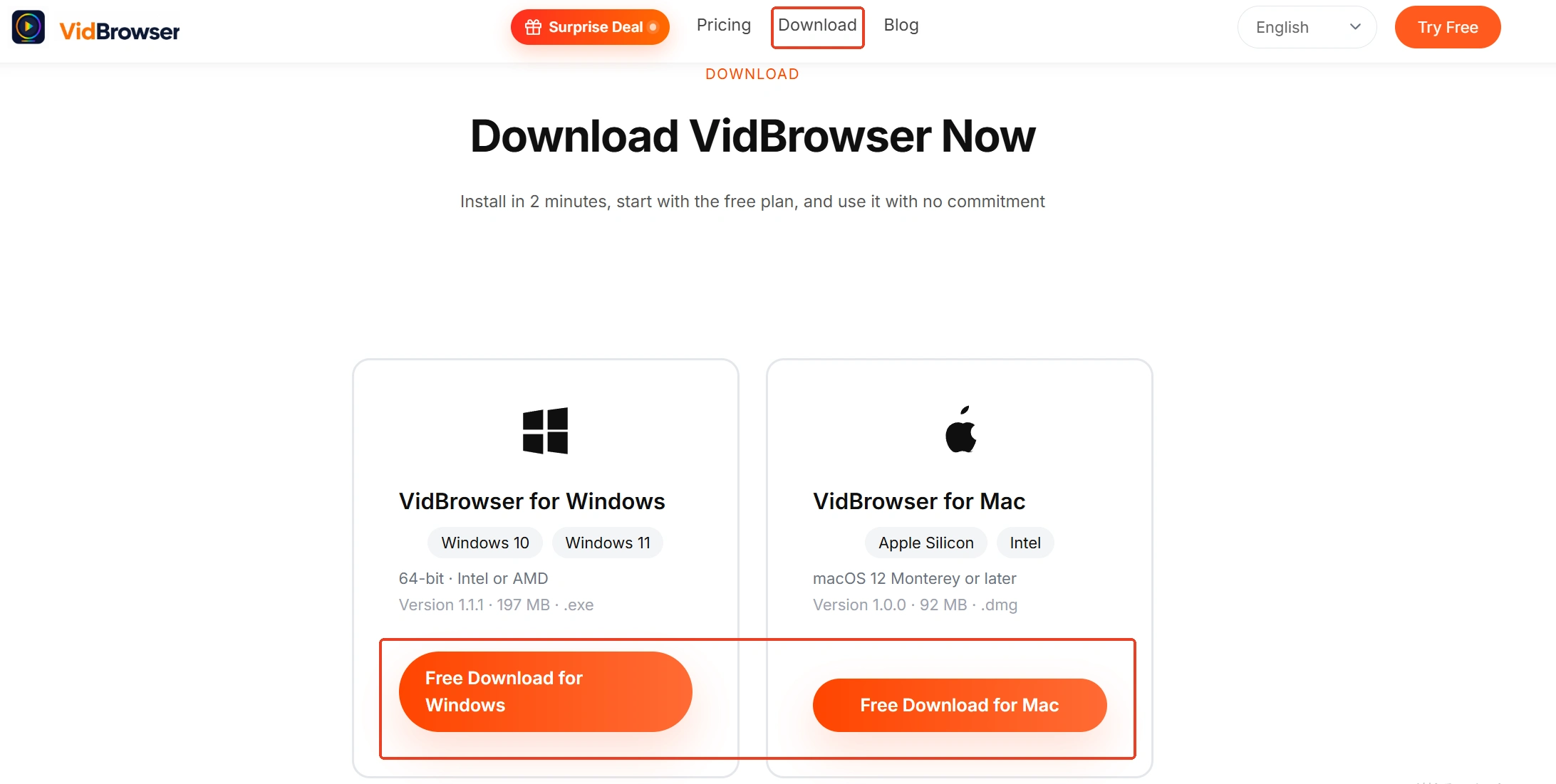
Step 1: Download and install VidBrowser
The desktop video browser VidBrowser is built for watching and saving streams and videos on Windows and Mac, with downloading and recording both on board; it installs in minutes.
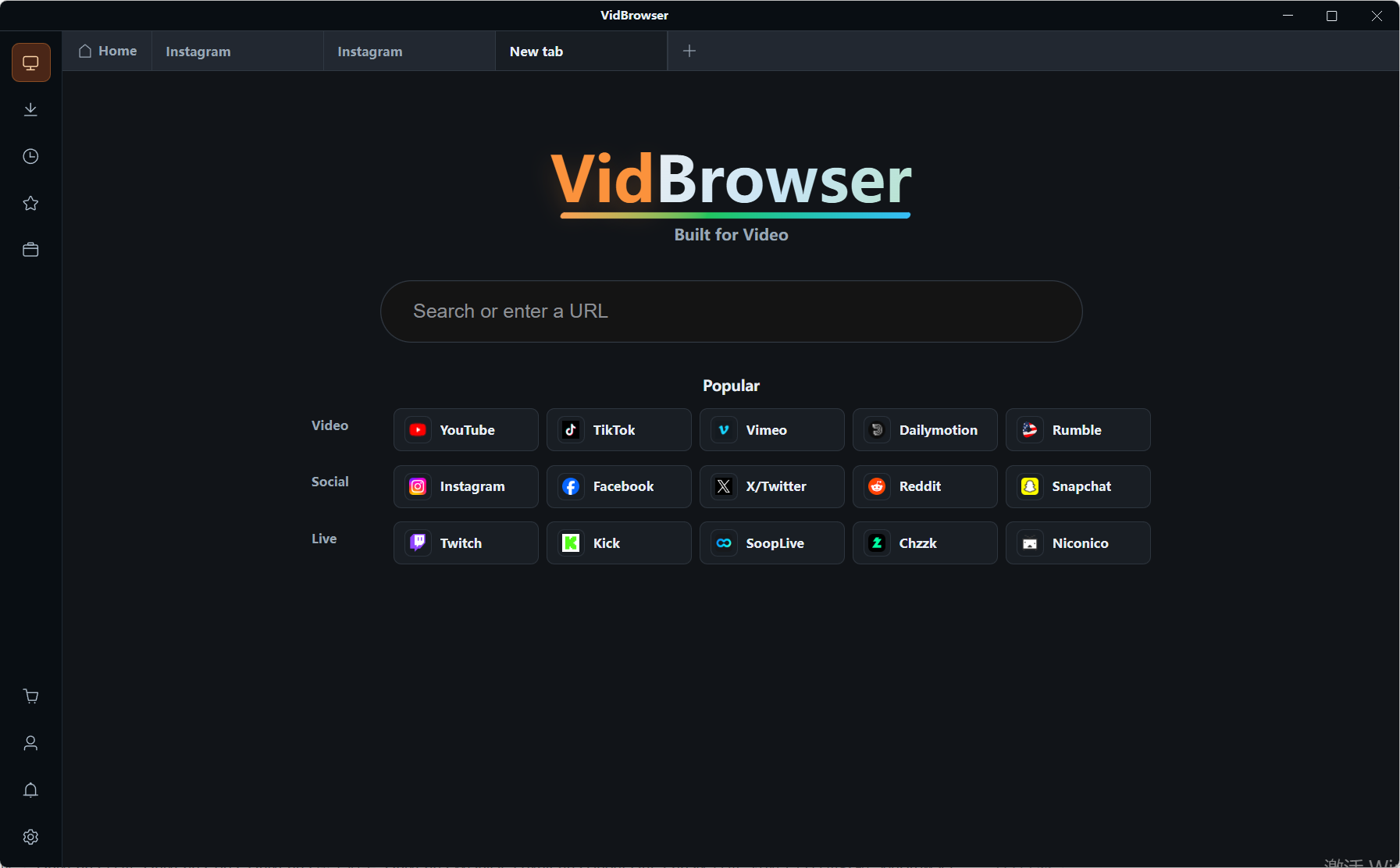
Step 2: Open the streamer's new channel page in VidBrowser
Paste the channel address you noted during the second check into the address bar and let the page finish loading before moving on.
Step 3: Locate the old stream in the video list
Scroll the archive list in the video section and search by publish date or keywords from the original stream title — archives usually keep the original title, so keyword hits are common.
Step 4: Download replays directly; use recording for the few sources that will not open
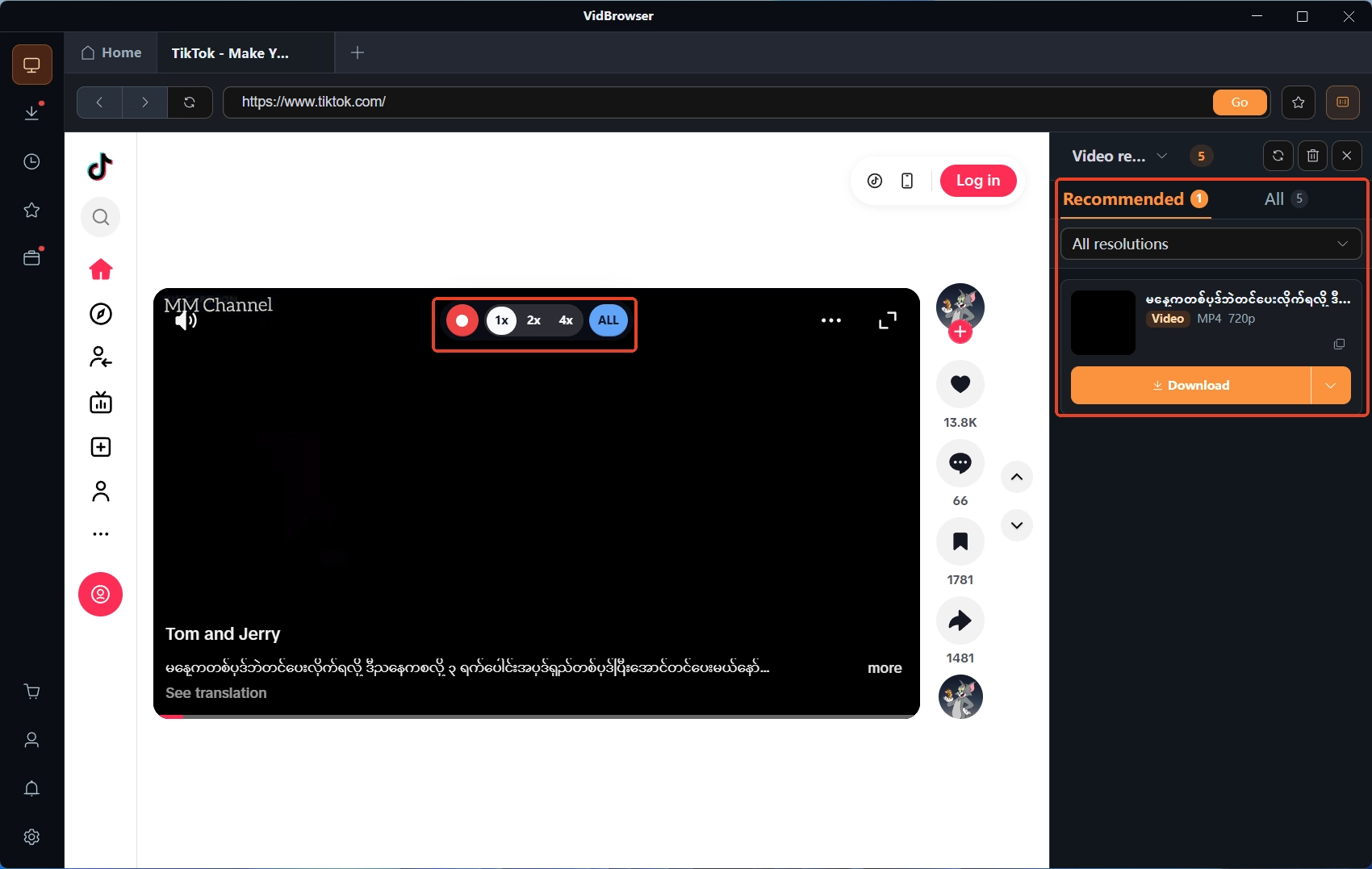
The video media library panel on the right lists detected videos, each with an orange download button — one click saves it as MP4, and with multiple quality options pick the resolution first; for the occasional archive that loads oddly or has no detectable source, hover the mouse over the video and the recording controls overlay — choose the speed (1x real time, 2x or 4x to finish faster), press record-all to capture the whole video from the current position, and the record button on the left can start or pause at any time.
After saving, check the download history in the clock icon on the left navigation — file name, size and save path are all listed there; confirm before closing the page.
Summary
For old replays, the checking order matters more than the checking itself: your own computer, the streamer's new channel, official and community — success rates fall, and the earlier the cheaper.Two takeaways: when you find a file, verify the date and the stream before deciding what to do with it; and for content you are sure to keep, save it locally with the four steps in the fourth section — the official copy's fate follows nobody's schedule, but the local copy is yours to call.
Frequently asked questions
Could Trovo replays ever come back?
The official position is no return. The shutdown notice states the live feature is permanently retired, citing a focus on the gaming business, and leaves no opening for a replay service restart. Betting on a revival gets you less than working through the three leads above.
How long is the statutory retention period, and why does the official side not publish it?
No specific deadline has been published, and no reason given for the silence. What is confirmed is the direction: deletion after the retention period is the final arrangement. Whether a given recording still exists rests on the actual link and official replies — do not plan around any countdown.
Once a streamer moves, will the old replays stay on the new platform forever?
No guarantee. Archives uploaded to YouTube remain exposed to the streamer's deletions, visibility changes and copyright scans, and Twitch video sections have their own expiry. Once found, save it locally with the four steps in the fourth section rather than repeatedly checking whether it is still there.