A JustForFans live show plays once: one thing to do before you enter, one before it ends
The schedule said Saturday, 8 pm. You clicked into the live room only to find the price marked "per minute" — the browser was not signed in yet, the quality not adjusted, and those two minutes of first-timer fumbling burned straight out of the meter; once you finally sat down to watch, a second worry crept in: after the show ends, can this ever be watched again? Most people who follow JustForFans (JFF) live shows have been stuck at one of these two moments.
JFF's live section is called Live Cam Shows, entry pricing is set by each creator, and the platform promises no replay — any move to keep a show has to happen while the picture is still live. This piece covers four things at once: where to watch, how the money works, where the content goes after the show, and how to keep a copy while the broadcast is still running. The underlying saving mechanics and the four entry points for paid content were broken down in the JustForFans saving guide; the live side of the rules gets its own walk-through here.
Where to watch JFF live: the Live Cam Shows entry and the schedule
The official help center is unambiguous for viewers: the "Live Cam Shows" button in the left navigation lists performers currently broadcasting, plus scheduled shows yet to start. Per the JFF official help center, if you know a creator streams at a fixed hour, you can also go straight to their profile page and enter the live room from there.
The schedule is the most useful part of the whole setup. Live shows have no replay to fall back on (more next section), the after-the-fact archive route is closed, so "timing your entry by the schedule" becomes the reliable way to follow — put the shows of creators you watch regularly into your calendar; that beats hunting for recordings after the room empties. Several independent reviews also note that another verified creator can join the stream on camera, so two-person shows are worth an extra look when you scan the schedule.
Entry pricing comes in three kinds: subscription, per-minute, free rooms
Entry prices for JFF live shows are set by creators, and mainstream reviews agree on three kinds: subscription required, billed per minute, or completely free. Three pricing modes coexisting means checking the room's price label before entering is a necessary move on JFF, not extra caution.
The per-minute kind deserves the most attention. OnlyFans' paid live shows sell a ticket per show and LoyalFans runs ticketed rooms — both are "pay once per show"; JFF's per-minute model swaps the billing unit for time — the meter starts when you enter, and you pay for as long as you stay. The cross-platform comparison of subscription-platform live features was laid out in the live features comparison; per-minute billing is JFF's own play beyond what that comparison covers.
The practical effect on spending: free rooms and shows included in a subscription cost nothing to enter, while a per-minute room turns "what you do inside" into something you pay for by the minute — which folds straight into the saving workflow below.

After the show: no replay promised, but the store may sell a direct download
No viewer-side replay entry has ever been announced; whether you can catch the show again depends on whether the creator posts the recording or lists it in the store. Live and store run on two separate rulebooks on JFF: items you bought in the store can always be located under "Subscriptions & Purchases"; when a live room empties, it empties — the platform provides no safety net.
The store route has one special feature: the JFF official help center states that creators can sell videos as "direct download". That means if a creator lists a past live recording in the store with download enabled, what you buy is a real file, not a stream locked inside a page. How to read download signals in layers was covered in the inventory piece: when you see a genuine download mark, prefer the platform's own download.
Translated into a viewer's order of moves: after the show, go back to the creator's profile and check posts first, then search the store for the show's keywords; only when both come up empty is the show truly gone.
How to save a JFF live show: prepare before entering, record from the first second
The main tool for saving a JFF live show is recording: a live show is a real-time stream that only exists while it airs, so recording follows the rhythm of the broadcast — it plays as long as you record; only store videos listed after the show go down the download route. Four steps, and for per-minute rooms the first two deserve extra care.
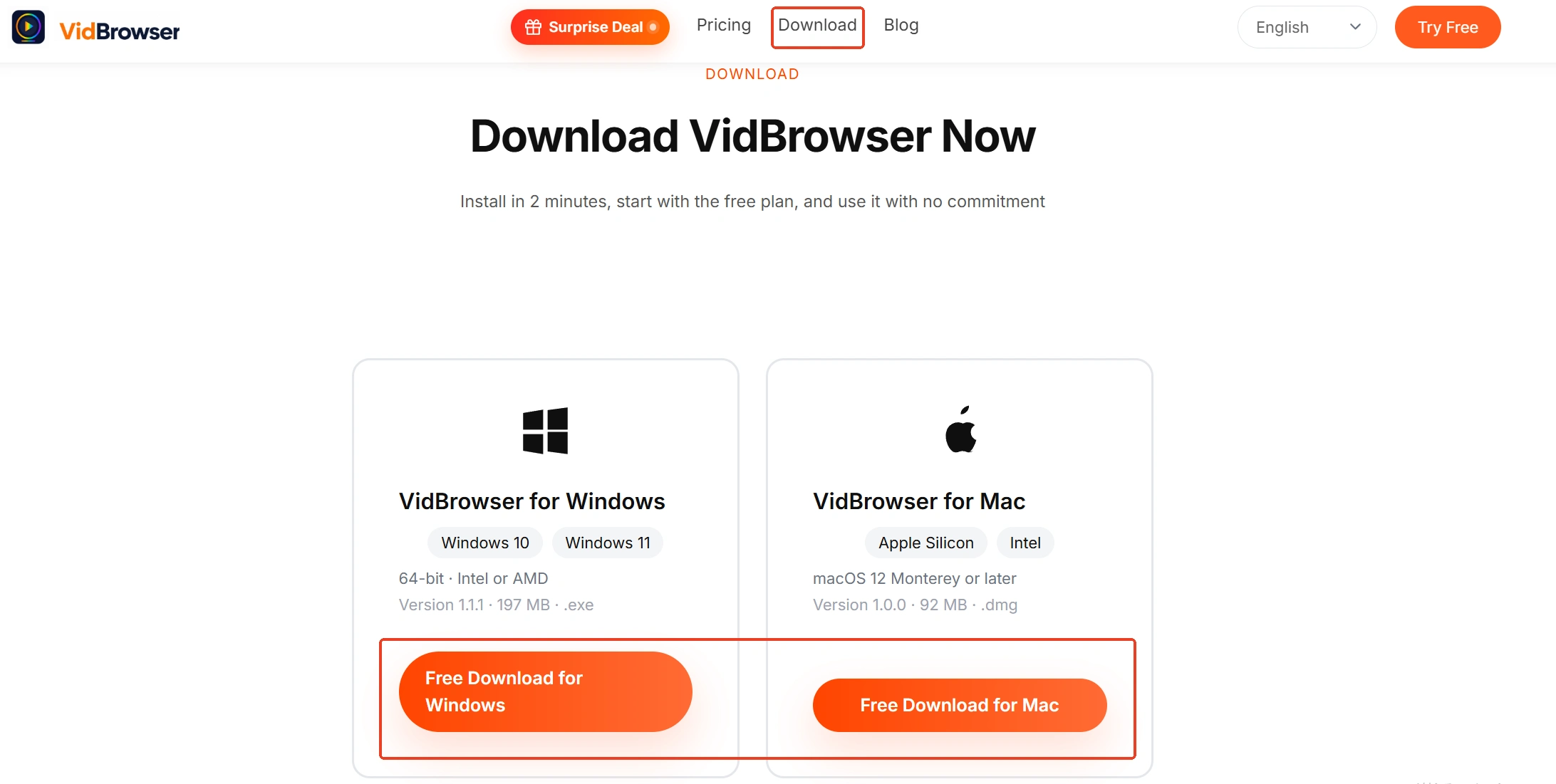
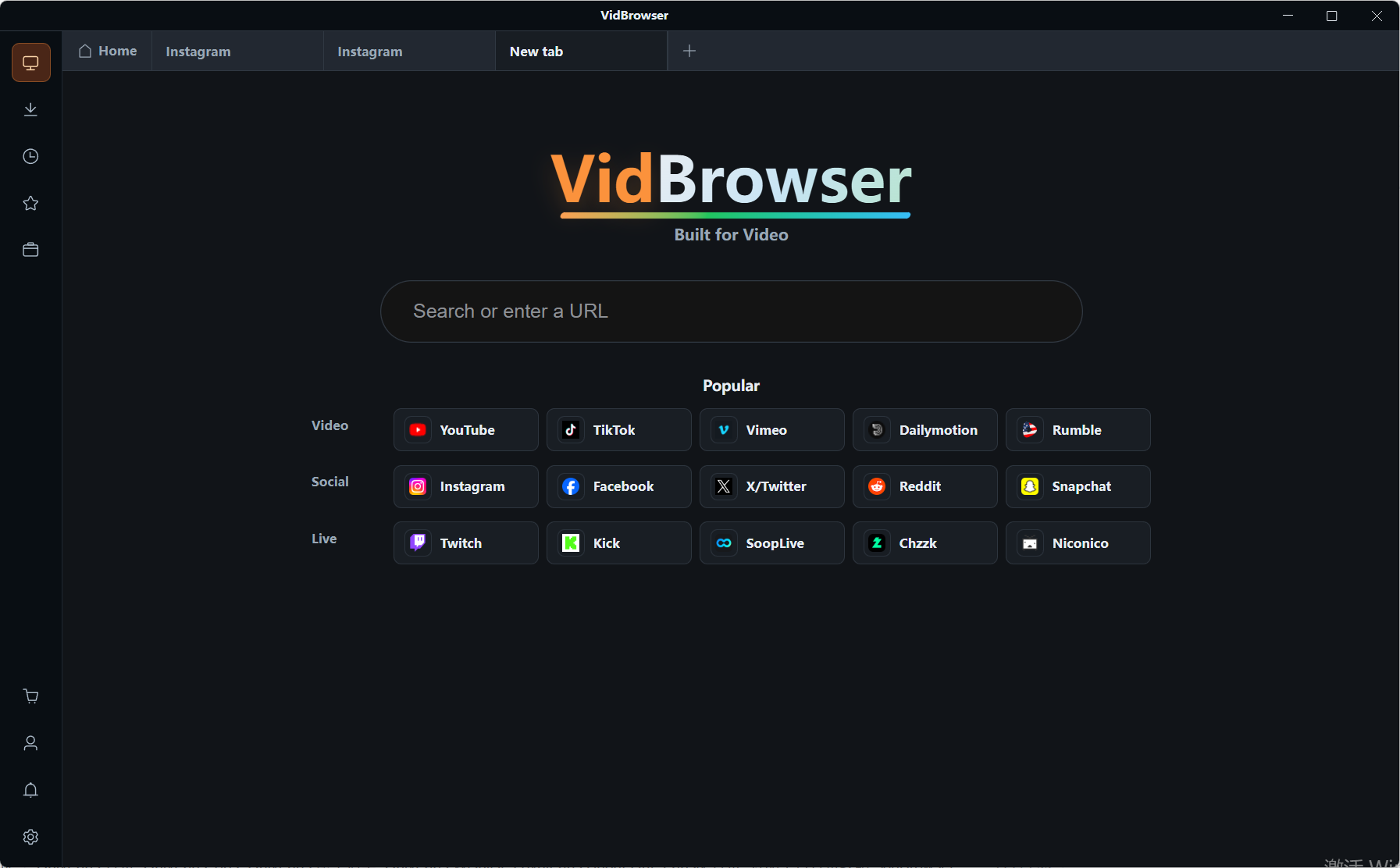
Step 1: Download and install VidBrowser
VidBrowser is a desktop video browser for Windows and Mac that watches videos, clips segments and saves them locally, with downloading and recording built in as its two core functions. The installer is on the VidBrowser official site, and installation takes a few minutes.
Step 2: Sign in to JustForFans and get ready before entering the room
Open justfor.fans in VidBrowser, sign in with your own account; subscription and purchase records work exactly like a normal browser. For per-minute shows, settle the sign-in, the quality setting and the recording plan before you enter — every minute inside the room is billed, and time spent hunting through settings is money too.
Step 3: Record from the first second, follow the broadcast in real time
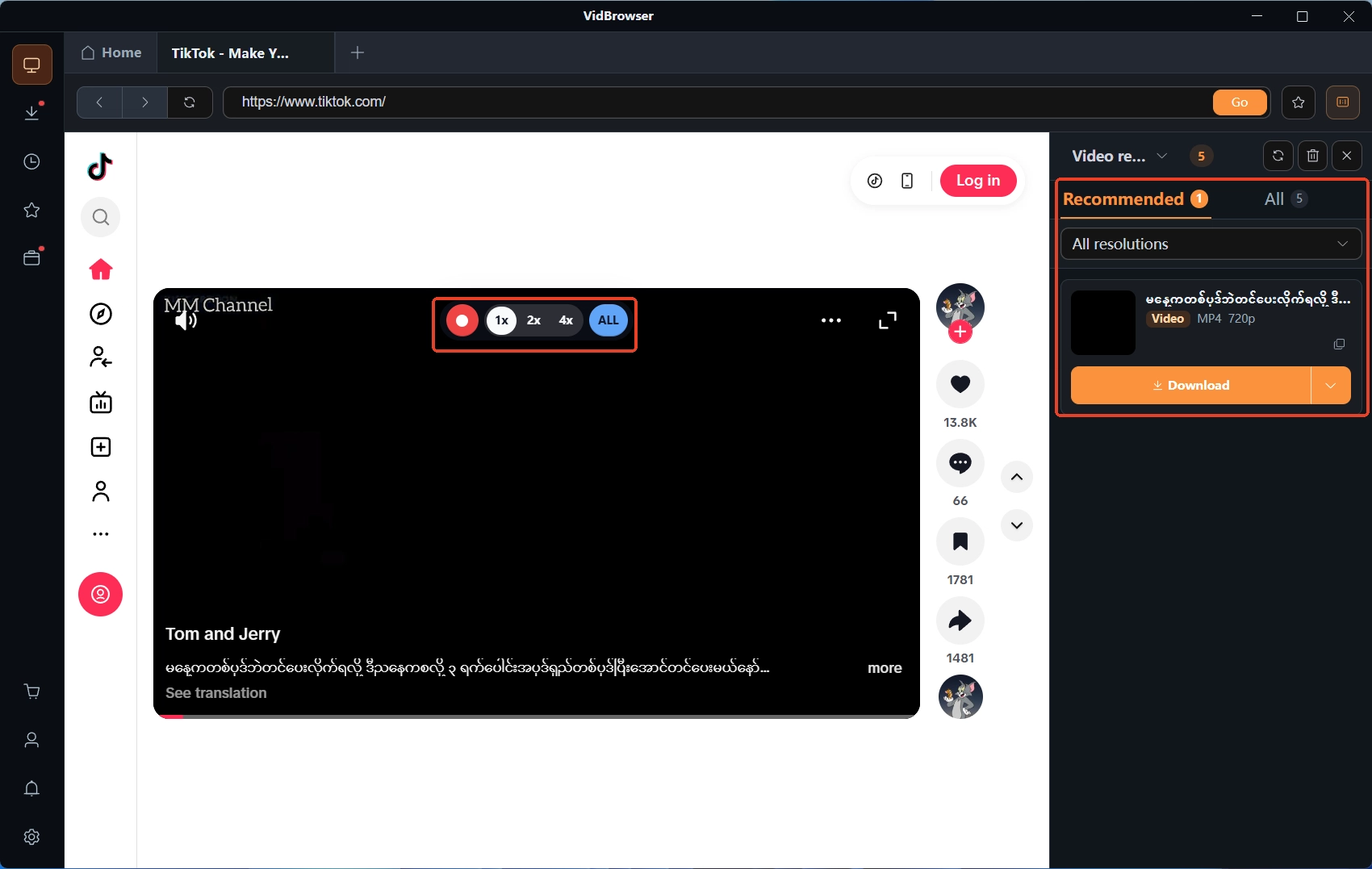
Once inside, move the mouse over the video and a recording overlay appears: choose the recording speed (1x real time, or 2x/4x to finish faster), click "Record All" to capture the whole show from the current point, and the record button on the left pauses any time. Paid content on subscription platforms like JFF is mostly copyrighted, and live streams are no exception — ordinary downloaders cannot grab it, but anything that plays can be recorded. To start the file from the opening, hit "Record All" right at airtime; enter mid-show, and your recording starts from the second you walked in.
Step 4: Check the download history, then browse the store recordings
When the recording finishes, click the clock icon in the left navigation and confirm each task's status and save location in the download history. Then go back to the creator's store and check whether the recording was listed — if it was, the "Video Library" panel on the right lists entries with an orange "Download" button, one click to save as MP4. Keep the recording for personal offline viewing; re-uploading or redistributing it is out of bounds.
Summary
JFF live rules compress into two lines: read the price label before entering, and for per-minute rooms finish every bit of preparation before you step in — that guards the spending; record the shows you want to keep from the first second, and after the show search the store for a recording with a download mark — that guards the keeping.
FAQ
Can a missed JFF live show still be watched later?
The platform promises no replay. A recording surfaces as a post or a store listing only if the creator publishes one; if neither exists, the show is over for good. For shows that matter, recording while it airs is the sturdiest move.
How do I keep costs down in a per-minute live room?
Rates are set by the creator, so read the room's label before entering. What you control are the two ends: finish all sign-in and settings before entering so billing minutes are not spent fumbling, and leave the room promptly when you are done. Exact timing rules follow the room's own page.
Are JFF paid live shows ticketed?
No. JFF has no per-show tickets; a paid show either rides on a subscription or bills per minute. OnlyFans' per-show PPV and LoyalFans' ticketed rooms are the other platforms' approaches — the three-way differences are lined up in the live comparison piece.