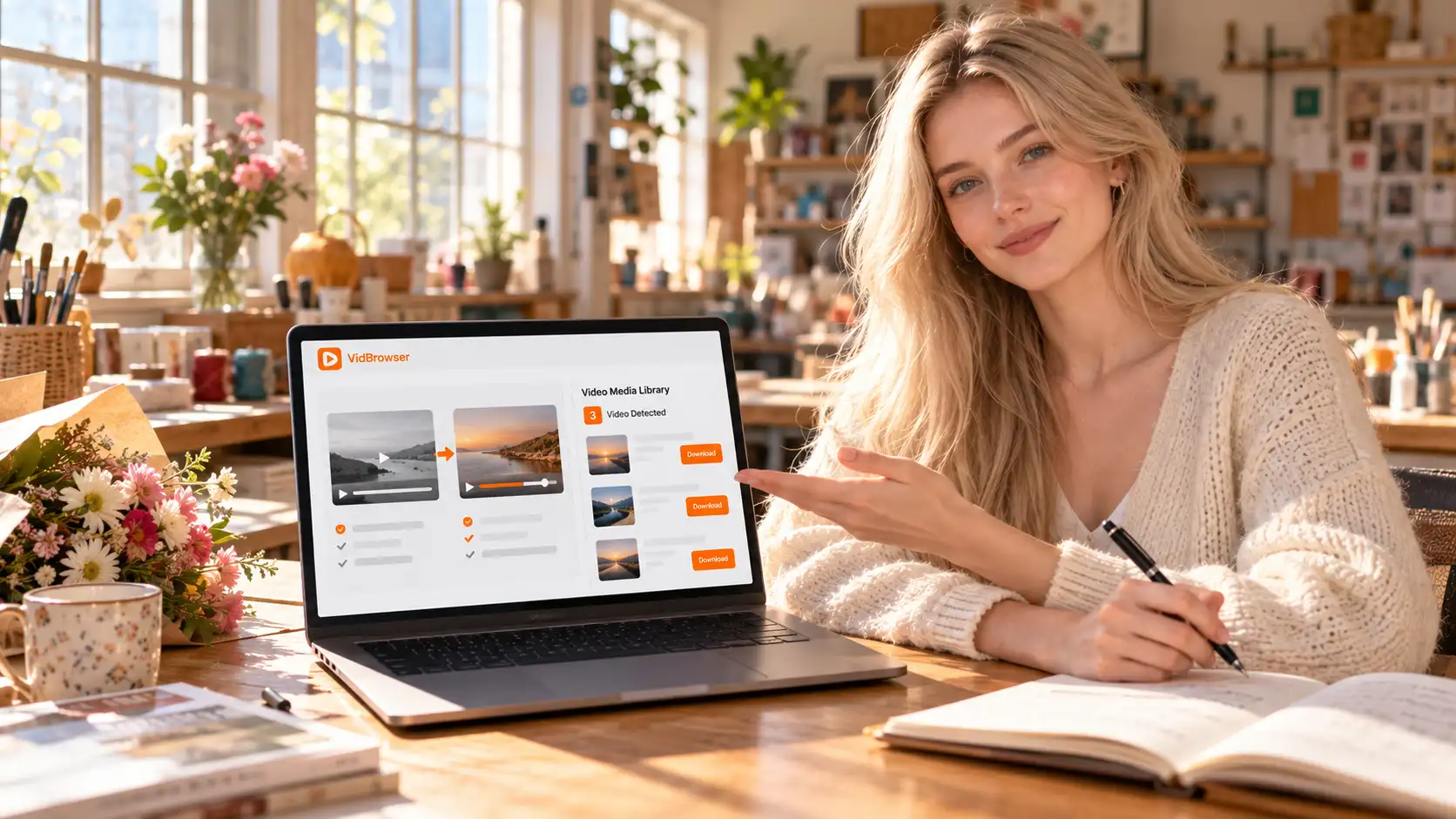
No download button on OnlyFans? You did not miss it: platforms signal downloads in three different ways
You saw someone on X say "this one can be saved," yet on your own screen there is no button anywhere; on OnlyFans you turned the interface inside out and nothing says download — do not start by doubting yourself. The "download allowed" question varies between platforms more than you would expect: some built it into a feature, some grant offline viewing, some have nothing at all. This piece gathers the download signals scattered across platforms into one map: read the signal first, then decide how to act.
Download signals come in three kinds — tell them apart before you act
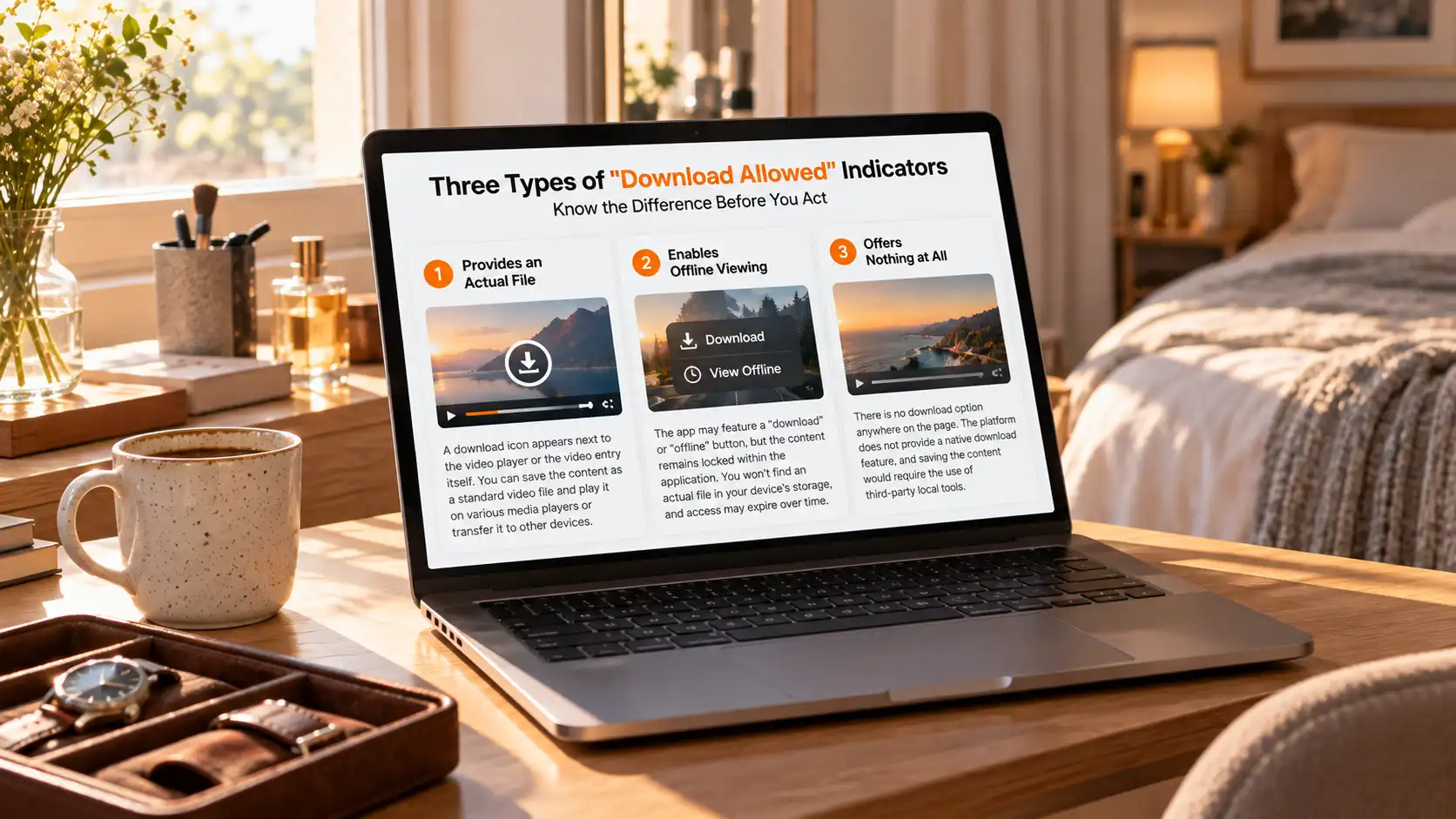
The "download allowed" signal comes in three kinds: a real file, offline viewing, or nothing at all. Each kind calls for a completely different move, and mixing them up is the easiest way to waste an evening.
The first kind is the most direct: a download icon sits next to the player or on the video entry, which means the platform or the creator handed you the permission — what you save is an ordinary video file you can put in any player or copy to another device.
The second kind deserves caution: the app also shows a "download" or "offline" button, but the content is locked inside the app, no matching file exists in device storage, and it expires when the window runs out — what you got is the right to watch, not a file.
The third kind is the most common: you comb the page and find no download entry anywhere, which means the platform does not provide one and saving depends on a local tool stepping in.
Where the download mark appears, what you save is a real file
Among subscription platforms that built "download allowed" into the product, the one you can actually point to is LoyalFans' Video Store. When a creator prices a single video they can switch on "Allow Download"; once it is on, fans see a download mark on that entry and can save with a tap — the mechanism has a documented source in the LoyalFans terms, and it is the one built-in download channel among OnlyFans, Fansly and LoyalFans. The scope has edges too: it applies to paid videos in the Video Store, not to images, and free content shows no mark. The details were broken down in the purchased-content piece: how to find and save purchased content.
Beyond subscription platforms two more places are worth noting. The X mobile app offers a download option for some videos — some, mind you, with plenty of platform restrictions, not every post can be saved that way; Vimeo puts the download right in the creator's hands, across three tiers of "open for download", "download after purchase" and "no download", and the same site treats different pages completely differently. The common thread at this layer is clear: behind the mark sits an explicit authorization — who granted it and for which piece of content is all written in the open.
An official offline button is a different animal: it gives viewing, not a file
Do not celebrate the moment you see a "download" button — the button may say download while what it hands you is in-app offline viewing. The representatives at this layer are the big, established platforms: YouTube Premium's offline feature, Netflix and Disney+ official downloads, course apps on mobile. Take Udemy: the official explanation is blunt — for privacy reasons the download package is encrypted, no matching file exists in device storage, and some content expires after 30 days and restores access once you are back online — the entry in that "downloads" list has never been an MP4 you can copy away. The full course-platform picture (web side decided per lesson by the instructor, app side encrypted-package rules) was covered in the offline-keeping piece: how to keep course videos offline.
While we are here, one contradiction worth untangling: an earlier piece on subscription content concluded that OF, Fansly and LoyalFans offer no offline mode at the platform level — that statement is about platform-level offline features; LoyalFans' download switch is a per-video creator setting, and the two do not conflict — how to save paid subscription content offline has the full background.
Check the signal first, then save: three checks plus a four-step walk
On any new platform, run three checks first: look for a download icon on the player, look for an offline button in the app, and if both come up empty treat it as no signal. If a check turns up a mark, use the platform's own download first — the authorization is explicit and the file lands directly, no tool needed at this step. Only when all three checks miss does a local tool step in, in four steps:
Step 1: Download and install VidBrowser
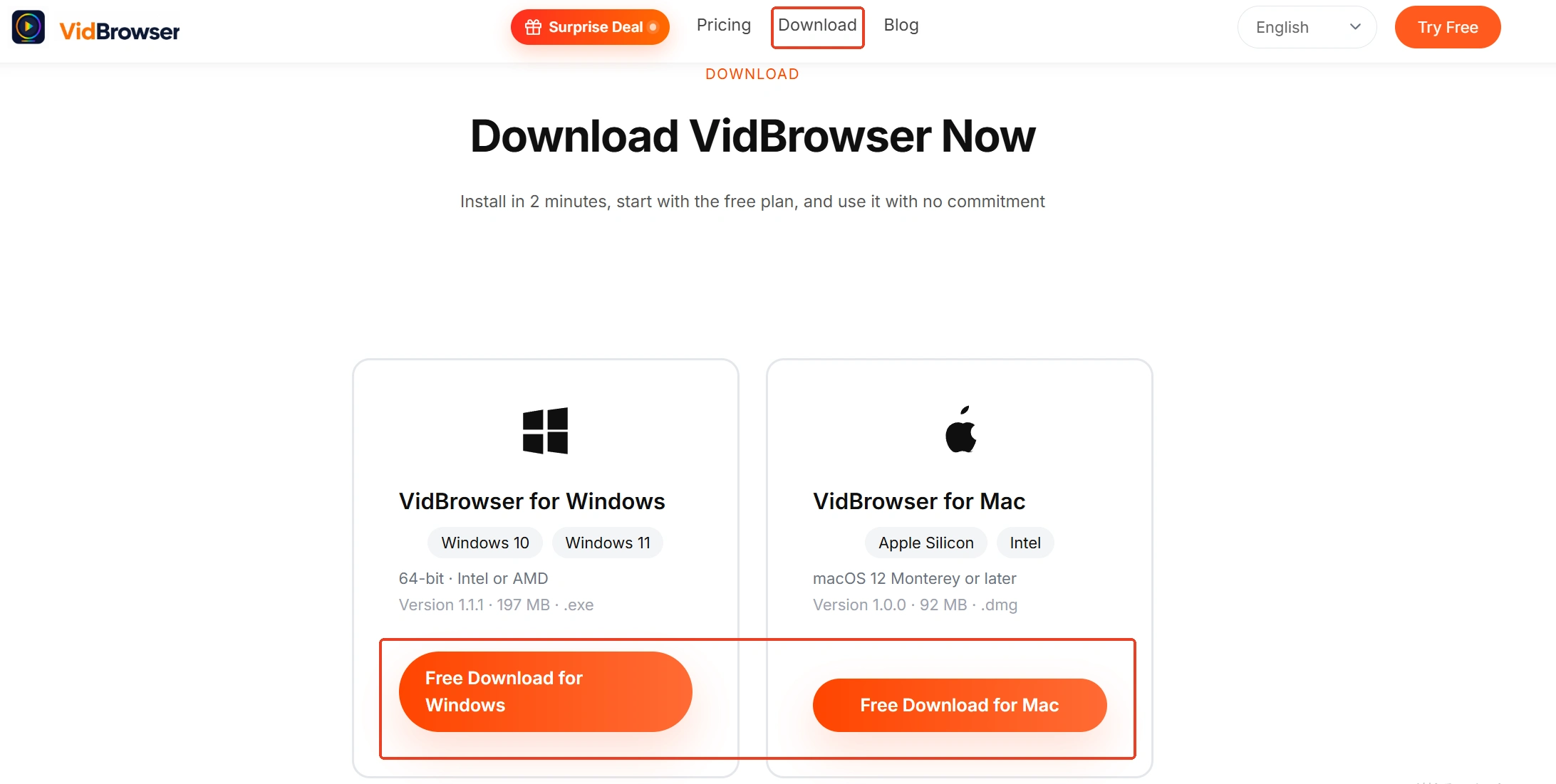
VidBrowser is a desktop video browser for Windows and Mac that watches videos, clips segments and saves them locally, with downloading and recording built in as its two core functions. The installer is on the VidBrowser video downloader page, and installation takes a few minutes.
Step 2: Open the platform in VidBrowser and sign in to play
Use the built-in browser to enter the platform you want, sign in to your account, and open the video page you mean to keep just as you normally would.
Step 3: With a download mark, save straight from the media library
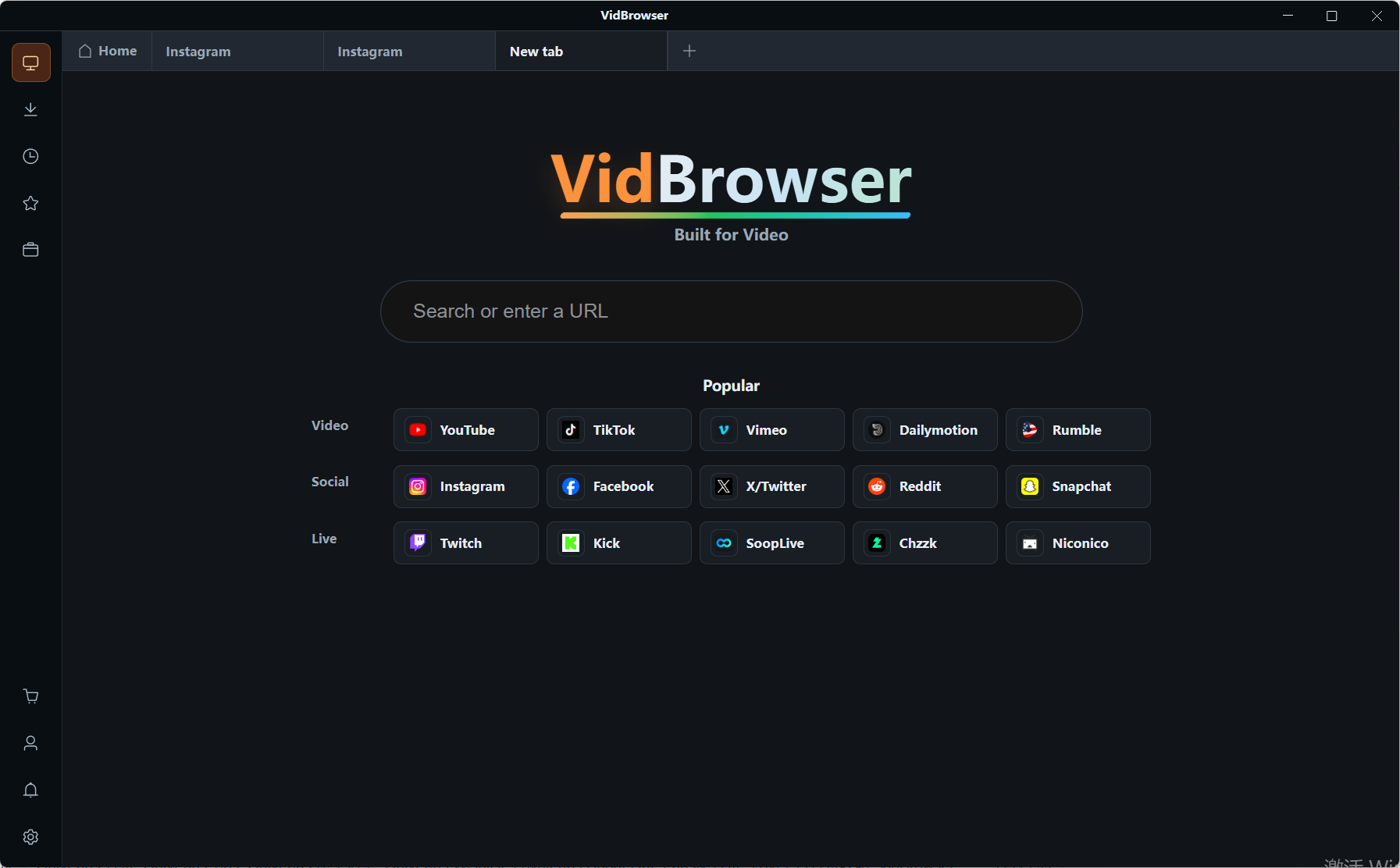
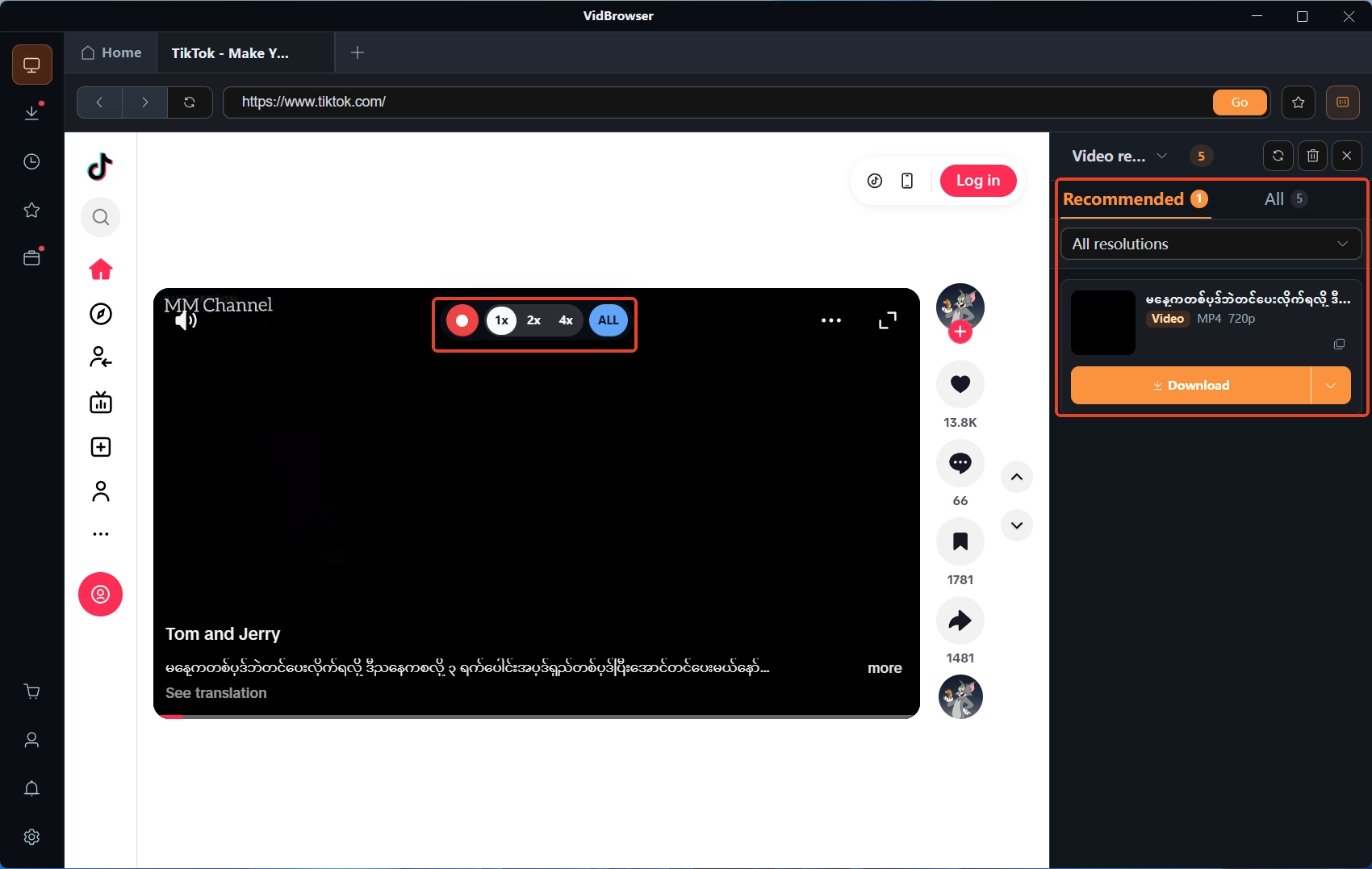
If the page offers download conditions, the "Video Library" panel on the right lists the detected video entries, each with an orange "Download" button — filter by resolution to pick the spec before you click; the "Clock" icon on the left keeps a download history recording each task's progress, size and save location.
Step 4: With no mark, use recording (the first choice for protected content)
Most videos on subscription platforms are protected, and the parts ordinary downloading cannot reach go to recording: hover the mouse over the video and a recording overlay appears — pick the recording speed (1x real time, or 2x/4x to finish faster), click "Record All" to capture the whole video, and the record button on the left pauses any time. Anything that plays can be recorded; when it finishes, confirm the file plays back properly.
Summary
The distinction most worth keeping from the three checks is "real file" versus "offline viewing": the first you own once it lands, the second is taken back when it expires. Let the order follow the signal — with a mark, use the platform's own download; when the three checks miss, hand it to a local tool's recording. And with per-video switches like LoyalFans Video Store, do not read "no platform offline mode" as "nothing can be saved".
FAQ
Can a video saved under a download mark be forwarded directly?
A download mark grants saving permission, not redistribution permission. Keeping it for your own offline viewing is normally fine; re-uploading or editing it for distribution falls under a different set of rules, the copyright still belongs to the creator or the platform — think about the use before you forward.
Why does the same platform show a download mark on some videos but not others?
Because download rights are often set per item. LoyalFans' switch is turned on by the creator for a single video, X offers downloads for some videos, Vimeo follows the creator's tier — differences within one platform are the norm, not a malfunction.
Does officially downloaded offline content expire?
Mostly yes. Udemy's encrypted download package carries a 30-day expiry rule, and offline content on streaming platforms is generally managed on validity windows. To keep content in your own hands long term, rely on saving methods that produce an ordinary file, not on an in-app offline list.