CleverGet splits one downloader into dozens of niche modules. Pick a replacement by matching the layer you actually want to replace.
Most people shopping for a CleverGet alternative have already used it for a while: they installed the general version, and now hesitate over whether to add a platform-specific module on top. What makes this tool unusual is that its website splits one downloader product line into platform-specific modules, alongside a general Video Downloader, on both Windows and Mac. With that many modules, the question shifts from "which tool to switch to" to "which layer you actually want to replace" — this piece walks through the selection logic based on its real shape, and ends with a save route that needs no link pasting.
CleverGet splits one downloader into more than sixty dedicated modules
The first step in picking a CleverGet alternative is not comparing specs but recognizing its "dedicated module matrix" shape.Open the CleverGet website and the product page lists more than sixty dedicated download modules by region and platform, covering streaming, sports, and multiple platforms across Europe and Asia, plus a general Video Downloader and a free CleverGet Recorder. In other words, it turned the number "which sites are supported" into the product line itself.
That shape decides two things. First, installing a module no longer means choosing an experience — it means choosing which door to walk through. Second, the granularity of the replacement talk changes too: what you compare may be a single dedicated module rather than the whole line. One more thing to watch: the wider the matrix, the heavier the maintenance load — when a platform redesigns its site, the matching module has to be updated in step, and that is a fair point to probe when judging alternatives.
Credit where due: full-season batches and the built-in browser are where it invests
By the official page's own wording, CleverGet's strengths sit at the two ends of batching and convenience.The listed capabilities include:
- Full-season batch download — the official text says it can list every episode of a season, even all seasons, and download the current episode, several picked episodes, or the whole season in one batch;
- Built-in browser — no need to hunt for stream addresses yourself; log in and play inside its own browser;
- Output and quality — MP4/MKV/WEBM containers, quality listed up to 8K, batch tasks processed in parallel, metadata kept with the file.
For season binge-watchers who archive by season, this combination is genuinely convenient; folding playback and stream capture into one built-in browser also removes the address-hunting step. Worth noting is the free CleverGet Recorder: the official site lists it as a separate product, which says recording is its own independent route in the family, parallel to the download modules. This piece compares tool shape and workflow only, and touches no one's content policy or pricing.
More dedicated modules actually simplify the choice: look at where the content lives
There is exactly one judgment action for readers: split the content you want to keep into two halves by whether it needs a login.Once split, the alternative question mostly answers itself:
- Public videos with no login — the general layer is enough; anyone can parse this kind of content, so pick by how smooth the flow is; for how that layer works, see how a universal downloader works and where it stops;
- Content unlocked by account and subscription — its answer is a dedicated module per platform, so what you check is whether the matching module exists and keeps up with updates;
- Both kinds — then run one route for each; do not expect a single module to cover everything.
When you cannot tell whether switching is worth it, trial before you conclude. The three trial-period tests from the SnapDownloader piece transfer directly: run the flow on the content you actually want to keep — faster than reading any spec sheet. To settle the shape first, the match-by-need selection table works as the master list.
The no-link route: save right on the playback page
The end of the replacement debate is pulling the save action back to the moment of playback.A desktop video browser like VidBrowser does not split by platform modules — open it and it works, in four steps.
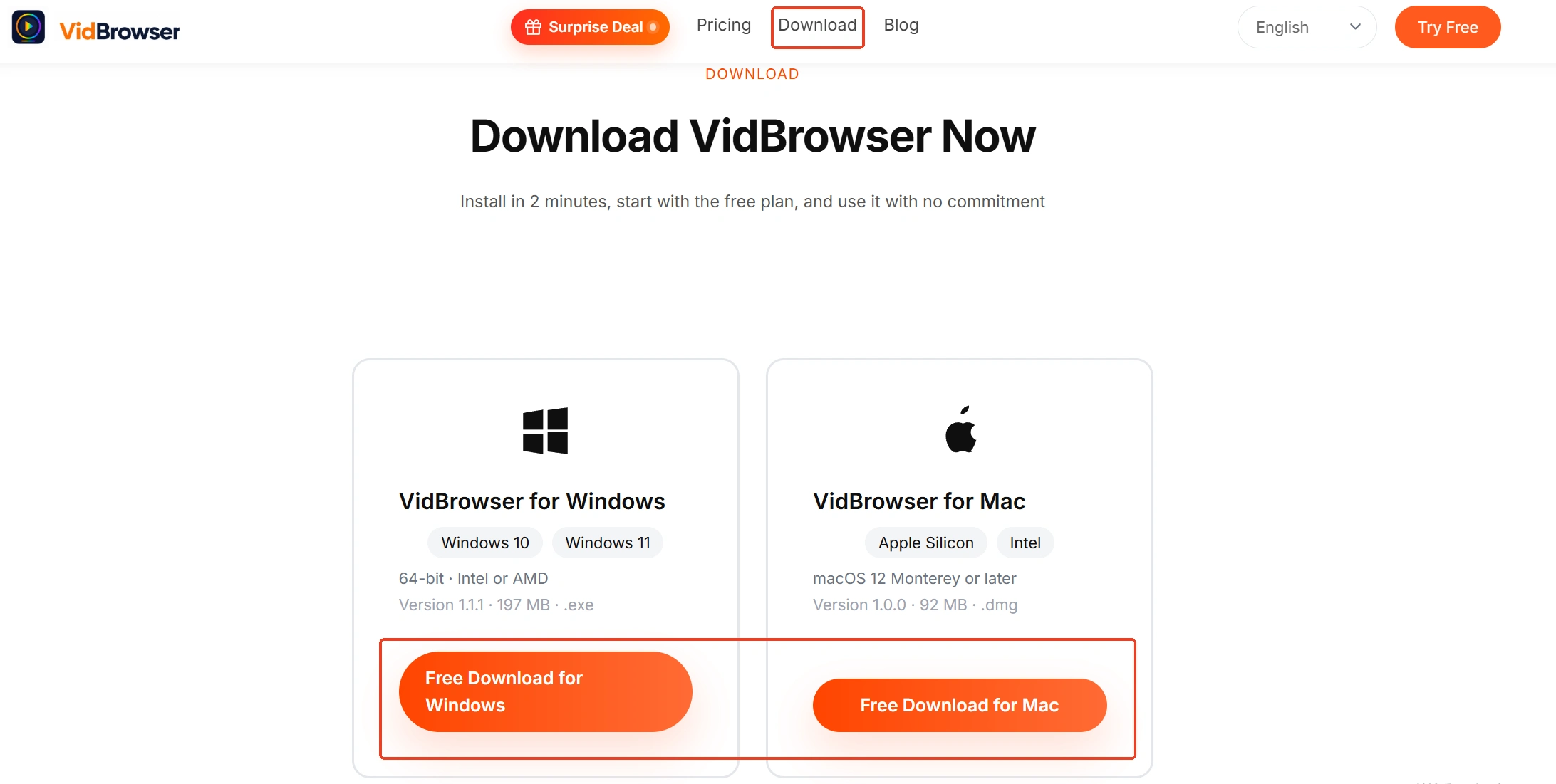
Step 1: Download and install VidBrowser
See the VidBrowser video downloader page for the download and install. VidBrowser is a desktop video browser for watching videos, clipping segments and saving them locally on Windows and Mac, with download and recording built in; installation takes a few minutes.
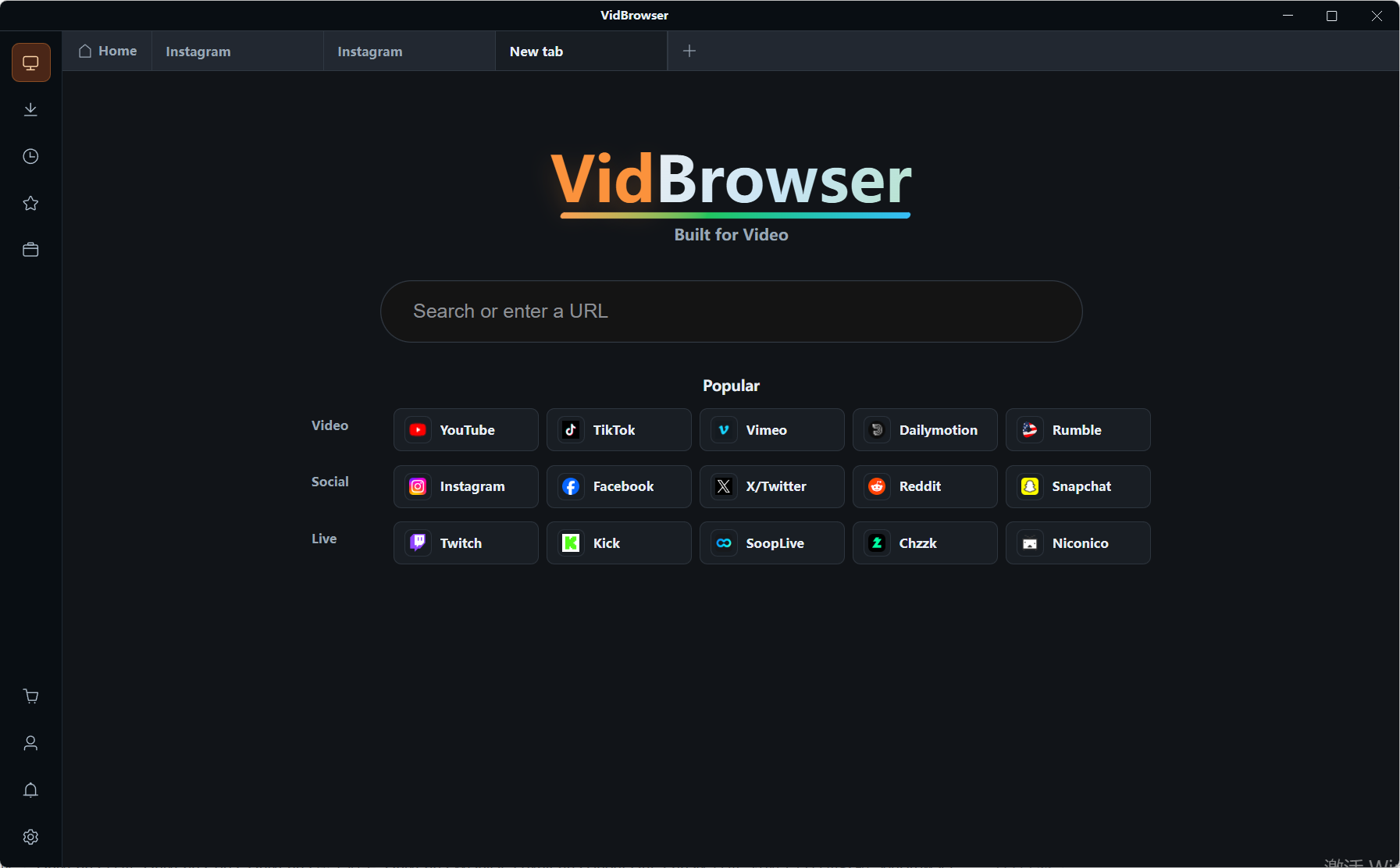
Step 2: Open the video page and log in
Open the video page in VidBrowser's embedded browser, log in and start playback. It keeps no preset site list: if the page plays, it can be detected.
Step 3: Download directly when a video is detected
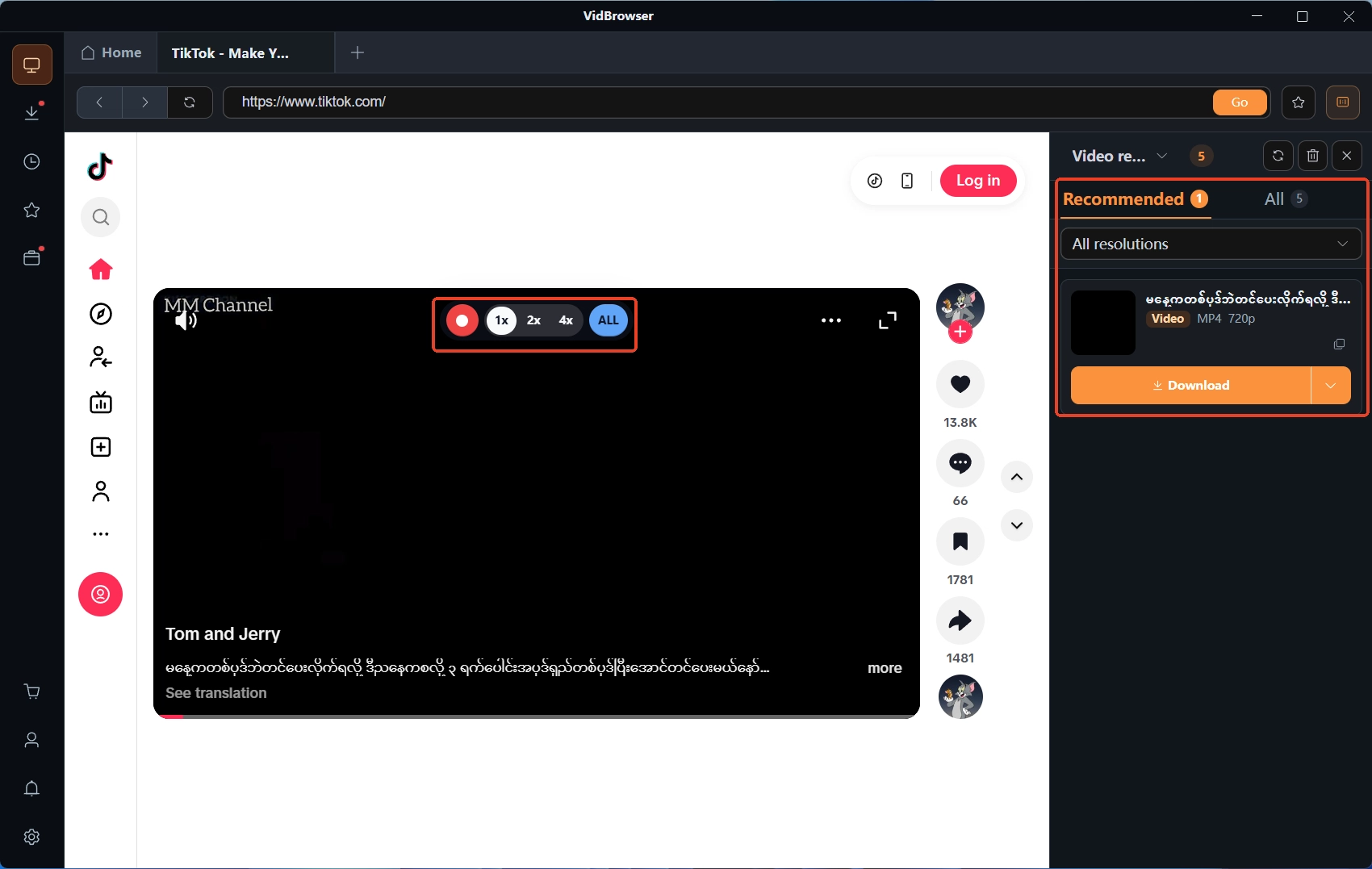
The "video media library" panel on the right lists detected entries; filter by resolution to pick the sharpest version first, then click the orange "download" button on the entry's right to save it as MP4.
Step 4: Use recording for protected content
Most subscription-platform videos are copyright protected, and plain download cannot grab them. Move the mouse over the video and recording controls overlay on the picture: pick a recording speed (1x real time, or 2x and 4x to finish faster), click "record full" to capture the whole video, and the record button on the left can start or pause at any time. Saved tasks are all in the download history under the "clock" icon on the left.
Summary
CleverGet's shape is a "dedicated module matrix": more than sixty platform-split modules plus a general layer, with full-season batches and the built-in browser as its investments. Selection therefore simplifies into one action — route content by whether it needs a login; public content is fine on the general layer, subscription content means checking the matching module. Whichever side you pick, the four-step browser route pulls the save back to the moment of playback and drops the link-pasting step.
FAQ
Does CleverGet have a free version?
The official site lists a free CleverGet Recorder on the recording side; the trial limits of the general Video Downloader are not itemized on the site, so defer to the official page before installing.
Do I need to install all sixty-plus modules?
No. Install by where your content lives — the matching modules for the platforms you actually follow, and leave the rest to the general layer; when a matching module does not exist, fall back to the general layer or the browser route.
Which systems does CleverGet support?
The official site lists Windows 7/8/8.1/10/11 (64-bit) as system requirements; the Mac version is reached through the WIN/MAC switch on the page.