Videos on YouTube you can adapt and use commercially: the uploader granted it with a CC BY license. How to filter them, credit properly, and save the file.
You want a clip someone else filmed for your own video, but the copyright worry never quite goes away — the most common concern among secondary creators. YouTube actually hides a category of video you can adapt with confidence, even use commercially: at upload, the creator deliberately attached a "Creative Commons Attribution license", the thing people call Creative Commons (CC BY) for short.
But "usable" does not mean "use it any way you like". What the license grants, how the credit should be written, and how to actually save the video — once those three are clear, the footage becomes genuinely safe to reuse. This piece puts the official wording and the hands-on operation together in one place.
What a YouTube Creative Commons video is: a CC BY license the creator attached on purpose
A Creative Commons video is one where the creator chose "Creative Commons Attribution license (CC BY)" as the license type at upload; anyone can copy, adapt and reuse it as long as the terms are respected, commercial use included.The license types page in YouTube's official help center lays it out plainly: the platform has exactly two upload licenses. Every video carries the "Standard YouTube License" by default, whose terms explicitly forbid copying and redistribution; the Creative Commons Attribution license is the second option the uploader must choose deliberately, and once attached, other creators can reuse the work under CC BY terms.
Not every video qualifies for this license. The official list names three sources: content you created yourself, content released under a CC BY license, and content in the public domain; once a video receives a Content ID copyright claim, it can no longer carry CC BY. In other words, every Creative Commons video you see in the filtered results represents an uploader's statement that "I have the right to license this footage".
Filter Creative Commons videos in two steps; read the license row under the video for the mark
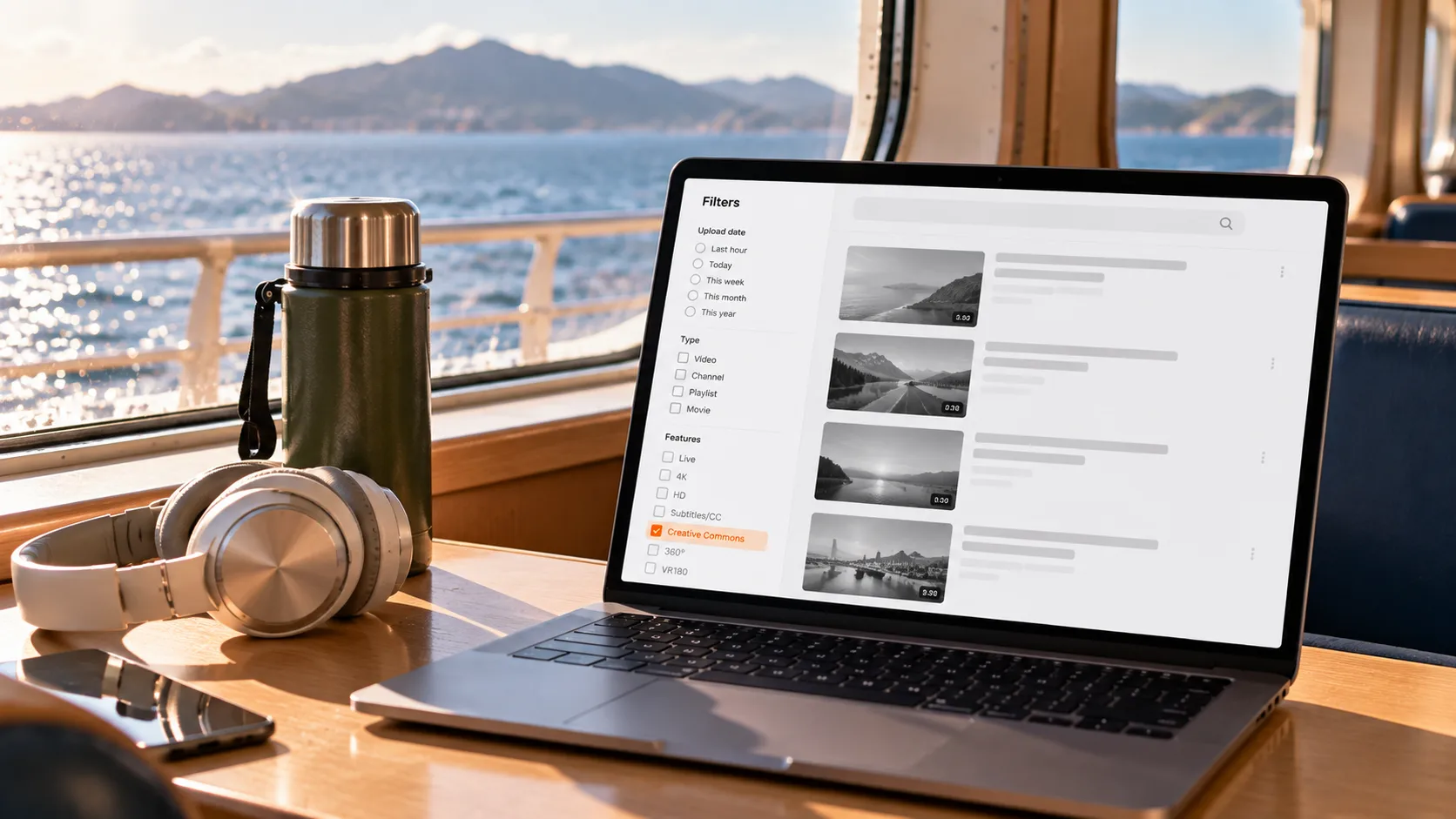
The on-site filter lives on the search results page: click "Filters", choose "Creative Commons" under "Features", and everything left in the list carries this license.It is a built-in YouTube feature, available on both desktop and mobile, with no third-party footage library involved.
The filtered results are worth a second look. Open the video, expand the description with "Show more", and the license row states whether the work carries the "Standard YouTube License" or the "Creative Commons Attribution license". The license row is the final authority: wording in titles and descriptions can go stale, while this row follows the video's actual license setting.
What CC BY grants and what it asks back: the four credit items
The rights CC BY grants are broad: copying, redistribution, remixing, adaptation, building on the original, in any medium and for any purpose, commercial use included; and while you keep to the terms, the licensor cannot revoke these freedoms.That is the official Creative Commons license text, and among the six CC licenses it is the most permissive — the only CC option available in YouTube Studio, since the five stricter variants cannot be selected there.
What you owe back is concentrated in the credit. The four items the YouTube help center lists are:
- The title of the work
- The author of the work
- The source of the work (the URL)
- The license information, for example "Licensed under CC BY"
A text overlay or a voiceover both work. On top of this, the Creative Commons terms add two more: state whether you have made changes; and credit in a reasonable way — it must not read as if the original author were endorsing you or your work.
Two places the license does not reach are worth keeping in mind: the people appearing on camera hold their own rights to likeness and privacy, and the CC license does not cover that layer; and if you want to lift the audio from a Creative Commons video for a soundtrack, the route is in this YouTube audio extraction guide.
How to save a Creative Commons video locally: four steps, credit travels with the file
The license settles "may I use it"; saving settles "do I have it on hand".YouTube offers no direct download button for Creative Commons videos, and the members-only offline download runs on in-app caching, which never yields a universal file — the background is in this YouTube Premium offline download guide. The standard routes for saving YouTube videos are already covered in the YouTube video download guide; here we walk the shortest path for Creative Commons footage.
The operation is four steps:
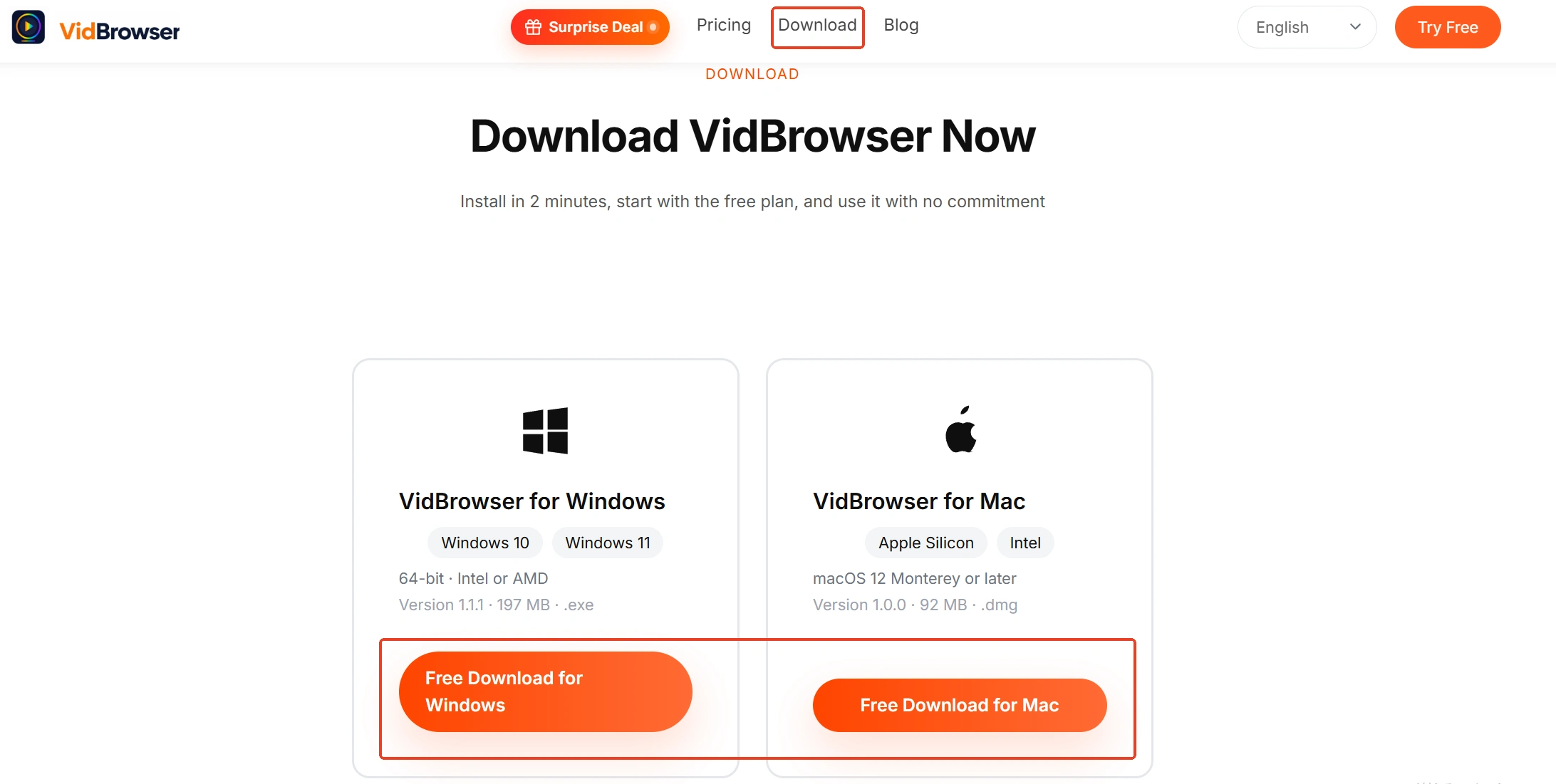
Step 1: Download and install VidBrowser
VidBrowser is a desktop video browser for Windows and Mac that watches video, cuts clips and saves files locally, with downloading and recording built in. The installer is on the VidBrowser video downloader page; installation takes a few minutes.
Step 2: Open YouTube in VidBrowser and filter for Creative Commons videos
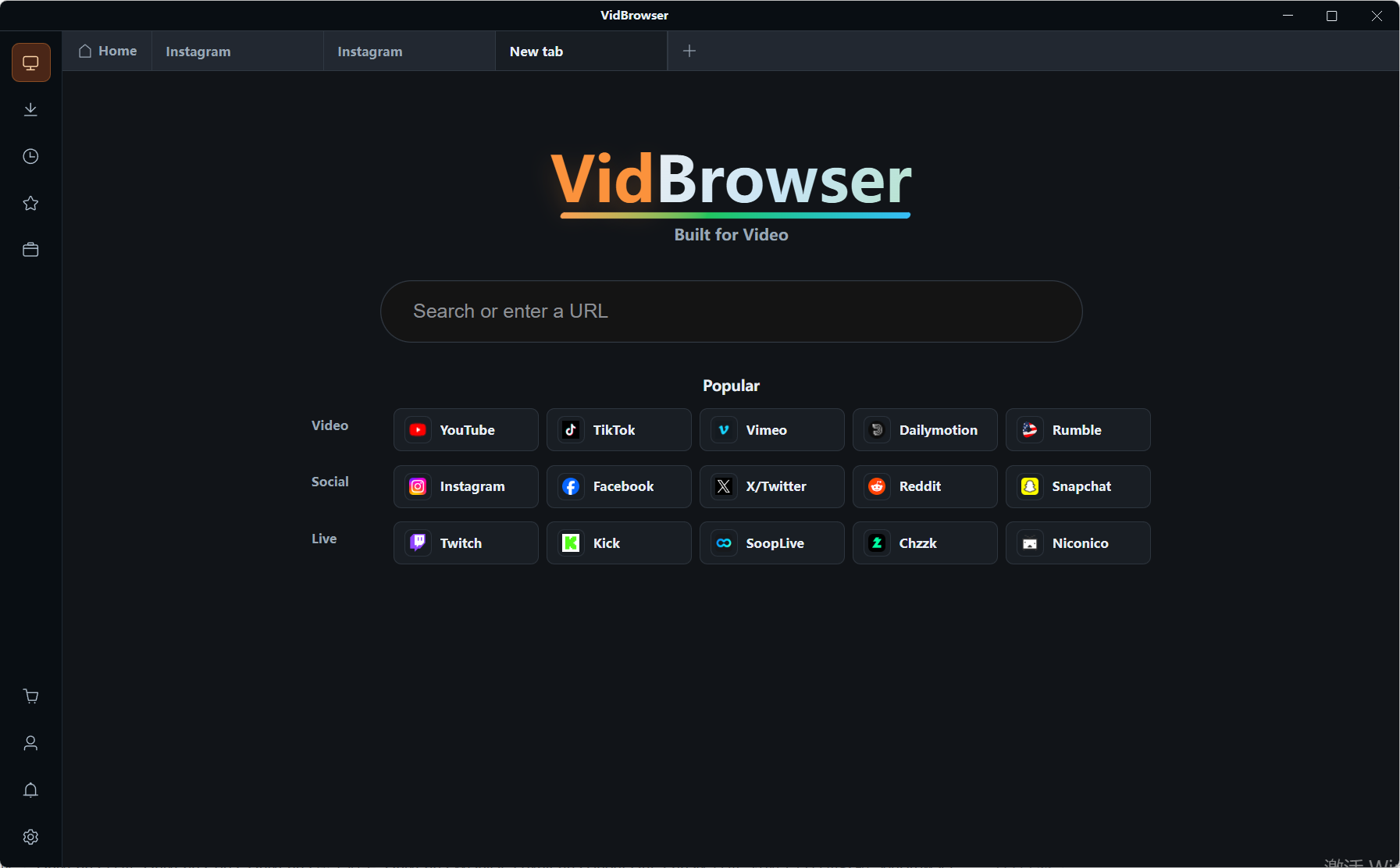
Open YouTube in VidBrowser's built-in browser, tick "Creative Commons" in the filters the way described earlier, find the footage you want and play it.
Step 3: Save the video with the download feature
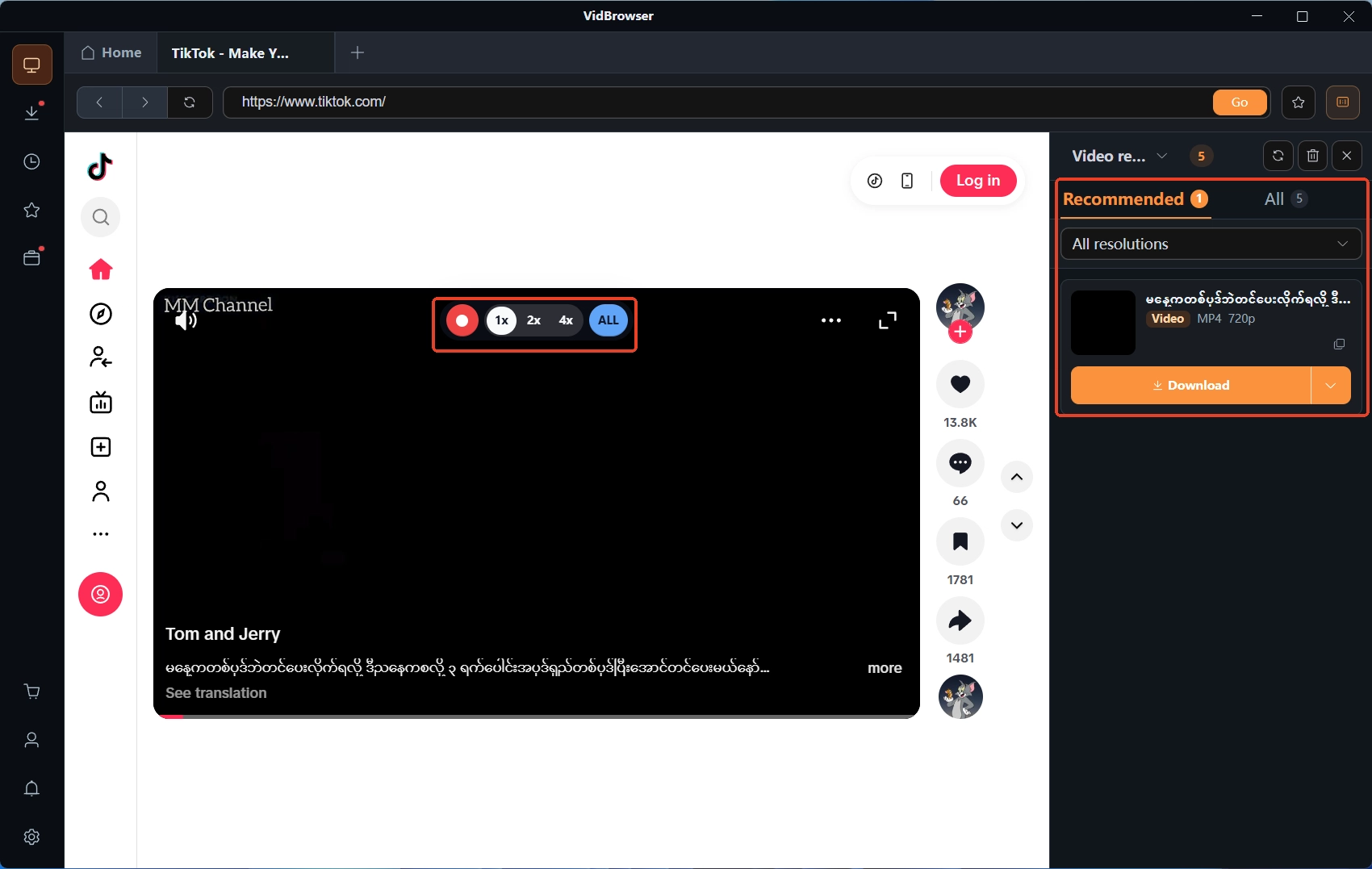
Move the mouse over the video and the "Video Media" panel on the right lists the detected video resources, each with an orange "Download" button; you can pick the quality with the resolution filter dropdown first, then click download, and the file saves as MP4. Creative Commons footage is an ordinary public video, so the download route usually works.
Step 4: If the download route fails, record, and archive the credit alongside
When the download entry is missing on an individual video, fall back to recording: the recording overlay sits on top of the picture — pick a recording speed (1x real time, 2x or 4x to finish faster), click Record All to capture the whole video, and the record button on the left pauses at any time. Once saved, open the "Clock" icon in the left navigation to view the download history, then file the four credit items into the same folder, ready to take out when you reuse the footage.
In summary
Creative Commons is the one video type on YouTube that is genuinely "licensed first, used after": the filter locks on in two steps, the license row gives the final confirmation, and the rights CC BY grants cost a complete credit. Save the footage locally with the credit information kept together in one folder, and the evidence chain is intact whether you adapt or go commercial later.
FAQ
Can Creative Commons videos be used commercially?
Yes. The official CC BY terms state that copying, adapting and reusing apply to any purpose, commercial use included, on the condition of a complete credit. Note the credit must not read as an endorsement by the original author, and the likeness rights of people on camera are not within the license.
Does an adapted video still need the credit?
Yes, and you must say more. CC BY requires stating whether the original work was modified, so when you publish a secondary creation, add a line like "modified from so-and-so's video" to the credit information.
Is saving a Creative Commons video the same thing as saving an ordinary video?
The licensing side is entirely different. An ordinary video's default license explicitly forbids copying and reuse, so saving mostly stays at personal offline keeping; a Creative Commons video is one where the creator deliberately opened copying and adaptation rights, so saving it for secondary use is legitimate and protected by the license. The technical operation is identical.