
The 4K you expected on OnlyFans never shows up in playback. Where the ceiling sits, why it is not on your device, and how to keep the best version the platform delivers.
You pick a video whose preview looks sharp, start the real thing, and something feels off; you want to keep the best-looking copy, but nobody tells you where that "best" actually tops out. Most arguments about OnlyFans quality are stuck on the same mix-up — treating "what the creator uploaded" as "what you can get". A whole delivery stage sits between the two, and once you split them, the highest quality worth keeping becomes answerable.
The official spec for OnlyFans quality has exactly three items
OnlyFans has never published any resolution or bitrate requirement; the specs written into its help center cover size, count and format.The help center page on what a post can contain states the numbers plainly: up to 40 photos or videos per post, images smaller than 6000×6000 pixels, a single video file capped at 3GB, and supported formats of MP4, MOV and AVI. That is the whole list — resolution is not mentioned once.
- Count and size: 40 media per post, images capped at 6000 pixels on the long side;
- Size: 3GB is counted per single video, and multiple videos in one post each get their own allowance;
- Formats: MP4, MOV and AVI — anything outside the list is off the official books.
The "official recommended bitrate" circulating online deserves a second look: third-party gear guides that checked official documents line by line found that every "official requirement" they cite is actually the author's own suggestion. In other words, the question "why no 4K" has no answer at the official level — the platform never promised any resolution tier, so 4K was never "removed".
Why 4K never reaches the delivery stage: shooting and uploading it is not the same as watching it
4K is not banned; the delivery stage simply has no such tier — what you watch is the platform-processed version, never the creator's source file.The official creator guide tells photographers to "set the camera to 1080p or 4K", so 4K material can be shot and uploaded without obstacle, and a 4K clip under 3GB fits a post just fine. The divergence comes later: hands-on tests from third-party tools and reviews line up remarkably well — the highest tier actually delivered on playback lands around 1080p, and the source file is not placed on the platform untouched.
Uploads get re-encoded and distribution serves streams by tier; the underlying chunking and tiering mechanism was broken down in the streaming chunking piece, and OnlyFans is one more carrier of it. For subscribers the conclusion matters more than the mechanism: the creator's upload sets the starting point, the platform's processing decides the version you get, and neither happens on your device — that is where "the quality ceiling is not your device's business" comes from.
Video looks blurry? Two checks locate the layer at fault
The order of judgment is source first, environment second: if the source itself is low-res nothing downstream helps; only when the source is sharp does the playback environment deserve a check.Neither check takes any effort, and doing them once settles the question on your own:
- Check one, compare across time: watch the same creator's videos from different periods. Blurry throughout means the upload side was already at that level — phone-shot, poor lighting, and the platform will not restore detail to a soft source. A sharp/shaky gap between old and new is a footage-age issue, unrelated to your account or device.
- Check two, file comparison: look at the resolution noted in the properties of a saved file and match it against what you saw while watching. If the two agree, the version you got is the one the platform delivered — there was never a "slightly higher one" you missed.
Two common mix-ups worth clearing while we are here: upscaling tools can stretch a picture, but what they produce is spread-out pixels, not recovered detail; and when the same video looks steadier on a computer than on a phone, first confirm you are on a legitimate entrance — the various "OnlyFans apps" are sorted out type by type in the OnlyFans app piece.
Keep the highest quality the platform delivers
How much can you keep? One sentence: what gets saved is the platform-delivered version; recording's value is landing what you watched as-is, and downloading's value is skipping the real-time wait.The whole operation is four steps:
Step 1: Download and install VidBrowser
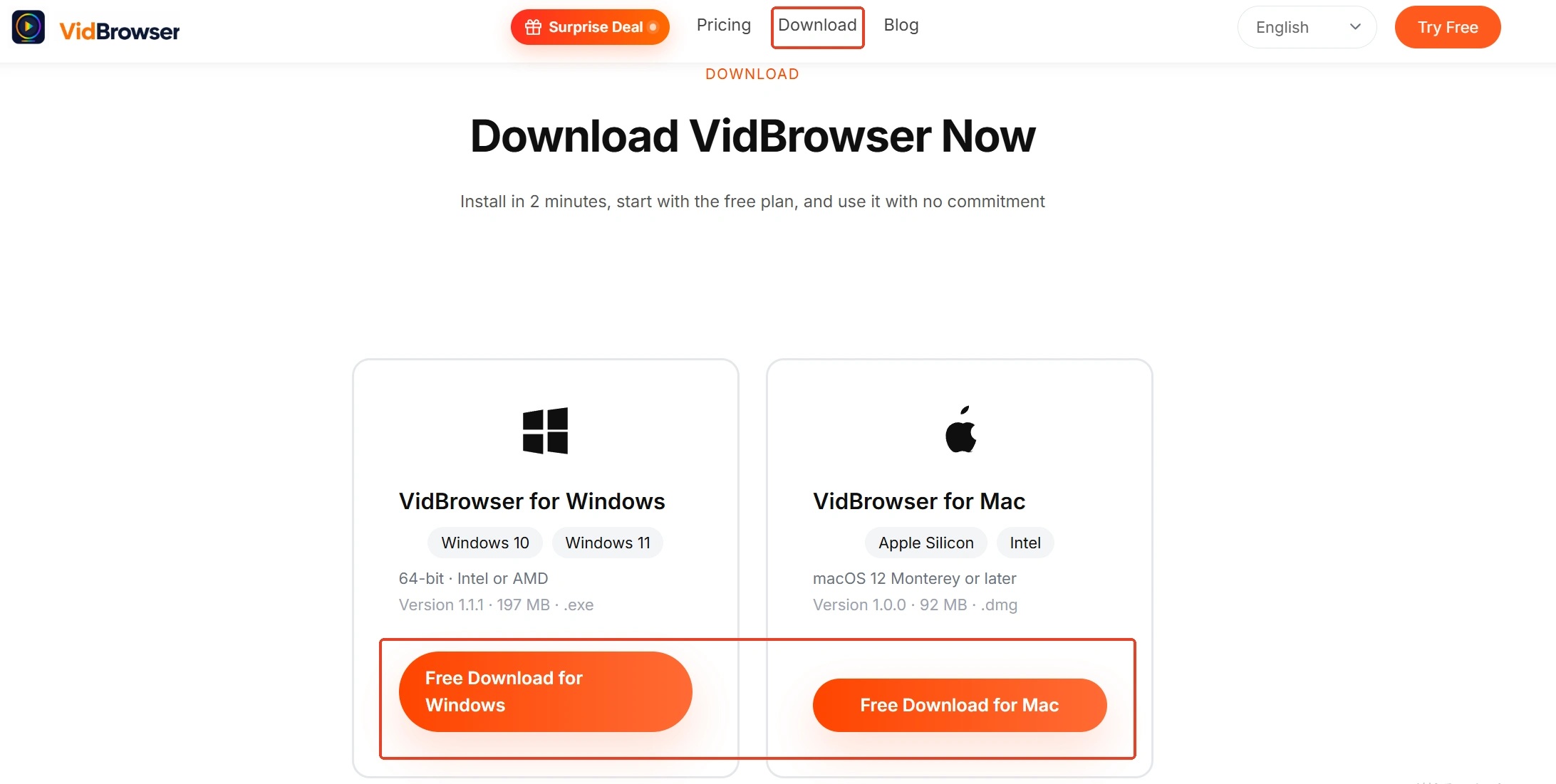
Get the installer from the VidBrowser OnlyFans downloader page. It is a desktop video browser for Windows and Mac that watches video, cuts clips and saves files locally, with downloading and recording built in; installation takes a few minutes.
Step 2: Open onlyfans.com in VidBrowser and sign in
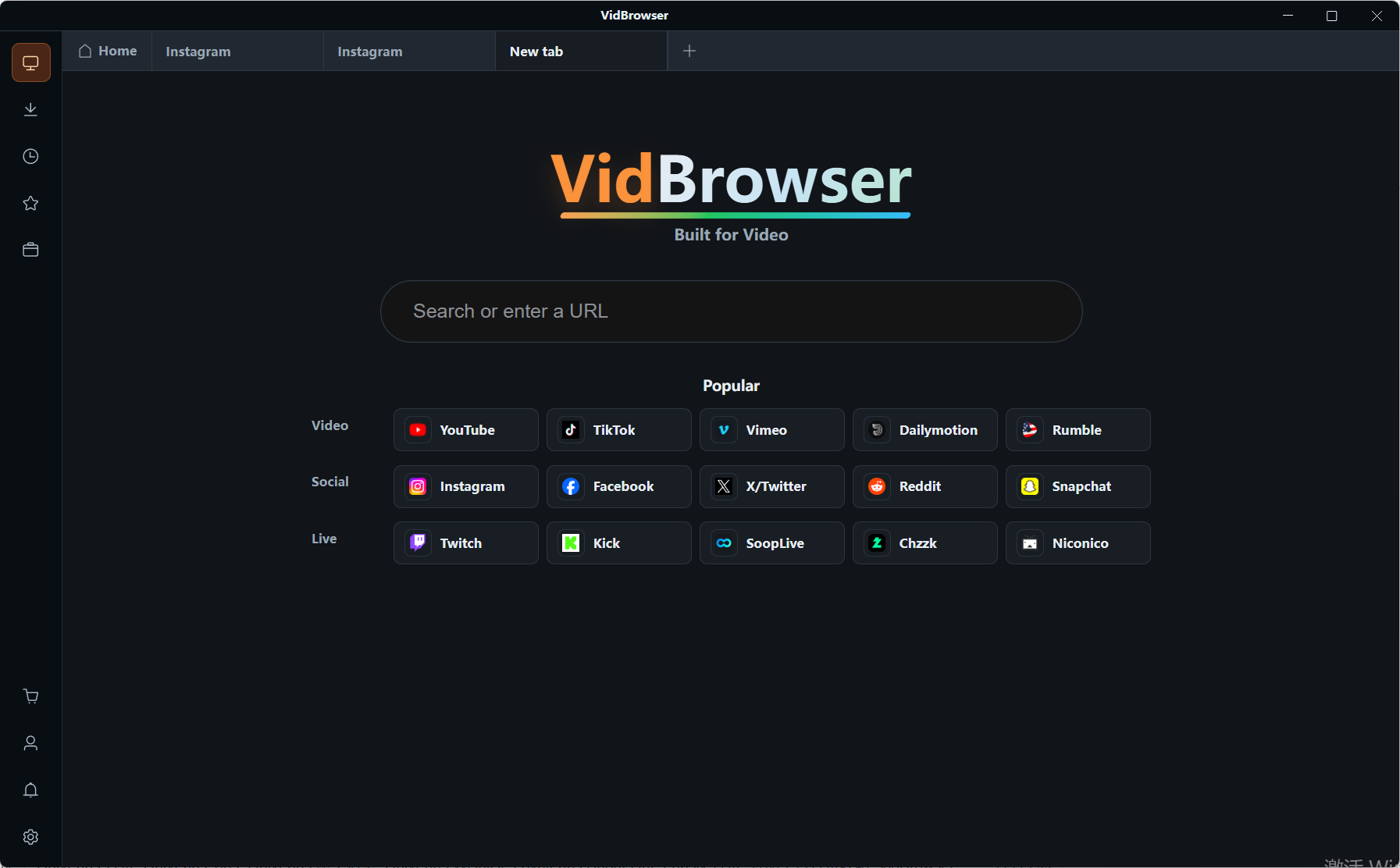
Type the onlyfans.com address into the address bar and sign in — it behaves like a browser, and after login the page looks exactly as usual.
Step 3: Pick the entry with the highest resolution label
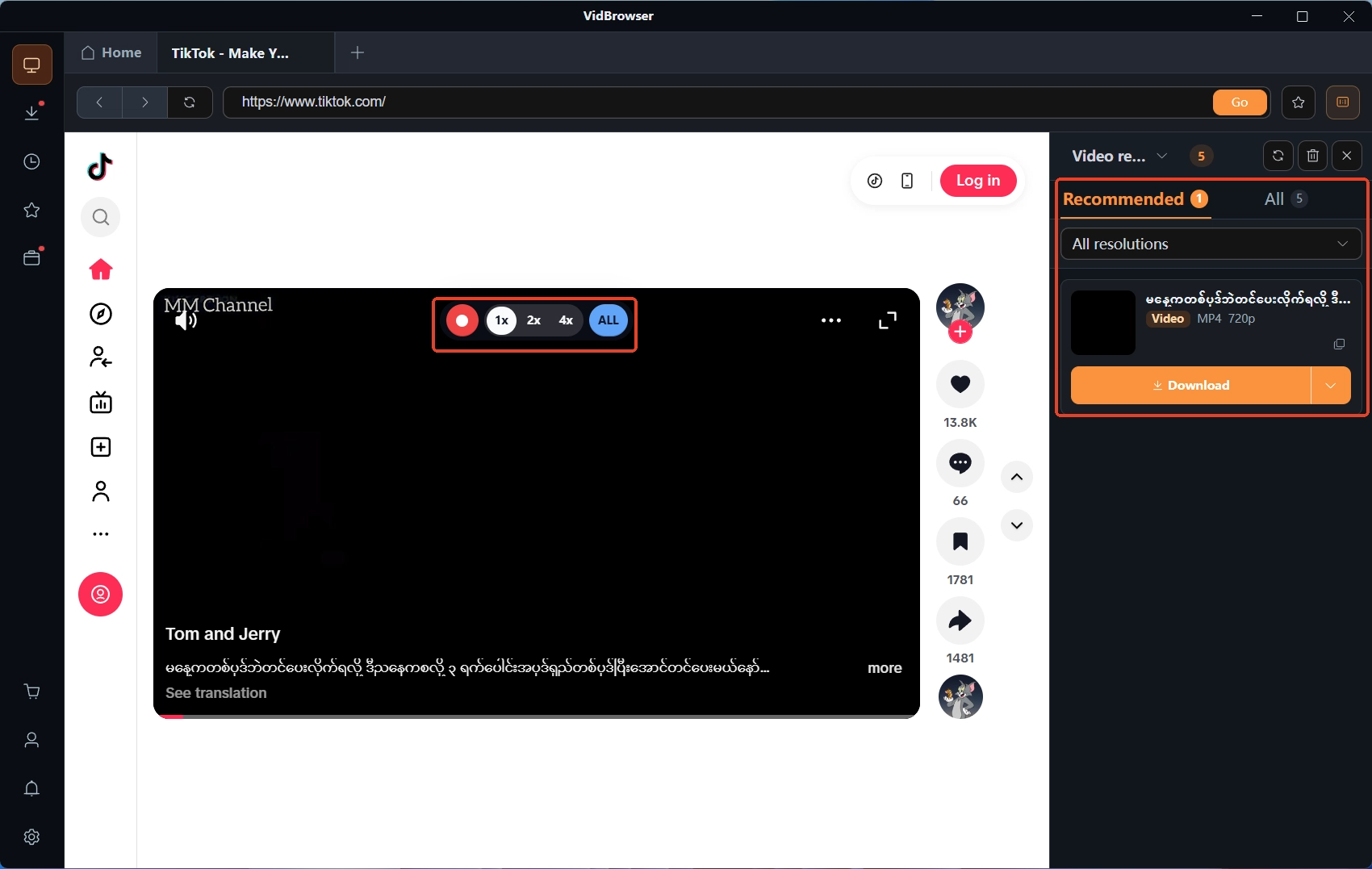
Open the target video and let the player load normally; the Video Media panel on the right lists detected video resources, with the resolution filter defaulting to "All resolutions" — once a resolution is chosen, entries at that resolution fan out next to the download button. Pick the entry with the highest resolution label; it is the peak of what the platform delivers.
Step 4: Use recording to save (first choice for protected content)
Videos on subscription platforms like OnlyFans are mostly copyright-protected and ordinary downloaders cannot grab them, so recording is the most reliable way to save: move the mouse over the video and the recording overlay appears — pick a recording speed (1x real time, 2x or 4x to finish faster), click Record All to capture the whole video, and the record button on the left can start or pause at any time. If a video is directly downloadable, the Video Media panel on the right also lists it with an orange "Download" button; one click saves it as MP4. File name, size, status and save location for every task are visible in "Download history" behind the clock icon in the left navigation. The main flow matches the OnlyFans saving piece; the increment here is the judgment before saving — the source's blur is not the tool's fault, and the platform-delivered version is the ceiling of what can be kept.
In summary
The OnlyFans quality ledger is simple: the official side governs 3GB and formats, resolution is decided jointly by the creator's source and the platform's processing, and the delivery stage has no 4K tier. So "the most you can save" is the platform-delivered version — run the two checks first to split source problems from delivery problems, then land what you watched with recording, and pick the highest resolution label in the download list.
FAQ
Can an OnlyFans video be saved in 4K?
No version of that appears out of thin air. What you record and what you download are both the platform-delivered version; with no 4K in delivery, the tool side will not grow one. After saving, the resolution in the file's properties is the peak that video reached on the platform.
Does a pricier subscription tier mean better quality?
No. OnlyFans subscriptions are single-tier, with no quality ladder by price; whether a video is sharp depends on the creator's source quality and the platform's processed delivery, which does not map to what you pay.
Is it worthwhile for creators to upload 4K material?
It matters to creators, not to the viewer's ceiling. A 4K master is handy for archiving and cutting versions of different lengths, but subscribers always see the platform-processed version — judge sharpness by the delivery stage.


