
OnlyFans Has No Official App: How to Use It on Phone & Desktop (2026)
Search "OnlyFans" in the app stores and you will get plenty of results — none of them the one you are looking for. Here is the short answer: OnlyFans has no official mobile app and no desktop app — not because it is lazy, but because it simply cannot get listed. You can still use it on your phone, just not the way you expected; and some things a phone is naturally bad at. This guide covers how to use OnlyFans on mobile and where desktop really shines, all in one place.
OnlyFans Has No Official App — the Web Version Is the Only Legitimate Entrance
OnlyFans has no mobile app and no desktop app — its official blog states plainly: there is no standalone app for iPhone, Android, or desktop, and the browser is the only entrance.
Why is there still no app in 2026? It is not a technical problem — it is two walls that cannot be crossed:
- App store policies: Both Apple’s App Store Review Guidelines and Google Play’s Developer Policies prohibit apps whose primary purpose is adult content — OnlyFans’ core content could never pass review
- The math does not work: Apple and Google take 15%–30% of in-app purchases, while OnlyFans splits 80/20 with creators and keeps only 20% — adding another store cut would push creator earnings or subscription prices out of control
Its scale shows it does not need to please the app stores: According to the UK filings of parent company Fenix International, OnlyFans processed about $7.22 billion in payments in 2024, covering about 4.6 million creator accounts. So the "mobile OnlyFans" is simply the browser opening onlyfans.com — feed, subscriptions, DMs, PPV purchases, payment management, nothing missing. Payment methods like wallets and bank transfers work the same as we covered in How to Pay on OnlyFans.
Many people believe an "official app exists," usually misled by two things: the fake apps in the stores look too real, and OnlyFans does have an official app called OFTV — but it is a different thing from the main site, covered separately below.
Add the OnlyFans Web Version to Your Phone’s Home Screen in Three Steps
The web version can dress up as an app: your browser’s "Add to Home Screen" feature makes it open fullscreen like a native app in 30 seconds. This format is called a PWA (Progressive Web App), and OnlyFans’ official blog has published a tutorial for it.
- iPhone (Safari): Open onlyfans.com and log in → tap the Share button at the bottom → swipe to find "Add to Home Screen" → confirm
- Android (Chrome): Open onlyfans.com → three-dot menu at the top right → tap "Add to Home screen" (some versions show "Install app") → confirm
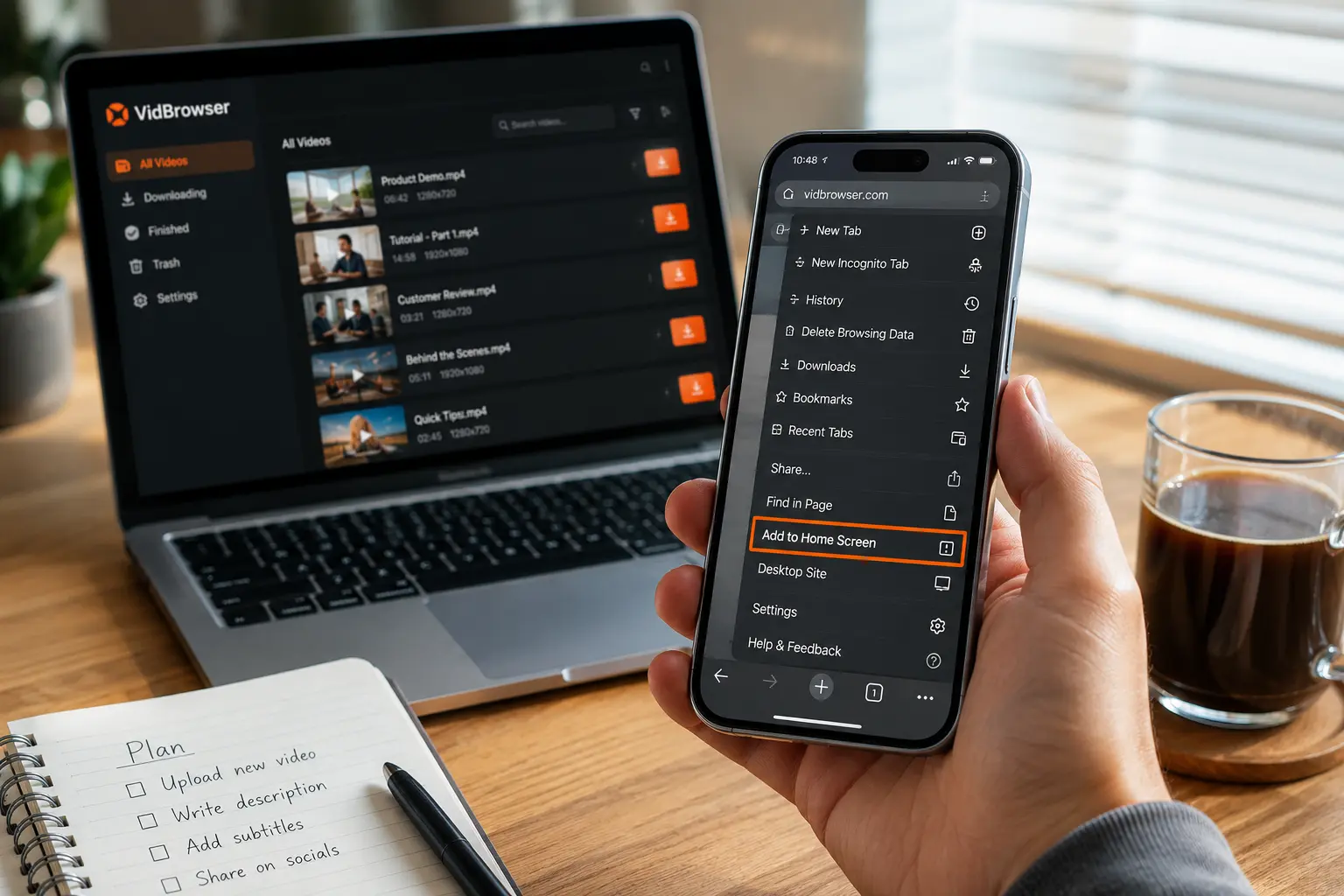
Two rarely-mentioned details are more practical than the install steps themselves:
- You can rename the icon: When adding it, change the default "OnlyFans" to a neutral word like "Notes" or "Weather" so handing the phone to someone else does not give it away
- Clearing browser data logs you out: The home-screen icon is still a web page — clearing cookies means logging in again, so set up two-factor authentication in advance to avoid panic after being logged out
Every "OnlyFans App" in the App Stores Is Fake
Search "OnlyFans" in the App Store or Google Play and none of the results are official. Finding results actually lowers your guard. The common three:
- "Free access to paid content" viewer/unlocker tools — they do not work at all; installing one hands your account and password over
- Counterfeit apps bearing the OnlyFans logo — trademark squatting that collects data and tricks you into subscription charges
- APK install packages outside the stores — the highest risk, with fake login pages phishing for credentials and bank card details
There is only one rule: enter your password and payment information only on onlyfans.com opened in a browser. Any app that asks you to log in to OnlyFans is a scam.
The only official exception is OFTV — a free app from the same company, installable on iOS, Android, Apple TV, Roku, Fire TV and mainstream smart TVs. Its content is only compliant material like fitness, food, interviews and behind-the-scenes; you cannot log in to the main site, and it has nothing to do with your paid subscription. It is more like the official "storefront" in the app stores that also gives creators a discovery channel — do not mistake it for a mobile OnlyFans.
The Real Gap Between Mobile and Desktop Hides in Four Details
The mobile web version is fully featured, but compared with desktop the gap is not in the feature list — it is in four details of the actual experience.
- Notification reliability: PWA push is less reliable than native apps, and missing livestream alerts is common — for tracking streams, the three channels in our OnlyFans livestream guide beat relying on system notifications alone
- Input and bulk actions: Long DMs, scrolling chat history, managing multiple subscriptions — a small screen plus a virtual keyboard loses efficiency fast
- Multitasking: A phone guards one page at a time; on a computer you can watch a video while browsing a creator’s page to compare prices
- Video playback: On mobile data the player drops quality and streaming breaks when you switch apps; a big screen with a stable network is the only way to full quality
Another easily-missed gap is session and account security: tapping "remember login" on a phone browser means far higher risk if the device is lost or borrowed; a computer sits in a relatively fixed environment, and with a dedicated email and a strong password your account has a thicker safety net.
The scenario split is clear: commute and lunch-break feed scrolling on the phone; serious long-video watching, stream following, subscription and message handling on the computer.
Saving the Videos You Like — Desktop Is the Main Battlefield
There is hardly a reliable way to save content on mobile; on the computer, VidBrowser is the tool that turns your subscriptions into files you keep. It only takes a few steps:
Step 1: Download and install VidBrowser
VidBrowser is a desktop video browser with built-in download and recording features, available for Windows and Mac; installation takes only a few minutes.
Step 2: Open onlyfans.com in VidBrowser and log in
It is essentially a browser — after logging in, the pages look exactly as usual.
Step 3: Open the page of the video you want to save
Open the target video or livestream and let the player load normally.
Step 4: Save with the recording feature (best for protected content)
Videos on subscription platforms like OnlyFans are mostly copyright-protected, so ordinary download tools cannot grab them — VidBrowser’s recording feature is the most reliable way to save: hover the mouse over the video and a recording overlay appears — choose the recording speed (1x real-time, or 2x / 4x to finish faster), click "Record All" to record the entire video, and the record button on the left can start or pause at any time — anything that plays can be recorded. If a video can be downloaded directly, the "Video Library" panel on the right also lists entries with an orange "Download" button; one click saves it as MP4 (you can also pick the resolution first).
Step 5: Check the files in the history
The clock icon in the left navigation shows all download task records: file name, size, status and save location are all there.
Phone and Computer Together Is the Smoothest Rhythm
The phone’s value is "always there": scrolling feeds, replying to messages, knowing the moment a stream starts; the computer’s value is "consuming seriously": full quality on a big screen, managing subscriptions, archiving the content worth keeping. Sort out the division of labor and the subscription experience is complete.
FAQ
Will OnlyFans ever release an official app?
As long as Apple and Google keep their current policies on apps whose primary purpose is adult content, a full-featured official app will not appear. OFTV is the only official app, and it contains no subscription content.
Does the OnlyFans icon on my phone’s home screen expose my privacy?
The icon shows "OnlyFans" by default and can be renamed when adding; to be extra careful, use a browser bookmark and enter from it every time. For browser traces and billing privacy, we covered the full approach in our OnlyFans privacy & security guide.
What if the PWA does not deliver notifications?
Web push is unreliable by nature; the dependable fallback is email notifications plus watching creators’ feeds and social media announcements, rather than relying on system pop-ups.


