
OnlyFans Live Streams Complete Guide: How to Watch, Catch Up, and Save (2026)
You get a notification that a creator you follow just went live, tap in, and the stream has already been running for half an hour; or you remember it the next day, scroll through their profile and can't find any "replay" button anywhere — these are the two moments OnlyFans live viewers run into most often. Watching OnlyFans lives isn't hard; the real challenges are not missing them and keeping them: going live depends on notifications, replays depend on the creator's mood, and live streams can only be captured by recording. This article covers how to watch, how to catch up, and how to save — all in one place.
Three Types of OnlyFans Live Access: Included, PPV, and Tip-Exclusive
OnlyFans lives are not a single unified entry point — there are three types of access, and the first step is figuring out which one you're dealing with. Based on how OnlyFans works and third-party subscription guides, only subscribers can watch a creator's live streams, but the cost of watching comes in three tiers:
- Included in subscription: the most common type, covered by your monthly subscription — if you're subscribed, you can watch. Watching itself is free, but interaction in the live room relies mainly on tips — tipping is the main source of live income for creators, and many streams are carried by top tippers calling out interactions.
- PPV live streams: special sessions are charged separately, so even subscribers pay extra to unlock them. Creators usually preview the intensity of the content in advance, and the price is set by the creator.
- Tip-exclusive live streams: these require a recent tip or gift interaction to enter — essentially a private session for the fans most willing to pay.
Understanding the types matters for budgeting: the subscription fee is only the base price; PPV lives and tips are the variables. If the creator you follow streams a lot, it's more realistic to set aside 30%–50% of your monthly budget for live sessions — we broke down the math in our article on how to save money on OnlyFans.
A 30-second checklist before the stream starts
- Notifications are turned on — don't wait until the stream has started to realize it
- Check whether this session is included or PPV; for PPV, confirm the price before unlocking
- Make sure you have enough bandwidth — live streams are far more data-hungry than scrolling your feed, and endless buffering isn't worth it
How to Turn On Live Notifications: Three Channels So You Never Miss a Stream
OnlyFans has no unified live schedule page, so never missing a stream comes down to stacking three channels. The platform itself offers in-app notifications, but that's only one piece of the puzzle:
- In-app notifications: go to the creator's profile and tap the bell icon to enable notifications, and you'll get an alert from the platform when they go live. This is the only official push channel — check that it's enabled first.
- Mass messages: creators often announce stream times in advance via mass messages, which land directly in your DM list. Don't swipe them away as ordinary promo spam.
- Social media previews: a large share of creators post their live schedules on platforms like X (Twitter) — since there's no schedule page on-site, social media is often the most detailed source of announcements.
One more rule of thumb worth remembering: creators in Europe and the US tend to stream in their local evenings (early morning to mid-morning Beijing time). If you don't want to stay up for a live, turn on notifications and let your phone's reminders do the work instead of refreshing the profile page.
No Replay Tab: Two Ways to Catch Up After Missing a Live
OnlyFans has no replay feature — whether you can catch up after missing a live depends entirely on the creator. Many users are misled into hunting for a "Replay tab," but that feature has never existed. Third-party creator guides are clear on this: after a stream ends, the recording has only two possible destinations:
- The creator posts the recording to their feed: when ending a stream, creators can choose to share the recording as a post — if they do, you can watch it on their profile like any regular video.
- No post — the recording goes into the creator's Vault: this is the platform's private media library for creators, invisible to fans. In that case, the only option is to DM and ask directly — many creators are happy to sell the live recording to you as a PPV message, at a price they set.
So next time you miss a live, the right move is: first check the creator's feed for a recording post, and if there isn't one, politely DM and ask "is the recording from your last stream still available?" — far more useful than hunting for a non-existent "replay entrance." This mechanism also differs from regular video posts when it comes to downloading; we covered the full steps for saving replay posts in our OnlyFans video download guide.
Saving OnlyFans Lives: Replays Can Be Downloaded, Live Streams Can Only Be Recorded
The core conclusion about saving OnlyFans content comes down to one line: replay videos you can find can be downloaded directly, while a live stream in progress can only be captured with the recording feature — and the moment to record is while it's happening. The reason was covered above: if the creator never posts a replay, that stream disappears forever, and a few days later there may not even be a PPV to buy. So for lives you care about, capturing them on the spot is the safest approach.
There are two ways to save, and VidBrowser (a desktop video browser) handles both:
Step 1: Download and install VidBrowser
VidBrowser is a desktop video browser with built-in download and recording features that supports Windows and Mac, and installation takes just a few minutes.
Step 2: Open OnlyFans in VidBrowser and log in
Open the OnlyFans web version and log in just like using a normal browser — creators you follow, DMs, and your feed are all there.
Step 3: Enter the live room or find the replay video
When a stream is live, click in and get ready to record in real time; if you're catching up on a replay post the creator shared, just play the video.
Step 4: Use the recording feature (the first choice for protected content)
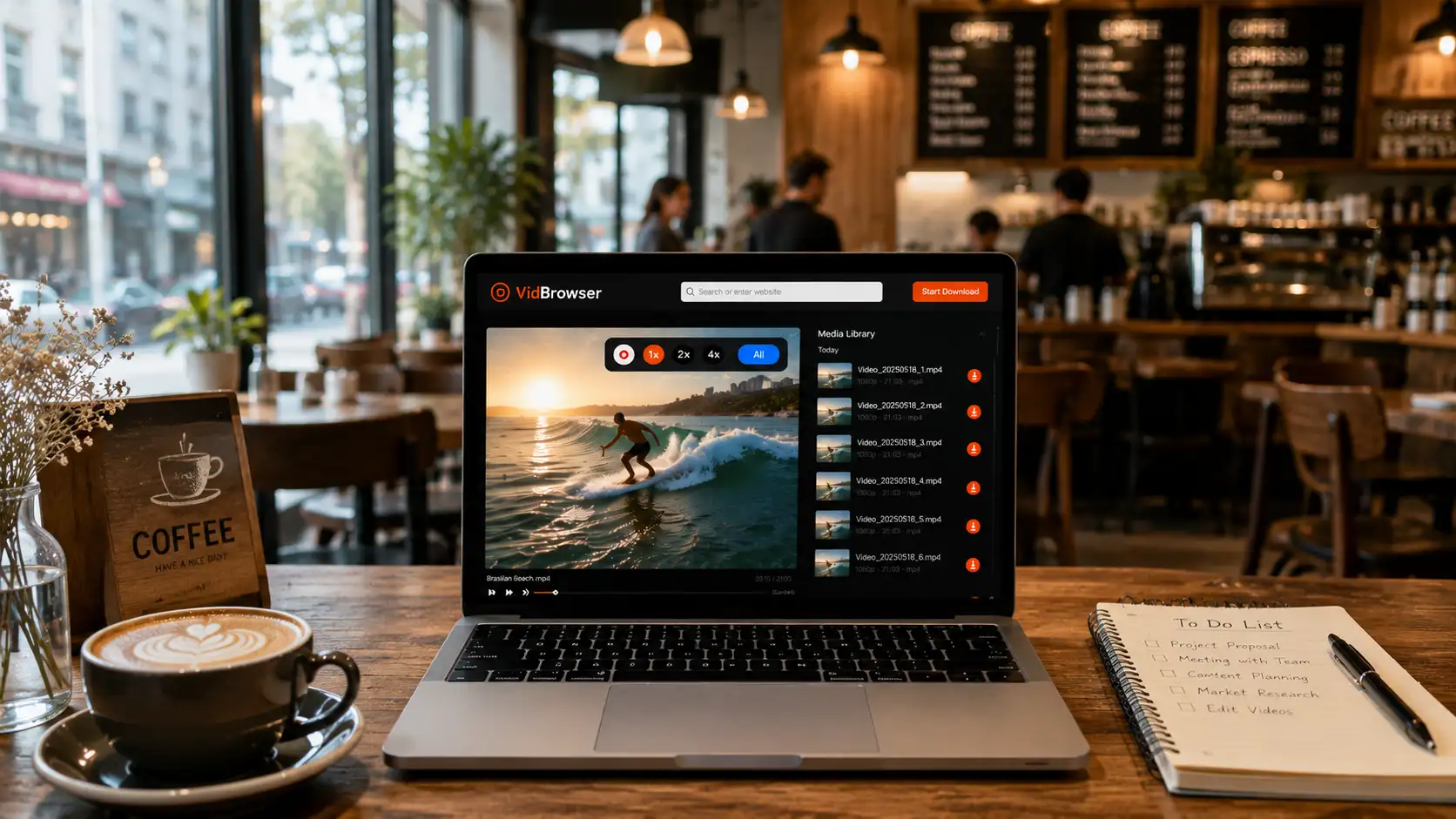
Videos on subscription platforms like OnlyFans are mostly copyright-protected, so ordinary download tools can't grab them — recording is the most reliable way to save. Move your mouse over the video and the recording controls appear as an overlay: choose the recording speed (1x real time, or 2x/4x to finish faster), click "Record All" to capture the entire video, and the recording button on the left lets you start or pause at any time. Anything that can play can be recorded. Live streams work the same way — the stream runs as long as you record.
Step 5: Replay videos can be downloaded directly (as a supplement)
If the creator has already posted the recording as a regular video post, the "Video Library" panel on the right will list the detected video entries — click the orange "Download" button to save it as MP4 (you can also pick the resolution from the dropdown first).
Together, the two methods cover every form of live content, and your download history is available anytime via the clock icon in the left navigation, making it easy to go back and record sessions you missed.
Two Viewing Habits That Matter More Than Any Tool
After the how-to, two easily overlooked habits are worth fixing:
- Read the room rules before interacting: many creators explain their tip-for-request rules at the start of a stream. Watch for a few minutes before interacting — it lands far better than flooding the chat the moment you arrive.
- Don't bare your privacy in the live room: chat messages and tip records are tied to your real-name payment method, so never share personal information in the chat; if you have concerns about billing privacy, we covered the virtual-card approach in our OnlyFans privacy and billing security guide.
With habits set, notifications on, and saving handled, an OnlyFans live truly becomes "watched it, kept it."
FAQ
Can I still watch a replay if I missed an OnlyFans live?
The platform has no replay feature — whether you can catch up depends on the creator: if they posted the recording to their feed, you can watch it; if not, the recording sits in the creator's private media library, and your only option is to DM and ask whether it's available as a PPV purchase.
What's the difference between a PPV live and a regular live?
A regular live is included in the subscription — subscribed, you can watch. A PPV live is a separately billed special session that even subscribers must pay extra to unlock, usually with more intense and scarcer content.
How do I save an OnlyFans live?
Replay video posts can be saved as MP4 directly with VidBrowser's download button; live streams carry no replay guarantee, so recording them on the spot is the safest option, supporting 1x real time and 2x/4x speeds. Most OnlyFans videos are copyright-protected and can't be grabbed by ordinary download tools — recording is the more reliable route.


