How to Download OnlyFans Videos in 2026
You paid for the subscription. The video is right there in your feed. But the moment you want to watch it on a plane, or you start worrying a creator might delete their page one day, you hit a wall: OnlyFans gives you no way to save anything.
There's no download button. No offline mode. No desktop app at all. And if you've already tried the usual tricks — screen recording, browser extensions — you've probably met the black screen the hard way.
Here's what actually works in 2026.
Does OnlyFans Have an Official Download Option?
No — and that's deliberate.
OnlyFans streams every video inside its own player and keeps the content locked there. There's no download feature on the web version, no official desktop app, and no offline viewing mode like you'd get with YouTube Premium.
From the platform's perspective, this protects creators. From a subscriber's perspective, it means a video you paid to watch can vanish the day the creator deletes it, closes their account, or your subscription lapses — and inside OnlyFans itself, there's nothing you can do about it.
So people turn to third-party tools. Most of them fail.
Why Screen Recording and Extensions Fail on OnlyFans
Screen recorders capture a black rectangle. OBS, QuickTime, Xbox Game Bar, Bandicam — it doesn't matter which one you use. When you hit record, OnlyFans protects its video output at the system level. Your recorder faithfully saves that black frame, usually with the audio playing over it. You get a black video with sound. (We break down the technical reasons in our black screen fix guide.)
Browser extensions and "OnlyFans downloader" sites can't reach the stream either. The video is delivered in a way that typical extraction tools can't assemble into a playable file. Most of those tools were built for ordinary web video — OnlyFans is not ordinary web video.
And the sketchy ones are worse than useless. Tools that ask for your OnlyFans password or session cookie are a genuine security risk — you're handing strangers full access to your account, your payment card, and your subscription history. Stolen accounts and bans are common outcomes. Never enter your OnlyFans credentials anywhere except the official login page.
How to Download OnlyFans Videos with VidBrowser
VidBrowser is a desktop browser built for video. It takes a different approach: instead of attacking the video from the outside, it plays the video inside a fully authorized browser — and saves the actual stream you're watching.
Step 1: Download and install VidBrowser
Download VidBrowser free for Windows or Mac. Installation takes a couple of minutes.
Step 2: Open OnlyFans in VidBrowser and log in
Launch VidBrowser and go to onlyfans.com. Log in with your normal account through the regular OnlyFans login page — you're simply browsing OnlyFans in a different browser.
Step 3: Play the video you want to save
Open your subscriptions, pick a video, and press play. Any video you have access to works — feed posts, pay-per-view content you've unlocked, archived posts.
Step 4: Click the orange badge
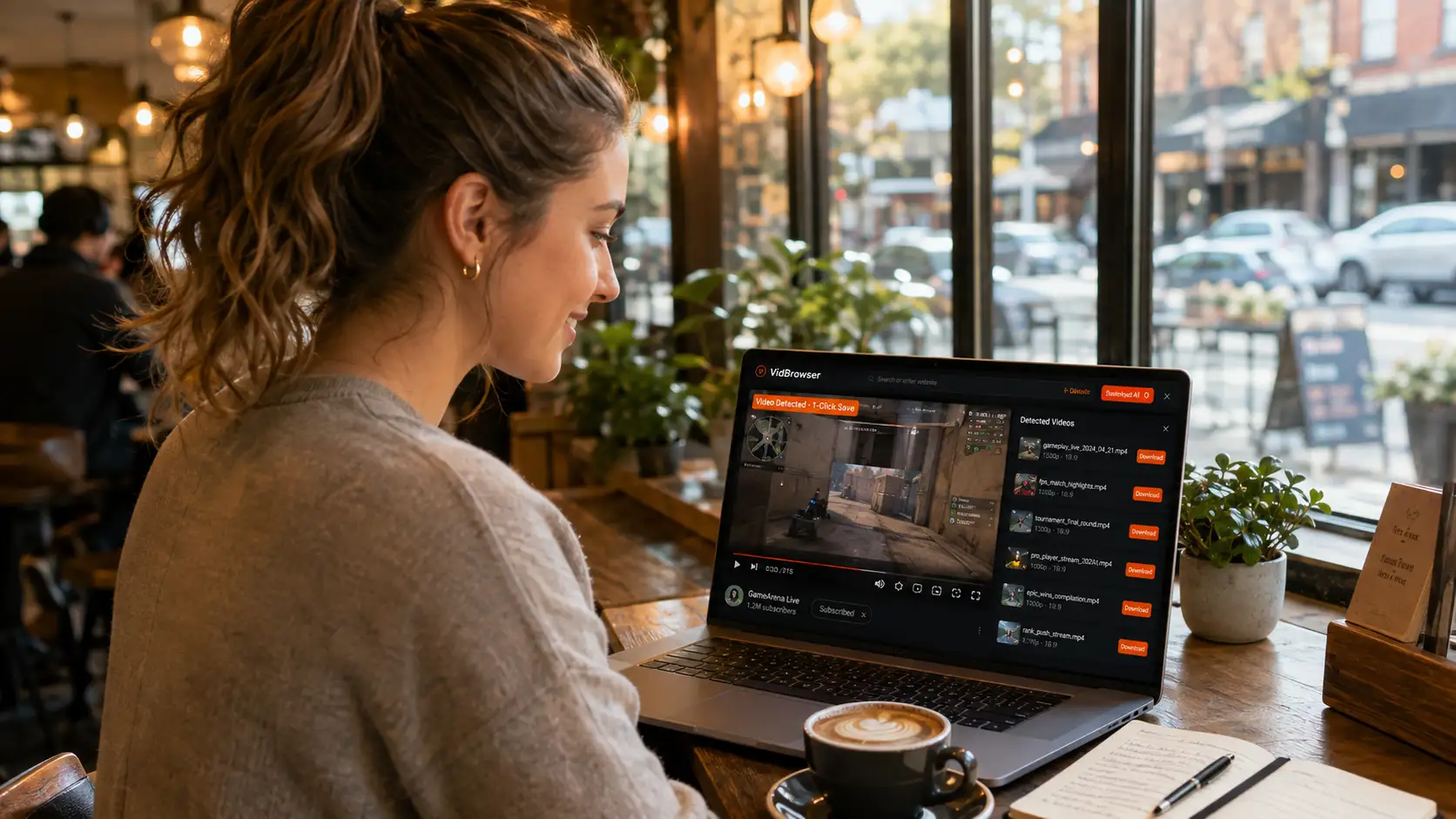
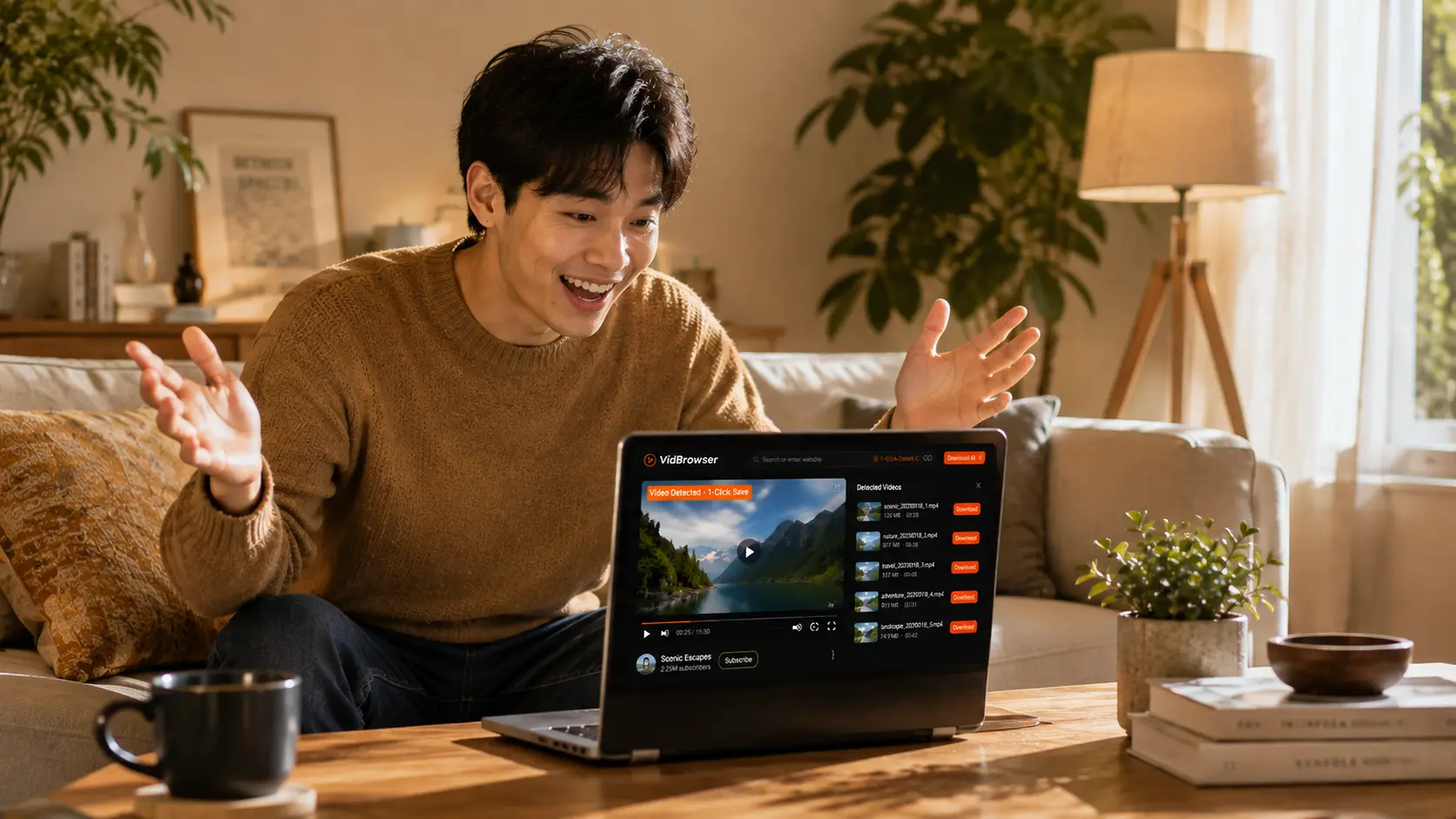
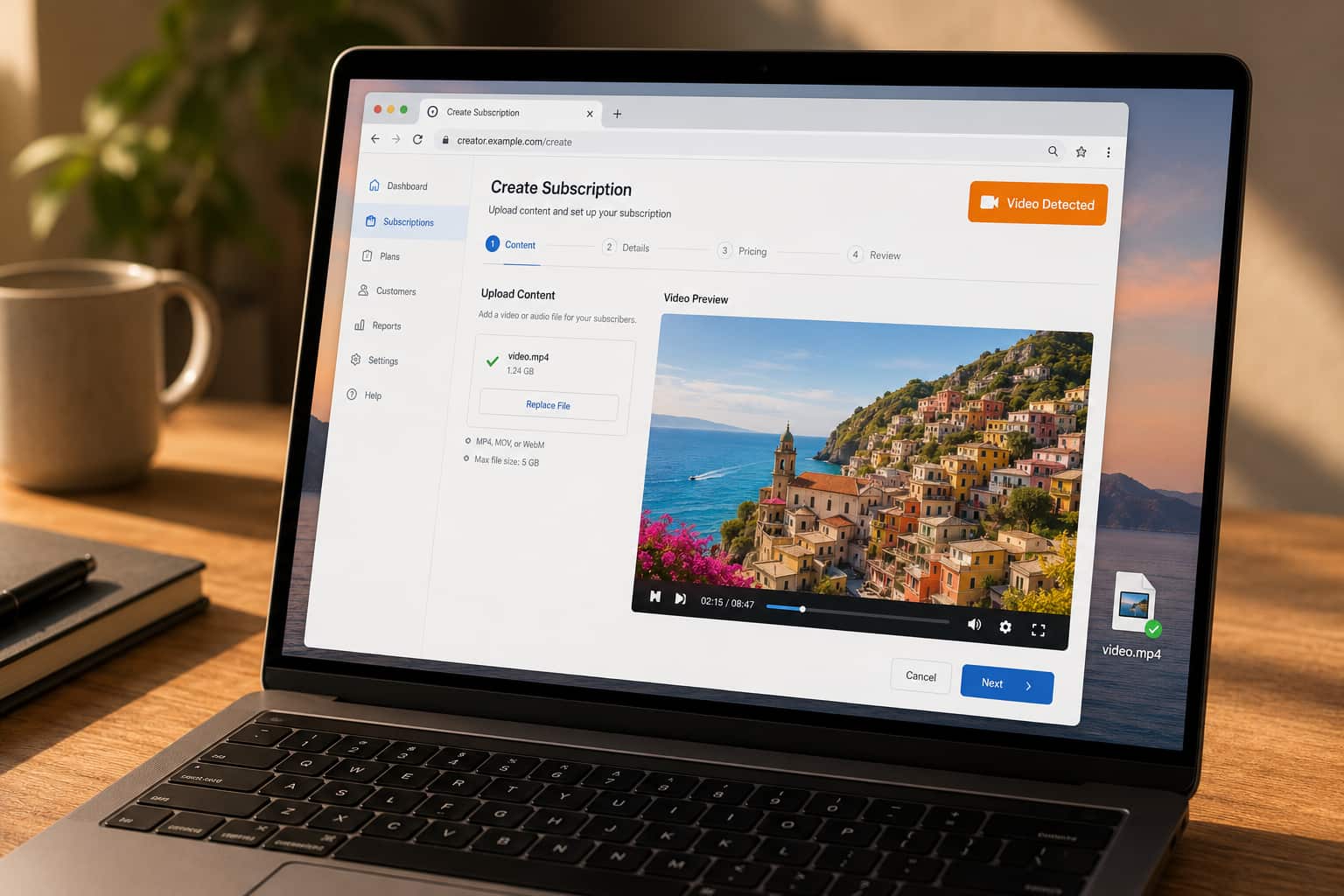
As soon as playback starts, an orange "Video Detected · 1-Click Save" badge appears in the top-right corner. Click it.
Step 5: Done
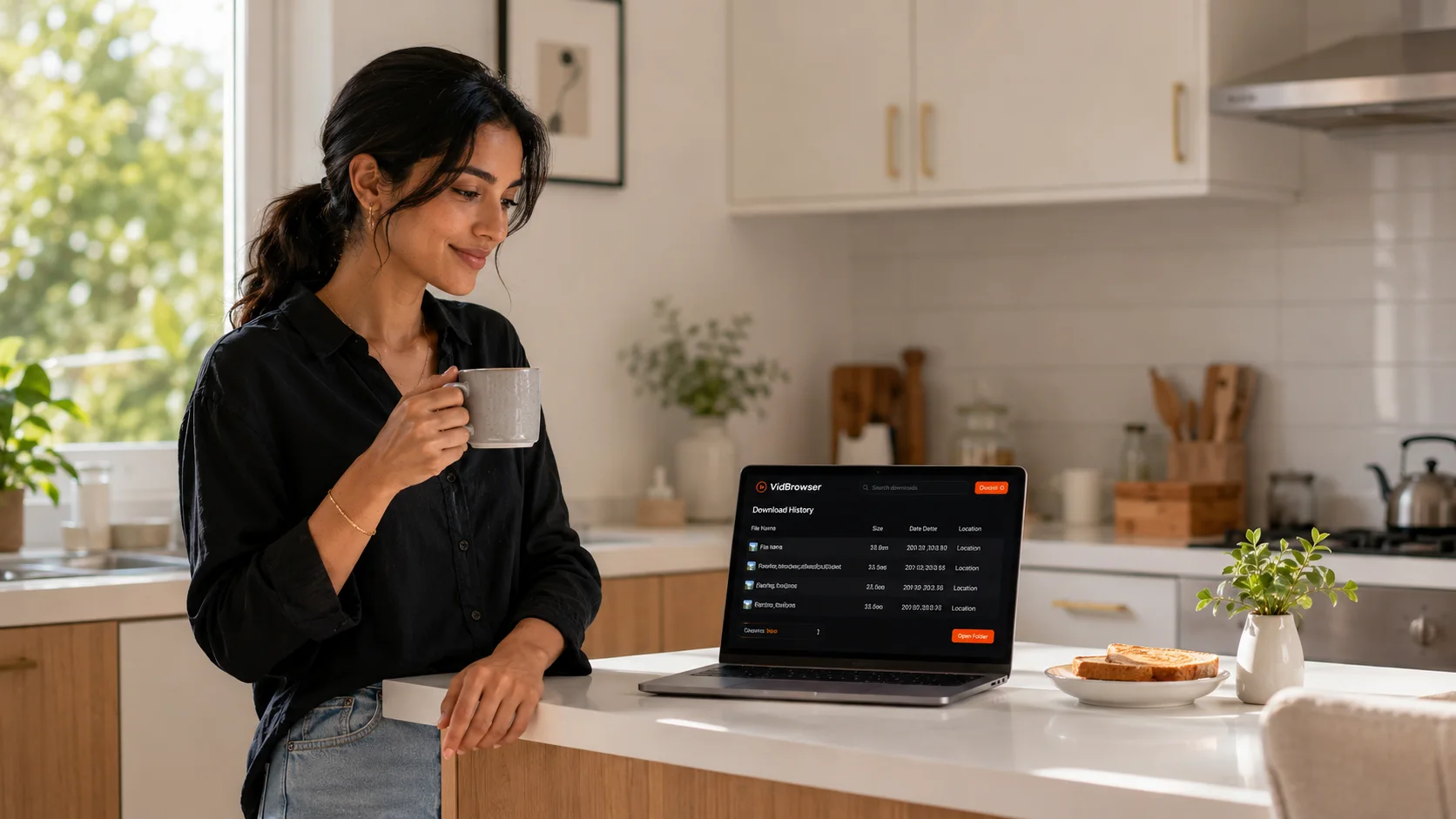
VidBrowser saves the video to your device as a standard MP4 — full picture, full audio, no expiration. It plays in VLC, QuickTime, Windows Media Player, or anywhere else. The download history panel keeps everything organized by date.
Why This Works When Recorders Don't
The difference comes down to where the saving happens.
A screen recorder stands outside the video and captures whatever the system shows it — and OnlyFans makes sure what it shows recorders is a black frame. An extension tries to grab fragments from outside the player, and the delivery system is built so those fragments never assemble into anything useful.
VidBrowser does neither. When you play a video inside VidBrowser, the browser has the same legitimate access to the stream during playback that OnlyFans' own player has. It simply also saves the stream you're already watching, locally, as a permanent file.
Which leads to the simplest test there is: if the video plays normally in VidBrowser, it saves. No black screen, no missing audio, no surprises.
What Quality Do You Get?
VidBrowser saves the stream exactly as it's delivered to your account — whatever quality the creator uploaded and OnlyFans serves you. The saved MP4 matches what you watched: same resolution, picture and audio together, correctly synced, in one file.
No quality cap. No re-encoding. No watermark. What you saw on screen is what you get in the file.
What About OnlyFans Lives and Messages?
Same process, same result.
OnlyFans livestreams play inside VidBrowser like any other video — watch the live as it airs and save it the same way, so you keep a copy even if the creator never posts a replay. Videos sent through direct messages work identically: if you can play it, the orange badge appears, and one click saves it.
Is It Legal to Download OnlyFans Videos?
Let's be straight about this, because it matters.
OnlyFans' terms of service don't permit downloading content, and every video on the platform is copyrighted material belonging to its creator. What you do with a saved file makes all the difference:
Saving content you've paid to access, purely for your own offline viewing, is a personal-use decision. VidBrowser is built for exactly this — keeping content you have legitimate access to.
Sharing, reposting, reselling, or uploading saved content anywhere else is copyright infringement, full stop. It harms creators directly, it's illegal in most jurisdictions, and many regions have specific laws against distributing intimate content without consent. Don't do it. Save for yourself, respect the creator, keep your subscription active.
Does VidBrowser Work on Fansly, LoyalFans, and Other Creator Platforms?
Yes — the same one-click process works on 1,000+ platforms: Fansly, LoyalFans, JustForFans, SubscribeStar, Patreon, plus mainstream sites like YouTube, TikTok, and Twitch. The workflow never changes — log in through VidBrowser, play the video, click the orange badge.
If you're still comparing platforms, we've covered the landscape: SubscribeStar vs OnlyFans, JustForFans vs OnlyFans, LoyalFans vs Fansly, and how to download JustForFans videos.
FAQ
Does OnlyFans notify creators when you save a video?
No. OnlyFans has no download or screenshot notification system, and it doesn't alert creators about saves. VidBrowser saves locally on your device — nothing is sent back to the platform.
Can I download OnlyFans videos on my phone?
VidBrowser is a desktop application for Windows and Mac — there's no mobile version. Saved MP4s can be copied to your phone and played like any other video file.
Do I need an active subscription to watch saved videos?
No. Once a video is saved as a local MP4, it's just a file on your device. It plays in any media app, offline, with no expiration — even after a subscription ends. You do need the active subscription to access and save the video in the first place.
Can I save pay-per-view (PPV) videos?
Yes, once you've unlocked them. If the video plays in your account, it saves — feed posts, PPV, messages, and lives all work the same way.
Why do I get a black screen when I screen record OnlyFans?
Because OnlyFans protects its video output against screen capture. You see the video because you're watching through an authorized player; your recorder sees black because it's capturing from outside. VidBrowser saves from inside the browser, so the protection never triggers. More on black screen causes here.
Is my OnlyFans account safe when using VidBrowser?
Yes. VidBrowser never asks for your credentials — you log in through OnlyFans' own login page inside the browser, exactly like any other browser. Unlike sketchy downloader tools, nothing goes anywhere except between you and OnlyFans.
Does VidBrowser work with free OnlyFans accounts?
Yes. Free or paid makes no difference — if the video plays, it saves.