Where Are My Downloaded Videos? Find Any Saved File on Windows & Mac
You hit download, the progress bar finishes, and then the file is simply nowhere to be found — almost everyone has been there. It gets worse when videos unlocked in OnlyFans DMs, livestream replays and clips from regular sites all pile up in different spots, and after a while you have no idea which copy lives where. This guide walks through finding and organizing video files in order — "locate first, then prevent loss" — from default paths to search tricks, and the hidden settings that make files seemingly disappear.
Where do downloaded videos go? Check these three default locations first
A downloaded video can only be in one of three places: the system's Downloads folder, a save path set by the download tool, or the address recorded in its download history. On Windows, open File Explorer and click "Downloads" in the left pane — the path is C:\Users\your-username\Downloads; on Mac, open Finder and you'll find a Downloads folder there too. Browser downloads land here by default, and both Chrome and Edge let you view or change it by typing chrome://settings/downloads in the address bar. Third-party download tools are less predictable — some create their own "Video" folder, others ask you to pick a location every time.
Files saved from subscription platforms like OnlyFans and Fansly follow the same logic: where they end up depends on the tool you saved them with, not the platform. The platform has no concept of a "download folder" — it only plays the content, and where the file lands is entirely decided by the saving tool.
How to change the default download location: set it once, done forever
Pointing every tool at one fixed folder is the single most effective fix for "I can't find it." In Chrome and Edge: Settings → Downloads → Location → Change, and while you're there, turn on "Ask where to save each file before downloading" so every save target is your call at that moment; the exact path is documented in the official Google Chrome help. On Mac, Safari keeps its setting under Settings → General → File download location.
A practical setup is to create a dedicated "Videos" folder as the single landing point for both the browser and download tools, leaving Downloads for installers and miscellany. Once the destination is fixed, all the search tricks below become rarely needed.
Can't find a video you just downloaded? Four search tricks, ranked by hit rate
The highest-hit-rate trick isn't digging through folders — it's sorting by "Date modified" in descending order; the file you just downloaded is always at the top. Then work down the list:
- Filter by size: video files usually start at tens of MB; anything under 1 MB is almost always an image, document or subtitle — cut half the noise right away.
- Search by extension: type .mp4 or .webm into the File Explorer search box and the results are all video files.
- Watch out for duplicate names: same-name files get "(1)", "(2)" appended automatically, and the highest number is the newest — plenty of people open the old copy and conclude the download failed.
- Check for temp files: an unfinished Chrome/Edge download leaves a .crdownload file, Firefox leaves .part. Seeing one means that task never completed — the file never truly landed, so go back to the download tool and fetch it again.
Why videos "vanish": cleanup settings, half-finished tasks and auto-open
When the download history says "completed" but the file is gone, it's usually not a mystery — it's one of these three.
- Cleanup settings deleting files: Windows Storage Sense leaves the Downloads folder alone by default, but once "delete files that haven't been opened for N days" is enabled (0–365 days), unopened videos get cleared — behavior documented explicitly in the official Microsoft documentation. Plenty of third-party cleaner apps treat the Downloads folder as a default "junk" target too — that's how many people's videos get "optimized" away.
- Half-finished tasks: the network drops at 99%, the tool may report failure, and the disk only holds a .crdownload or .part temp file — no playable video at all.
- Auto-open: the browser starts playing the video the moment it finishes; all your attention goes to the content, you close the tab afterwards, and you never noticed where it was saved.
One side note: if the file is found but won't play or has no sound, that's a different class of problem — black screens and decoding issues are covered one by one in the video file repair guide; diagnose before re-downloading.
Make every save traceable: download history and a fixed landing point
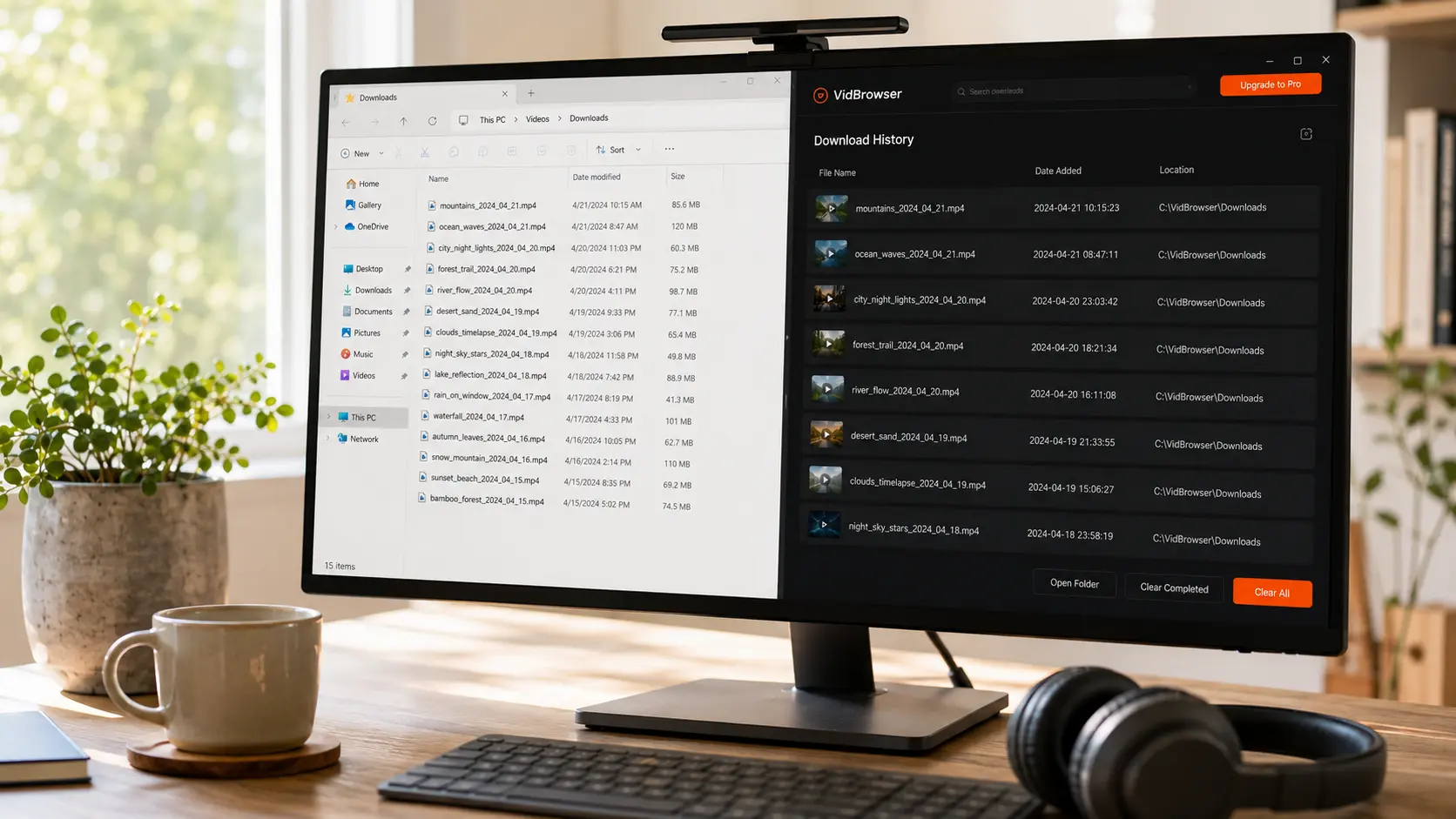
Rather than digging around afterwards, the reliable habit is to make every file leave an "address" at the moment it's saved. The download history in VidBrowser (clock icon in the left sidebar) lists every task's file name, size, download time and saved path — when a file goes missing, just follow the path. It takes only a few steps:
Step 1: Download and install VidBrowser
VidBrowser is a desktop video browser with built-in download and recording, supporting both Windows and Mac; installation takes a few minutes.
Step 2: Open the page with the video, play it, and choose how to save
For regular public videos, the media panel on the right lists detected items — click the orange "Download" button to save (resolution selectable first). For protected content on subscription platforms like OnlyFans or LoyalFans, recording is the more reliable way — move the mouse over the video and the recording controls appear, with 1x real-time, 2x or 4x speed to finish faster, and a "Record all" button for the whole video; the record button on the left can pause anytime. Details are in the recording and download feature guide.
Step 3: Verify the saved path in the download history
File name, time and path are all visible at a glance, and you never have to recall "where did I put it" again.
After unifying the landing point, add one more habit: separate by platform — a subfolder each for OnlyFans, Fansly and LoyalFans, with limited-time content and replays archived the same day. Don't leave important videos sitting in the Downloads folder for long — it's a transit hub by nature, and whether files can stay there depends on cleanup settings, not memory. As for downloads that fail outright or tools that misbehave, that's another topic; match your symptoms in what to do when a video downloader stops working.
FAQ
Which folder do OnlyFans videos actually get saved to?
It depends on the tool you saved them with, not the platform. Browser downloads default to the Downloads folder; files saved via VidBrowser download or recording have their full path recorded for every task in the download history — just follow it. Check the tool first, then the default directory; that order works for every subscription platform.
Can a .crdownload or .part file be renamed into a video?
No. They are unfinished temporary files, and renaming won't complete them. Go back to the download tool and check that task's status: resume it if the tool supports resuming, otherwise delete and re-download.
How do I stop downloaded videos from "disappearing" again?
Three things: point the browser and download tools at one fixed folder; check Windows Storage Sense and any cleaner software to make sure nothing auto-clears the Downloads folder; and archive anything worth keeping the same day into a per-platform subfolder.