What Is a Video Browser? How It Differs from a Regular Browser
Watching OnlyFans or YouTube in Chrome works fine — until you want to keep a copy, and suddenly you're hunting for tools: installing extensions, searching online sites, setting up command lines. After all that hassle you realize what's missing isn't another tool, but a browser "designed for video in the first place." This category is called a video browser. Plenty of products carry "video" in their name, yet what it actually is, and how it differs from the browser you use every day, is surprisingly hard to pin down. This article explains it once and for all, and helps you decide whether you need one.
What is a video browser? The one-line definition and the problem it solves
A video browser is a desktop browser designed around video as the core: its engine comes from the same source as Chrome, but "watching, finding and saving videos" are built in as native capabilities. A regular browser is conceived on the assumption that "the web page comes first" — a video is just an element on the page, and the browser knows nothing about it. A video browser assumes "video comes first" — when you open a page, it keeps identifying the video resources on it and lists them in a side media panel, so watching and saving are connected in one flow.
A representative product in the category is VidBrowser, and the "video" in its name is exactly this positioning. The core problem it solves is a single one: videos on web pages are "watchable but not savable," and a general browser never intended to help you save them.
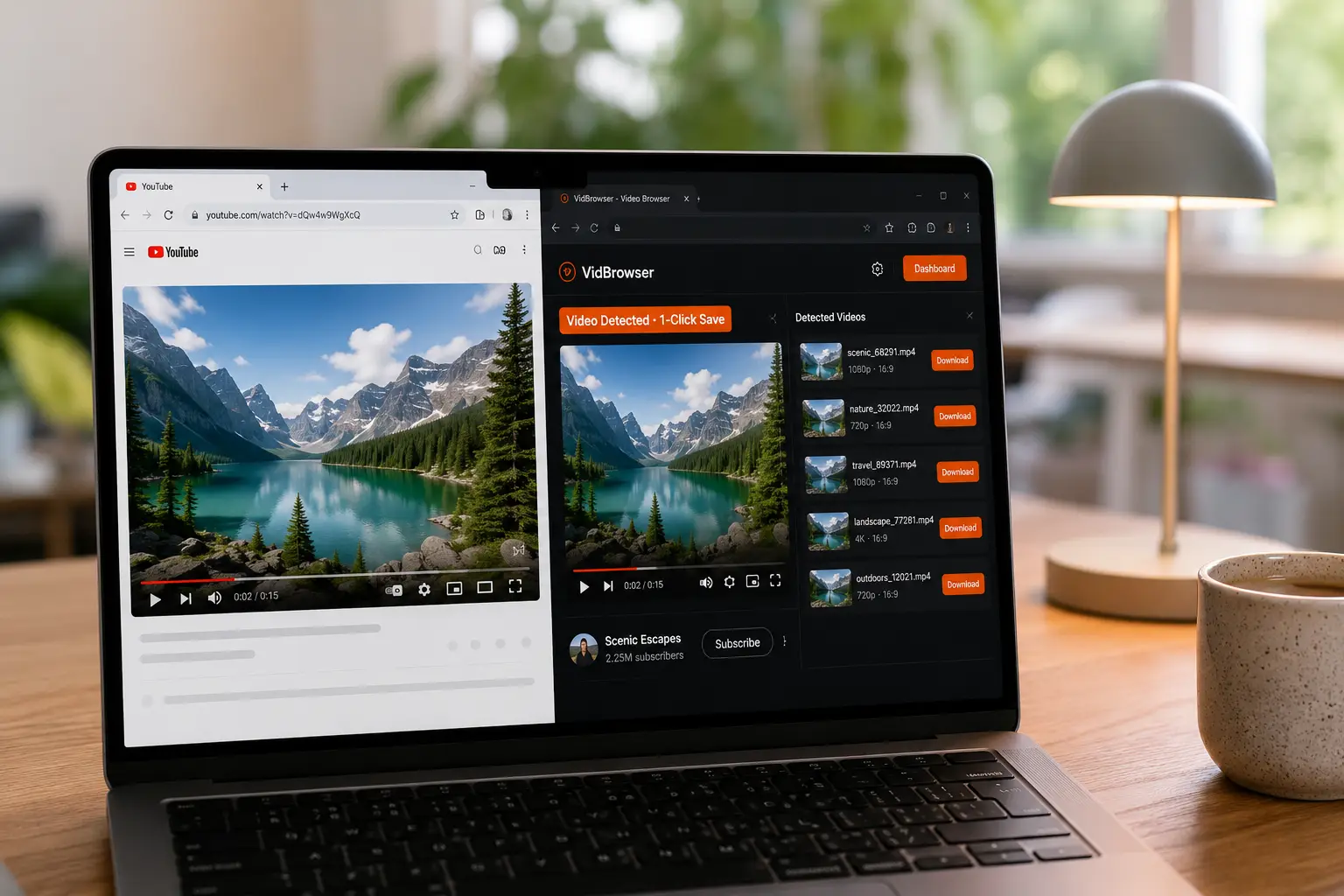
Video browser vs regular browser: four dimensions that show the real difference
A regular browser is responsible for "presenting web pages"; a video browser is responsible for "handling video" — that's the fundamental division of labor. Expanded across four dimensions:
- Video detection: when Chrome opens a playback page, all it knows is a page element; a video browser recognizes the video stream itself, lists it in the media panel on its own, and pops a detection notice when a new video appears. You never have to tell it "there's a video here."
- Saving: a regular browser's "save page as" stores HTML, not video; to keep a video you install a third-party extension (a separate component that asks permissions, breaks, and gets removed) or go to online sites. A video browser has a download button built in — detect it, save it, nothing extra to install.
- Protected content: most subscription-platform videos are copyright-protected, and a regular browser paired with screen-recording software captures a black screen; a video browser saves the picture and sound directly as the video plays — if it can play, you can keep a copy.
- Download management: a regular browser's download bar shows only a file name and a progress bar; a video browser keeps a full download history — file name, size, time and saved path all listed, no more guessing through folders.
One sentence to pull it together: a regular browser treats video as a passerby; a video browser treats it as the protagonist.
Three common misconceptions to clear up before choosing
A video browser is neither "Chrome plus a download extension," nor screen-recording software, nor a demand that you abandon your current browser.
- ≠ Browser + download extension: an extension is a plug-in bolted "outside" the page — high permissions, constant catch-up with platform updates, and frequent removal from app stores (download-type extensions in the Chrome Web Store have turned over countless times these years). A video browser's detection and saving are built into the product; nothing disappears because a store sneezes.
- ≠ Screen recording software: screen recording is "filming the screen" — quality loss, waiting through the whole playback, and protected content captured pitch black. A video browser saves while playing, with quality matching the version you played, up to 4K.
- ≠ A replacement for your daily browser: Chrome's and Edge's engines both come from the open-source Chromium project, and so does a video browser's — everyday browsing, searching and logging in work as usual. Running both is no conflict; just switch over when it's video time.
Who is a video browser for? Match yourself by usage frequency
The test is simple: is the frequency of saving videos high enough that "hunting for a tool every time" becomes a burden?
- Subscription-platform regulars (OnlyFans / Fansly / LoyalFans): content is protected, expirable and deletable; keeping a copy while it can still play is the only peace of mind — this group matches a video browser best.
- Livestream viewers: live streams can only be recorded, not downloaded; ordinary download tools can't touch them, and recording is a hard requirement.
- Long-term collectors: videos scattered across a dozen platforms, wanting one landing point and a clear history instead of a hard drive full of "untitled.mp4".
- People who don't need it: if you download one or two public videos a month, online sites are entirely enough — no reason to install extra software for a low-frequency need. Tools are about fit, not count.
Walk through VidBrowser in three steps and feel the difference
Three steps are enough to feel the practical difference between this category and a regular browser.
Step 1: Download and install VidBrowser
A desktop video browser with built-in download and recording, supporting Windows and Mac; installed in minutes.
Step 2: Open a video site, play it, and choose how to save by content type
The media panel on the right lists the detected videos; for public videos click the orange "Download" button to save directly, with resolution selectable first; for protected content on OnlyFans, Fansly and the like, use recording — move the mouse over the video and the recording controls appear, with 1x real-time, 2x or 4x speed to finish faster, and a "Record all" button for the whole video; the record button on the left pauses anytime. For the full flow on a specific platform, see the Fansly video download guide.
Step 3: Confirm the landing point in the download history
The clock icon in the left navigation opens the download history — file name, size, time and saved path all at a glance, and "where did I put it" is retired for good.
If you want the full horizontal comparison against online sites, extensions, desktop software and screen recorders, the five-type downloader comparison covers the choosing; the two articles complement each other — that one is "which type," this one is "what this type is."
FAQ
Does a video browser cost money?
VidBrowser has a free version with 5 downloads per day and up to 5 minutes of recording per session — enough for daily tasting and light use; consider the paid version when your download volume grows or you need long recordings. Validating your habits with the free quota is the cheapest way to find out.
Is a video browser safe? Will it take my account?
A video browser is local desktop software; like a regular browser, you log in to each platform yourself, and passwords never pass through any third-party server. What really deserves caution is online download sites that ask you to "submit account authorization" and extensions of unknown origin — that's where accounts actually get handed over.
Can I keep using my regular browser alongside it?
Yes. A video browser's engine shares Chromium's origin, so everyday browsing is unaffected — but their roles differ: use your usual browser for research and casual surfing, the video browser for watching and saving videos. Two tools, two lanes, actually cleaner.