
How to Download Fansly Videos in 2026 (What Actually Works)
You're watching a video on Fansly. It's good. You want to keep it — save it for later, watch it offline, or just make sure it's still accessible if the creator's page changes. You right-click the video. Nothing useful. You search for a download tool. The ones you try either fail silently or give you a file that won't play.
This is a DRM problem, and it's the same one that trips people up on OnlyFans, Netflix, and YouTube Premium. Here's why it happens and the one method that actually works.
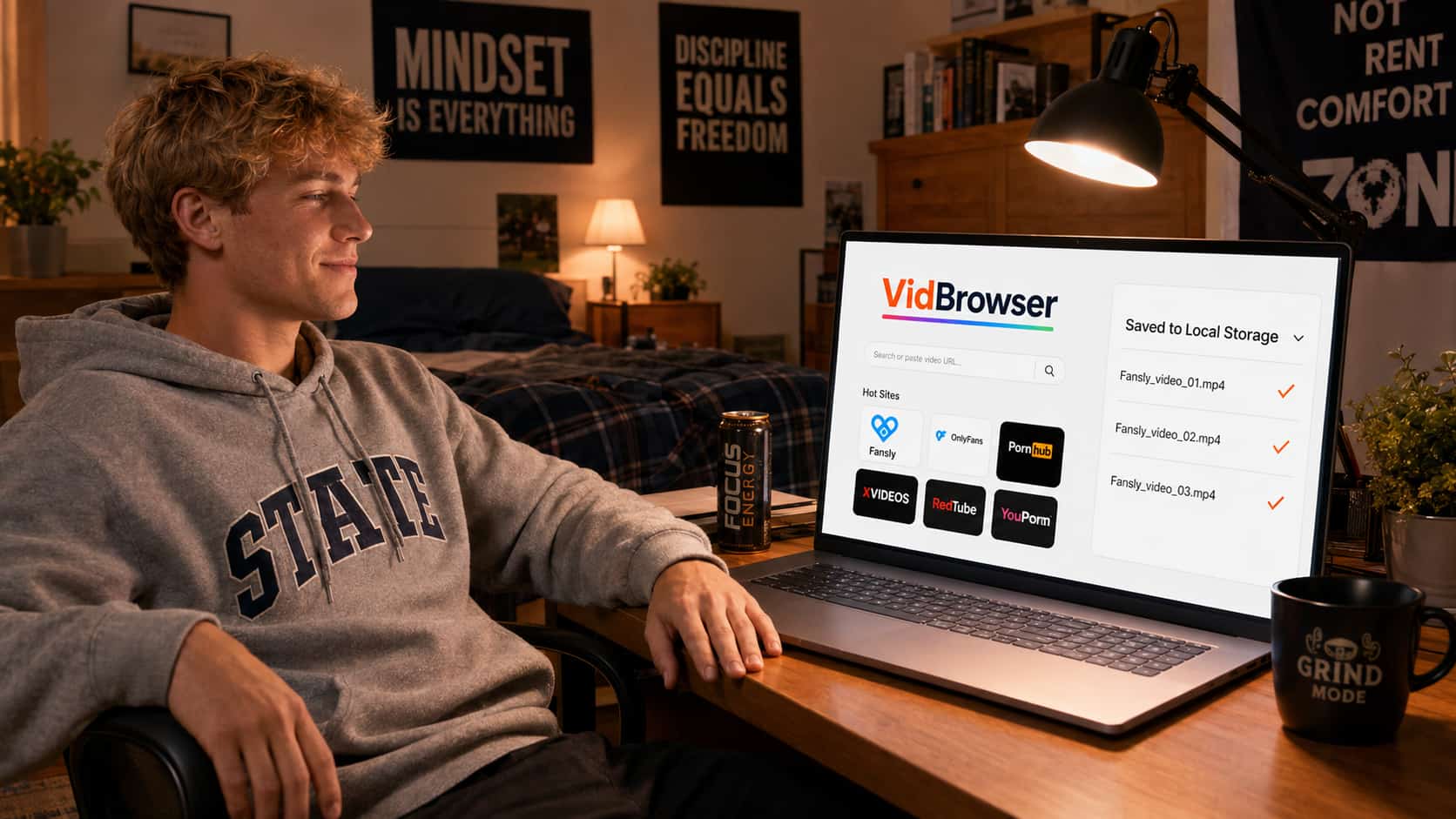
Why Fansly Videos Are Difficult to Download
Fansly encrypts its video content using Widevine DRM — the same Digital Rights Management standard used by Netflix, Disney+, and YouTube Premium. It's not a coincidence that the same tools that can't download Netflix content also can't download Fansly content. They share the same protection system.
Here's what's actually happening when you watch a Fansly video:
Your browser sends a license request to Fansly's servers. Fansly verifies your subscription and account status, then sends back a temporary decryption key tied to your specific device and session. The video itself travels over the network in encrypted segments — scrambled data that's unplayable without that key. Decryption happens inside a protected hardware environment on your device (called a Trusted Execution Environment), and the decrypted frames go directly to your display.
At no point does a clean, playable video file exist somewhere you can just grab it.
This is why standard approaches fail, and why the fix requires something more than a browser extension or an online tool.
Methods That Don't Work on Fansly
Worth naming these directly, because a lot of guides online will send you down dead ends.
Right-clicking and saving
The video element on Fansly isn't a direct file link — it's a DRM-protected media stream. Right-click options either don't appear or give you a broken link. This is by design.
Browser extensions
Extensions like Video DownloadHelper detect video streams from the page. On Fansly, they either detect nothing or grab the encrypted stream. The file downloads but won't play in any video app — it's encrypted data without the decryption key.
Online download sites
Paste-the-URL tools work on platforms without DRM. Fansly has DRM. These tools grab the encrypted stream, package it up, and hand you an unplayable file. Some don't even manage that — they just return an error.
Screen recording
This is the most common workaround people try, and it fails on most modern hardware. Fansly uses Widevine at hardware security Level 1 (L1) on supported devices. At L1, the video output path is protected — screen recording software captures a black rectangle where the video is playing. The rest of your screen records fine. Just not the video.
Some older devices run Widevine at L3 (software-level), which doesn't have output path protection, and screen recording works there. But L3 is increasingly rare on modern hardware, and you can't choose which level your device uses.
yt-dlp
yt-dlp is an excellent tool for non-DRM platforms. On Fansly, it either returns an authentication error or downloads the encrypted stream. It doesn't support Widevine decryption, and the developers have explicitly stated it won't — the legal and technical complexity is too high.
The Method That Actually Works: VidBrowser
VidBrowser solves this because it takes a fundamentally different approach.
Every tool listed above tries to grab video content from outside the DRM authorization process. VidBrowser operates from inside it. It's a full Chromium-based desktop browser that participates in Fansly's complete DRM flow — license request, account verification, key delivery, decryption — exactly like Chrome or Edge does. The difference is that VidBrowser, as the browser itself, has access to the content at the point where it's been authorized for playback.
The result: when you watch a Fansly video in VidBrowser, the browser detects it and shows an orange badge — "Video Detected · 1-Click Save." Click it. The video downloads to your local storage as a real, playable file. Open it in VLC, Windows Media Player, or any standard media app. It plays without an internet connection, without a Fansly account, without any subscription active.
No exploits. No hacks. The browser doing its job.
Additional things VidBrowser handles while you're there:
- Zero ads across the entire web — no interruptions on Fansly or any other site
- AI highlight detection — automatically marks the best moments in longer videos
- Video clipping — trim clips in the browser before saving, no editor needed
Step-by-Step: How to Download Fansly Videos with VidBrowser
Step 1: Download and install VidBrowser
Go to vidbrowser.net/download and install it. Windows and Mac both supported. Installation takes about two minutes — it's a standard desktop app.
Step 2: Open Fansly in VidBrowser
Launch VidBrowser and type fansly.com in the address bar. Log in with your Fansly account. Everything works exactly like it does in Chrome — your subscriptions, your feed, your purchased content.
Step 3: Navigate to the video you want to save
Browse your feed or go directly to a creator's page. Find the video you want to download and let it start playing.
Step 4: Click the download badge
As soon as VidBrowser detects the video, an orange "Video Detected · 1-Click Save" badge appears on the page. Click it. A file picker opens — choose the folder where you want to save the video.
Step 5: Watch locally
Once downloaded, open the file in any video player. It plays at full quality, with no buffering, no account required, and no expiration. Even if the creator deletes the post or deactivates their account tomorrow, your local copy is unaffected.
Why Save Fansly Videos Locally?
Beyond the obvious convenience of offline playback, there are practical reasons to save content you've paid for:
Creator accounts disappear. Creators delete accounts, go on hiatus, or get removed from the platform. When that happens, every video they posted goes with them — regardless of what you paid. A local copy is the only guarantee.
Subscriptions are access, not ownership. Your Fansly subscription lets you view content while it's active and while the creator's account exists. That's it. Nothing you've streamed is permanently yours until it's saved locally.
No more buffering. Streaming quality depends on your connection, Fansly's servers, and peak load times. Local playback has none of those variables. It plays instantly every time.
FAQ
Does VidBrowser work on both Fansly and OnlyFans?
Yes. VidBrowser works on Fansly, OnlyFans, and 1,000+ other platforms. The video detection and one-click save works wherever a video is playing in the browser.
Will Fansly know I downloaded the video?
From Fansly's server perspective, VidBrowser is a browser playing a video — the same activity as watching in Chrome. There's no signal sent that's different from normal playback.
Can I download Fansly videos on my phone?
VidBrowser is currently a Windows and Mac desktop app. Mobile browsers have more restricted access to DRM content saving, so the video downloading feature is desktop-only for now.
What video quality does VidBrowser save?
VidBrowser saves at whatever quality is being streamed to your browser — the same quality you see when watching. If Fansly delivers 1080p to your account, that's what you save.
Is downloading Fansly content legal?
Fansly's terms of service prohibit downloading content. For personal, non-commercial use, the practical and legal risk is generally low in most US jurisdictions — enforcement focus is on redistribution, not personal viewing. This isn't legal advice; consult a lawyer for your specific situation.
My Fansly video saved but won't play — what happened?
This shouldn't happen with VidBrowser, which saves decrypted, playable files. If you used a different tool and got an unplayable file, that's the encrypted stream problem described above — the file is DRM-protected data without the key. Download VidBrowser and try again.


