How to download long X videos: do the time and size math first
Scrolling late at night, you find a two-hour full interview and want to keep it for the weekend. You tap download the same way you save short clips, wait forever with nothing happening, or the transfer dies halfway through — the problem is usually not the tool, but that you treated a long video like a short one. On X, long videos and short videos look exactly alike, yet the room the platform reserves for them differs by nearly a hundred times, so the math before saving has to be done separately.
Where long X videos come from: Premium uploads raised the cap to 4 hours
A long X video is not embedded third-party content but a native long video uploaded by a Premium subscriber, and the official cap for one post is 4 hours. According to the X Help Center: subscribers on x.com and iOS can upload videos up to 4 hours (1080p), anything between 2 and 4 hours must drop to 720p, and the file cannot exceed 16GB; non-subscribers are capped at 140 seconds and 512MB. One easy-to-miss official note: the Android client caps posting at 10 minutes, and long uploads are open only on web and iOS. As for the streaming mechanics behind "it plays but will not save", why streaming videos cannot download breaks it down fully, and the same logic applies to long videos.
Those numbers explain two things. First, a post that looks ordinary on the timeline may hold a full interview, an entire match, or a two-hour movie breakdown, with no visual difference from a fifteen-second clip. Second, the file of a long X video lives on the platform's own servers and never passes through any third-party video site — the file is where the saving must start, which is the deepest difference from link-and-embed content.
The timeline shows no badge, so there is one way to tell
X does not mark video duration on the timeline; a long-video post and a short one share the same cover, ratio and play button. The official design adds no badge or hint for long uploads, so the reliable source for telling a fifteen-second clip from a two-hour interview is the player itself.
The check takes two seconds: open the post, drag the progress bar all the way to the end, and the duration number in the corner is the answer — double-digit seconds mean an ordinary short video, half an hour or more means a long upload. Those two seconds are worth it, because they decide how you save what follows: a short clip downloads in under a minute, a long video needs planning by the hour, and discovering a two-hour job halfway in puts the waiting and the risk on a different scale.

Two calculations before you start: recording time and file size
The cost of saving a long video is not the operation but two accounts, time and size: recording 4 hours of video takes 4 hours at 1x real time, or 1 hour at 4x speed; the file may run into GBs.
Time is simple arithmetic: when recording at speed, the time spent equals the video's total length divided by the speed. Check the total length in the player first, then pick a tier — 1x real time, or 2x and 4x to finish sooner; a two-hour interview at 4x is a half-hour job. The longer the video, the more the speed setting matters.
Size has no official figure to quote, but the direction is clear: the upload-side cap is 16GB, and the higher the resolution and the longer the video, the closer the saved file gets to that scale. Check free disk space before downloading and leave a comfortable margin — far easier than failing at ninety percent with an out-of-space warning.
One failure costs far more on a long video than a short one
When a short clip fails, a retry costs seconds; when a long video fails, you lose dozens of minutes of transfer or more. So for long videos, prevention ranks above retry — walk this list before you start:
- Take the lower resolution first: when 1080p will not come down, 720p means a smaller file and a shorter transfer; secure the complete file first, then think about quality;
- Choose a stable network: large transfers tolerate drops far less than short clips, so prefer a wired connection when you can;
- Avoid peak hours: when network load is low, long transfers are noticeably more stable.
If it does break halfway, you will probably start over from zero — the mechanism is unpacked in what to do when a download stops halfway. For long videos, keep this rule in front: rather than studying resume, set the conditions right the first time.
Four steps to save a long X video in full
The flow matches saving any ordinary X video; the difference lies in picking the resolution and expecting the wait. The fuller general flow lives in the X video download guide; here it is with long-video notes:
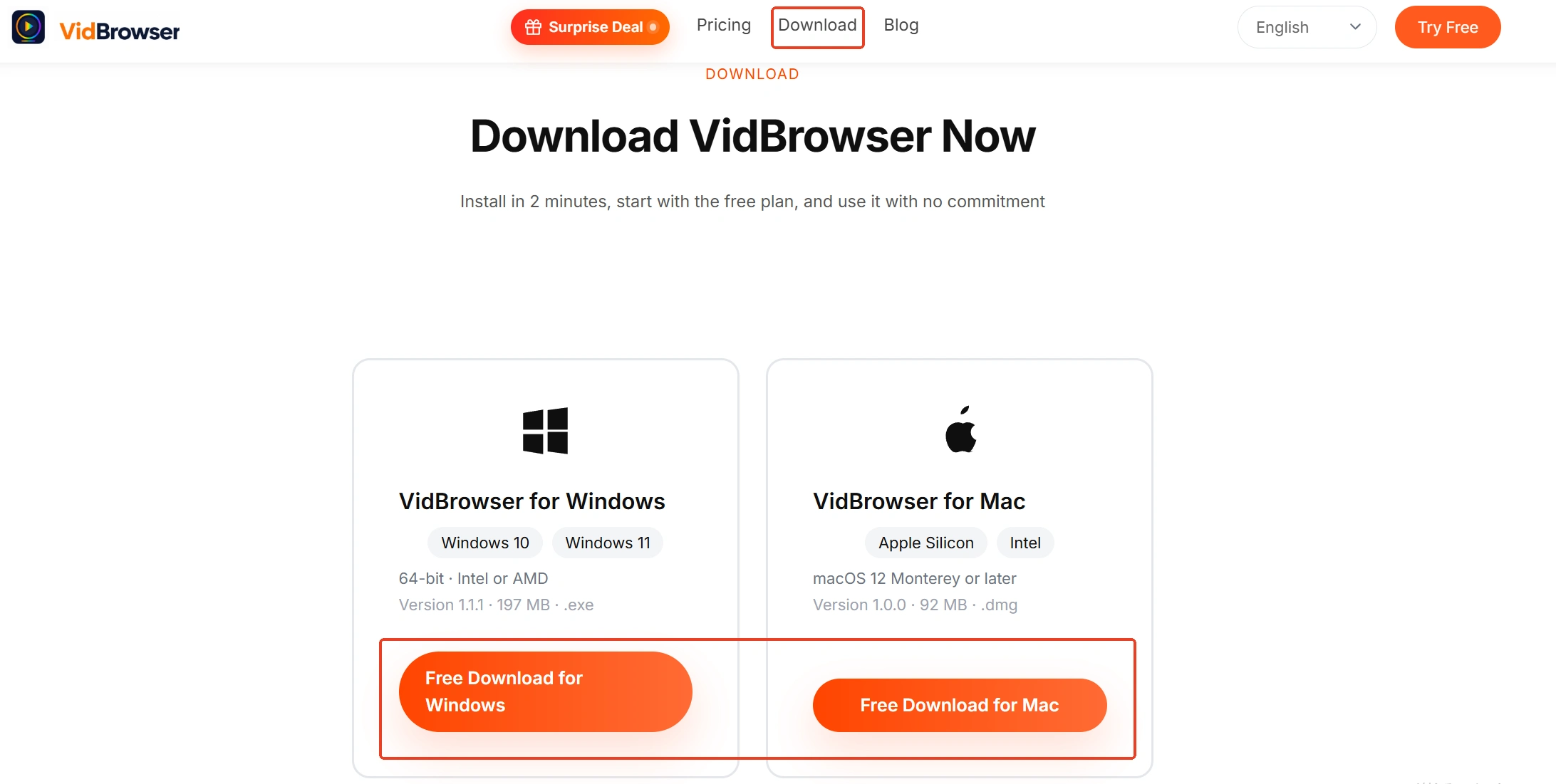
Step 1: Download and install VidBrowser
VidBrowser is a desktop video browser for Windows and Mac, built for watching videos, clipping segments and saving them locally, with download and recording built in. If you plan to keep long videos, a machine with plenty of disk space is the safer home for it.
Step 2: Open x.com in VidBrowser and log in
Scroll the timeline as usual until you find the long video, open it to play, drag the progress bar to the end to confirm the total length, and run the time and size through your head.

Step 3: Pick a resolution in the Video Library and download
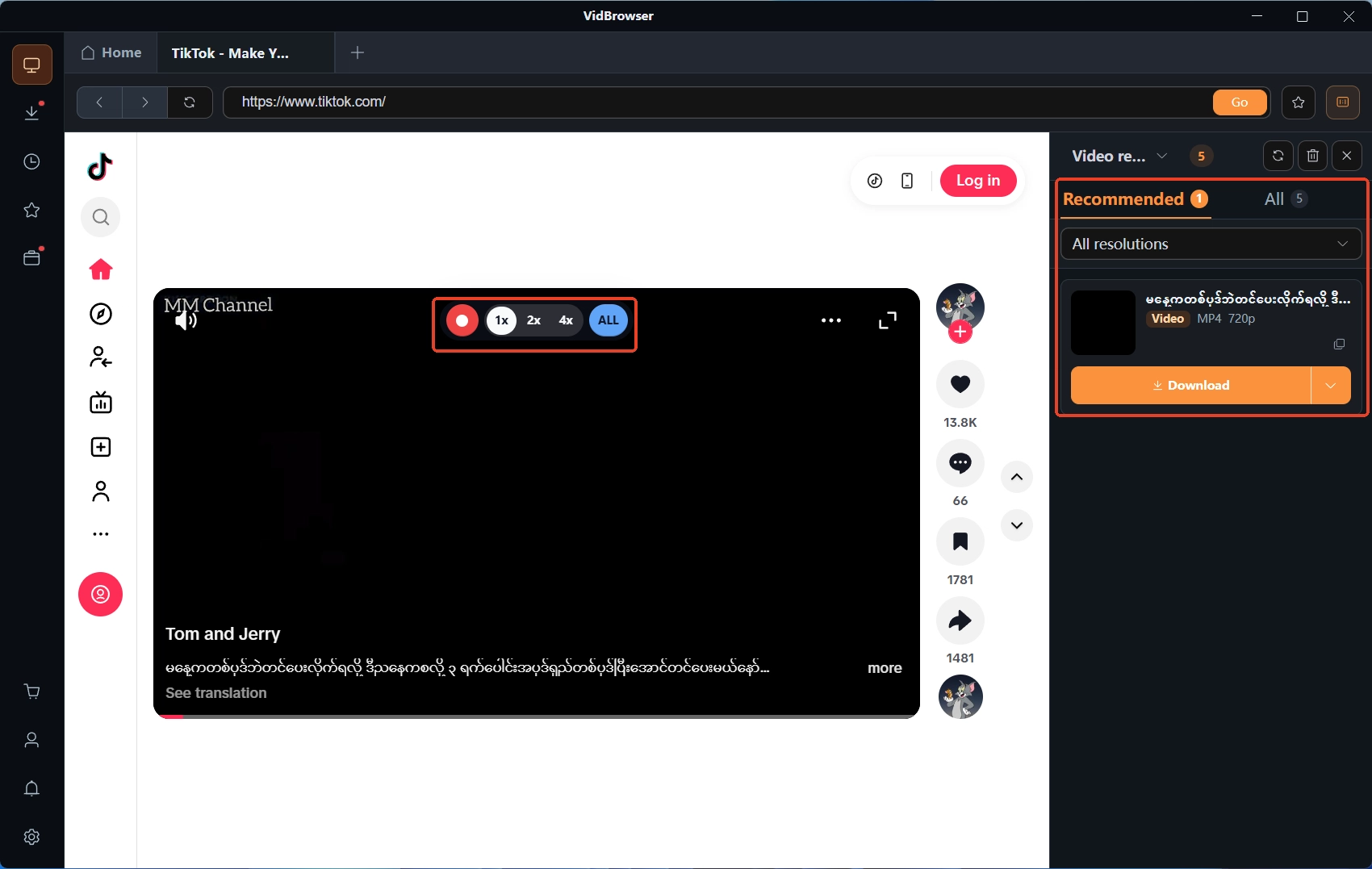
The Video Library panel on the right lists the detected video resources; use the resolution filter to pick a suitable tier, then tap the orange Download button on the entry to save it as MP4. A long video downloads in minutes to hours, so keep the computer from sleeping meanwhile.
Step 4: For entries that will not download, fall back to recording
When an entry never appears in the panel, move the mouse over the video and the overlay recording controls can capture it directly: choose a recording speed (1x real time, or 2x and 4x to finish sooner), tap Record All to capture the whole video, and the recording button on the left pauses anytime. Pick the speed by the time math you did earlier. Each task's progress and file size show in the download history under the clock icon on the left.
Keeping a saved long video on your own device for offline viewing is fine; re-uploading it or using it commercially crosses the line, and that rule treats long and short videos exactly the same.
FAQ
How big is a saved long X video, roughly?
There is no fixed number: the upload-side cap is 16GB, and the actual size depends on the video's length and the resolution tier you picked in Step 3. After the download finishes, the download history on the left shows each file's size; plan disk space for long videos in gigabytes.
Android cannot upload long videos — does that affect saving?
No. The 10-minute limit governs posting from Android; the saving side does not care which device posted it. Open x.com in a desktop browser and the long video downloads or records as usual.
How long does recording a 4-hour long video take?
It depends on the speed: 1x real time takes 4 hours, 2x takes 2 hours, 4x takes 1 hour. Schedule the recording for a period when you do not need the computer, run the speed at maximum, and come back to process the file when it is done.