
How to Download Twitter/X Videos in 2026: No Official Button? 5 Steps to Save MP4
You see a video on X that you want to watch again and again, and you'd like to save it for offline viewing — open the web version and look for a download button: there isn't one; switch to the mobile app: only a few videos have a download option; try an online download tool: it either throws an error or gets blocked by security software. This isn't your fault — X deliberately makes "saving" inconvenient.
This article explains why the official download options are so limited, and the methods that actually work in 2026.
The Official Download Button: It Exists, But With More Limits Than You'd Think
To be fair, X doesn't completely block video downloads. In the mobile app, some videos have a download icon in the bottom-right corner — tap it and the video saves to your camera roll.
But you'll quickly hit three limitations:
- Mobile only. The web version of x.com has no download button at all — if you're on a computer, you can't save anything.
- It depends on the creator. Creators can disable video downloads, and many accounts have it off by default — the video you're watching simply has no download option.
- The format isn't flexible. What the app saves is a compressed version, with quality below the original upload and no unified folder management.
So the "official download" only covers a small set of scenarios. More often than not, the video you want to save has no download button at all — especially for web users.
Why So Many Download Tools Fail on X
X delivers videos differently from ordinary websites: the video stream is split into small segments and reassembled by the player. Many online download tools are built for "regular web videos" — they only grab a single segment and can't assemble a complete file, so you either get a failed download or a file that won't open.
Even more important is to watch out for shady "X video downloaders". Tools that ask for your X password or make you install a browser extension range from ad-bombing you to stealing your account. An X account is tied to payment info and a lot of personal data, and a stolen account is a serious headache. Never enter your X credentials anywhere except the official login page. (For the common reasons download tools fail, check our video downloader not working guide.)
The Method That Works: Save the Video Stream Inside Your Browser
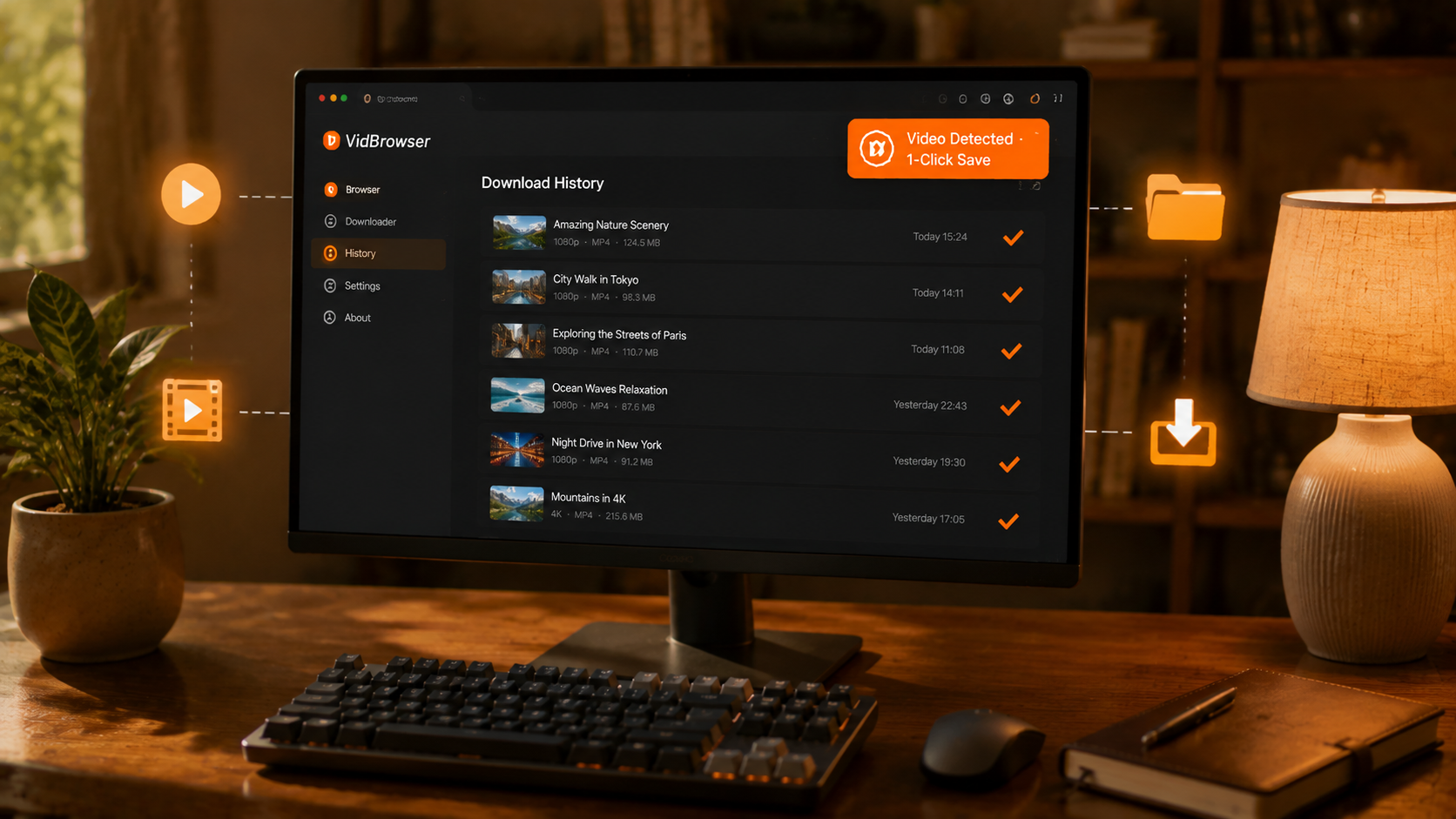
The idea is simple: instead of grabbing from outside, let the browser save the video stream it's playing while you watch.
VidBrowser is a desktop browser designed for video, supporting Windows and Mac. It's a complete browser on its own: you open x.com normally, log in normally, and play videos normally. Once playback starts, it detects the video stream and shows an orange one-click save button.
The process takes just 5 steps:
Step 1: Download and Install VidBrowser
VidBrowser is a desktop video browser for watching videos, trimming clips, and saving them locally on Windows and Mac. Installation takes just a few minutes.
Step 2: Open X in VidBrowser and Log In
Launch VidBrowser, visit x.com, and log in with your own account as usual.
Step 3: Browse Your Timeline and Open the Video You Want to Save
Go to your X Home feed or a creator's profile page, and open posts with videos to play them — videos on your timeline and on creators' profiles both work. VidBrowser automatically detects video resources on the page in the background.
Step 4: Save from the Video Library on the Right
Once playback starts, the "Video Library" panel on the right lists all videos detected on the page, each with an orange "Download" button. Click the "Download" button of the video you want and it saves as an MP4 file containing the original stream, with no re-encoding.
Step 5: Find the File in Your Library
After saving, you can open the file from the folder you chose, or find it through VidBrowser's download history. Then watch it offline anytime with compatible players like VLC or QuickTime.
Why is this method reliable? Because saving happens inside the browser: VidBrowser has normal access to the video stream during playback and simply writes the stream you're watching to a file. No packet-sniffing tricks, no risk of triggering the platform's security blocks.
What Can You Save? Live Streams and DM Videos Too?
- Timeline videos: Yes — as long as the video plays, it can be saved.
- Creator profile videos: Yes, the process is exactly the same.
- Live streams: If you can watch an X live stream, you can save it — save while watching, and you keep it even if no replay is ever posted.
- Videos in DMs: Yes — once you open and play them, the orange indicator appears too.
What you save is the original video stream X delivers to your account — the same quality you see when playing, no re-encoding, no extra watermark. What you see on screen is what you get in the file.
Two Bottom Lines Before Saving X Videos
The first is account security. Always log in only through the official login page, and never enter your password into any third-party tool.
The second is copyright. Videos on X belong to their posters; saving them for personal offline viewing is fine — but reposting, re-uploading, or commercial use is infringement. Save for yourself, and don't use others' work for traffic.
FAQ
Why can't I find a download button on the X web version?
Because X's official download feature only exists in the mobile app, and whether it shows depends on the creator. The web version has never had a download button — to save, you need a browser-based solution.
Does saving X videos with VidBrowser notify the video creator?
No. X has no download notification mechanism. VidBrowser saves the video to your local device, sends no save records to the platform, and doesn't affect your account.
What format are the saved videos? Can I watch them on my phone?
They're saved as standard MP4, playable in common players, and you can transfer them to your phone for offline viewing. VidBrowser is currently a Windows and Mac desktop app.


