Saved posts are references, recordings come out black, and store apps want your password. See where the phone routes end, and what works instead.
You find something on your commute that you want to keep for the weekend, dig through every phone setting, and the word "save" is nowhere to be found — your phone is not broken, OnlyFans simply offers no way on mobile to store a video as a local file. Collections, screen recording, third-party downloaders: all three look like solutions, and each one runs into its own wall, with iPhone and Android adding a threshold of their own. The combination that actually gets you the file starts outside the phone.
On mobile, OnlyFans collections stay, files do not
What you can keep long-term on a phone is the in-app collection layer; the video file itself is out of reach at every mobile entry point. The official stance allows no download button for subscribers, and that holds on desktop as well as mobile; mobile adds one more obstacle: mobile browsers lack the desktop download menu, long-pressing a video offers no save option, and even the "save as" detour is closed off. Start by separating two words: a collection records a post into your account, available until you unsubscribe; a file is the MP4 you can copy, play offline, and open without logging in. Mobile can give you the former, never the latter.
Collections and purchased content are on-site references
The bookmark icon on a post and the purchased-content area both record on-site references, not files. Once saved, the video still lives on OnlyFans servers; what you keep is a jump back to that post, and if the creator deletes the video, closes the account, or your subscription lapses, that jump may land on an empty page. Ownership of purchased content is even more explicit — the platform grants an access license, not ownership. Many people feel they "definitely saved it" yet cannot find it after switching devices or unsubscribing; the reason is exactly this: the reference hangs on the account, the content may no longer be in place.
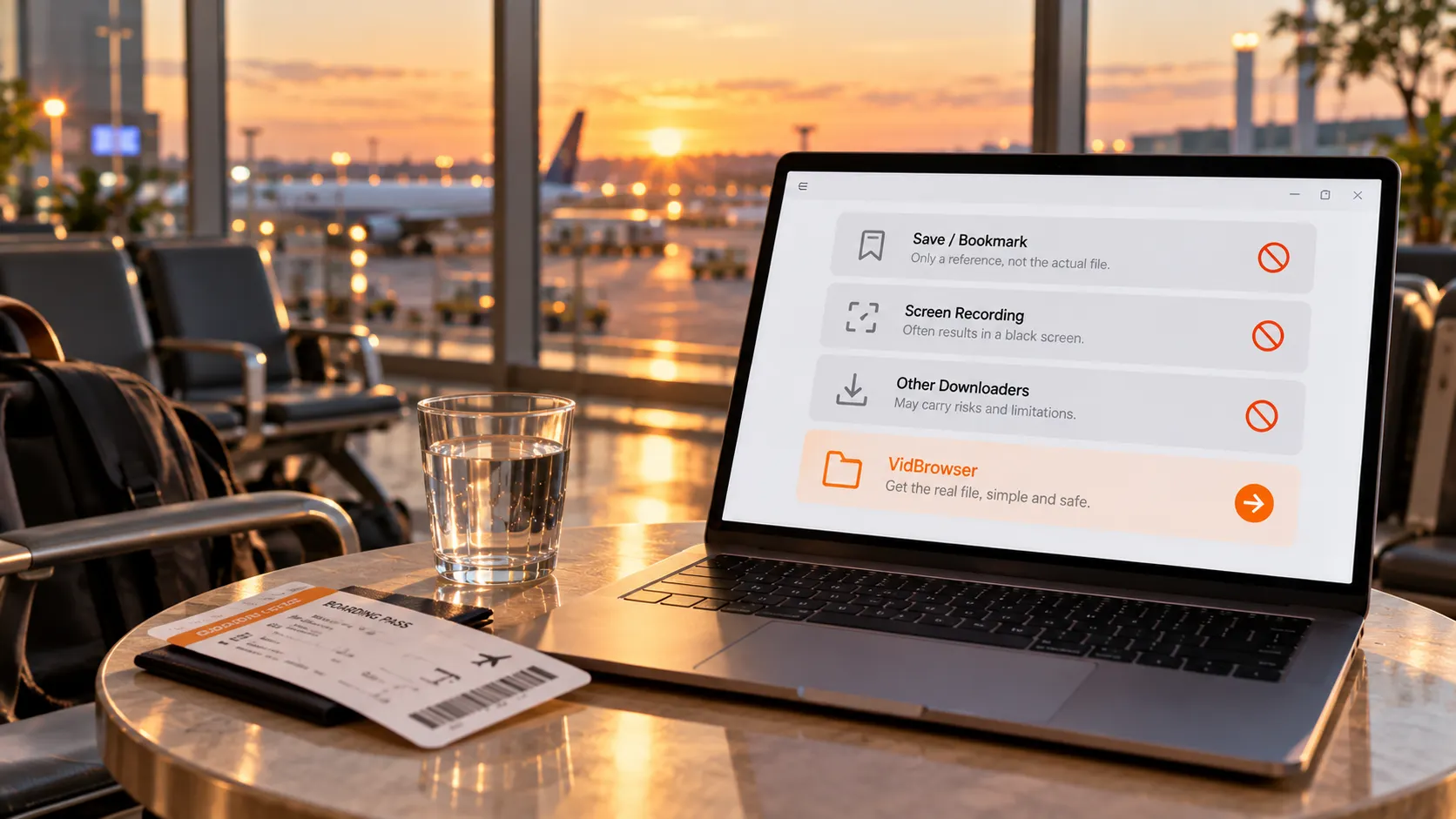
Screen recording hits the same wall on iPhone and Android
The two systems place the recording controls differently, but the result for OnlyFans videos is identical: a black screen. On iPhone the recorder lives in Control Center and must first be added in Settings; on Android the entry varies by maker, in the quick panel or the long-press power menu. The entry is easy to find, the wall is thicker: the video feed runs through a protected channel, and system recording captures blankness outside that channel — the desktop black-screen mechanism was unpacked in the black screen fix guide, and on mobile even recording after screen mirroring is blocked. One common misconception worth clearing: screenshots and recordings are operating-system actions, the platform receives no signal, and no warning will come; the trouble is never being found out, it is that you end up with nothing.
Store downloaders: the two systems do not even share an entrance
On iPhone you can barely find an entrance, on Android entrances overflow, and neither direction is worth touching. App Store review is strict and a dependable video downloader is impossible to find; on Android, apps and install packages carrying the downloader label fill stores and search results, but installing one means handing over your account password and photo permissions — giving a subscription account to an unknown program costs far more than failing to save a video. Why apps wearing the OnlyFans name are all untrustworthy is sorted category by category in the OnlyFans app guide; the legitimate mobile entrance remains the web version in a browser.
The route that works: save on desktop, then send the file to your phone
Put the saving step back on the desktop and let the phone do the watching — this is the combination that actually works. Four steps:
Step 1: Download and install VidBrowser
Get the installer from the VidBrowser website. It is a desktop video browser for Windows and Mac with download and recording built in, and installation takes a few minutes.
Step 2: Open onlyfans.com in VidBrowser and log in
It is a browser at heart: once logged in you see the same pages as the mobile web version, and your collections show up too.
Step 3: Open the page of the video you want
Open the target video and let the player load normally.
Step 4: Use recording to save (first choice for protected content)
Most OnlyFans videos are copyright protected, which ordinary download tools cannot grab, so recording is the most reliable way to save: move the mouse over the video and a set of recording controls appears — pick a recording speed (1x real time, 2x or 4x to finish sooner), press "record full video" to capture the whole thing, and the recording button on the left can start or pause at any moment; anything that plays can be recorded. If a video can be downloaded directly, the "video library" panel on the right lists it with an orange download button, one click saves it as MP4. File name, size, status and save location of every task are found under the clock icon in the left navigation. To move saved files back to your phone, cable, LAN and cloud drive are ranked from safest to most convenient in the transfer-to-phone guide.
Summary
The end of the road on mobile is clear: collections are references, recordings are black screens, third-party downloaders are risk — none of the three reaches the file layer. To truly keep an OnlyFans video close, the moves are two: save the file on desktop by recording, then follow the transfer guide to bring it back; the difference between iPhone and Android lies in how entrances look, not in the result.
FAQ
Do videos saved to a collection survive an unsubscribe
The collection record itself stays on the account, but whether it opens depends on whether the content is still there and your access is still valid; after a creator deletes or a subscription lapses, empty pages are common. To keep something for sure, save it as a local file following Step 4 above.
Will iPhone screen recording be noticed by OnlyFans
No. Screenshots and recordings are actions performed by the phone system; the platform receives no signal and there is no ban warning to worry about. The real problem is that the recording comes out black and the content was never captured.
Why not just log in through the phone browser and save from the web version
Mobile browsers lack the desktop download menu and extension capability, and long-pressing a video offers no save item; only the desktop paired with VidBrowser gives you the two proper tools — recording controls and the video library.