
OnlyFans Screenshot Black Screen? Real Fixes That Actually Work in 2026
You've probably tried it — take a screenshot on OnlyFans and get a completely black image; start recording software to capture a video, then open the file afterward to find nothing but a black screen the whole way through, audio intact but no picture. You've switched recording tools, changed browsers, even restarted your computer — same result every time.
It's not your device. It's not a software version issue. The black screen on OnlyFans videos is intentional — built on a video encryption system called DRM. This article explains exactly why it happens, and more importantly, what actually works in 2026.
Why Does OnlyFans Screenshot and Screen Recording Show a Black Screen?
OnlyFans videos are not ordinary MP4 files. They're DRM (Digital Rights Management) protected content, encrypted at the platform level. In plain terms: the platform has installed a hardware-level "anti-screenshot wall" deep in the video playback stack — screenshot and recording tools simply cannot reach the actual video data.
Here's how it works: OnlyFans video decryption happens inside the system's TEE (Trusted Execution Environment) — a physically isolated region of the CPU that no external program can access. After decryption, the video is delivered to your display through a protected channel, completely invisible to any screen recording software.
So what your recording software captures isn't the video — it's the blank space outside that protected channel. That's the black screen.
This protection triggers in every scenario below:
- System screenshots (Win + Shift + S, Mac Command + Shift + 4)
- Any third-party screen recording software (OBS, Bandicam, EV Recorder, etc.)
- Browser built-in screenshot tools
- Phone-to-screen mirroring followed by recording
In other words: as long as an OnlyFans video is playing, any tool that works by "capturing screen pixels" will produce a black screen. That's not a bug — it's exactly how DRM is designed to work.
Methods You've Probably Tried — and Why None of Them Work
We've tested every user-reported "fix" we could find. Here's the straight truth so you don't waste any more time:
Switching screen recorders — doesn't work. OBS, Bandicam, Camtasia, EV Recorder, Xbox Game Bar… any tool that works by capturing screen pixels will fail against DRM-protected content. The black screen is a system-level block, not a software-specific bug.
Switching browsers — mostly doesn't work. Chrome, Firefox, Edge, and Safari all have built-in support for DRM content protection. Black screens are widespread across all major browsers. A very small number of older browser versions or unusual configurations might not trigger it, but OnlyFans significantly tightened its protection after 2025, and those loopholes are essentially all patched.
Using a phone to film your computer screen — doesn't work. You can physically point a phone camera at a monitor, but the quality is terrible. Plus, certain OnlyFans content actively dims the display or triggers black-screen protection during screen mirroring, making this completely unreliable.
Browser download extensions — don't work. Video DownloadHelper, Stream Recorder, and similar extensions can pull video from many regular websites, but the OnlyFans video stream is an encrypted HLS fragment. Without the decryption key, the downloaded file simply won't play.
yt-dlp — ineffective for OnlyFans DRM video. yt-dlp is a powerful command-line download tool, but OnlyFans DRM protection is outside its capabilities. Files downloaded this way won't play. Most online guides target older, less-protected content — nearly all of those methods are dead now.
So Is There Really No Solution?
There is. But you need the right tool.
The root cause of the black screen is that recording software tries to grab video from the "outside," while DRM is specifically designed to make the outside see nothing. Solving this doesn't require better recording software — it requires a tool that can save video from inside the DRM authorization process.
VidBrowser is one of the few tools that can actually do this. It's not a screenshot tool or a screen recorder — it's a full desktop browser with a built-in video download engine. After OnlyFans completes its normal DRM authorization process, VidBrowser steps in at the legitimate playback stage and saves the decrypted video directly to your computer — all within the platform's authorization chain, not by grabbing pixels from outside.
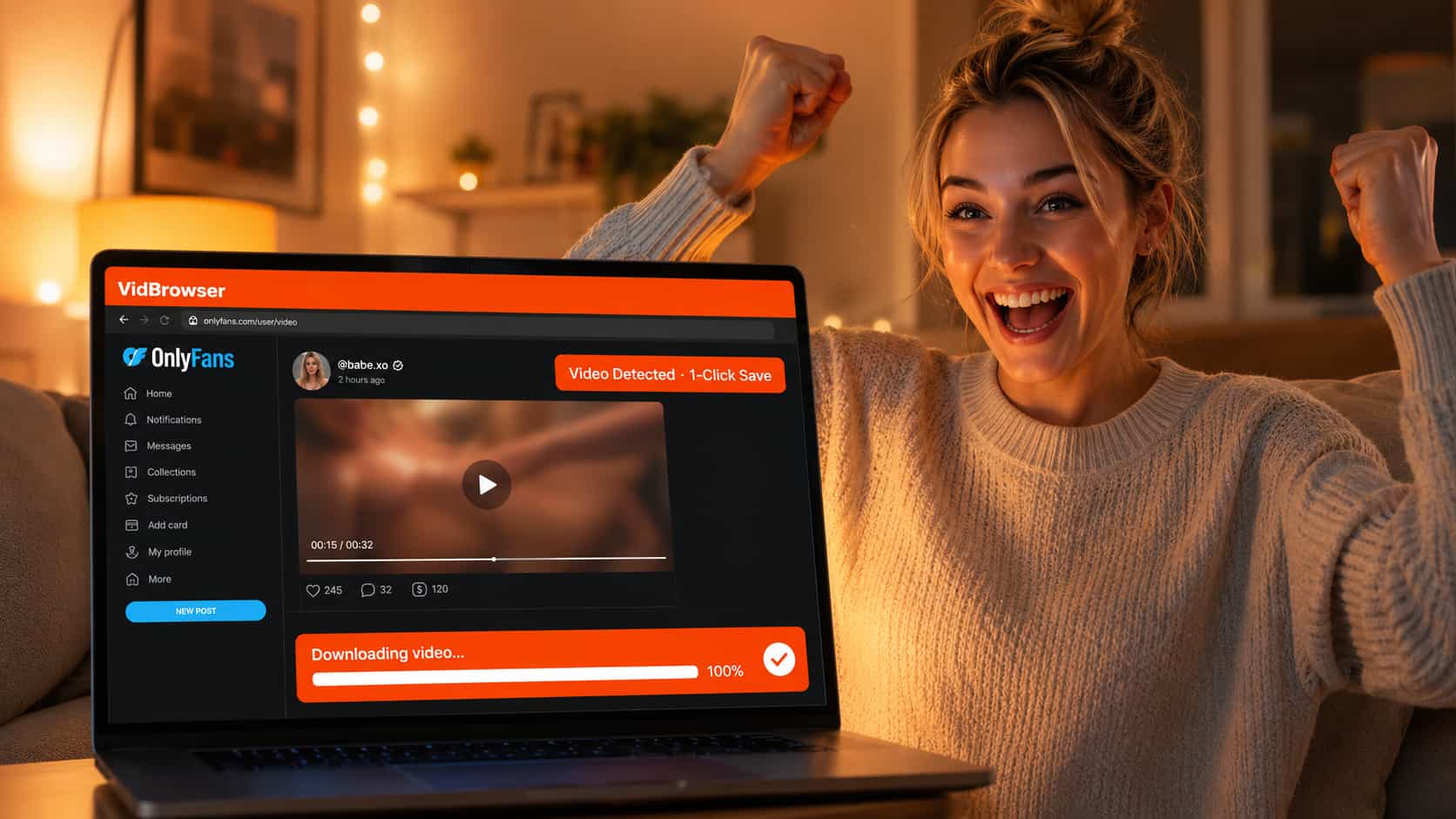
Test results: VidBrowser delivers stable support for saving DRM-encrypted OnlyFans videos. The saved files match the quality of authorized playback. Open them with any regular player (VLC, IINA, etc.) directly — no platform dependency, unaffected even if the creator deletes the post.
Step-by-Step: Using VidBrowser to Fix the OnlyFans Black Screen
Step 1: Download and install VidBrowser
Head to the VidBrowser official website for a free download. Choose Windows or Mac based on your system. Installation is the same as any normal software — just follow the prompts.
Step 2: Open OnlyFans inside VidBrowser
Launch VidBrowser, type onlyfans.com directly into the address bar, and log in with your account as usual. Important: you must do this inside VidBrowser — logging in through a regular browser and then switching over won't work.
Step 3: Find the video you want to save and play it
Browse OnlyFans normally, find the video you want, and let it start playing. VidBrowser automatically detects video resources on the page and typically displays a download prompt or icon in the interface.
Step 4: Click download and choose a save location
Click VidBrowser's download button, select where to save the file, and wait for the download to complete. The entire process happens inside the browser — no link copying, no tool switching needed.
Step 5: Open the file with a local player
Once downloaded, open the file with VLC, PotPlayer, IINA, or your system's built-in player. It plays normally — no black screen, no internet required, unaffected by account status.
VidBrowser has a free version — click here to download it for free and try it out.
Frequently Asked Questions
Does VidBrowser save videos at the same quality I see on OnlyFans?
Yes. VidBrowser saves the original authorized playback quality — it's not a screenshot or screen recording, so there's zero quality loss.
Will using VidBrowser get my OnlyFans account banned?
VidBrowser works by logging in and playing content normally inside a browser — it doesn't crack accounts or bypass login verification, and won't trigger OnlyFans account security measures. There's no meaningful difference from logging into OnlyFans through a regular browser.
Why do I still get a black screen after switching recording software?
Because the black screen is triggered by a system-level DRM protection mechanism — not your recording software's version or settings. Switching recorders doesn't fix the underlying cause. The real solution requires a different approach: use a tool like VidBrowser that works inside the authorization chain, rather than continuing to try capturing from the outside.
Can I watch the saved video on my phone?
Yes. The saved file is a standard local video file. Transfer it to your phone and open it with any video player — no OnlyFans account needed, no internet required.
What else can VidBrowser do besides OnlyFans?
VidBrowser supports video downloads from 1,000+ platforms including YouTube, TikTok, Netflix, Disney+, and Twitter. It also includes ad-free browsing, AI video editing, AI highlight detection, and video segmentation — a complete desktop browser built for video, not just a single-purpose download tool.


