Transfer Saved OnlyFans/Fansly Videos from PC to Phone
You saved a few Fansly subscription videos on your computer over the weekend, and on Monday's commute your phone has nothing on it — log into the web version again? Mobile data won't survive it, and quality auto-downgrades. The files are already in your hands; what's missing is just a path from computer to phone. This guide covers all three routes — cable, no cable and cloud — plus the privacy details most easily overlooked when moving private content.
How do you transfer saved videos to a phone? Three prerequisites first
Whether a video plays smoothly on your phone depends on three things: the file at hand, a player on the phone that recognizes it, and a reliable transfer channel. Miss any one and you get "transferred but won't open" or "won't transfer at all".
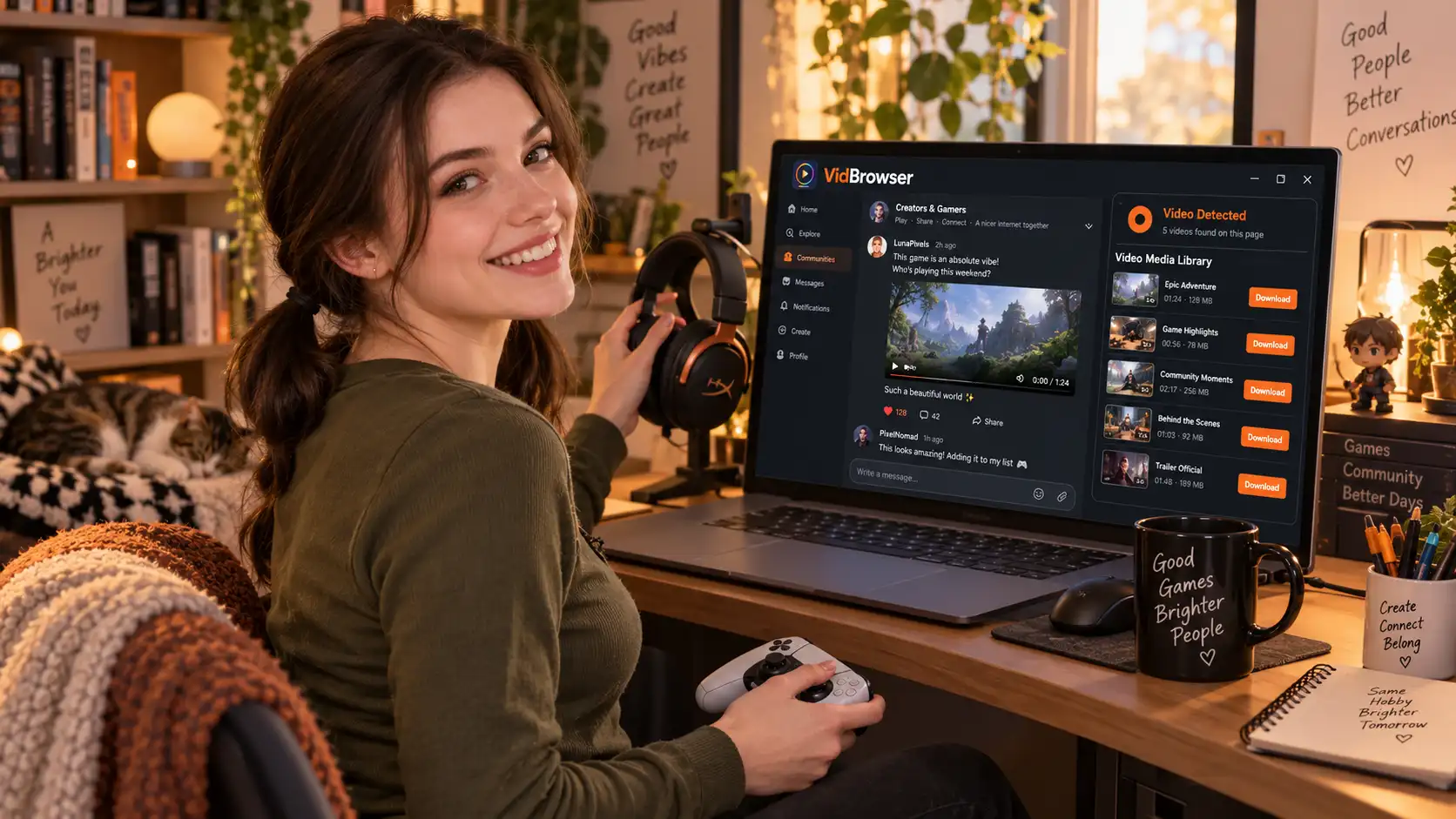
- File location: first confirm the video really is on the computer's local disk. For videos saved with VidBrowser, click the clock icon in the left navigation to open download history — every task carries a save-path column; open the folder by that address and you're there (not sure where files went? see our finding guide)
- Format compatibility: MP4 is the most universal format — both Android and iPhone stock players run it directly; a few WebM files aren't recognized natively, and a third-party player like VLC solves that — more in section five
- Transfer channel: cable, LAN and cloud each fit different scenes; picking the wrong one means small files crawling for half an hour and big files dying halfway
With the prerequisites clear, take the three routes in order from "most reliable" to "most convenient".
Cable transfer: Android and iPhone are two different routines
Plugging in a cable is the fastest, least error-prone way — the first choice for large files. Android and iPhone paths are completely different:
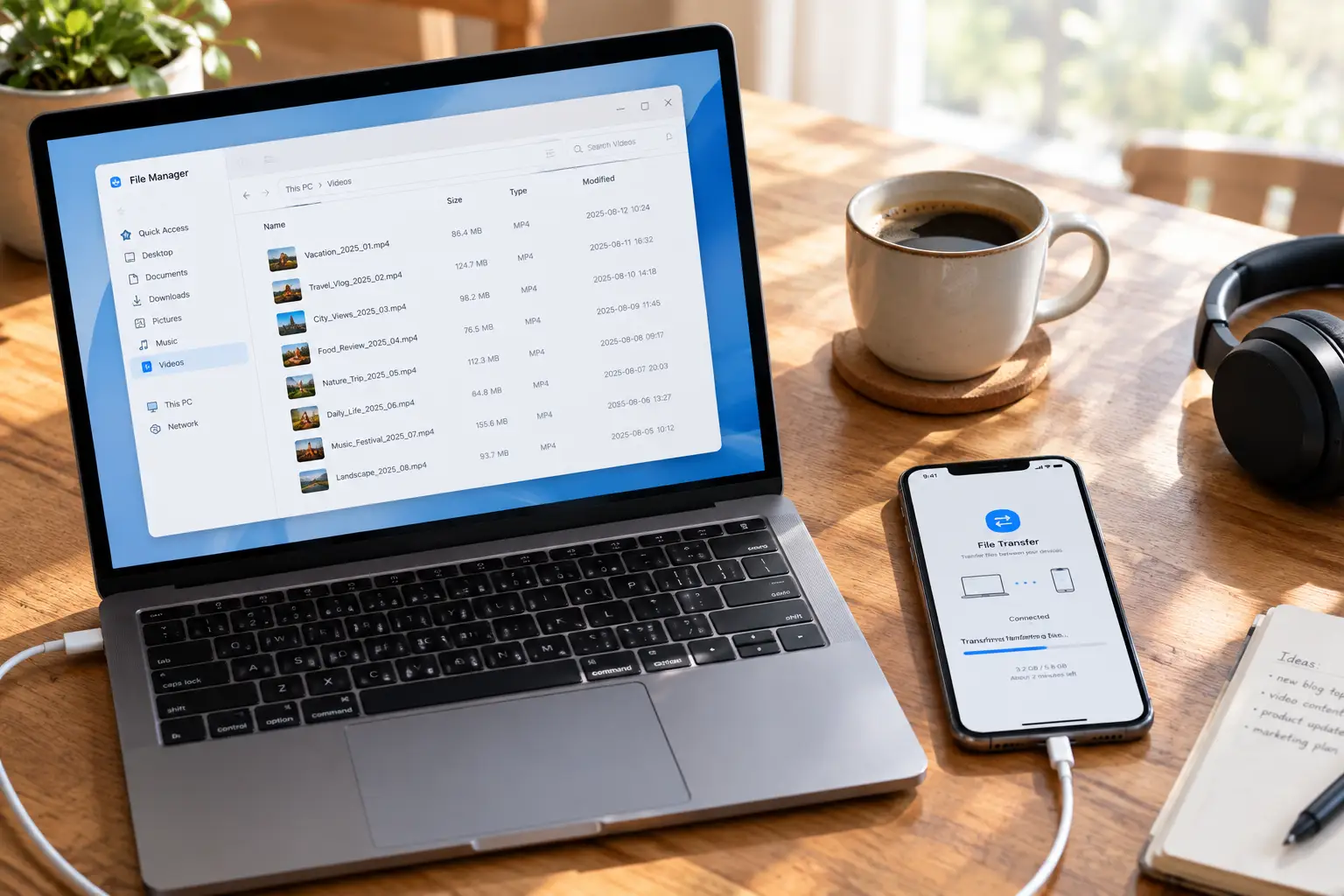
- Android: after the USB connection, switch the USB mode to "File transfer (MTP)" in the phone's notification panel; a phone drive appears on the computer and you drag the MP4 straight into Movies or Download. A multi-GB video finishes in minutes without dropping
- iPhone: Windows users need the Apple Devices app (or iTunes) first, sending the video to a player app that supports file import such as VLC via "File Sharing"; Mac users do the same through Finder. Follow the official Apple support document for exact steps — entry points differ slightly across system versions
The cable route's only barrier is installing a driver or tool once; after that it's a single "drag it in" motion, ideal for moving a whole batch of videos at once.
No cable? LAN direct transfer, set up in minutes
Put the phone and the computer on the same Wi-Fi and you can transfer directly without going through any server — usually an order of magnitude faster than cloud drives.
- LocalSend: an open-source, free cross-platform tool for Windows, Android and iPhone, working like AirDrop — open it on both ends, spot the device, pick the file, done
- VLC's Wi-Fi sharing: turn on the sharing switch in VLC on the phone and it shows a local address; type that address into the computer's browser and upload videos straight into the VLC playlist, without even passing through the Files app
The LAN approach suits lightweight scenes of moving a few files occasionally, no heavyweight software needed. With a decent router, a 1GB video transfers in under half a minute.
Before using a cloud drive, do the privacy math
Technically fast doesn't mean advisable — the privacy cost of this kind of content is routinely underestimated. Mainstream cloud drives scan and identify file contents; putting private videos up means handing them to a third party for custody, and sync records appear on every device logged into the same account, including tablets, office computers and family-shared devices.
If you truly need a cloud drive as a relay, at least do three things: create a dedicated folder with album auto-sync off, delete from the cloud and the recycle bin right after the transfer, and never log into that account on office or shared devices. Safer options are transfer tools with end-to-end encryption, or simply return to the two direct routes above — the file never touches a third-party server.
One more post-transfer detail: rename files neutrally. "Trip records_03" is far safer than a string of platform names — no instant social death when the phone connects to a car screen or casts at a party.
Turn your download history into a pocket offline library
Transfer is just moving files; the efficiency difference starts at the source: archive at save time by the standard of "will watch on the phone later". VidBrowser's download history (clock icon on the left) records each task's file name, size, download time and save path — straight from history to the file, no full-disk searching.
When you want to stock the library, videos that can be downloaded directly take the orange "Download" button in the media panel on the right (pick a resolution first); content ordinary downloaders can't handle still gets kept via recording. Archive by creator in fixed folders, and when transferring to the phone, drag the whole pack over instead of hunting one by one.
Once the file is on the phone, the playback side is simple too: Android's stock player handles MP4; iPhone users should install VLC — long-press the video in the Files app, choose "Share" → VLC to import, and it even eats WebM. As for why there's hardly a reliable saving method on phones and the desktop is the real main battlefield, we covered it in our mobile comparison — get the two ends' division of labor right and everything flows. With that, the loop of "saved on computer, watched on phone" is complete.
FAQ
Will OnlyFans or Fansly know the video was transferred to my phone
No. Once saved locally, a video is an ordinary file — transfer and playback never pass through the platform's servers, so the platform can neither detect it nor revoke it. The content itself is still copyrighted though: personal offline viewing is fine, redistributing is inappropriate and risky.
Can I transfer videos to an iPhone without iTunes
Yes. The easiest combo is LocalSend (LAN transfer, save target the Files app) plus the VLC player; or use VLC's built-in Wi-Fi sharing — no cable and no iTunes the whole way.
A few videos are hundreds of MB — is my file too large
It's not the phone's fault; the source files are simply that big. A single 1080p long video over 1GB is normal. To save phone space, decide on the computer which ones you'll actually watch and move on demand — much better than "transfer everything and sort later".