Videos piling up in Discord: check first whether it is a link that expires
After enough time in Discord, the videos piled up in favorites and chat history are no small number: game-night highlights from friends, great clips shared around communities, a live session in a voice channel you could not bear to miss. Come back weeks later and some still play, while others show "This content is no longer available". Same kind of video, completely different fates — the difference is where each one came from. Discord itself offers no bulk export or download entry; to keep these videos as files, you first have to tell where each one came from.
Videos in Discord come from three sources — first see which one you are saving
The videos you see in a channel come from three sources: chat attachments, pasted external links, and live screens in voice channels — three sources, three ways to save.An attachment means someone uploaded a video file straight into the chat, with the file itself hosted on Discord's own storage and usually shown as an embedded playback card; an external link means someone pasted a YouTube or Streamable style link into the channel, and Discord merely renders it as an embed — the file never sits on this server; the third is the camera and "Go Live" screen share opened in a voice channel, a stream happening in real time with no file behind it at all.
If you do not sort out the source first, the saving effort is all wasted: hunting for a download button on an embedded picture finds nothing, because the file lives on another platform and the right place to handle it is that host — expanded in the "video source is never unique" point from the Tumblr saving guide; looking for a "replay" of a live stream finds nothing either, because it is not a recording. Attachments are the only one of the three that truly belongs to Discord, and they carry two layers of limits: links that expire, and size that is squeezed.
Attachment links have become signed addresses that expire
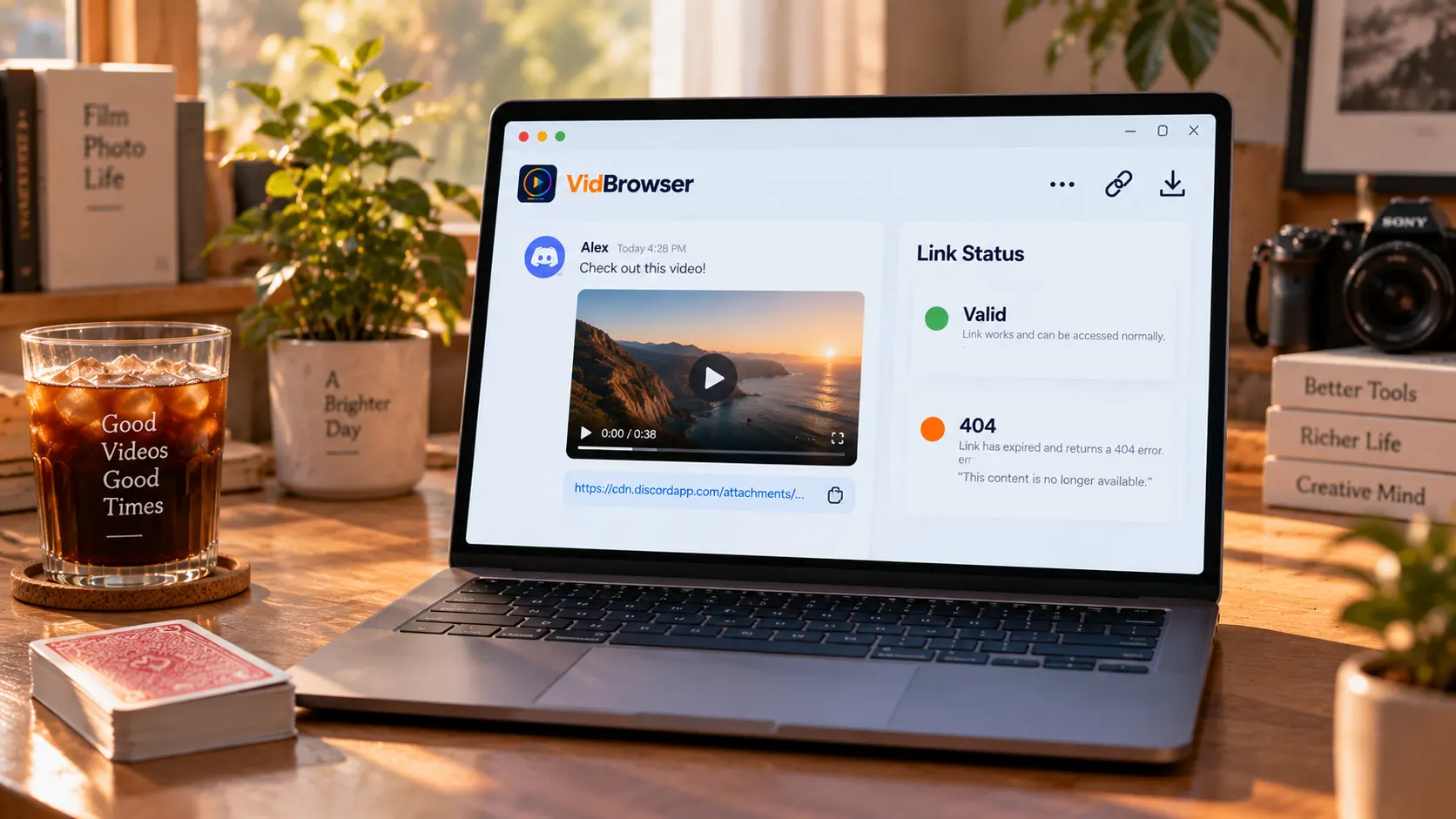
Since November 2023, Discord has turned all attachment links into signed addresses with a lifetime — once a link leaves the client, it dies after a while.Per the official announcement at the time, the change was meant to curb the abuse of Discord storage for distributing malware. New attachment addresses carry three signature parameters — issue time, expiry time and a checksum — and once expired, any browser that opens one gets "This content is no longer available"; the file itself is still on Discord's storage, but that address no longer opens the door.
There is a layer of mechanics easy to misunderstand here: a link expiring does not mean the file was deleted; opening it inside the client automatically attaches a fresh signature.The official developer documentation puts it plainly — if an application needs long-term access to attachment content, it should fetch the content and store it on its own independently maintained host. Translated to an ordinary user's situation, the sentence means: copy the link out and post it elsewhere, and in a few days it is a dead link; if you want a video to stay in your hands long term, landing it as a local file is the direction the official docs themselves point to.
Beyond signed addresses, the Caps page of the official help center marks the free account's single-file cap at 10MB — a number that decides what most "videos" in Discord can even look like.Nitro Basic is listed at 50MB and full Nitro at 500MB; server boost levels 2 and 3 raise the cap for every member of the server to 50MB and 100MB respectively, subject to your server's current level. A ten-minute 1080p video easily exceeds 10MB, so free-tier users uploading video either compress the quality away or cannot upload at all.
The low cap also explains the third common shape in channels: when a file will not go through, people paste an external link instead, or cut the video into several small attachments. Conversely, any video that exists as an attachment is mostly a short clip at a low bitrate, and such small files can be saved directly while the link is still fresh; as for why live screen streams "cannot be saved", the mechanism is laid out in why streaming videos cannot be downloaded — for here, just keep the conclusion: a live stream has no file; what sits before you is a playback that is happening right now.
Give each source its own route, and turn them all into files in one pass
Once the sources are sorted, each gets its own saving method: land attachments while the link is fresh, send external links back to their host platform, and record live screens.VidBrowser is a desktop video browser with downloading and recording built in, made for watching videos on Windows and Mac, trimming clips and saving them locally — the Discord web app runs inside it as usual. The steps are as follows:
Step 1: Download and install VidBrowser
Visit the VidBrowser website, download the Windows or Mac version and finish the installation — it takes a few minutes.
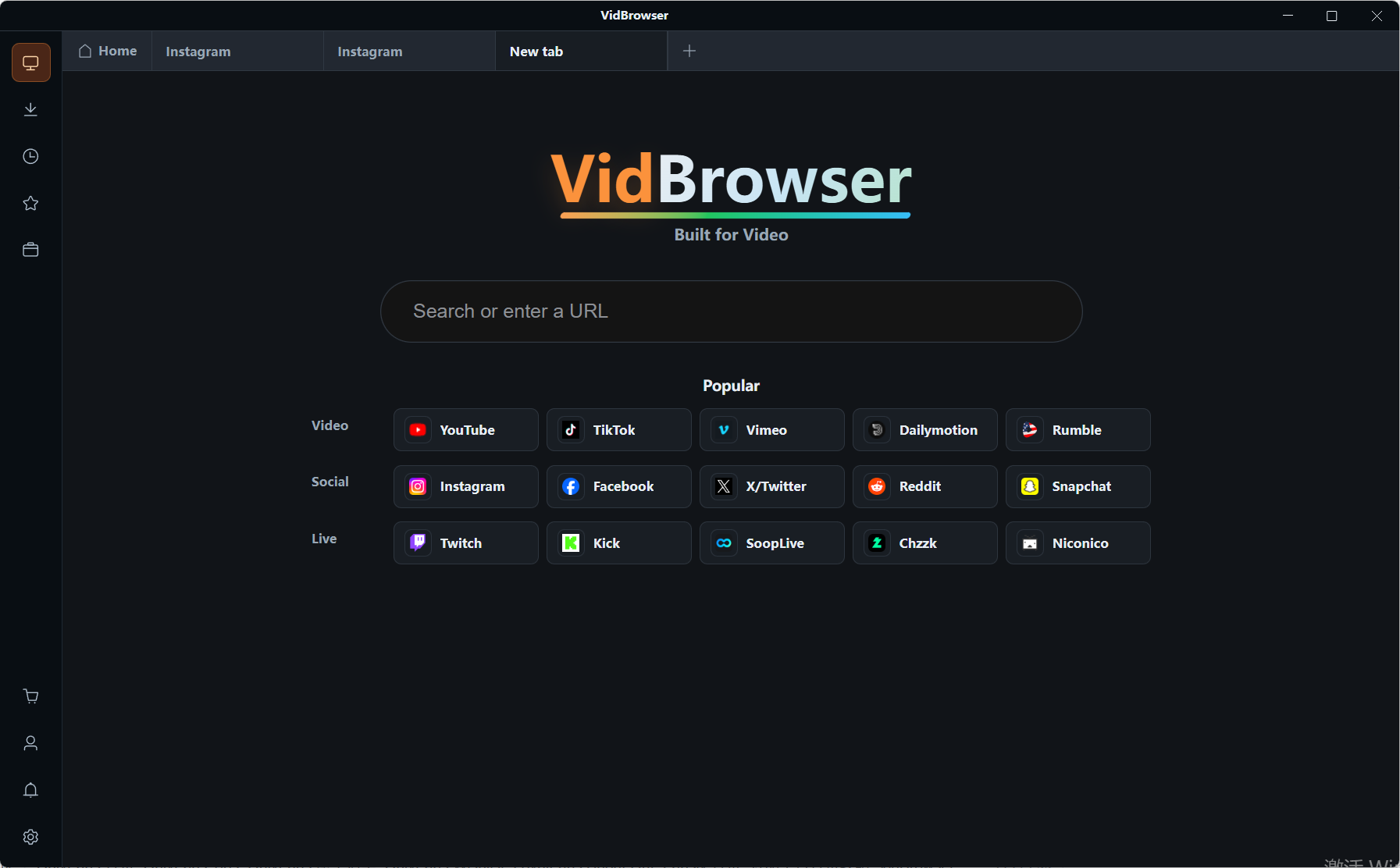
Step 2: Open the Discord web app in VidBrowser and log in
Use the built-in browser to open the Discord web app and sign in to your own account, then enter the channel where the video lives. Attachments and external links render in the web app just as in the client, and the live screens in voice channels are visible too.
Step 3: For live screens in voice channels, save with the recording feature
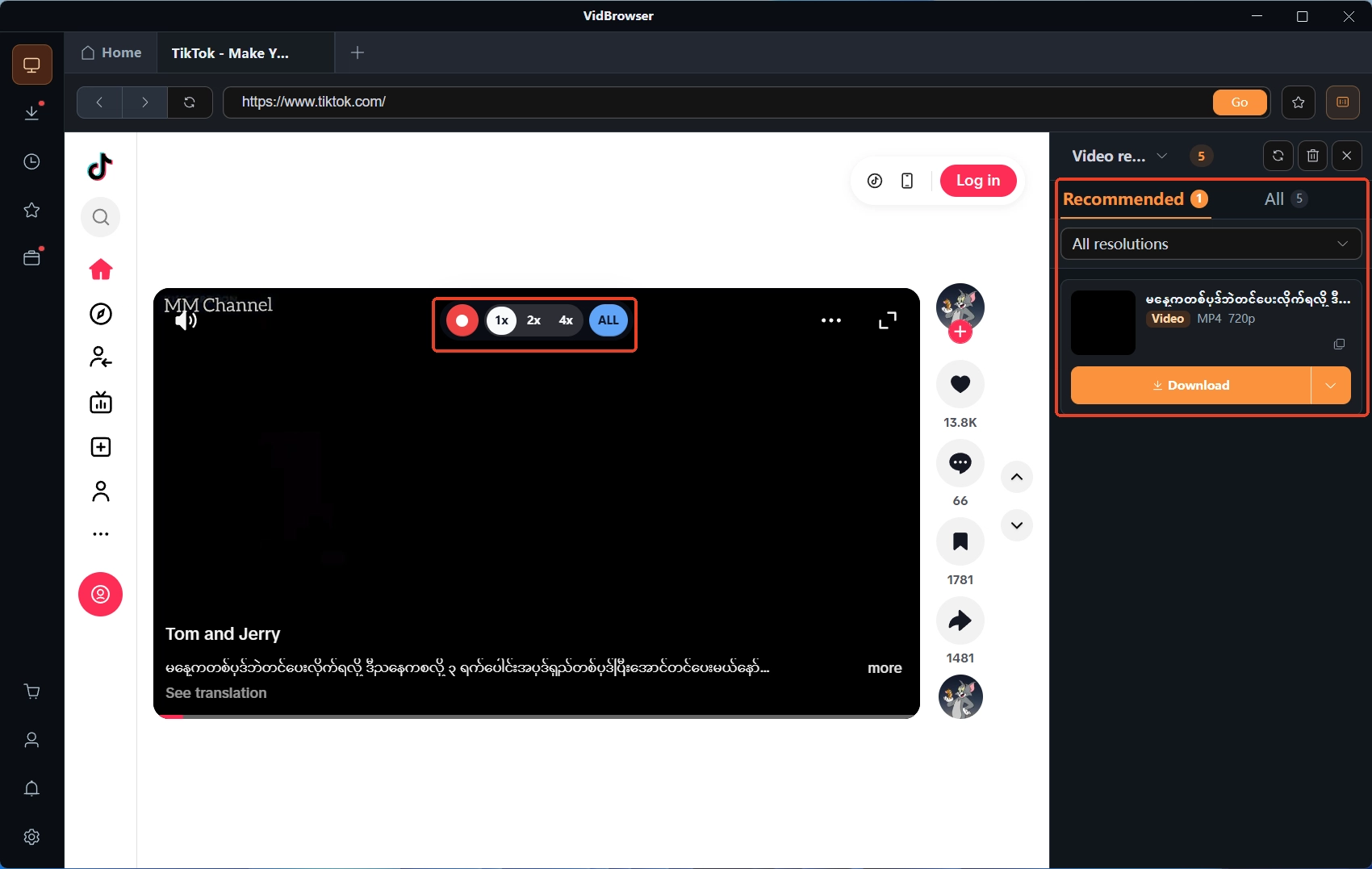
Camera feeds and "Go Live" screen shares are real-time streams with no file to download, so recording is the way to keep them: move the mouse over the video and the recording controls overlay appears — pick a recording speed (1x real-time, or 2x / 4x to finish faster), press Record All to record the whole video, and use the button on the left to start or pause at any time. A live session or screen share is something happening on the other side right now; deciding whether to give a heads-up before recording is basic courtesy in a community.
Step 4: Cover attachment videos with download, then check the download history
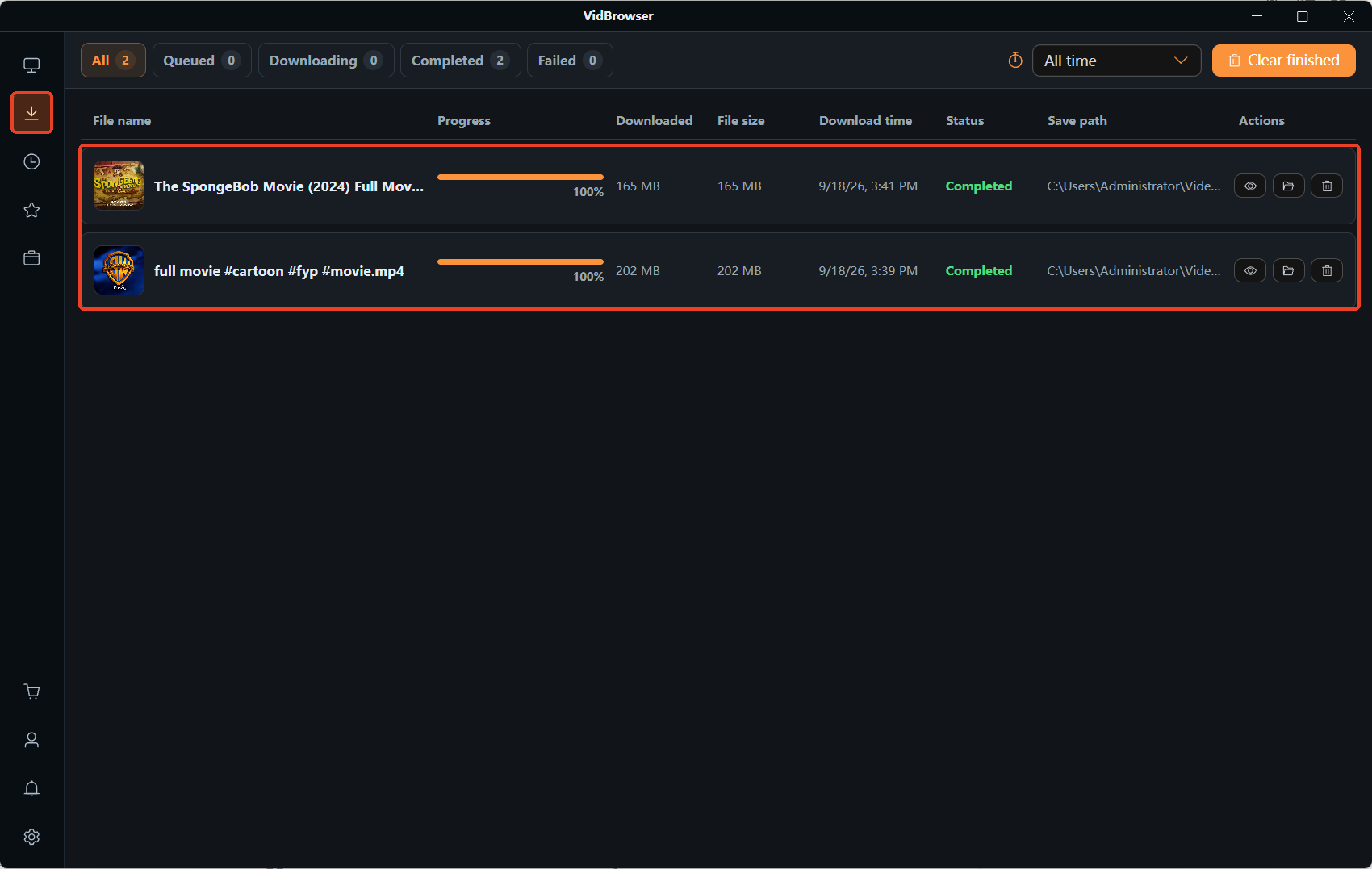
While an attachment video plays, the Video Library panel on the right lists the detected video entry; click the orange Download button to save it as MP4. Once recording or downloading finishes, click the clock icon in the left navigation to open the download history and check the file name, size and save location, confirming the file is complete and plays normally. With these steps done, every video in the channel has found its own place to land.
FAQ
Can an attachment link that already 404s still be rescued?
Yes, as long as the file still exists. Find the original message in the Discord client and reopen or refresh it; the client generates a new signed address automatically. At that point, saving the video directly to your local disk is far safer than copying the link again — the new link will expire the same way before long.
After saving locally, will the video disappear together with the message?
No. What you saved with an attachment is a copy of the file at that moment; whether the message is later deleted or the server is shut down, the file already on your computer is untouched. The reverse is what hurts: saved the link but not the file, and once the message goes or the signature expires, all that waits for you is a 404.
Can external-link videos be downloaded directly inside Discord?
Depends on the host platform. The file behind an embedded player sits on YouTube, Streamable or wherever it was pasted from; Discord is only the display layer, and downloading has to happen on the host platform. The exception is when someone pasted a direct file link — open that one and it can be saved right away.