The Patreon video post stuck spinning: it is usually the embed authorization
You finally get to the weekend, open a video post the creator just released, and the frame keeps spinning — or it simply flashes "Video unavailable". Before blaming your connection, know one thing about how video posts on Patreon are built: many creators do not use Patreon's own storage, they host videos on Vimeo or YouTube and embed them into the post. The moment you hit play, Patreon must prove to that host platform that "this viewer has paid"; until the authorization finishes, the circle keeps going around. This article works through the blockers layer by layer and turns the spinner back into playback.
Sort the spinner first: which host, which link in the chain
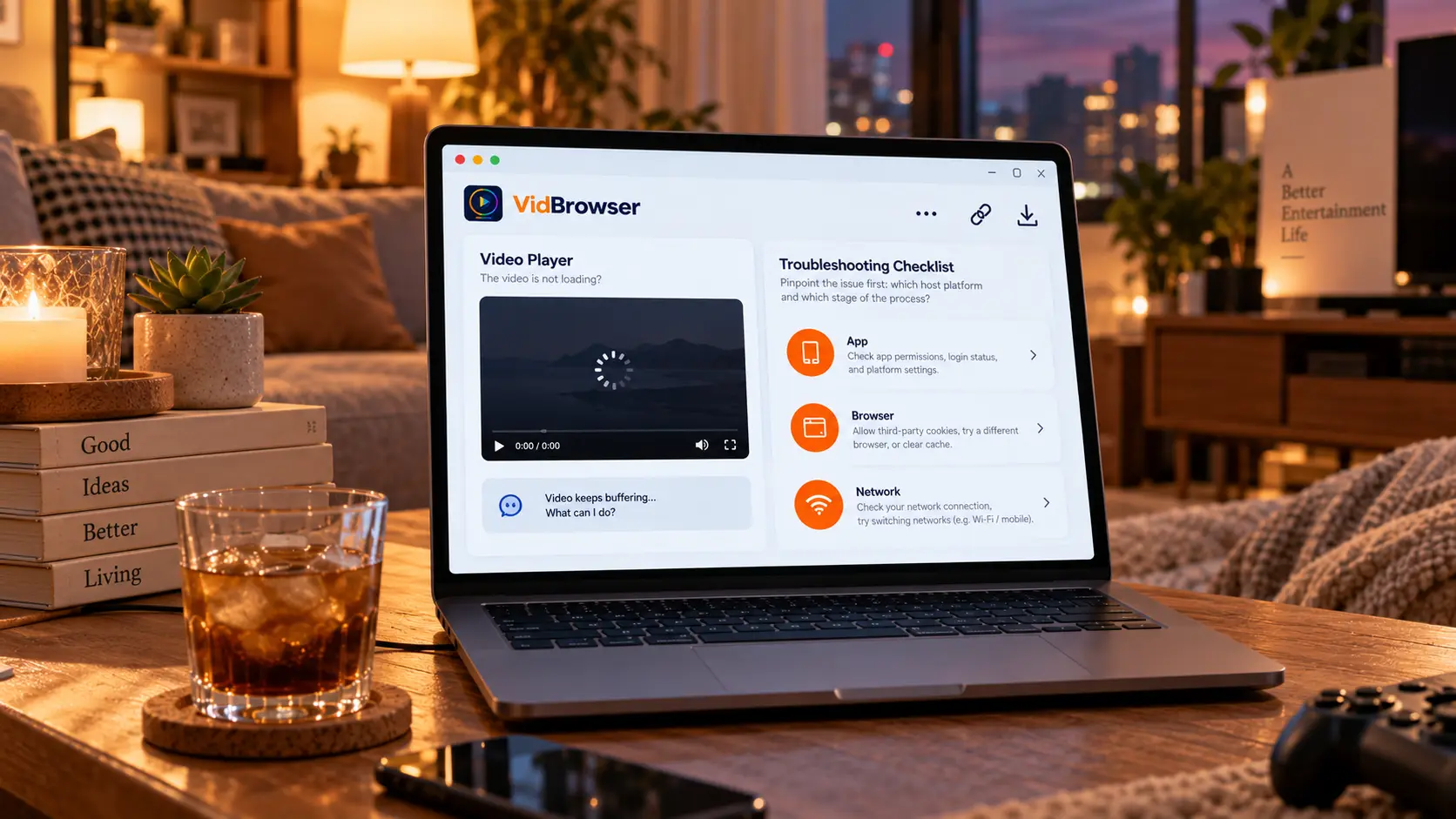
The same "won't open" behaves completely differently depending on which platform hosts the video, and so do the fixes.The way to tell is direct — look at how the loading gets stuck: if the player frame is Vimeo's dark interface, the spin is most likely stuck at authorization; if a YouTube error screen pops up, embed restrictions are at work; only when the player shell does not even appear do network and local environment come into play. The official help center's guidance for creators confirms this construction — its instructions have two dedicated sections teaching creators how to configure Vimeo and YouTube embed permissions so members can watch normally.
Why sorting comes before acting: clearing cache and disabling extensions work within the "network side", while the most common Patreon spinner happens on the "authorization side" — aiming at the wrong layer gets you nowhere after much effort. Once sorted, handle the two high-frequency blockers first, since authorization depends on the browser letting cross-site information through, and two default settings are exactly its usual traps. Many creators list highly consistent checklists under their own posts, and the first item is almost always switching browsers: the handoff between the Patreon mobile app and the Vimeo player is unreliable — a known platform-to-platform issue — and opening the same post in a browser makes most playback errors disappear. If you stay in Safari to troubleshoot, go into settings and turn off "prevent cross-site tracking"; that switch intercepts the authorization Patreon hands to Vimeo halfway, so the circle naturally keeps spinning.
The second blocker is third-party cookies: Vimeo needs them to check "does this viewer have access", and a browser set to block all third-party cookies breaks the check at its heart. Allow them, go back to the post, and play again. When the spin has turned into a "please log in" loop, open an incognito window and sign in from the start — conflicting states left by old cache are often cleared this way. Only after these steps, if it is still stuck, is it worth checking the network.
"My friend can watch, I can't": YouTube embeds and login walls
When others in the same post watch normally and you get an error, your device is usually fine — the difference is which platform the video embeds from.The official help center describes one typical case: a creator uploads a video to YouTube and the video contains music under a copyright license, so YouTube tags it with restrictions — such a video shows "Video unavailable" in Patreon's iOS app, while Android devices are unaffected because they call up the YouTube app itself to play. In this case, what you can do user-side is open the post in a browser instead; the real fix waits for the creator to mute the claimed segment or adjust the upload settings.
Another kind of "won't open" is the login wall: some creators set their Vimeo videos to require a login, so hitting play first brings up a Vimeo sign-in page. This is not a malfunction — register a free Vimeo account, log in, return to the post and play again; creators usually note this in the post description. Put the two scenes together and you will see that behind the "spinner" there are more categories of doors than expected — recognize which one it is before you act.
Beyond authorization, close out membership status and environment
If it still will not open after all this, return to the two basics: post permissions and viewing environment.On permissions, video posts usually unlock by tier — when a payment fails or a subscription drops a tier, the post entry disappears or shows no access; that bookkeeping line is covered in the item-by-item check for rejected Patreon payments. On environment, generic actions like clearing cache, disabling extensions and switching networks do help "network side" stalls, and the full checklist lives in the general troubleshooting for playback buffering article — work through it once, and this piece will not repeat it.
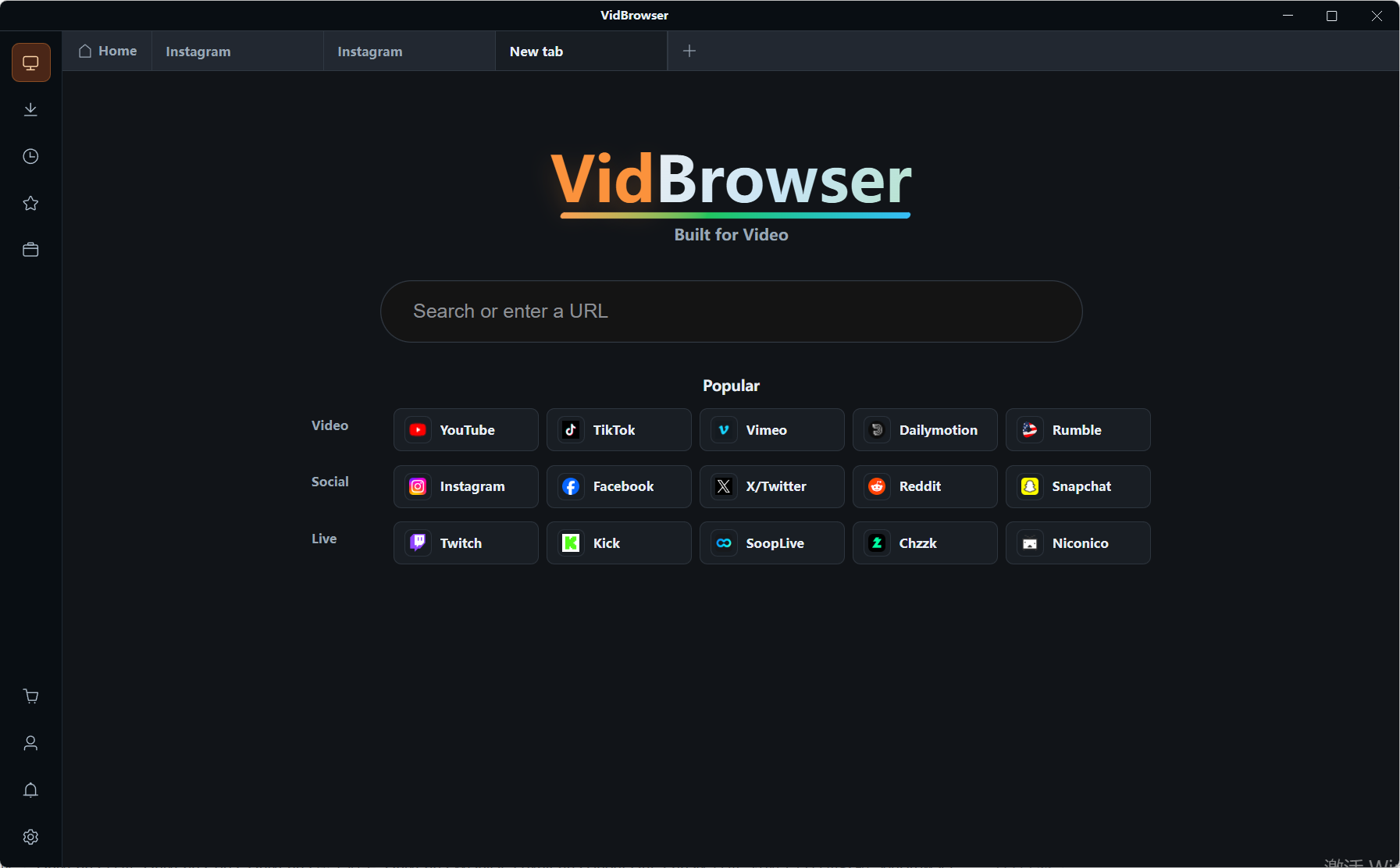
Once playback is fixed and you want to keep a copy, VidBrowser is a desktop video browser with downloading and recording built in, made for watching videos on Windows and Mac, trimming clips and saving them locally. The steps are as follows:
Step 1: Download and install VidBrowser
Visit the VidBrowser website, download the Windows or Mac version and finish the installation — it takes a few minutes.
Step 2: Open the Patreon web app in VidBrowser and log in
Use the built-in browser to open the Patreon web app and sign in to your own account, enter the page with the video post, and fix the spinner as described above — only talk about saving once it plays normally.
Step 3: Save the playing video with the recording feature
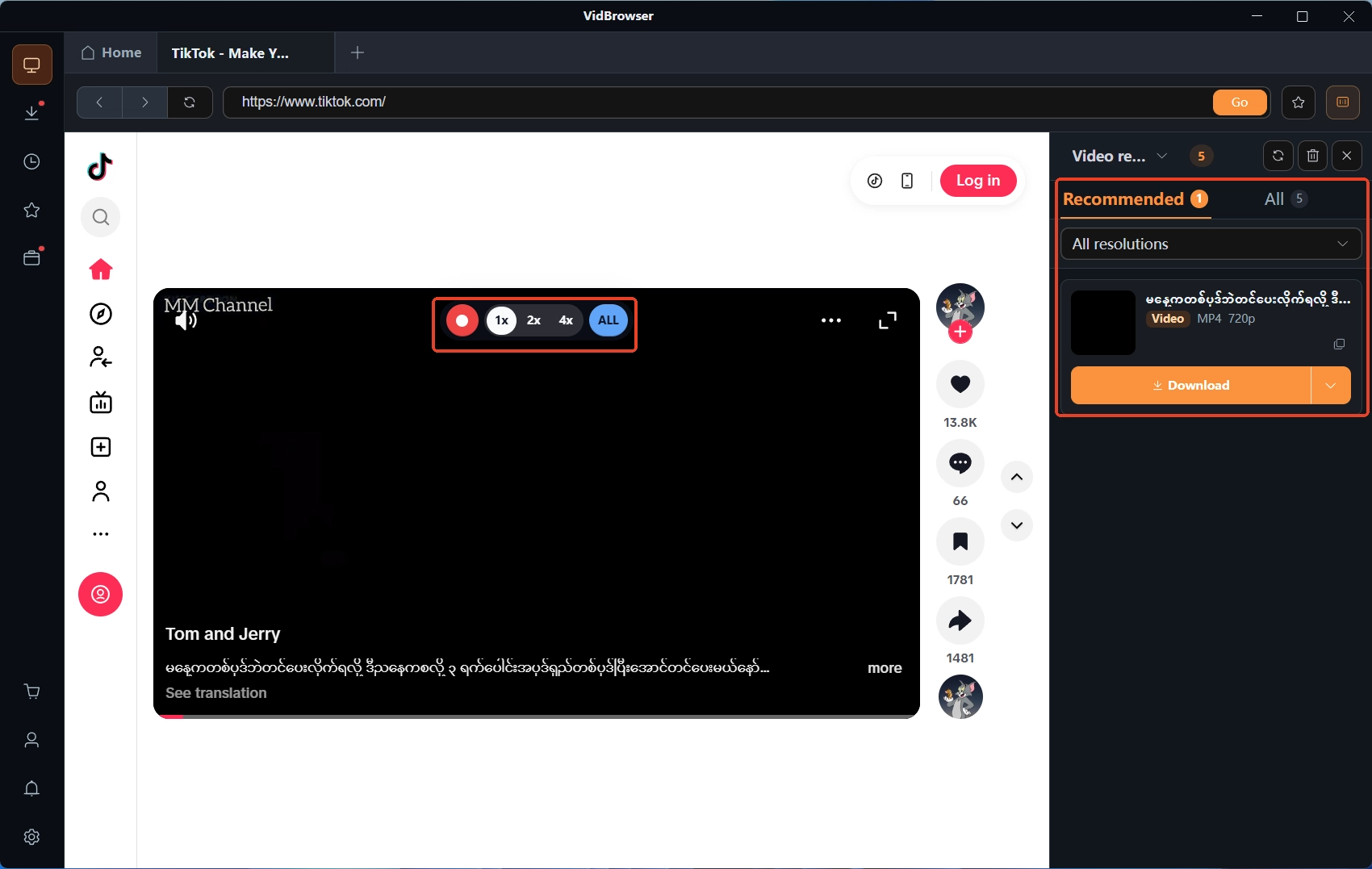
Videos embedded in posts are protected by the creator's access control and count as protected content; recording is the most dependable way to keep them: move the mouse over the video and the recording controls overlay appears — pick a recording speed (1x real-time, or 2x / 4x to finish faster), press Record All to record the whole video, and use the button on the left to start or pause at any time.
Step 4: Cover downloadable entries with download, then check the download history
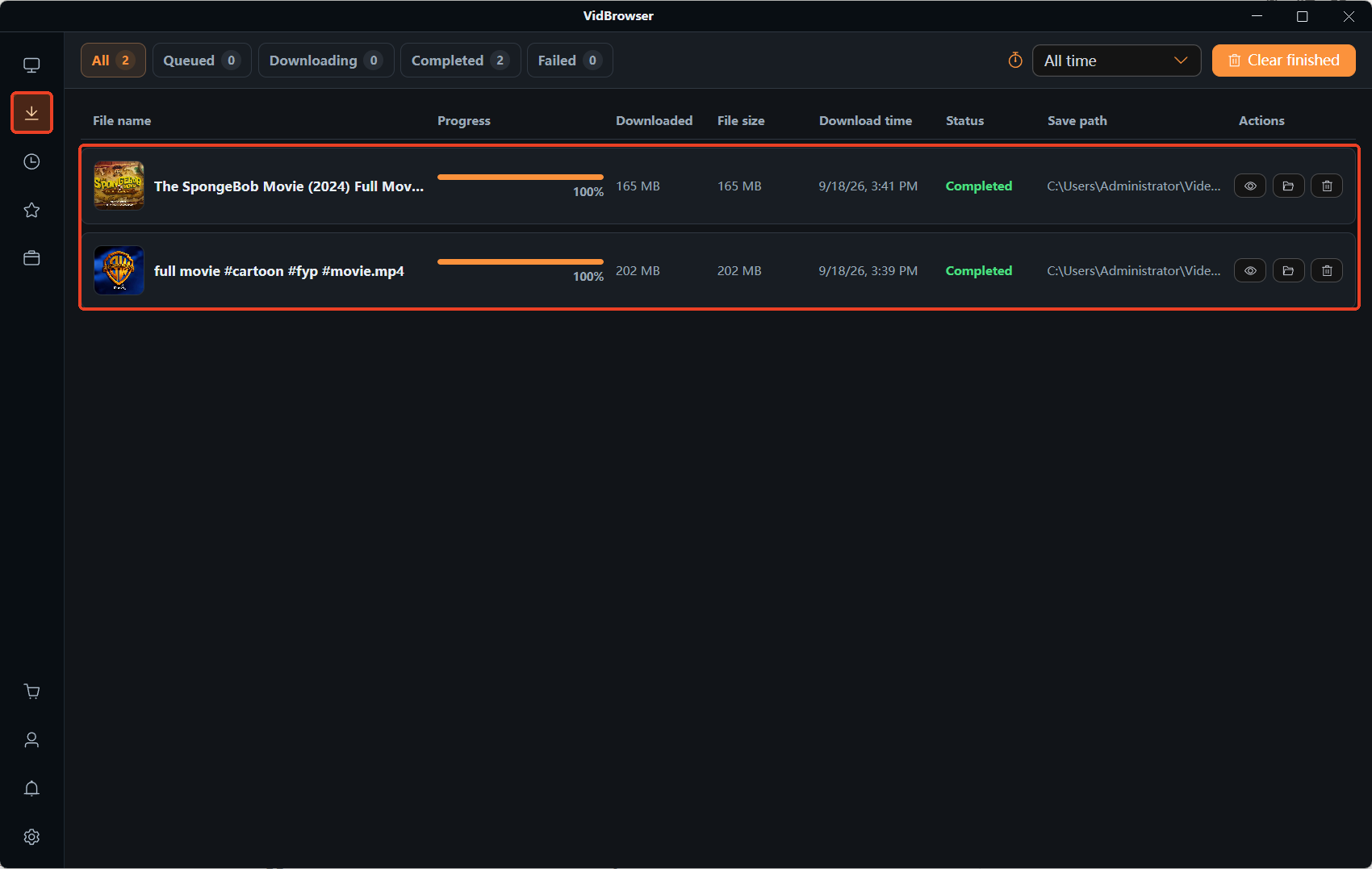
For the occasional video posted as a direct link, the Video Library panel on the right lists entries with an orange Download button — use them as needed; once recording or downloading finishes, click the clock icon in the left navigation to open the download history and check the file name, size and save location, confirming the file is complete and plays normally.
FAQ
If it will not open in the mobile app, does the web version work?
Most likely yes. The handoff between the app and the Vimeo player is where spinners happen most, and creators' checklists put "open it in a browser" first; if the web version stalls the same way, then work through Safari's cross-site tracking switch and third-party cookies in the order of this article.
A Vimeo sign-in page popped up — is this phishing?
Usually not. Embedded playback asking for a Vimeo login is a common creator-side configuration; the sign-in page's address should begin with vimeo.com. Check the domain before entering your account, and a free Vimeo account, once logged in, returns to the post and plays again.
Now that it plays, can I save it and share with a friend who has not subscribed?
No. Your subscription buys your own viewing authorization, the video is protected by the creator's access control, and saving it to send out crosses the authorization boundary; the safest way for a friend to see it is to share the creator's page link and let them subscribe themselves.