How to use the VidBrowser download history to check task status and find saved videos
After queuing up dozens of video downloads in one go, the real time sink is not the downloading itself but checking the results: which ones finished, which are still running, what to do about the failed ones, and where the files actually went?
The VidBrowser download history keeps every download and recording task in one place, so you can review task status, file size and save location. This guide walks through how to use those records to verify download results, sort out problem tasks, and quickly locate the videos saved on your disk.
Where is the VidBrowser download history? How to view task records
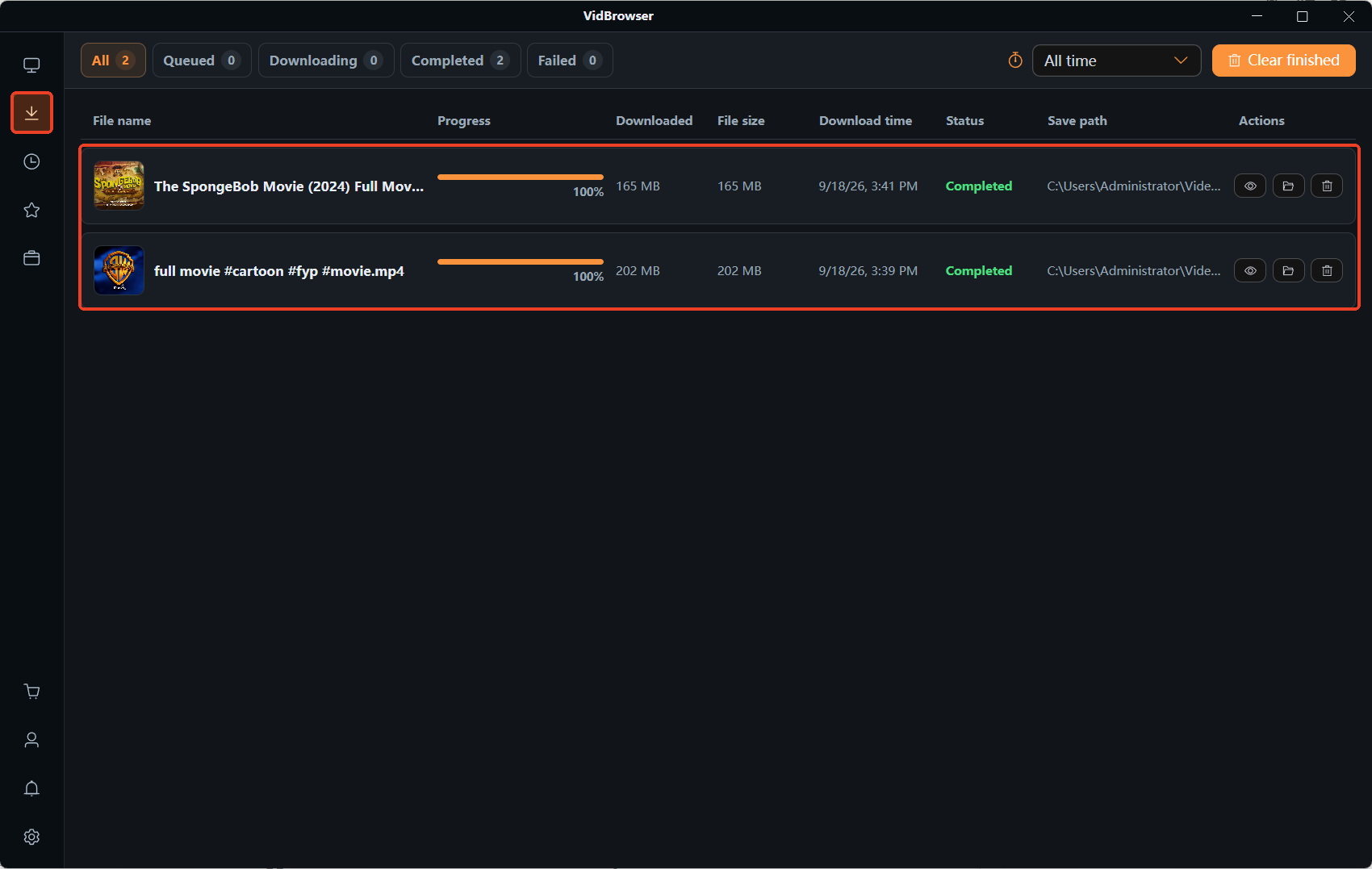
The download history sits in the left navigation bar behind the clock icon. Each task takes one row, showing the file name, progress, file size, download time, status, save location and available actions.
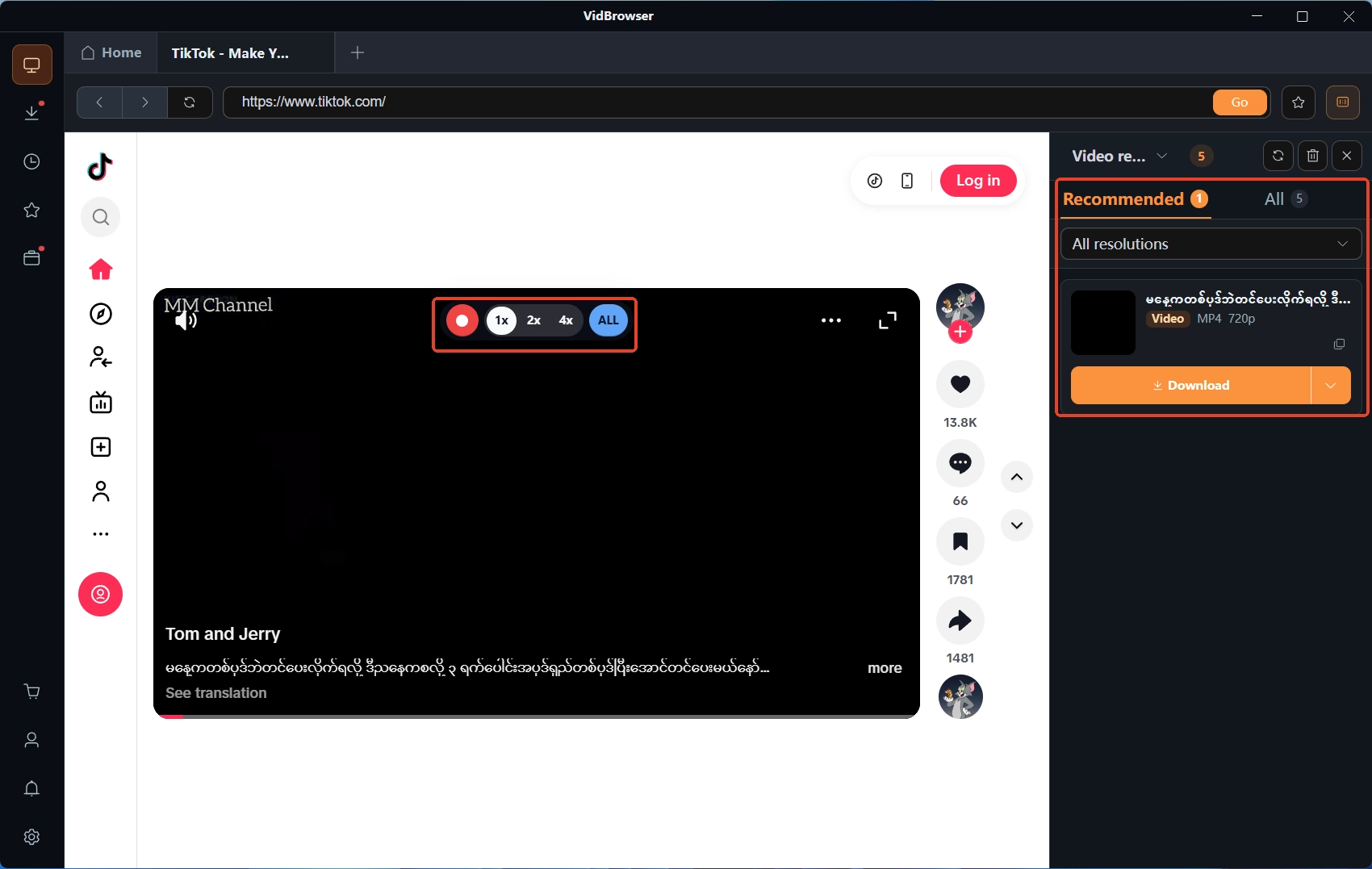
First, separate two areas that are easy to confuse: the media library on the right shows the video resources detected on the page you are currently viewing, and it changes as you browse; the download history records the download tasks you have already started and their outcomes. After you close a page the media library moves on, but the download history stays available for looking back.
For anyone handling several videos at once, the download history works as a task list. The file name and download time tell you which task is which; the status and progress show whether a task is still moving; and when you need the local file, the save location points the way.

How to read download status, progress and file size
When checking download results, do not lean on the progress percentage alone. Status, progress and file size only make sense together.
Status decides which tasks to check first. Sort the records into still running, completed and showing errors, then handle each group. Progress matters for running tasks: if the number keeps climbing, the task is moving; if it stays flat for a long time, check the status and the actual file before drawing conclusions.
File size helps spot incomplete downloads. If a video task shows a file size far below what you expect while the progress has not moved for a while, that row deserves a closer look. That said, size alone cannot prove whether a file is complete — videos differ in length and bitrate, so sizes naturally vary a lot between files.
Download time works well for telling similar tasks apart. When you grab several similarly titled videos on the same day, the file name plus the timestamp gets you to the right record quickly.
To verify further, open the folder through the save location on the record and check whether the file exists, whether its size looks reasonable, and whether it plays properly. If the history marks a task complete but the file is nowhere to be found, see where are my downloaded videos? and work through the common causes one by one.
When a task misbehaves, do not rush to re-download everything. Sort by symptom first, then pick the direction:
- Progress stuck at 0%: check whether the current video plays normally, then try another publicly accessible video to see whether the problem is limited to one resource. For a fuller checklist, see download stuck at 0%.
- Very slow downloads or stalling near the end: check the network, the resource response and whether the task is still moving; the concrete steps are in slow video download fixes.
- Download cut off midway: whether a resume is possible depends on the tool, the task state and the source site. See how to resume interrupted downloads.
Sorting the problem before acting usually beats clicking retry on every failed row. If several tasks in one batch fail the same way, check what they share before deciding what to re-download.
How to download videos with VidBrowser and verify the saved results
If you are new to the download flow, the four steps below take you from saving a video to checking the file.
Step 1: Download and install VidBrowser
Visit the VidBrowser website and get the Windows or Mac version. VidBrowser is a desktop video browser with video download and recording built in.
Step 2: Open the page and pick how to save
Go to the page with the video. If the media library on the right has detected downloadable videos, select the entry and click the orange download button; pick the resolution first if options are offered.
For content you are allowed to save and that plays normally, recording is also there when you need it. Entry points and options follow your current software version, and the site's rules and content authorization still apply.
Step 3: Open the download history and check tasks row by row
Click the clock icon in the left navigation to see the task records. Confirm the status first, then use progress and file size to decide whether a closer look is needed. With many tasks, deal with the failed rows first, then spot-check whether the completed ones actually saved.
Step 4: Use the save location to reach the file
Open the save location from the record and go to that folder. Once you find the file, check the name, the size and whether it plays. To revisit a page later, bookmark it: the download history is for looking back at tasks, and bookmarks are for pages you return to.
Once these four steps are in place, saving, verifying and locating become one loop. On batch downloads, glancing at the history first saves you repeated downloads and folder digging.
Frequently asked questions
What is the difference between the download history and bookmarks?
The download history records download or recording tasks so you can review their status, time and file location; bookmarks keep the pages you want to reopen. One tracks tasks you have already run, the other pages you plan to visit again.
Do recorded videos show up in the download history too?
Per the current VidBrowser product design, results from both downloads and recordings can be reviewed in the download history. Exact fields and display follow the version you are running.
Can the download history recover a deleted video?
Not directly. The history records task information; it is not a file backup or the system recycle bin. If the local file is gone, start from the save location to confirm where it used to be, then check the recycle bin or other backup spots. The history helps you locate, but it cannot guarantee recovery of a deleted file.