Video download stopped halfway? Tell the failure type, find the cause, then retry
You went to grab a glass of water mid-download and came back to a frozen progress bar; reopen the task and the number climbs from 0 again — that wasted-effort feeling stings more than the failure itself. This is not the same fault as being stuck at 0% or crawling at a snail's pace: half the bytes have already arrived, and what broke is the link in the middle of the transfer. This piece walks through, in order — sort the failure types, identify the cause, then retry — what to do at the moment the download drops.
A download died halfway? Sort the three failure types first
A mid-transfer breakup shows up in three common ways, each calling for a different move — match yours before acting.
- Progress resets to zero and starts climbing again: the tool noticed the connection dropped and restarts from the top. This one usually finishes, at the cost of every byte already moved;
- The task is marked failed outright: no auto-retry after the connection died, the task sits there waiting for you;
- The number neither moves nor disconnects: the progress bar neither advances nor errors, looking frozen — this too is a break; the connection still hangs there, but the data stopped coming long ago.
Before acting, draw two boundaries: if not a single byte arrived and progress has been 0 the whole time, the request never got settled — the troubleshooting order lives in the piece on fixing a download stuck at 0%; if progress keeps moving but slowly, or stalls near 99%, that is about transfer speed and finishing — covered in the piece on fixing slow video downloads. This piece is about the case where the download stops mid-way and the number has already reset when you return.
Why it starts from zero when you return: resuming is not a default
Picking up where it left off needs both the tool and the server to agree; miss either side and the retry starts from the top. The download manager guide broke down segmented transfer and resume before: the tool states in its request which slice of the file it wants, the server agrees and sends that slice, and both sides can rejoin at the break point — as documented in MDN's notes on Range requests. It rests on two premises: the tool records on disk how far it got, and the server is willing to ship by segments.
One class of content never gets this treatment. Videos inside pages mostly do not sit on the server as one complete file; they are temporary data fetched as you watch, and once the session breaks, everything fetched becomes unclaimed fragments — why such content cannot be captured as a full file was covered in its own piece. For these downloads, starting from zero is not the tool being lazy; there was never a resume point to rejoin.
At the moment it drops, three signals point to the cause
Read the cause at the moment of the break, not after the retry. Replay the three things below and the answer usually surfaces.
- Did the network change before the drop: switching Wi-Fi to a hotspot, a laptop going to sleep with the lid closed, a router reboot — all classic break points. Many "mystery interruptions" are just the machine falling asleep mid-download, and the task is long dead when it wakes;
- Fixed or random break point: breaking around the same spot every time suggests the source releases a fixed amount, or actively cuts long connections; a wandering break point points to an unstable link between your machine and the source;
- The time of day: repeated drops in the evening peak with smooth deep-night runs point to a congested route — nothing to do with the tool.
Once those three questions are answered, the retry stops being a coin flip — whichever side the cause lands on, the next section's moves follow it.

Before you retry, change the conditions first
Retrying is not pressing the button again — it is swapping out the conditions that killed the last run. Deal with the half file first: renaming the suffix of an unfinished temp file will not resurrect it; what it looks like and where it hides were written up in the piece on where downloaded videos go; before deleting, glance at the size — fragments of a few megabytes are rarely worth keeping. Then change conditions by cause:
- Slept before the drop: turn off auto-sleep for the download window, keep the machine awake;
- Unstable wireless: plug in the network cable, or move the machine closer to the router;
- Breaks at a fixed point: pick a different time slot, avoiding the hours when the source throttles hardest;
- Wandering break point: check whether other devices at home are fighting for bandwidth — large file transfers, online classes and video calls can all squeeze out this connection.
Retry after changing the conditions and the odds of finishing in one run rise sharply; retry with conditions unchanged and what you get is most likely another round of wasted effort.
Want one clean run with no interruptions? Put saving on a steadier channel
Rather than wrestling interruptions over and over, hand saving to a channel that does not depend on the server agreeing to resume. Saving with VidBrowser takes four steps:
Step 1: Download and install VidBrowser
VidBrowser is a desktop video browser for Windows and Mac, with downloading and recording built in — installation takes a few minutes.

Step 2: Open the video page, log in and play normally
No copying addresses, no building tasks by hand — once the page plays, the tool starts working.
Step 3: Pick a resolution, click the orange "Download", and check broken tasks in download history
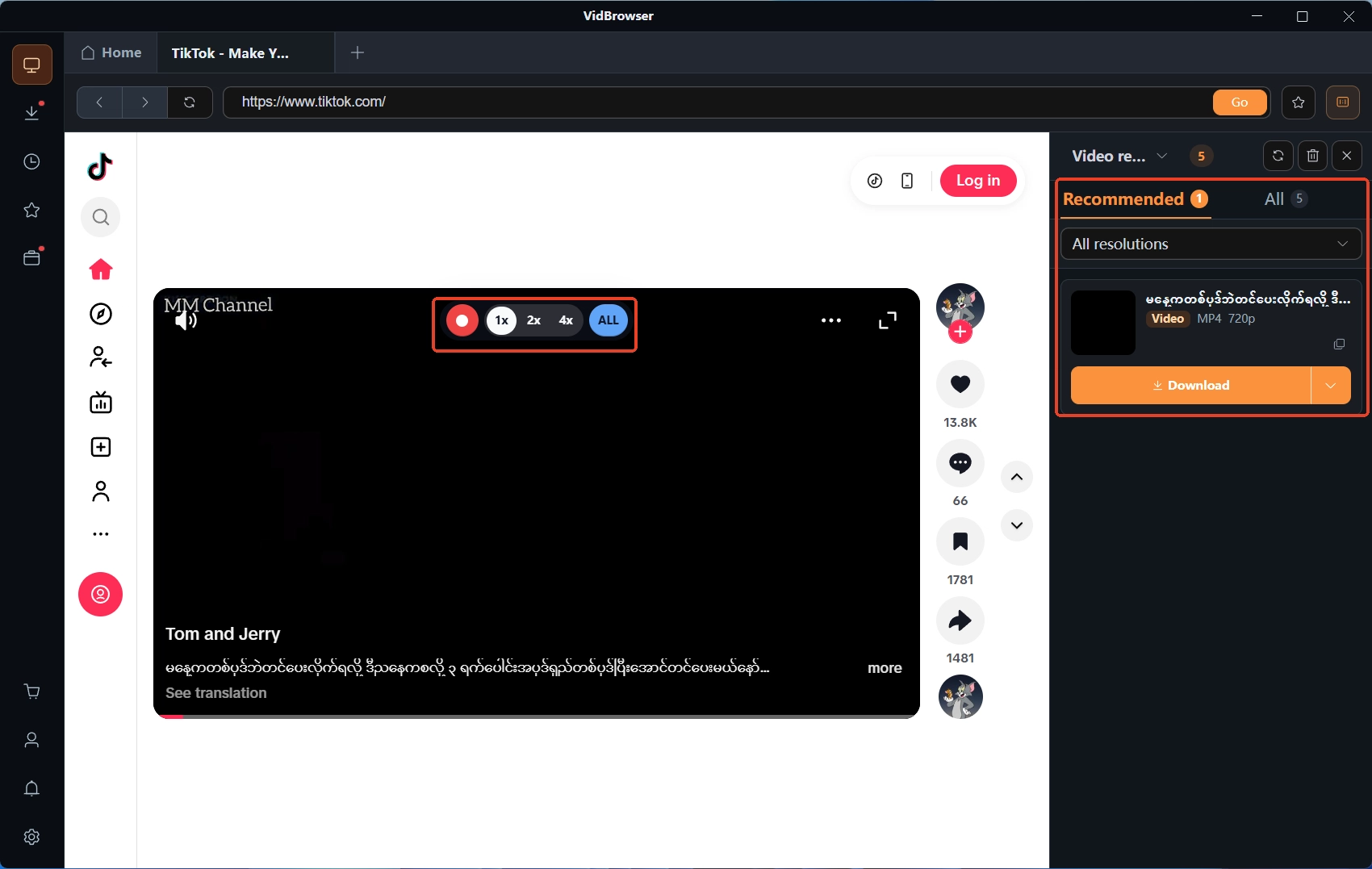
The video media library on the right lists detected videos, each with an orange download button and a resolution tier in front. For a task that broke mid-way, open download history from the clock icon in the left navigation: file name, progress, status and save location are all listed, and the entry tells you whether it failed or stopped halfway — no guessing from memory.
Step 4: For protected content and live streams, switch to recording
Videos on subscription platforms are mostly protected, and recording is the more reliable way to keep them: move the mouse over the video and the recording controls appear, choose 1x real time or 2x and 4x to finish faster, click record-all to capture the whole video, and the record button on the left can pause at any time. Recording captures what is playing and never walks the "ask the server for the complete file" path, so the "resume point that cannot be resumed" trouble simply does not exist here.
Video download interruption FAQ
Should I delete the half file left by an interrupted download?
First check whether the tool still recognizes the task: if it can still resume from the task list, keep it and wait; if it is marked failed and cannot resume, delete it — renaming the suffix of a temp file will not turn it into a complete video. Glance at the size before deleting: tiny fragments are not worth keeping and, sitting there, they are easy to confuse with the finished file.
Why does it break at roughly the same progress every time?
A fixed break point is usually not on your side: the source server releases a fixed amount, or cuts long connections at some threshold. Retry such downloads in a different slot and avoiding peak hours often clears it; only a wandering break point calls for checking your own network first.
Is there any way to make a download continue after it breaks?
Look at both sides. What you can do locally: turn off auto-sleep, plug in a cable if possible; on the tool side it depends on whether it records progress and whether the source server supports range requests — neither is under your control. So for important content, do not count on "it will resume by itself": pick a stable slot and finish in one run, or simply record the picture instead.