Stuck at 99 percent on a slow video download? The slow part may not be the app
A video download crawls along: half an hour stuck at 40 percent, or it races to 99% and stops moving. The first instinct is usually "the software is no good, switch" — and after switching, it is still slow.
A slow video download is never one single cause. "Steadily slow the whole way" and "slower and slower as it goes" point to completely different places, and stalling at 99% is not even a speed problem. This piece triages by the shape of the speed curve first, then works down the chain to find the link that is holding everything back.
Video downloads split into four slow patterns, each with a different cause
A slow video download can be sorted by the shape of its speed curve into four patterns: steady low speed, tapering speed, a stall at the end, and up-and-down speed — recognize which one you have and the search space shrinks by half.
- Steady low speed: slow from start to finish with oddly tidy numbers, say pinned at 400 KB/s — that kind of tidiness usually means some link is letting data through at a fixed allowance.
- Tapering speed: fast for the first few seconds, then slower and slower. Usually a cache or the disk falling behind, or the source switched you to a farther node.
- Stall at the end: quick through the first half, then it stops around 99%.
- Up-and-down speed: the rate keeps jumping, most likely something else on the same network is grabbing bandwidth.
If the speed is 0 from the start or it fails outright, that is closer to "the downloader cannot get the full file", see when the downloader reports "no video detected".
The speed test looks fine but the download crawls: the gap is the stretch from test point to video source
A speed test measures the shortest route from your connection to the nearest test node; a download measures the route from your connection to the server holding the video — they are not the same route, so a fast test is not a fast download.
Per the FCC broadband speed guide, a plain file download needs roughly 10 Mbps. Mind the unit, Mbps: plenty of people read it as the MB/s shown in the downloader, and the two differ by 8x — 2 MB/s on screen is 16 Mbps, already past the reference line. Convert first, so a healthy number is not mistaken for a fault.
If the numbers still do not add up after converting, look at the source side. Per how CDNs cache content close to users, sites cache content on nodes near the user so data travels a shorter stretch of road. How dense that grid is depends on the platform's size: a small platform may share one or two nodes across a whole region, and the one you land on may be far away. On top of that, many sites cap the rate of a single connection, so your local bandwidth cannot be fully used — why a single connection gets throttled and why multiple connections get around it, the download manager piece covered the mechanics.
One comparison is enough to judge this stretch: switch the source — use the same tool to fetch an unrelated large file; if everything else runs at full speed and only this video is slow, the bottleneck is on the source side; switch the time of day — fetch the same source again a few hours later.
Before blaming the network, clear three local drags: where files land, background tasks, and the wireless band
Before suspecting the network or the platform, clear three things on your machine: where the file is written, what is competing for bandwidth, and how the wireless link is made.
- Disk side: when the target drive is nearly full, writes slow down noticeably, and it is worse onto an external or network drive — the signature is a steady low speed. Retry on the internal SSD.
- Background tasks: sync clients, cloud backups, system updates and game launcher auto-updates all consume bandwidth, without errors or anything on screen, quietly thinning out your connection. Take a look before pulling a big file.
- Wireless band: 2.4GHz gets through walls and reaches farther, but the band is crowded; 5GHz is faster and cleaner at the cost of poor wall penetration. So "5GHz is always faster" does not hold — with two walls in between it can actually be slower. To test whether signal is the issue, move the device next to the router and download again.
Stuck at 99%: that is not a speed problem, it is the finishing work in progress
A pause at 99% is usually not a freeze: the last 1% is waiting on three jobs — the final chunk coming back, chunks being stitched in order and verified, and the file being written to disk — none of which moves the visible progress bar.
Change how you handle it accordingly: wait first, the finishing work merges hundreds of chunks and bigger files take longer; check the task status instead of force-quitting — quitting wastes the merge, and check the task status in download history beats staring at the percentage; if it sits still for a long time the source has likely stopped returning the final segment — cancel and retry, and if it sticks twice, switch sources.
Whether another download tool helps depends on where the bottleneck sits
The same bottleneck, a different tool: sometimes it helps, sometimes it cannot — the dividing line is whether the bottleneck is in the tool's hands or outside the tool.
Three things a tool can fix: the source supports ranged requests but the tool pulls one connection to the end, so parallel multi-connection is clearly faster; tasks queue one by one, so many files at once multiplies total time; clumsy writes to disk, writing a temp file first then moving the whole block.
Two things no tool can fix: the bottleneck at your connection (home bandwidth, the ISP, wireless signal) — no software changes that; the bottleneck at the source (the per-connection allowance the platform grants, a far CDN node, the origin buckling at peak).
The order: finish those two comparisons first, confirm the bottleneck is neither on your side nor the source's, and only then consider upgrading the tool.
Save the videos worth keeping to local disk, in one pass
If the verdict is "the platform will not give more speed", the easier route is a different road: take the complete file straight from the page instead of racing a stream.
Built on that idea is VidBrowser, a desktop video browser — it is a full browser in itself: open the site, play normally, and saving happens along the way.
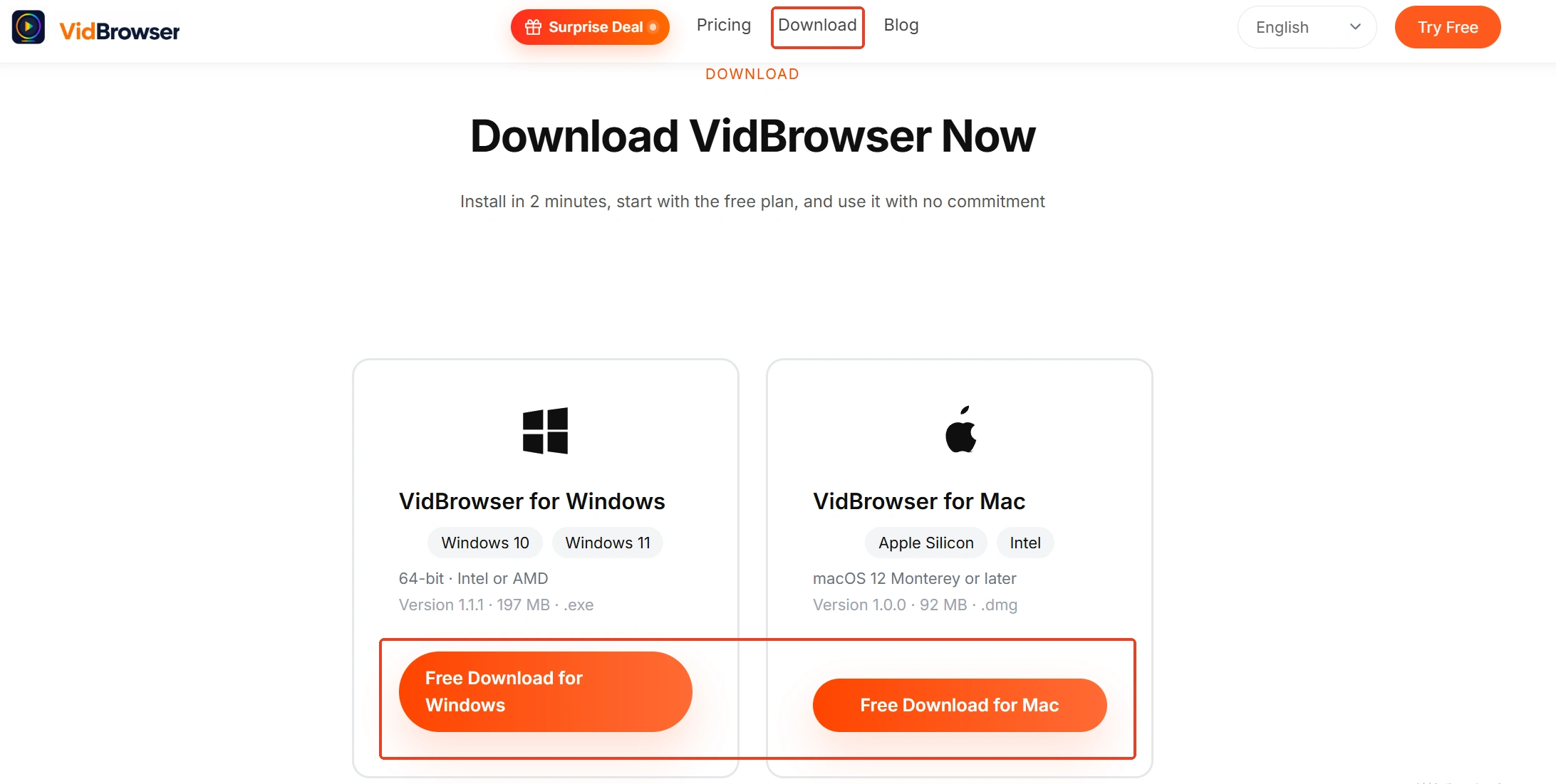
Step 1: Download and install VidBrowser
VidBrowser is a desktop video browser with downloading and recording built in, on Windows and Mac, and installs in minutes.
Step 2: Open the video page in VidBrowser and play it
Sign in to the site you use, get the video you want playing, and the "video media library" panel on the right lists detected videos automatically.

Step 3: For direct downloads, pick the resolution before clicking download
Every entry in the panel carries an orange "download" button with a resolution dropdown ahead of it — set the level first, then click, so you do not discover the wrong quality after the fact. You get the complete file, not a stream pulled while playing, so there is almost no wait.
Step 4: Use recording for protected content
Some content has no standalone file to download, so record it instead: move the mouse over the video and the recording controls appear — pick the recording speed (1x real time, 2x or 4x to finish faster), press "record all" for the whole video, and the button on the left starts or pauses any time. The finished file lands on local disk too, no longer tied to network or platform conditions.
Once saved, the clock icon in the left navigation is the download history.
FAQ
Is 2 MB/s on the counter actually slow?
Convert first: MB/s times 8 gives Mbps, so 2 MB/s is about 16 Mbps — past the FCC's 10 Mbps reference line, not slow. The real comparison is your plan — if you pay for 300 Mbps and see 16, the bottleneck is on the source side or the local disk.
The same video is fast in the morning and slow at night — is the platform throttling?
Two possibilities: your household connection is being thinned at night by your own devices or neighbors, or the source's nodes are under peak load. To tell them apart: that evening, download another unrelated large file — if that is slow too, it is your connection; if only this one is slow, it is the source.
Switched download tools and it is still slow — is it worth switching again?
Run the source-swap comparison once. If the same tool fetches other sources fast and only this one is slow, the bottleneck is at the source and another tool changes nothing; if every source is slow, check local disk and background tasks.