How to Save Videos from X Bookmarks: Find, Access, and Download Saved Videos
If you want to save videos from X Bookmarks, start with one important distinction: a Bookmark on X saves the post, not a separate copy of the video attached to it. Playback therefore depends on the original content remaining available to your account. If the post is deleted, the account switches to protected posts and you are not an approved follower, or your access otherwise changes, the Bookmark cannot preserve the video on its own.
What does that mean if you want an offline copy?
Start with X's own download option after opening the original post. If that option is unavailable, use another method only when you can access the video and have the right to save it. The page must also expose a supported media resource or the platform must permit recording.
This guide explains how to find a bookmarked video, check whether it is still accessible, and use available download or recording options when you want an offline copy.
1. What Does the X Bookmarks Feature Actually Save?
The X Bookmarks feature keeps a private list of posts you want to revisit, making it useful for saving videos, threads, news, tutorials, and other posts that might otherwise get lost in your timeline. When you bookmark a video post, X saves a reference to the post in your account; it doesn't create an MP4 file on your phone or computer. Much like a browser bookmark, it gives you a way to return to the original content without downloading a separate copy.
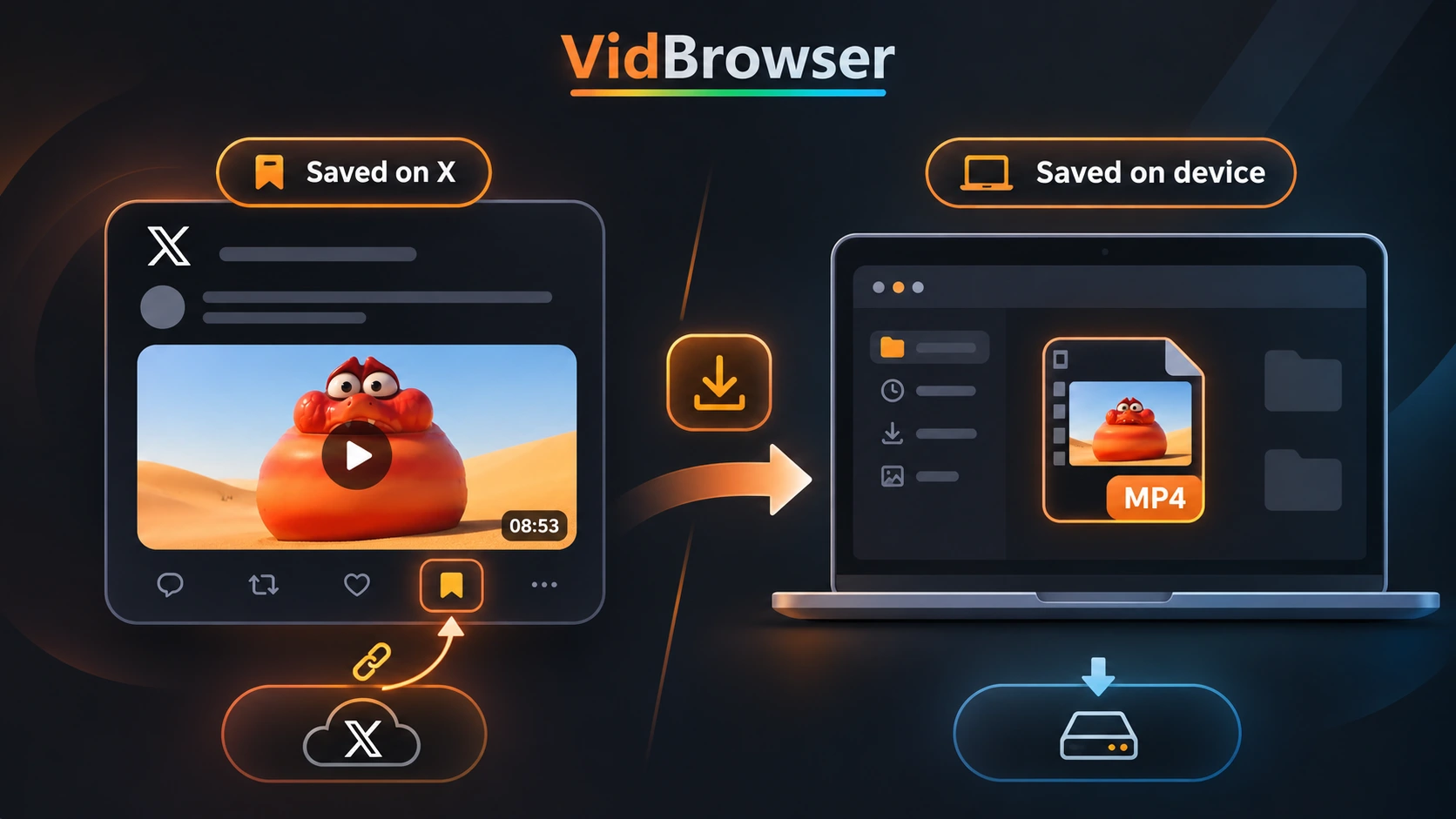
That distinction matters when you want to watch videos offline, build an off-platform video collection, or keep a separate copy of content you are authorized to save.
How to Bookmark a Video on X
The steps vary slightly by device, but the result is the same:
- Open X and find the post containing the video.
- On iPhone, open the post and tap the Bookmark icon. On Android or desktop, open the Share menu and select Add post to Bookmarks.
- To return to it later, open the navigation menu and select Bookmarks.
To remove a saved post, open it from your Bookmarks and use the Bookmark icon on iPhone or the Share menu on Android and desktop. X states that your saved posts are private and visible only to you within your account; its official Bookmarks guide provides the current device-specific instructions.
2. How to Find Videos in Your X Bookmarks
Your saved posts are collected in one place, making recent videos easy to find. Older posts can take longer to locate, especially if you regularly bookmark different types of content.
On Desktop
- Open X.com and sign in.
- Open the main navigation menu.
- Select Bookmarks.
- Scroll until you find the post containing the video.
- Open the post to return to its original page and play the video.
On iPhone or Android
- Open the X app and sign in.
- Open the account or navigation menu.
- Tap Bookmarks.
- Select the saved video post you want to revisit.
Menu placement can change between app versions, but saved posts remain under the Bookmarks section.
When the List Becomes Hard to Search
To keep your Bookmarks manageable, remove posts you no longer need rather than letting the list grow indefinitely. For videos you want to track, note the creator's name, topic, and original post URL. If you want an organized video library, store authorized copies separately because X Bookmarks are designed to help you revisit posts, not manage downloaded files.
3. Why Can't I Watch a Video in My X Bookmarks?
A video you bookmarked may become unavailable even though the post is still listed in your Bookmarks. Because the Bookmark points to the original content, changes to that post, its account, or your access can prevent the video from playing.
The Original Post Was Deleted
If the creator deletes the original post or X removes it, your Bookmark will no longer provide access to the video. Since the Bookmark doesn't contain a separate media file, it cannot restore content that is no longer available on the platform.
The Account Changed Its Privacy Settings
When an account protects its posts, only approved followers can view them. A Bookmark created while the account was public does not override the new privacy setting, so you may lose access if you are not an approved follower. X explains the change in its guide to public and protected posts.
The Video Is Temporarily Unavailable
If the post is still visible but the video won't play, refresh the page, reopen the post, and check that you're signed in to the correct account. You can also try the current X app or another supported desktop browser to see whether the problem is temporary.
Reposts and Quote Posts Behave Differently
If the original post is deleted, its Reposts also become unavailable, while Quote Posts containing someone else's comment generally remain visible. The quoted original and its embedded video may no longer be accessible, although media uploaded separately to the Quote Post can remain available as part of that post. The guide to X reposts and quote videos explains the distinction in more detail.
4. Can You Download Videos Directly from X Bookmarks?
X Bookmarks doesn't provide a separate download button for saved posts. To check whether you can download videos from X Bookmarks, open the original post and look for the download option in the video's menu.
X's current Help Center lists four main conditions:
- Your account needs an eligible paid X subscription.
- The video must have been posted on or after July 25, 2023.
- The uploader must have allowed downloads when publishing the video.
- If the uploader's account belongs to someone under 18, X automatically turns off the setting that allows others to download their videos.
How to use X's official download option
Open the saved post from your Bookmarks and make sure you're viewing the original video, then open the three-dot menu in the upper-right corner. When Download video appears, select it and follow X's prompts to save the file. If the command is missing, one or more eligibility requirements may be unmet, so its absence should not be treated as proof that the player is broken.
Because X can change plan names and eligibility rules, check X's official video help page for the latest details.
What If X Does Not Show a Download Option?
If you only need to watch the video later, the Bookmark may be enough while the post remains available. When you need an independent copy, ask the creator for one or use a suitable saving method only if you are authorized to do so. On supported webpages, VidBrowser offers two options: download a media resource it can detect, or record video playback when direct downloading isn't available and recording is permitted.
5. How to Save Supported X Videos with VidBrowser
When X does not offer a download option and you are authorized to keep the video, VidBrowser provides a shorter workflow that combines normal browsing with downloading and recording. It does not import your Bookmarks or change your access, so you still need to sign in to X and open a post that your account can view.
Step 1. Download and Install VidBrowser
Download VidBrowser for Windows or Mac and install it like any other desktop application. The browser includes both video downloading and recording, so you do not need to move between several tools.
Step 2. Open X and Play the Bookmarked Video
Launch VidBrowser, enter x.com in the address bar, and sign in to your account. Open Bookmarks, select the saved post, and start the video; the Video Media Library on the right will list any supported media resources that VidBrowser detects.
Step 3. Choose Download or Recording
For a detected public video, choose an available resolution and click the orange Download button to save the MP4. If a subscription platform or live stream does not expose a downloadable resource, use recording only when you have permission. Move the pointer over the video and choose 1x, 2x, or 4x, then select ALL for the complete video and use the button on the left to start or pause.
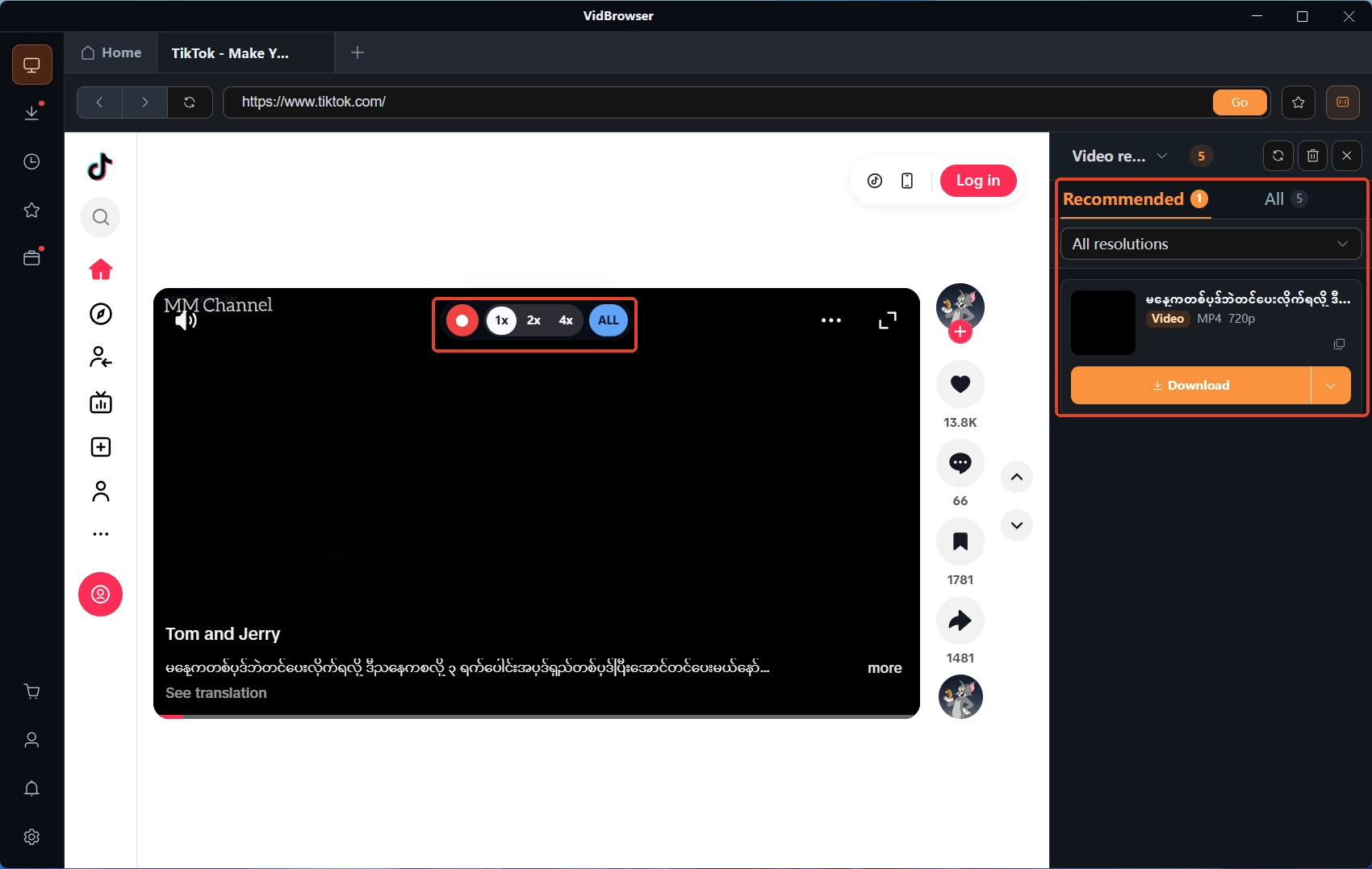
VidBrowser places detected download options beside the webpage and displays recording controls over supported video playback.
The available download choices depend on what the page exposes, and recording does not change your subscription access or content rights.
Step 4. Find the File in Download History
Open Download History from the clock icon on the left to review the file name, size, completion time, and save location. For help locating a finished task, see How to Use VidBrowser Download History to Check Task Status and Find Saved Videos.
6. Keep the File Useful After Saving It
Before removing the Bookmark, play the saved file to confirm that it opens correctly and contains the complete video. Give the file a descriptive name that includes the creator, topic, or date, and save the original post URL in a note alongside the video so you can identify its source later.
Keeping that URL is useful because a downloaded video doesn't automatically include its original caption, comments, or surrounding discussion. The link also helps you identify the creator and recover the original context if you need it after you save X videos offline.
If the source is unusually long, the guide to downloading long X videos covers video length, resolution, and storage considerations.
7. X Bookmarks vs. Downloaded Video Files
The best option depends on whether you want to revisit the original post or keep a separate copy of the video:
| Feature | X Bookmarks | Local Video File |
|---|---|---|
| Save a post for later | Yes | Not necessarily |
| Create a separate video file | No | Yes, when supported |
| Watch offline | No, through Bookmarks alone | Yes, with a compatible player |
| Keep the original post link | Yes, while available | Not automatically |
| Depend on the original post remaining accessible | Yes | No, once a valid local copy exists |
| Keep comments and discussions | While the post is available | No |
| Organize files outside X | No | Yes |
Bookmarks are the simpler choice when you just want to revisit a post, while a local video file is more useful when you need authorized offline access. You will still need to organize the file separately and keep track of the original post if you want to retain its context.
If you are unsure whether conversion is necessary, read X Video to MP4: When to Convert and When Not To.
Which Option Should You Use?
If you simply want to revisit a post, X Bookmarks are usually enough. When you need an offline copy, check X's official download option first. If you are authorized to save the content but a direct download isn't available, VidBrowser can detect supported media resources or record playback when permitted.
If you regularly browse and save online videos, explore the VidBrowser Video Downloader to see how its built-in detection, downloading, and recording features fit your workflow.
Frequently Asked Questions
1. Are X Bookmarks private?
X Bookmarks are private and visible only to you within your account, so other users cannot see which specific posts you have saved. X may display the total number of Bookmarks a post has received, but it does not reveal the accounts behind them.
2. Where can I find my bookmarked videos on X?
Open the X navigation menu, select Bookmarks, and choose a saved video post to return to the original content; playback will continue to work only while that post remains available to your account.
3. Can You Download Bookmarked Videos on X?
You cannot download a video from the Bookmarks list itself, but you can open the original post and check its three-dot menu. X may show Download video there when both your account and the post meet the platform's current eligibility rules.
4. Why is my bookmarked X video no longer available?
The original post may have been deleted, the account may have switched to protected posts, or your access may have changed. If the post is still visible, the problem may be temporary, so reopen it and check that you are signed in to the correct account.
5. Can VidBrowser download every video from X Bookmarks?
Direct downloading works only when the page exposes a supported media resource that VidBrowser can detect, so the application cannot download every video from X Bookmarks. Opening X through a built-in shortcut does not bypass access controls or guarantee that such a resource will be available.
6. Does VidBrowser support video recording?
VidBrowser supports recording through an overlay that appears when you move the pointer over a supported player. The overlay includes 1x, 2x, and 4x speed controls, an ALL option for the complete video, and a red control for starting or pausing. Use these controls only for content you are authorized to capture under the platform's rules.
7. Does downloading a video remove the original X Bookmark?
Downloading an available video does not remove the original post from Bookmarks because the Bookmark and the local file are separate items that X and your computer manage independently.
8. Why Have My X Bookmarks Disappeared?
First, make sure you are signed in to the same X account you used to save the posts, then open Bookmarks from the navigation menu and check whether your saved items are still listed. If individual posts are missing or no longer accessible, the original content may have been deleted or your access may have changed.