16 Free Online Video & Image Tools + What Each One Does
A video needs a cover image. A photo needs shrinking. A webpage needs a full-page snapshot. None of these jobs is worth installing a separate program for.
Open a search and the free tools run for pages. Every one claims to be free, online, and registration-free, and they all look alike.
The trouble is not whether tools exist. It is that they are crammed together. Line up sixteen tools for small video and image jobs and you will probably recognize only three or four.
This guide groups them by what you want to do, four groups with one table each. Each table tells you two things: which part of the job a tool handles, and what to watch out for.
16 free online video and image tools, all on one page
All sixteen are browser tools. Open a page and use them right away—no account, no installation, and the finished file downloads straight to your own computer.
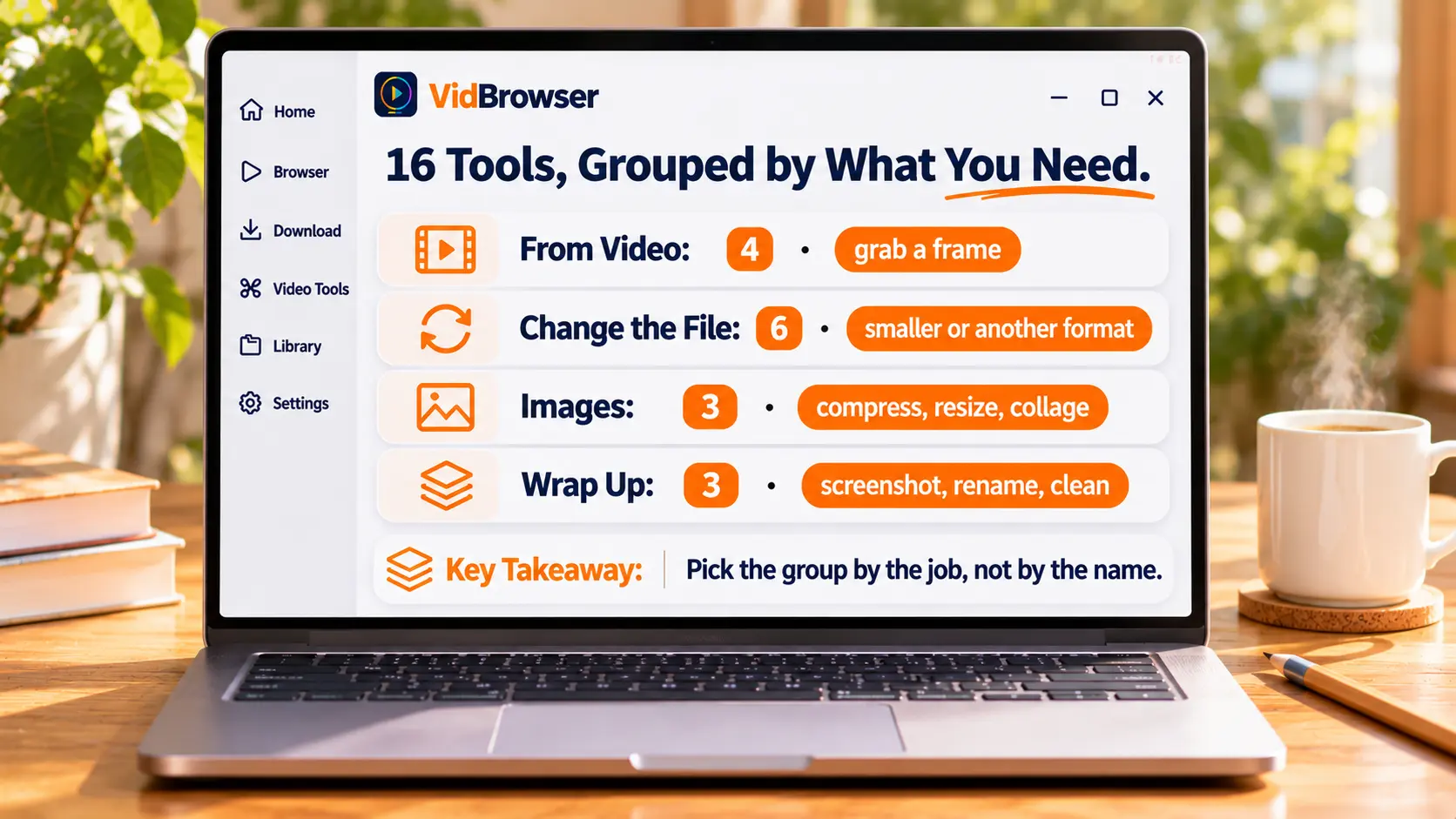
Sorted by what they work on: ten for video, three for images, and three for webpage capture and file cleanup.
They live on separate pages. The four groups below follow what you are trying to do, not the tool names.
Need a still from a video? Four tools split the work differently
Check the source video first, then decide which tool to use.
| Tool | What it does | One thing to remember |
|---|---|---|
| Video resolution checker | Shows width, height, aspect ratio, duration and file size, so you can tell HD, Full HD or 4K | Measure the source first, or the still may be blurrier than expected |
| Video frame extractor | Jump to a moment on the timeline and save it as PNG or JPG at the source resolution | The exact frame you pick |
| Contact sheet generator | Samples frames evenly into a 3×3 to 6×6 grid with timestamps | Scan a whole clip quickly |
| GIF frame extractor | Splits an animated GIF into PNG or JPG frames, singly or as a ZIP | When you need one frame from a GIF |
Frame extraction and contact sheets are the easiest to mix up. In one you choose a single second yourself; in the other the tool picks many frames at even intervals—one precise, one comprehensive.
Shrink a video, change its form, or keep only the audio: six tools, each for one job
Pick by what you want the file to become, not by the tool name.
| Tool | What it does | One thing to remember |
|---|---|---|
| Video trimmer | Set in and out points on the timeline, export the middle section, with optional quality and audio | Keep five minutes from the middle, drop the rest |
| Video compressor | Compress to MP4 with selectable quality, resolution and target size | When a file will not send, start with the target size |
| Video to GIF | Convert up to 15 seconds to an animated GIF, with width, frame rate and loop count | 15-second cap—not for a whole episode |
| GIF maker | Turn several JPG, PNG or WebP images into an animation, with order and per-frame timing | When you have a stack of screenshots |
| Video loop maker | Repeat all or part of a clip 1 to 20 times, out as MP4 or GIF | Background loops, looping clips |
| Video to MP3 | Extract the audio track at 128, 192 or 320 kbps, optionally from a section | You want to hear it, not watch it |
The two GIF rows deserve a note. The format itself supports only 256 colors (set by the GIF89a specification), so the same content as a GIF is often larger than as a video. That is why the video-to-GIF page caps length at 15 seconds—it is not an arbitrary number.
Three things for images: shrink, resize, combine
Resize first or compress first—reverse the order and the result changes.
| Tool | What it does | One thing to remember |
|---|---|---|
| Image compressor | Compress JPG, PNG and WebP, compare before and after sizes, download as a ZIP | Many files that will not upload |
| Image resizer | Resize by pixels or percentage, lock the ratio, choose a fit mode | A platform requires an exact size |
| Image collage maker | Grid, row or column layouts with adjustable spacing, crop position and background color | Combine several shots into one post |
Order changes the result. For an oversized image, resize first, then compress. Squashing a 4000-pixel image straight down to 100 KB looks far blurrier than shrinking it to 1200 pixels first and then compressing to the same size.
Capture a webpage, rename files, strip video metadata
Do all three before the file leaves your hands.
| Tool | What it does | One thing to remember |
|---|---|---|
| Full-page screenshot | Capture a whole page as one image, with desktop, tablet or phone viewport | Keep a record, save an archive |
| Batch video renamer | Number files, add prefixes or suffixes, replace text, download renamed copies or a ZIP | Names are a mess |
| Video metadata remover | Find and strip supported metadata from MP4, MOV and WebM, exporting a separate copy | Do not share device details |
The last two produce copies and leave the originals untouched. Break something and you can start over—both pages say so.
These tools work on local files—save the video first
These sixteen tools only work on files already on your computer. They do not pull video down from a webpage.
So the step that trips people up is usually the one before: getting the file in the first place.
The piece that connects to these sixteen tools is a desktop video browser. VidBrowser puts "open the page, find the video, save it" in one window, and once it is saved, the tools above take over.
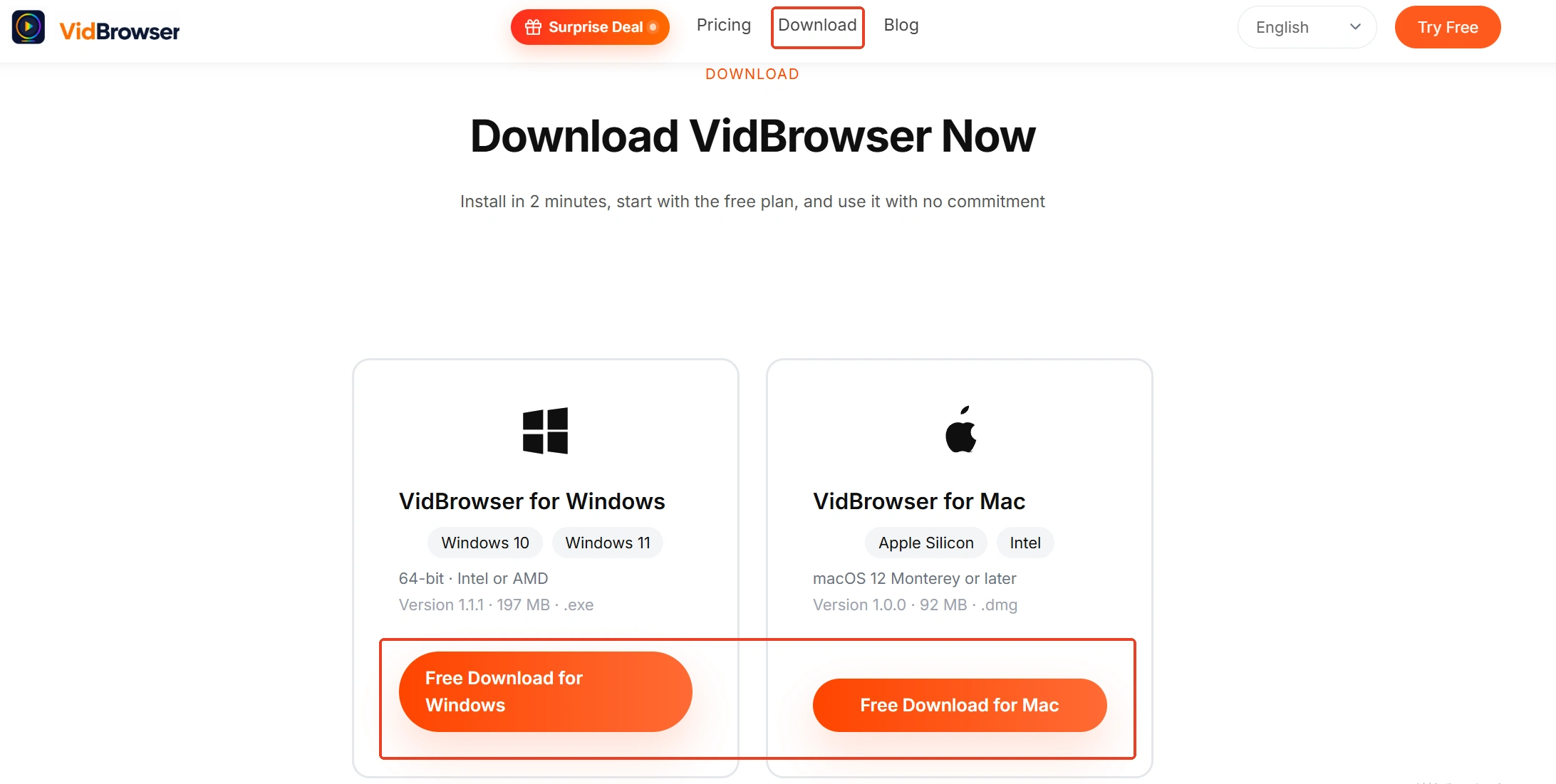
Step 1: Install VidBrowser
It runs on Windows and Mac. Open it after installing and you get a browser window with built-in download and recording.
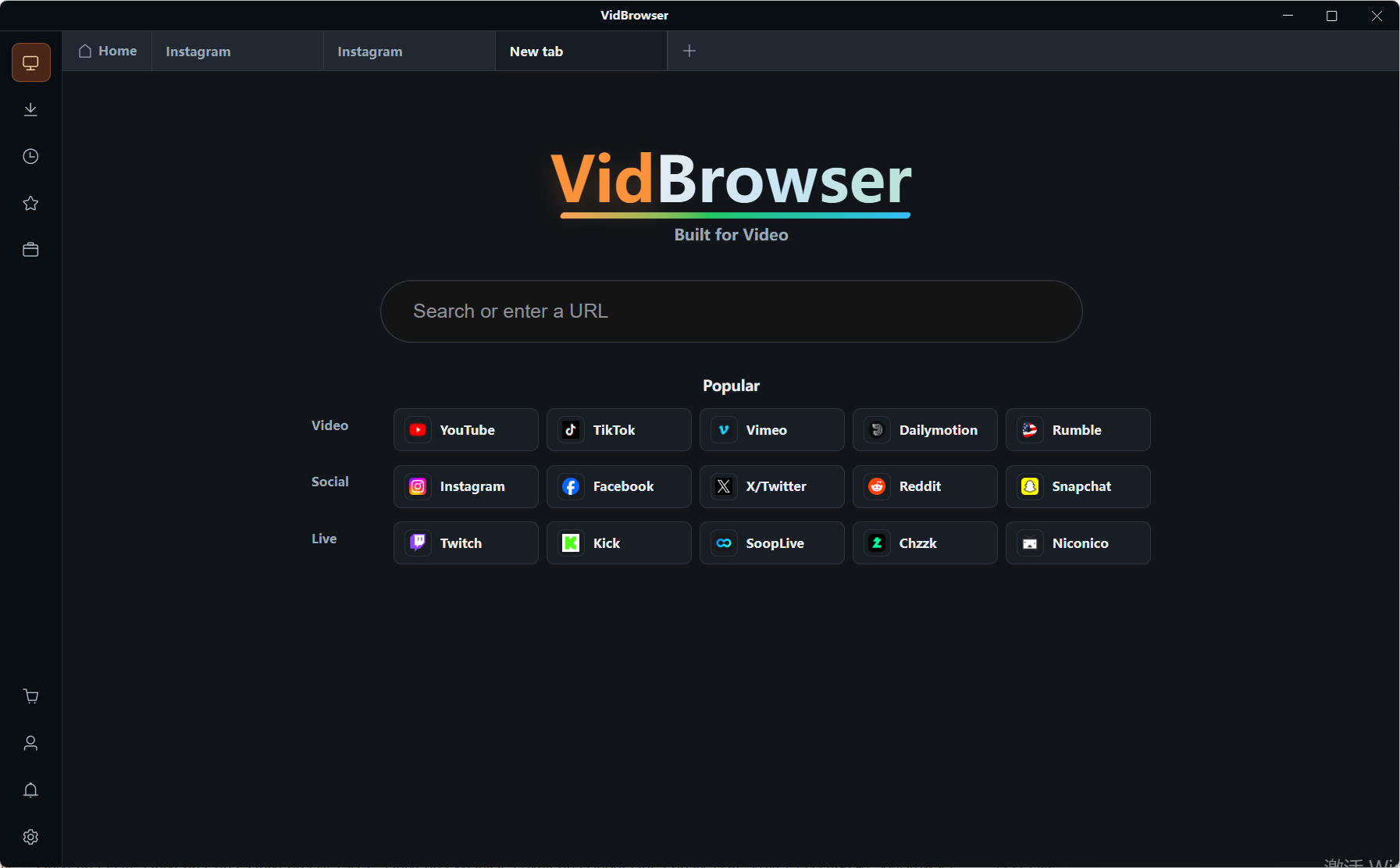
Step 2: Open the page with the video in the built-in browser
For sites that need a login, sign in with your own account as usual.
Step 3: Play it and watch the video library on the right
Detected items appear on the right, each with an orange download button that saves locally in one click. You can pick a resolution before downloading.
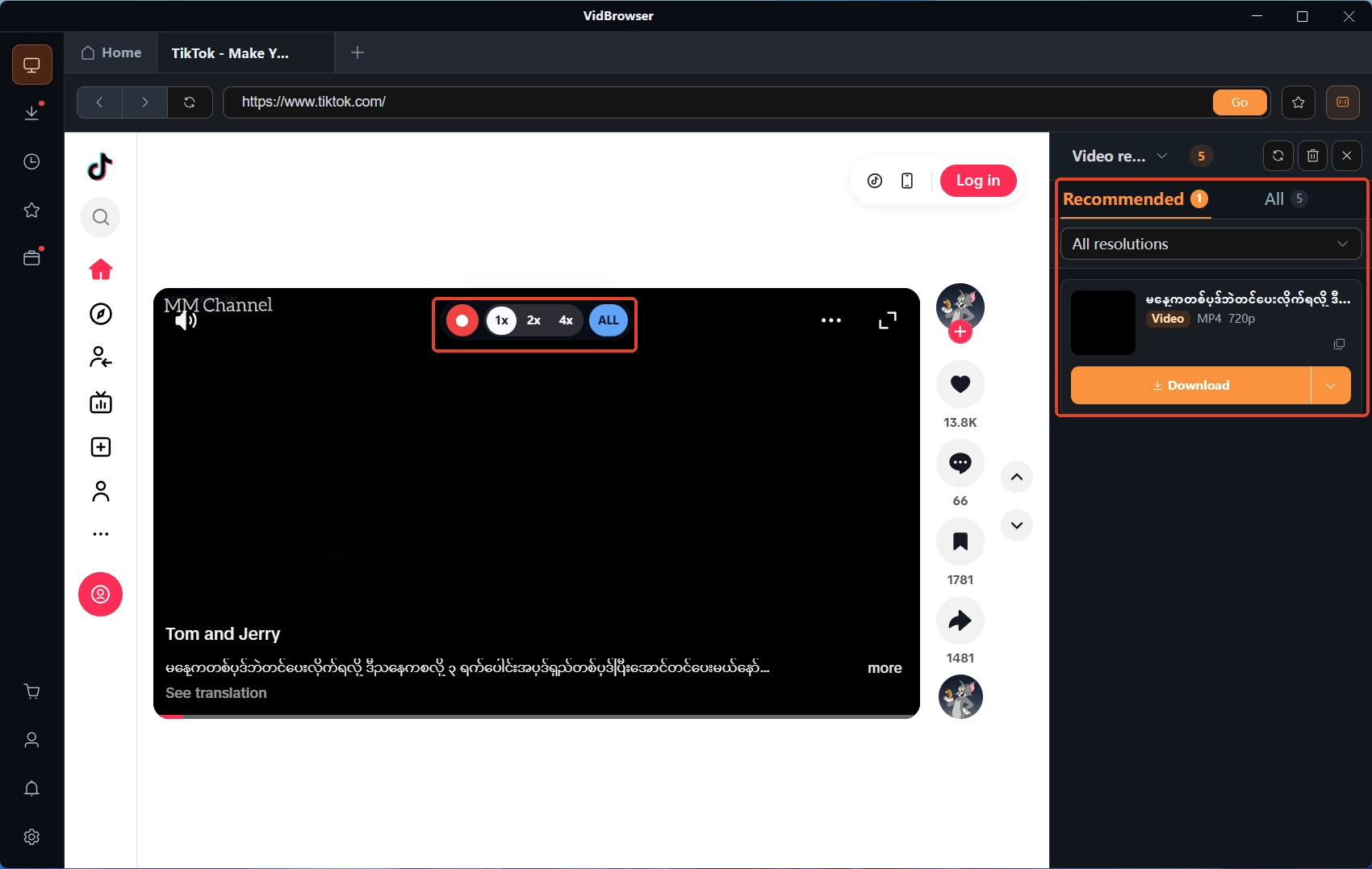
Step 4: For live streams or content that will not download, switch to recording
Move the mouse over the picture and the recording controls float up. Choose 1x real time, 2x or 4x speed, click full record to start, and pause any time with the left button. Provided it complies with the platform's rules and content authorization.
Step 5: Go back to the tools and work on the file you just saved
Extracting a frame, compressing, renaming—all a matter of opening another tab in the same browser.
Wrapping up
First decide whether you have a video or an image, then what you want it to become. Answer those two and four groups narrow to one, and one group to two or three rows.
Then read the small print in that row. 15 seconds, 20 repeats, 256 colors, originals untouched—these are not spec sheets, they are hints for what to watch out for.
FAQ
Do these tools need an account or payment?
No account, no installation—open the page and use them. The pages list them as free.
Will my files be uploaded to a server?
The pages state that processing happens on your own machine. You download the finished file yourself, with no account and no cloud storage.
Are these the same as the tool panel in the VidBrowser client?
No. The client panel needs an installation and handles multiple files at once more smoothly. These sixteen browser tools work straight away, better for the occasional one or two files.