Searching Convert X Video to MP4? The Real Job Is Usually at the Download Step
Most people searching for converting X videos to MP4 are not holding some strange format that needs rescuing - what they want is simply an MP4 file. And the video saved from X is already that format, so the cases that truly require a converter are fewer than you would think. This piece sorts the three types of needs so you can match yours, explains the transcoding mechanism behind X, where quality is decided, and what to do when conversion is genuinely required.
You search for converting X video to MP4, but you are really doing one of three things
Behind the same search term stand three kinds of people: those who want the file, those who cannot open the file, and those who truly need a different format - figure out which one you are before touching anything. The first group is the largest: their goal is to save a video from X as an MP4, and downloading accomplishes that without a converter. The second group already has the file locally, but double-clicking plays nothing, and the problem usually sits in the player rather than the format itself. Only the third group are real converter users - the file needs to be sent out, uploaded, or imported into editing software, and the receiving end does not accept the current format.
Three situations lead to three routes, and this article covers each one. Let me say it up front: if you are in the first group, jump straight to the save walkthrough below.
Videos on X servers have been MP4 since upload
The videos you play and download on X are stored as H.264-encoded MP4 - this layer is decided by the transcoding mechanism of the platform. According to the media specifications published in the official help center of X, video upload supports MP4 and MOV containers, with H.264 (AVC) video and AAC audio, capped at 1080p and 60fps; see the official media specifications page. In other words, from upload to distribution, X runs on the MP4 track the whole way and never hands you some odd format that needs converting back to MP4.
Animated images are the same. GIF posts on X are transcoded into silent, looped MP4 files at upload - a mechanism already covered in X GIFs are actually MP4, so I will not repeat it here. Whether it is a video post or a GIF post, saving through the video stream gets you an MP4 file.
Quality is decided during playback, and converting afterwards cannot bring it back
Many people want to convert in the hope of a sharper picture - that road does not work, because X distributes multiple bitrate renditions, and the one you save is the one your playback received. In its long-video documentation the official help center makes one key statement: the platform may adjust the original video for distribution and playback, including changing resolution and bitrate at play time depending on the network speed of each viewer. A good connection hands you the high-bitrate rendition; one hiccup and it drops a tier - standard streaming practice, and X is no exception.
For saving, the conclusion is plain: the file you save is the rendition playing at that moment, and no amount of later transcoding will invent detail that was never recorded. If you want a sharper copy, the fix lives in the download step - the guide on downloading X videos covers it: pick the resolution first and let the tool request the highest rendition, instead of saving a low tier and trying to repair it afterwards. Conversion changes the container and the encoding parameters; it cannot change the pixels already written into the file.
The small group that truly needs converting: two quick checks first, then two routes
Conversion only earns its keep when a file gets rejected on its way out; before acting, a ten-second check of two things saves you from a lot of pointless transcoding. First look at the extension: right-click the file and check its properties - is it really .mp4? Anything saved straight from X almost always is. Second look at playback: a file that plays normally is rarely sick at the format level; what gets rejected is usually the encoding parameters inside not matching the requirements of the receiving side. Once these two checks are done, you know whether the problem is cannot open or cannot use - troubleshooting the former has a full workflow in video format and compatibility checks.
If it is truly a cannot use case, then talk conversion. Conversion splits into remuxing the container and re-encoding, and the trade-offs in quality and time were worked through in the video format conversion guide; in one line here: remux whenever you can. The Toolbox of VidBrowser includes Video Format Conversion supporting output to MP4, MKV, WebM and MOV - add the file, pick the format and quality, press start, and tasks run through in the background. In the X context, the most common use is normalizing a file to MP4 before uploading or sending it to someone.

Saving MP4 from X: download and it is done, a four-step walkthrough
For most people, the need to convert to MP4 is already fulfilled at the saving step. Four steps:
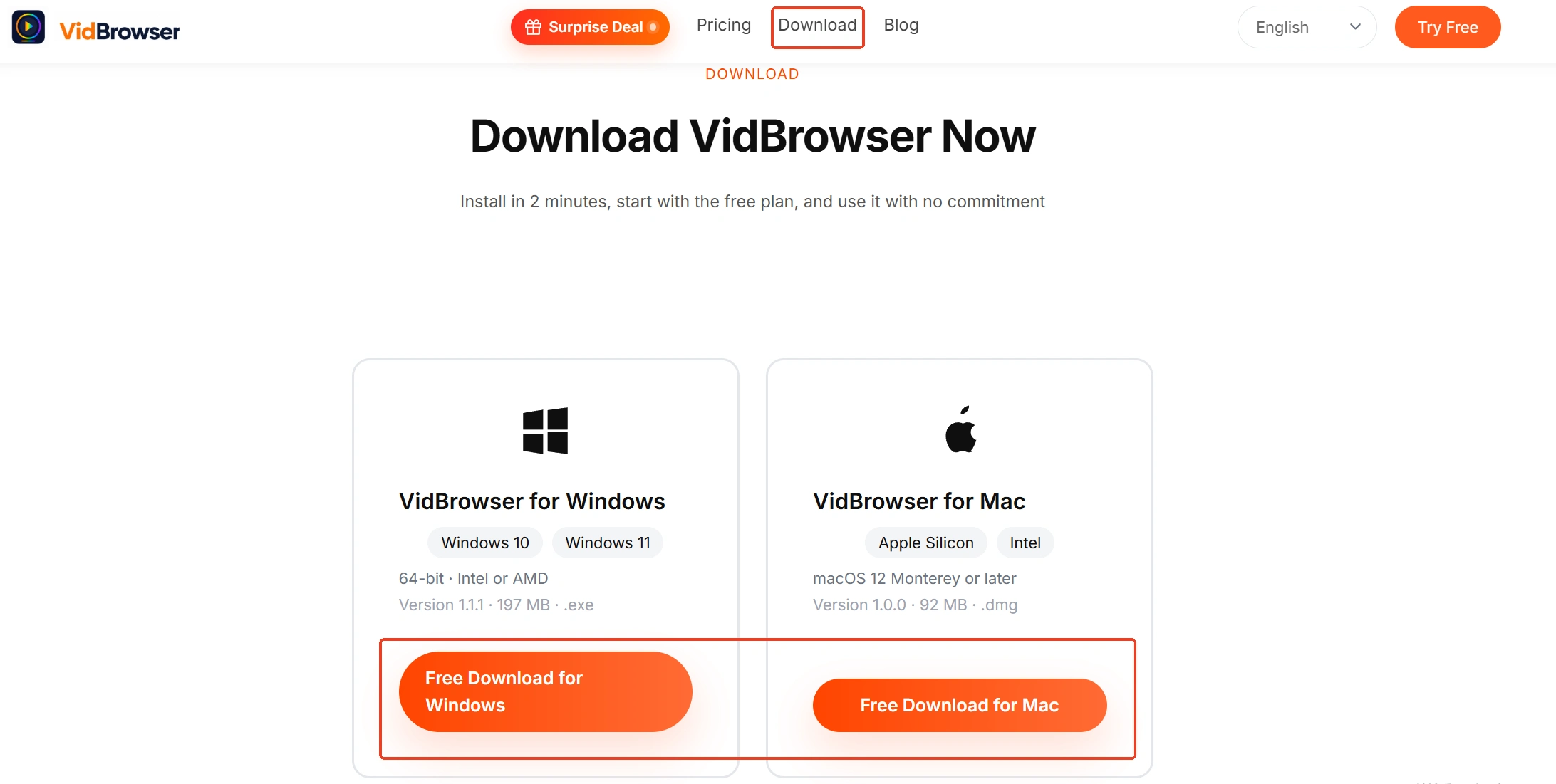
Step 1: download and install VidBrowser
VidBrowser is a desktop video browser for Windows and Mac to watch videos, clip segments and save them locally, with built-in download and recording; installation takes a few minutes.
Step 2: open X in VidBrowser and log in
Type x.com into the address bar, log in, and browse to the video post you want, opening it so it starts playing.

Step 3: pick the resolution, then hit download
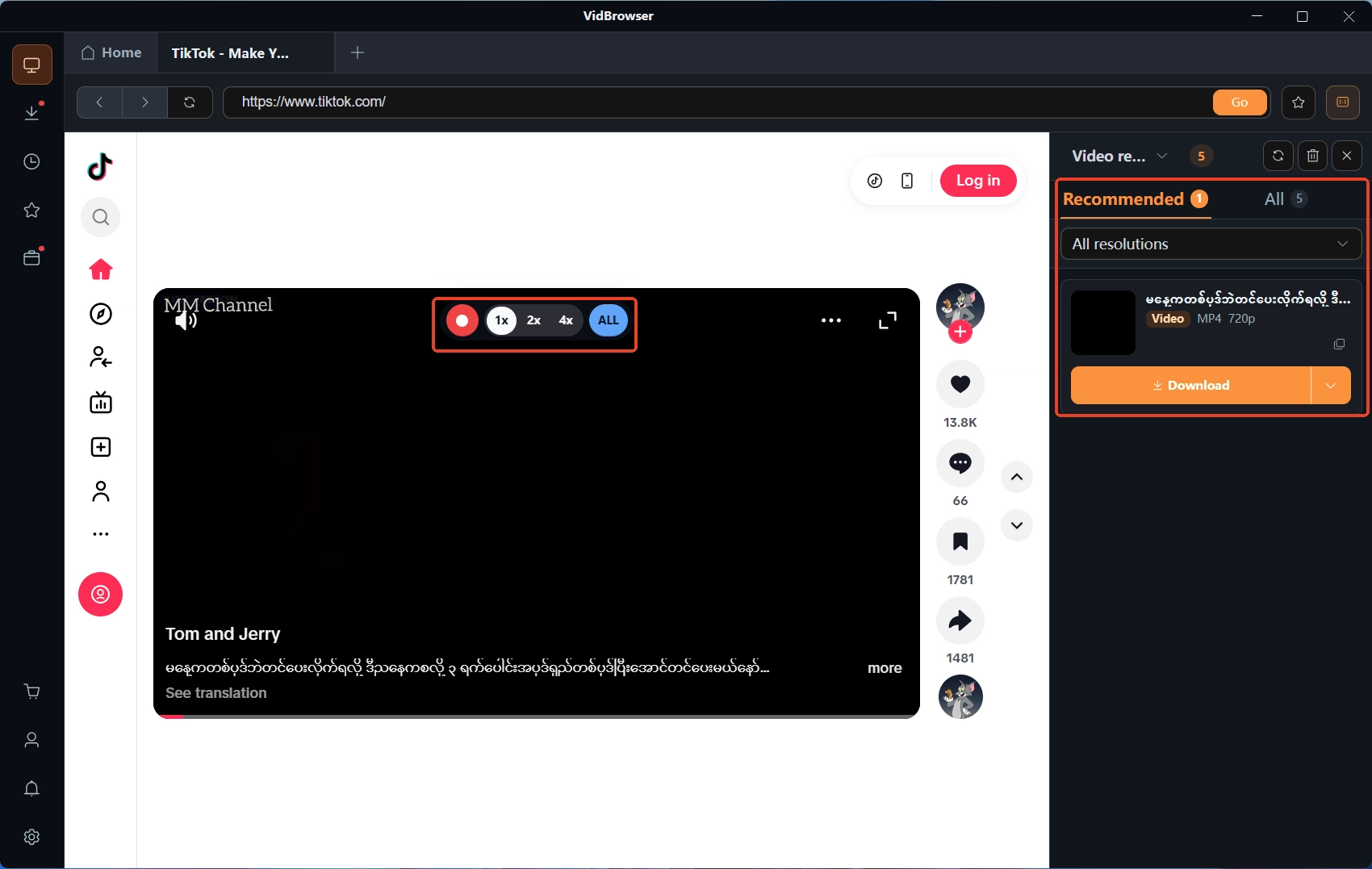
The Video Library panel on the right lists detected videos, each with an orange download button; next to the button you can first expand the resolution filter and choose the highest tier - for a sharp file this step matters far more than converting afterwards. The video stream of X carries no protective shell and counts as a plain video file, so one click saves it as MP4.
Step 4: fall back to recording when download fails
For the occasional loading glitch where no entry appears, recording is the fallback - move your mouse over the picture and the recording overlay appears, choose a recording speed (1x real time, or 2x and 4x to finish faster), press record all to capture the entire video, and the button on the left starts or pauses at any moment. Whatever you saved shows up item by item in Download History (the clock icon) in the left navigation.
Summary
Condense the three situations into two actionable lines: if you want the MP4 file, just download - the stream of X is already MP4, so skip the extra conversion lap; if you want a sharper picture, pick the highest resolution at download time, because no converter can restore detail that was never saved. And when a file truly gets rejected, check the extension and playback first, then choose the conversion route that fits the purpose.
FAQ
Do videos saved from X still need transcoding?
No. The official transcoding output of X is already MP4 with H.264 and AAC - downloading gives you MP4 directly; conversion only becomes worth considering when the file has to go somewhere that refuses the current format.
Can converting make an X video sharper?
No. X distributes different bitrate renditions depending on the network conditions of each viewer, and what you save is the rendition playing at that moment - transcoding cannot change the pixels already in the file; for a sharper copy, re-save with a high resolution selected at download time.
Why is the video I saved this time blurrier than last time?
The network conditions differed between the two playbacks, so the bitrate tier X distributed may have differed too. To reliably get high quality, confirm the resolution filter is set to the highest tier before downloading.