Downloaded Video Isn't MP4? Format & Playback Compatibility Guide
The download tool finished, you found the file, double-clicked it — and the extension is .webm, or even a .ts, and your player refuses to open it. The first reaction is usually "the file is broken." Most of the time it isn't. Nine out of ten of these cases come down to format compatibility, and once you understand one concept, you rarely need to ask anyone again.
Downloaded Video Isn't MP4? First Understand "Container" vs "Codec"
A video file has two layers: the shell is the container (MP4, WebM, MKV), and the video and audio inside each have their own compression method, called the codec (H.264, H.265, AV1). What you think of as "MP4 format" is just the most common box — it doesn't mean every device can read what's inside it.
- Container: decides how the data is packed. MP4 is the most universally supported box, WebM is an open-source box designed for the web, MKV is the "everything box" that can hold multiple audio tracks and subtitles
- Codec: decides how picture and sound are compressed. H.264 is the most widely supported veteran, H.265 (HEVC) halves the size but requires licensing, AV1 is the newer open-source standard
- Whether a player can play the file requires both layers to pass — the container must be recognized and the codec must be decodable, no exceptions
Once you understand this layer, a lot of "mystery" makes sense: why the same video plays on your computer but won't open on your phone; why of two .mp4 files, one plays on double-click and the other says unsupported.
WebM, MKV, TS: The Three Most Common "Non-MP4" Outputs
When a download isn't MP4, the tool usually saved the web page's raw stream directly. Three types are most common.
- WebM: the native format of YouTube and other web videos, using VP9 or AV1 codecs. Chrome, Edge and Firefox play it when you drag it in, but older Windows built-in players and many phones don't support it natively
- MKV: a regular output of screen recorders and live-stream capture tools; its advantage is multiple audio tracks and chapters, the cost is that smart TVs and phones often refuse this container
- TS: the segment format of HLS live streams. Some tools hand you a pile of .ts segments without merging them. It looks the most "bizarre," but the content is the same as MP4 — just not packaged
- MOV: Apple's container, common on Mac. Windows built-in players can usually play it too, but moving it to an Android device can hit a wall
By the way: if you're holding a bunch of .crdownload or .part half-finished files, that's not a format problem — the download didn't complete. We covered how to handle that in our file-finding guide, so we won't repeat it here.
It Is MP4 but Still Won't Open? The Codec Is Usually the Problem
An .mp4 extension only means the box is fine — the codec inside may be one your device can't decode. Two typical scenarios:
- HEVC (H.265): iPhone shoots video in HEVC by default (you can switch to "Most Compatible" in Settings). Move it to a Windows machine without the corresponding decoder and the built-in player simply quits. According to Apple's official support documentation, this is a factory default, not file corruption
- AV1: more and more websites use it to save bandwidth. New browsers play it online fine, but once saved, local players on older computers may not recognize the codec at all
The test is simple: right-click the file and open it with VLC — if it plays, your device just lacks a decoder; if it doesn't, then you can start suspecting the file itself.
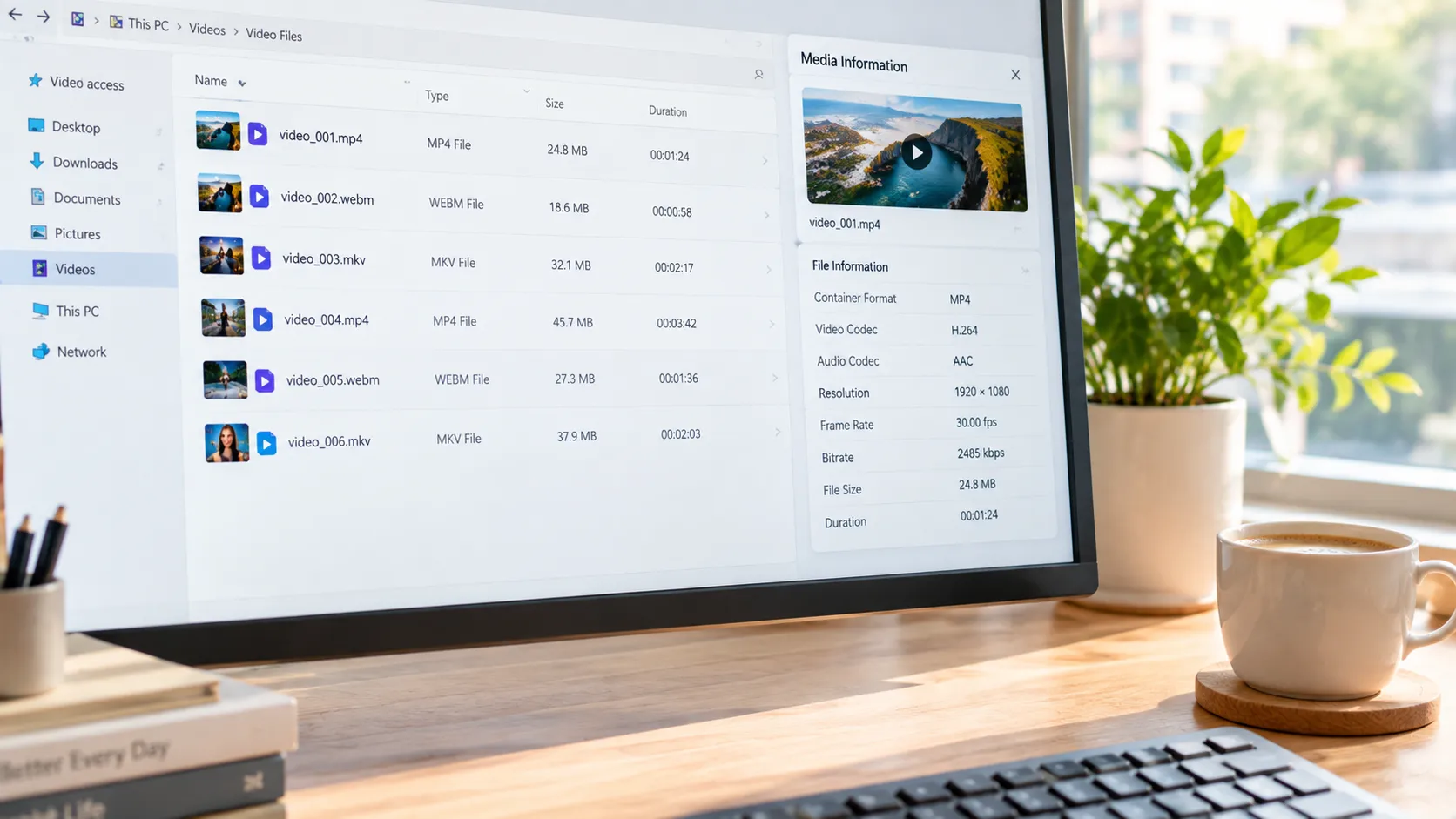
To find a file's true identity, drag it into a free tool like MediaInfo (or the "media information" panel in your player): container, video codec and audio codec at a glance. When you see the "MP4 + HEVC" combination, you'll understand why the built-in player fails — the box is fine, what's missing is the decoder.
How to Fix Format Incompatibility: Change the Player First, Convert Only If Needed
Remember the fix order in one sentence: if changing the player solves it, don't convert the format. Transcoding costs time and quality — it's the last resort.
- Step one: install VLC — open source and free, it bundles nearly all mainstream decoders and handles WebM, MKV, HEVC and AV1 in one go. Download from the official site videolan.org. After installing, 90% of "won't open" problems simply disappear
- Step two: when you truly need conversion, use HandBrake — also open source and free (handbrake.fr). Convert incompatible files to H.264 + AAC MP4 that TVs, phones and old devices all accept. Right for casting to an old TV or sending video to family with restricted devices
- Know your goal before converting: if you're only watching on your own computer, VLC is the end of the road; converting is only worth it for cross-device distribution
Also, "video plays but no sound" is a different track problem (for example, Windows 11 removing the AC-3 decoder) — we broke that down completely in our local file repair guide. That's a different issue from "won't open at all."
Avoid Format Pitfalls Starting at the Save Step
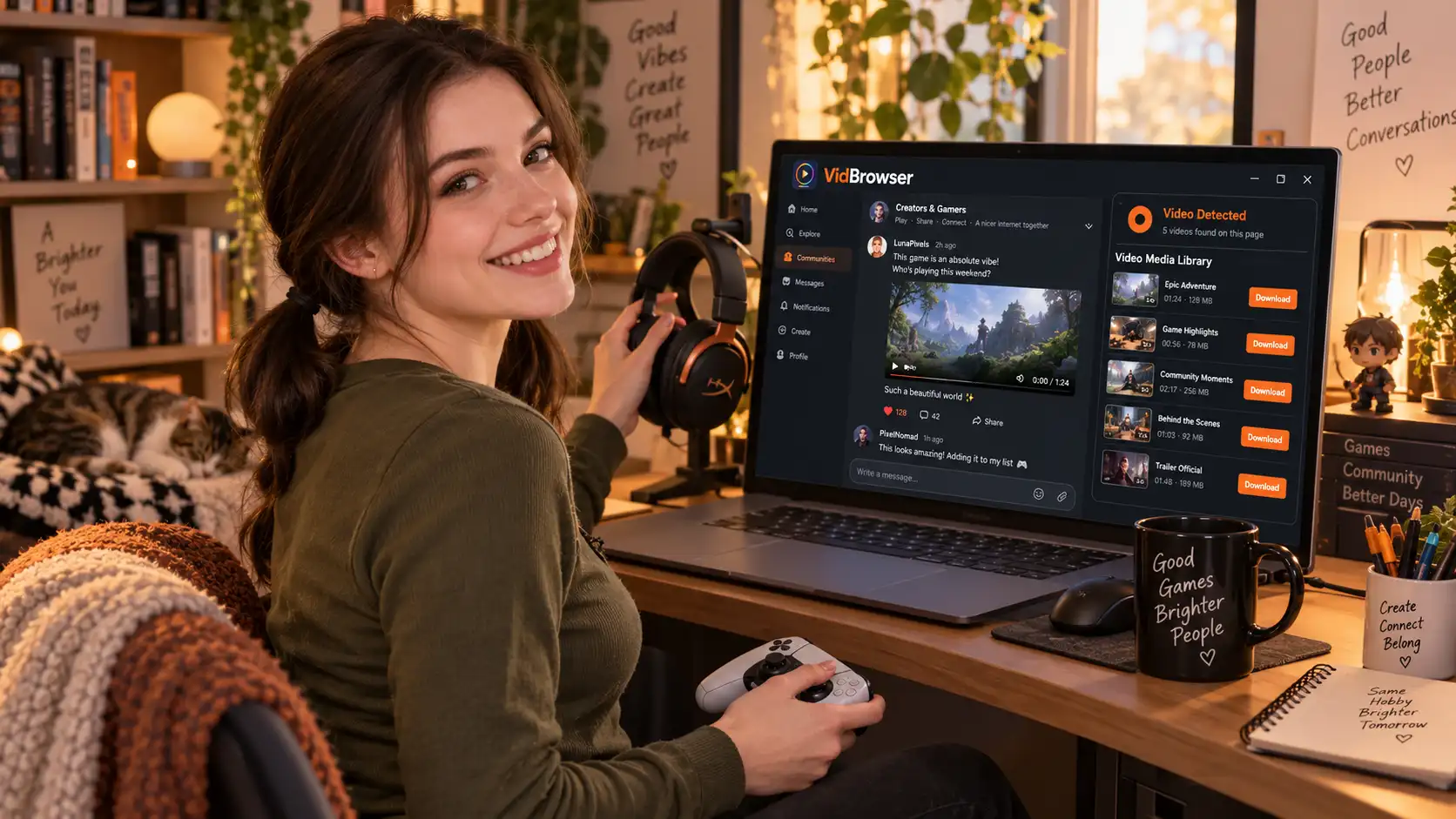
Instead of fixing afterwards, choose the right tool when saving — get a universal format at the source and everything after is smooth. Videos saved with VidBrowser land directly as standard MP4 or WebM containers (MP3 audio extraction supported in some scenarios), with no .ts fragments or exotic containers; the "Video Media Library" panel on the right lists detected resources, and clicking the orange "Download" button saves what you need (resolution can be filtered first). Content regular download tools can't handle can still be captured with the recording function.
The download history (clock icon on the left) records each task's file name and save path, so you can open and verify with VLC or QuickTime directly. One habit worth adopting: after saving a new video, double-click and play two seconds before closing — confirming on the spot beats troubleshooting a pile of files later.
FAQ
How to convert WebM to MP4
Open the WebM file in HandBrake, pick a general preset like "Fast 1080p30," choose MP4 as the format, and start encoding. If you're only watching on your computer, installing VLC and playing directly is faster — no conversion needed.
Which is better, MKV or MP4
Depends on the use. MKV holds multiple audio tracks and subtitles, good for your own collection; MP4 has the broadest compatibility — phones, TVs and game consoles all accept it — good for sharing and cross-device viewing. The same video in the two containers has no quality difference; the difference is only the "box" and its support range.
Why won't iPhone videos open on Windows
iPhone uses HEVC by default to save space, and some Windows players lack that decoder. Two fixes: change iPhone Settings-Camera-Format to "Most Compatible" (future recordings use H.264), or just play the existing files with VLC.