
How to Save Money on OnlyFans: Free Trials, Discounts, and PPV Math
You pay a subscription to OnlyFans every month, unlock a few PPVs here and there, and by the end of the month the total is a few dozen dollars again — it is not that you cannot afford it, but some spending feels unnecessary: subscriptions you opened and barely watched, videos that were not worth the unlock. With the same content, people who know how to save spend half as much.
This article covers practical OnlyFans saving tips: how to use free trials, when to wait for discounts, how to choose between PPV and subscriptions, and how to make every dollar count in 2026.
OnlyFans Saving Tip 1: Grab Free Trials
Many creators offer free trials: the subscription is listed at $15, but through a special link or invite you can subscribe free for a trial period (usually 3-7 days), see the creator's regular posts, and only convert to paid when the trial ends.
- How to find them: creators often share free trial links on their social pages and limited-time events; some creators give new fans a free trial as a welcome perk.
- How to use them: before subscribing, search "creator name + free trial" and use it if available — judge the content and posting frequency during the trial, convert if it is worth it, or let it lapse if not.
- Watch out: the trial auto-converts to a paid subscription when it ends, so turn it off early if you do not want it — do not let "free" become next month's auto-charge.
Free trials are the best "zero-cost trial" approach, especially for new creators you are unsure about.
Discount Timing: How to Wait for a Sale
Creators occasionally discount their subscriptions — common moments include new account welcome deals (lower price for the first weeks), anniversaries/fan milestones (celebration-wide sales), and comebacks (discount links after a break). To save money, watch these two signals:
- The creator's social accounts: discount info is mostly posted off-platform (X, Reddit, Instagram), so follow their socials before subscribing and wait for a sale.
- Promo notes on the subscription page: some creators highlight current offers on their profile (like "50% off for new subscribers") — check before you subscribe.
The essence of saving is not paying full price for an account about to go on sale — especially for content you are not in a hurry for, waiting for the discount beats buying right away.
PPV vs Subscription: Which Is Cheaper
For the same creator, is subscribing at $15/month plus unlocking PPVs separately cheaper, or going straight to a higher tier? Do the math first:
- PPV-heavy creators: if this creator sells a lot of content via separate PPVs, unlocking a few a month already exceeds the subscription price — in that case subscribing directly (seeing all regular content) is cheaper and saves those per-unlock fees.
- Creators with little PPV: the subscription already covers most content, and an occasional PPV is an extra — subscribing is enough, no need to upgrade tiers for individual PPVs.
- Higher tier vs mid tier: if the higher tier only adds non-video perks (DMs, custom offers) and you only want video content, the mid tier is the better deal (for tier choice, see our Fansly multi-tier guide — the logic applies to OnlyFans too).
In short: look at the creator's pricing structure before deciding how to buy — do not unlock blindly or upgrade tiers without thinking.
Free Accounts and Curated Subscriptions: The Right Way to Save
- Free accounts as "showcases": many creators run a free OF account ($0 subscription) with previews and partial content while full content goes through PPV — if you want part of the content for free, follow the free account first; it costs far less than subscribing to the paid one (for weighing free vs paid, see our OnlyFans free vs paid guide).
- Curate your subscription count: most people subscribed to 5-6 creators never finish watching — cut down to 2-3 of the most worthwhile ones; quality stays, spending halves.
- Review subscriptions regularly: check your subscription list monthly and cancel accounts you have not opened in a month — silent auto-charges are the most expensive leak.
(For a full monthly spending breakdown and budget control, see our article on how much OnlyFans really costs.)
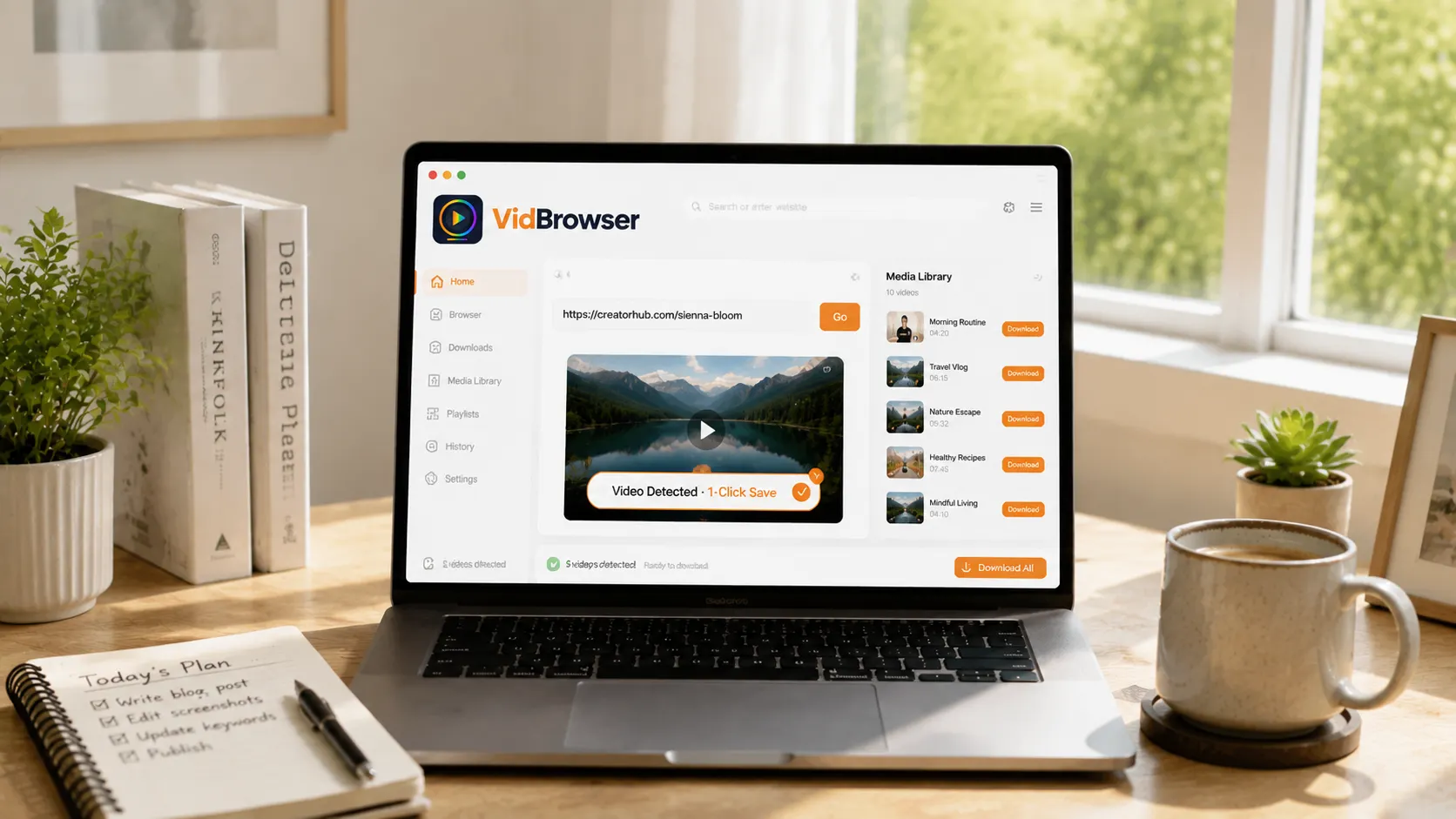
Money Saved, Content Worth Saving Even More
Once the saving tips lower your monthly spending, there is one thing more important than saving money: do not let the content you paid for disappear. Most content on subscription platforms like OnlyFans is protected, and ordinary download tools cannot grab it; when creators delete posts, close accounts, or your subscription expires, your money is gone — content from converted free trials and discounted subscriptions is worth keeping a copy of early.
Saving with VidBrowser is simple:
Step 1: Download and install VidBrowser
VidBrowser is a desktop video browser for Windows and Mac to watch videos, capture clips, and save them locally, with both download and recording functions built in. Installation takes a few minutes.
Step 2: Open OnlyFans in VidBrowser and log in
Launch VidBrowser, visit onlyfans.com, and log in with your own account. Your subscriptions and purchase history look exactly the same as in a regular browser.
Step 3: Play the video you want to save
Open the subscription content or an unlocked video and play it for a few seconds. VidBrowser automatically detects video resources on the page in the background and lists recognized streams in the "Video Library" panel on the right.
Step 4: Save with the recording function (first choice for protected content)
Most videos on subscription platforms like OnlyFans are protected and cannot be grabbed by ordinary download tools; VidBrowser's recording function is the most reliable way to save them: move your mouse over the video and a recording control appears — choose the recording speed (1x real time, or 2x or 4x to finish faster), click "Record All" to record the whole video, and use the recording button on the left to start or pause anytime. Anything that can play can be recorded.
If the video can be downloaded directly, the "Video Library" panel on the right also lists items with an orange "Download" button — click it to save as MP4 (you can also pick the resolution first).
Step 5: Find the file in the library
After saving or recording, you can open the file from your chosen folder or find it in VidBrowser's download history. Then watch offline anytime with players like VLC or QuickTime, without depending on your account or subscription. (For the full OnlyFans walkthrough, see our OnlyFans beginner's guide.)
FAQ
Does the OnlyFans free trial auto-charge when it ends?
Yes. When the free trial expires it automatically converts to a paid subscription and charges you. If you do not want it, turn off the subscription early during the trial to avoid "free trial" becoming an auto-charge.
How do I know if a creator has a discount?
Check the creator's social accounts (X, Reddit, Instagram) — discounts are mostly announced off-platform; some creators also highlight current offers on their subscription profile. Wait before subscribing and you can save a lot.
For PPV-heavy creators, is subscribing or buying separately cheaper?
It depends on volume. If this creator sells most content via separate PPVs and unlocking a few a month exceeds the subscription price, subscribing directly is cheaper; with little PPV, the subscription already covers most content.
Does saving OnlyFans videos notify the creator?
No. VidBrowser saves videos to your local device and sends no saving records to the platform or creators, and your account and subscriptions are unaffected.


