
Which Fansly Tier to Pick? $7 / $20 / $40 Compared Without Wasting Money
A creator you want to follow has three tiers on Fansly—$7, $20, $40—and a row of buttons in front of you suddenly feels confusing. Pick $7 and you worry you won't see what you want; pick $40 and you worry about wasting money; pick the middle and it feels like neither. Fansly's multi-tier subscriptions are its biggest difference from OnlyFans, and the easiest place for subscribers to trip up.
This article explains how Fansly tiers actually work, gives you a method for choosing a tier, and shows you how to make your subscription money count in 2026.
Fansly Multi-Tier vs OnlyFans Single Tier: What's Different
The core feature of Fansly is multi-tier subscriptions (Tiers): creators can set up several tiers at once, each with its own price and content access, and subscribers pick the one they need.
- Single-tier platforms (OnlyFans and similar): one subscription price; paying unlocks everything from the creator—simple to choose, but no flexibility.
- Multi-tier platforms (Fansly): the same creator may have 2-5 tiers ranging from a few dollars to tens of dollars; lower tiers see some content, higher tiers unlock everything—harder to choose, but you pay precisely for what you need.
$7 / $20 / $40 is a common three-tier structure, but note: prices and the number of tiers are set by the creator, not fixed by the platform—some creators only have two tiers, others set them higher. So the first step in choosing is reading this creator's own tier setup, not copying someone else's experience.
What Fansly's $7/$20/$40 Tiers Usually Include
Every creator sets things differently, but three-tier structures roughly follow a pattern:
- Entry tier (around $7): usually includes basic posts and some regular content—good for "testing whether this creator fits your taste." Lowest price, but also the least access; lots of exclusive content sits behind the paywall.
- Mid tier (around $20): typically covers most of a creator's content—regular posts, most videos, history. This is the "normal subscription experience" tier and usually the best value.
- High tier (around $40): unlocks everything, usually with extras—custom content discounts, more private interaction, early access to new content, exclusive streams, and more.
A common misconception is "higher tier always means more and better content": in fact, the high tier's increment may be non-video perks (DM interaction, custom discounts, exclusive community) that you don't actually want. Check what exactly the high tier adds before deciding whether it's worth the extra money.
Before Choosing, Check These Three Things
Don't rush to subscribe. Spend two minutes looking at three things first:
- Tier Descriptions: creators state on their page what each tier includes. Go through what the high tier adds over the mid tier—if you don't need the increment, mid is enough.
- Free posts: Fansly creators usually show their level with free content. Judge the quality and posting frequency of the free part to see if what's behind the paywall is worth it.
- History volume: established creators have lots of history; mid/high tiers unlock all of it, so one subscription pays for itself faster. New creators have little content; starting low is safer.
After checking these three, you can basically judge whether this creator is worth subscribing to and at which tier.
Fansly Tier Strategy: Start Low, Upgrade Later
The safest tier strategy is start low, then upgrade:
- On your first subscription, start with the entry or mid tier and observe for about a week—once update frequency, quality, and interaction all satisfy you, consider upgrading.
- Fansly lets you switch tiers up or down anytime; upgrading/downgrading is easy, so no need to fear being stuck on a high tier.
- Watch the charge when upgrading: upgrading usually charges the price difference for the remaining subscription period or rebills; check the platform rules so the bill doesn't surprise you.
The reverse works too: if you find after a mid-tier experience that everything you want is high-tier only, upgrade then—start low and go up; the only extra is one price difference, and the money you save is the waste you avoid. (For weighing free accounts vs paid subscriptions, see our OnlyFans free vs paid subscription guide—the logic applies to Fansly too.)
Paid for the High Tier? Save the Content
No matter which tier you pick, remember one thing: a subscription buys access, not ownership. Content on subscription platforms like Fansly is mostly copyright-protected and ordinary downloaders can't grab it; creator deletions, tier drops, closed accounts, and expired subscriptions can all make paid content disappear—the more you spend on a high tier, the more worth saving early.
Saving with VidBrowser is simple:
Step 1: Download and install VidBrowser
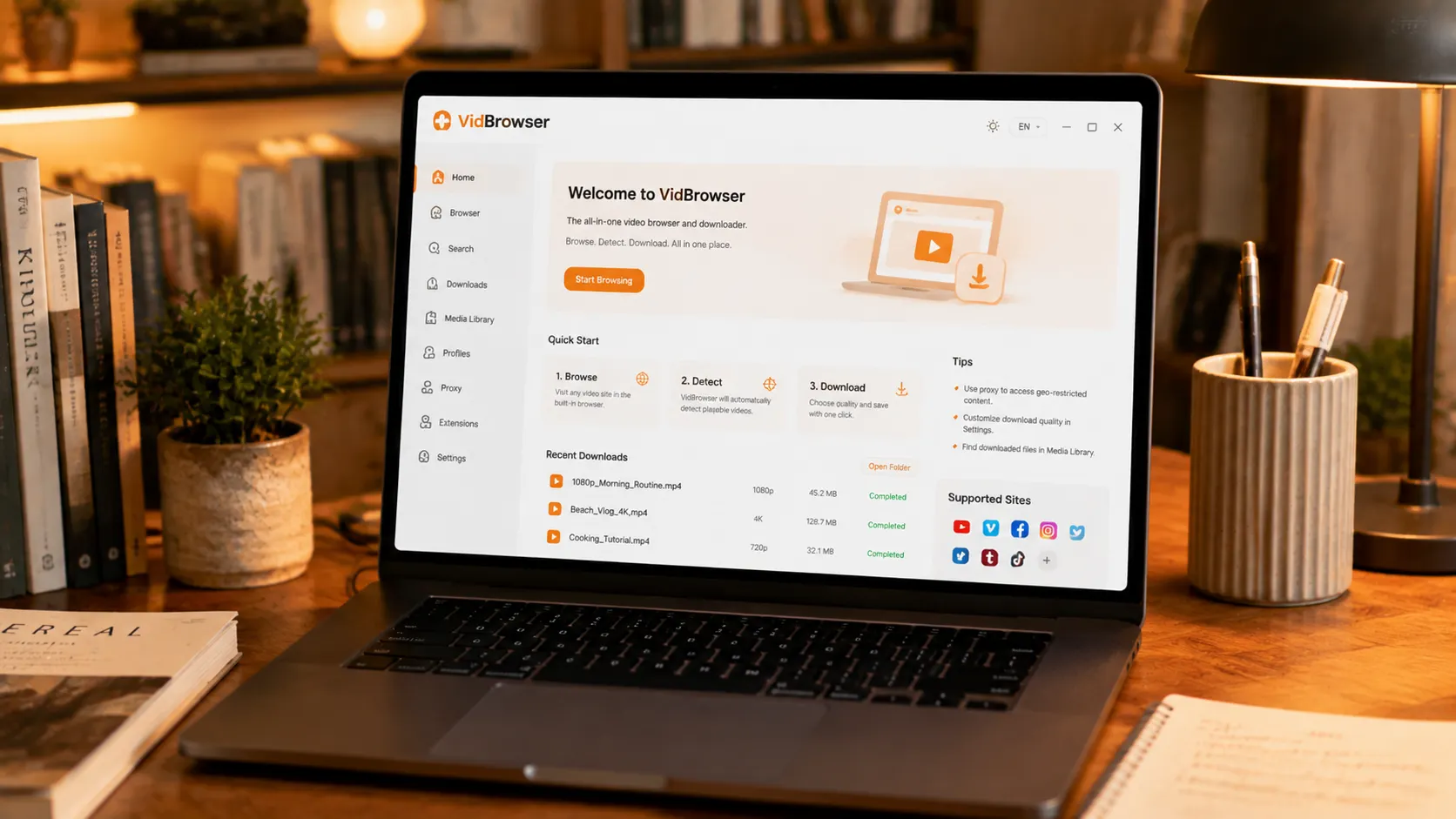
VidBrowser is a desktop video browser for Windows and Mac: watch videos, capture clips, and save them locally, with built-in download and recording. Installation takes just a few minutes.
Step 2: Open Fansly in VidBrowser and sign in
Launch VidBrowser, visit fansly.com, and sign in with your own account. Your current tier access works exactly as in a normal browser.
Step 3: Play the video you want to save
Open a video your current tier can watch and let it play for a few seconds. VidBrowser automatically detects video resources on the page and lists detected streams in the "Video Library" panel on the right.
Step 4: Save with the recording feature (first choice for protected content)
Most videos on subscription platforms like Fansly are copyright-protected and ordinary downloaders fail on them; VidBrowser's recording is the most reliable way to save: hover your mouse over the video and recording controls appear—pick a speed (1x real-time, or 2x/4x to finish faster), click "Record All" to capture the whole video, and the button on the left lets you start or pause anytime. Anything that plays can be recorded.
If a video can be downloaded directly, the "Video Library" panel lists it with an orange "Download" button—one click saves it as MP4 (you can also pick the resolution first).
Step 5: Find the file in your library
After saving or recording, open the file from your chosen folder or find it in VidBrowser's download history. Play it offline anytime with VLC, QuickTime, or any player—no account or subscription required. (For Fansly's full saving process, see our Fansly video download guide.)
FAQ
Are Fansly's three tiers set by the platform?
No. Tier count and prices are set by the creator; $7/$20/$40 is just a common structure. Always follow the tier descriptions on that creator's page.
Is a higher tier always a better deal?
Not necessarily. The high tier's increment may be non-video perks like DM interaction or custom discounts that don't fit you. Check what the high tier adds in the descriptions first—if you only want video content, the mid tier is often the best value.
Can I switch Fansly tiers anytime?
Yes. Fansly supports switching up or down anytime and it's easy to do. It's best to start at a low/mid tier and upgrade once satisfied, so you don't waste money jumping straight to the high tier.
Does saving Fansly videos notify creators?
No. VidBrowser saves videos to your local device and sends no save records to any platform or creator, and it doesn't affect your account or current tier.


