How to Download YouTube Videos? Can You Save Premium Content Too? (2026 Full Guide)
Downloading YouTube videos is one of those things that sounds simple but turns out to be surprisingly tricky in practice.
For regular videos, there are plenty of methods out there — a quick search turns up dozens of options. But if you're trying to download YouTube Premium content — exclusive videos, documentaries, and original series that require a paid subscription — you'll find that every one of those methods stops working. What you get instead is garbled data or an empty file.
This guide covers both scenarios: how to download regular YouTube videos, and why Premium content is so hard to download — along with how to actually solve it.
How to Download Regular YouTube Videos: Your Options
Good news first: for regular YouTube videos without DRM protection, there are quite a few methods available, each with its own trade-offs.
Option 1: yt-dlp (Most powerful, but requires command line)
yt-dlp is the most platform-compatible and quality-flexible video downloading tool available, completely free and actively maintained. It has solid, reliable support for regular YouTube videos — you can choose resolution and format, and batch-download entire playlists.
The downside is that it requires command-line operation, which is a real barrier for anyone without a technical background. Just getting it installed and configured takes some effort, and if you're not comfortable with terminal commands, you may hit a wall before you even start.
Option 2: Online parsing sites (Easiest, but limited)
Search "YouTube video download" and a long list of online sites appears — paste a link and they parse it for you, no software installation required. Simplest operation of any method.
But the limitations are real: quality usually caps at 720p, long videos over 10 minutes download slowly, many sites are plastered with ads and pop-ups, and they fail completely on YouTube Premium content. These sites are also inherently unstable — working today doesn't mean working tomorrow.
Option 3: Browser extensions (Convenient, but unreliable)
The Chrome Web Store has plenty of YouTube download extensions that seem very convenient — a single click on a video page and you're done.
The problem is Google periodically purges these extensions, and many developers don't actively maintain them, so failures are common. Some extensions also carry privacy risks, so stick to well-sourced options.
Option 4: VidBrowser (Easiest, covers everything)
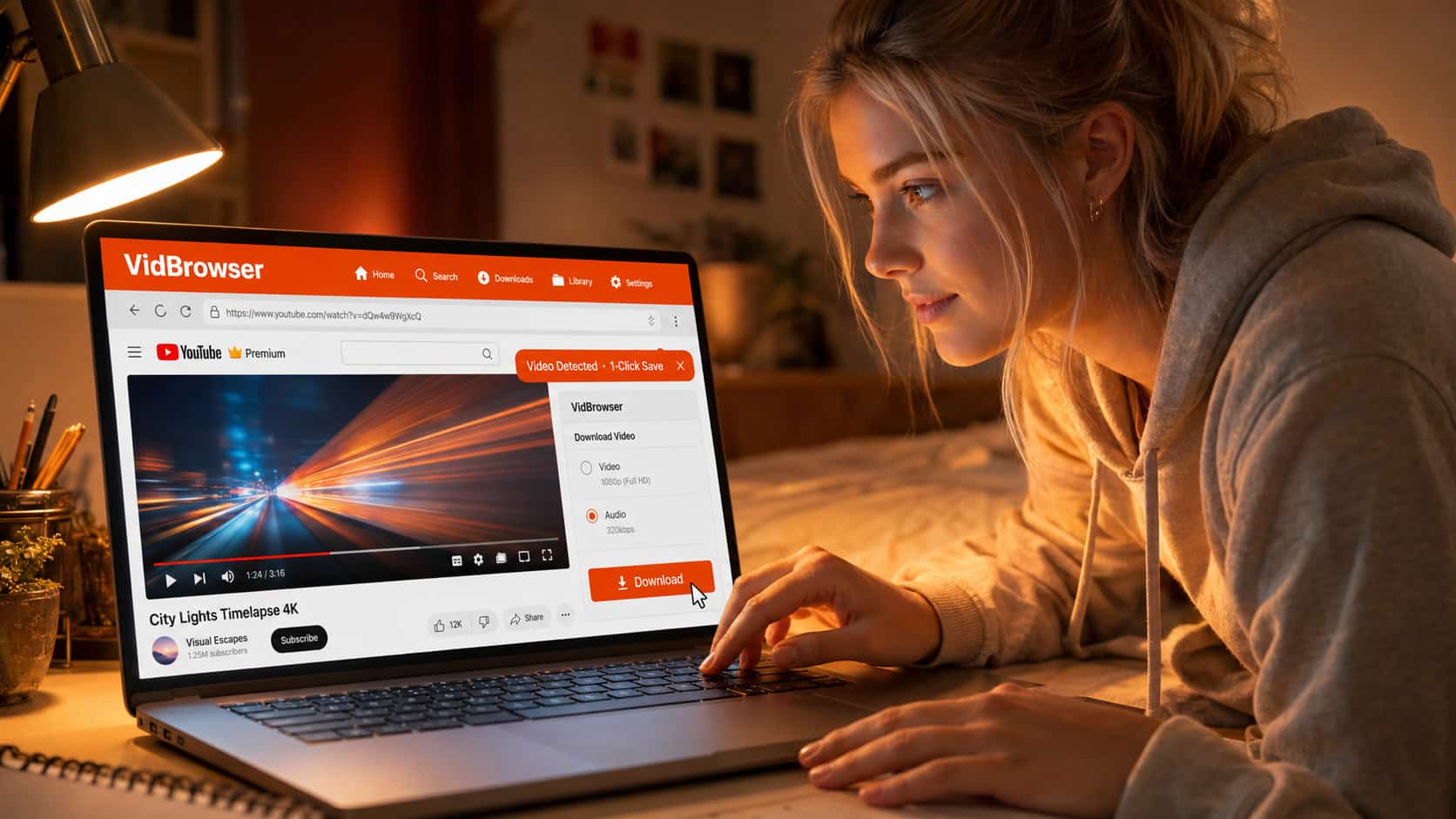
VidBrowser has a built-in video detection and download engine — see a video while browsing, save it with one click, no link copying, no switching tools. Regular YouTube videos, YouTube Premium content, and 1,000+ other platforms all handled in one interface. For anyone who doesn't want to wrestle with command lines or install a pile of extensions, it's the most low-friction option.
Why Is YouTube Premium Content So Hard to Download?
YouTube Premium's exclusive content — original series, member-only videos, select documentaries — is protected by DRM (Digital Rights Management), the same encryption logic used by Netflix and Disney+.
Specifically, YouTube Premium content is delivered via Widevine DRM encryption. Every time you play a Premium video, your browser first contacts Google's authorization server, verifies your Premium membership status, and receives a temporary decryption key. The video file itself remains in an encrypted state at all times; the key is bound to your account and device, and expires when playback ends.
So when you try to download YouTube Premium content with yt-dlp or an online site, you're capturing an encrypted video stream — no decryption key, and the file you download simply won't open. Many users have encountered yt-dlp returning errors like "login required" or "unable to download this content" — that's exactly why.
Screen recording is equally unreliable. Under Widevine L1 hardware-level protection, recording software captures only a black screen when Chrome plays Premium content — the exact same reason you get a black screen when trying to record OnlyFans.
VidBrowser: Works for Both Regular and Premium YouTube Videos
VidBrowser's YouTube support operates on two levels.
Regular YouTube videos: Open any YouTube video inside VidBrowser and the browser automatically detects the video resource and shows a download prompt. One click saves it locally, with multiple quality options.
YouTube Premium content: This is where VidBrowser genuinely differs. As a full browser, it participates in the DRM authorization flow. After YouTube completes member verification and issues the decryption key, VidBrowser intervenes at the legitimate playback stage to save the video content locally. This isn't circumventing encryption — it happens within the authorized chain.
In testing, VidBrowser provides stable download support for YouTube Premium content. The saved quality matches streaming playback quality. Files open directly in standard players without requiring YouTube's platform, and they don't expire when your membership does.
Beyond video downloading, VidBrowser also makes watching YouTube noticeably better than a standard browser:
- Ad-free throughout: Pre-roll ads, banner ads — all blocked. No YouTube Premium required for an ad-free experience.
- AI highlight detection: Automatically analyzes video content and marks the best moments, making it easy to find key points in long videos.
- Video clipping and AI editing: When you need to capture a specific segment, do it directly in the browser — no separate editing app needed.
Step-by-Step: How to Download YouTube Videos with VidBrowser
Step 1: Download and install VidBrowser
Go to the VidBrowser official website for a free download. Available for both Windows and Mac, installed just like any normal software.
Step 2: Open VidBrowser and go to YouTube
Type youtube.com into VidBrowser's address bar. If you want to download Premium content, sign in to your Google account and make sure your YouTube Premium subscription is active.
Step 3: Find the video you want and start playing it
For regular videos, just search and open as usual. For Premium content, confirm you're subscribed and the video plays normally. Let the video start — VidBrowser automatically detects the video resource on the page.
Step 4: Click the download button and choose where to save
A download prompt appears in VidBrowser's interface. Click download, choose your save location and quality, and wait for it to finish. No link copying, no switching to another tool.
Step 5: Open in your local player
The downloaded file is in a standard video format. VLC, IINA, and the Windows built-in player can all open it directly — no extra steps.
Download VidBrowser free and try it out first. The free version allows saving 5 videos per day, covering both regular and Premium content within that limit.
Frequently Asked Questions
Can yt-dlp download YouTube Premium videos?
For regular YouTube videos without DRM protection, yt-dlp works well. But YouTube Premium exclusive content is protected by Widevine DRM, which yt-dlp currently can't handle — attempts will return an error or produce an unplayable file.
Is downloading YouTube videos illegal?
YouTube's Terms of Service explicitly prohibit unauthorized video downloads — that's a contractual issue. Legally, personal-use downloading sits in a grey zone in most jurisdictions and carries low risk; redistributing or using downloads commercially is a different matter. This article isn't legal advice.
Can you screen record YouTube Premium content?
On devices with Widevine L1 hardware protection (most modern PCs), screen recording tools capture only a black screen when Chrome plays YouTube Premium content — same mechanism as the OnlyFans black screen issue. Older devices or browsers running at L3 level may not trigger the protection, but those are increasingly rare.
Can VidBrowser's downloaded YouTube videos be watched on mobile?
Yes. The file is saved locally — transfer it to your phone and any video player opens it, no YouTube platform dependency.
What other platforms does VidBrowser support?
1,000+ platforms, including TikTok, Netflix, Disney+, OnlyFans, Twitter, Bilibili, and more. Plus ad-free browsing across all sites and AI video editing features. VidBrowser covers multiple platforms in one tool — no need to install different apps for different sites.