Can You Save Paid Subscription Content Offline? An OnlyFans Subscriber's Guide
You open your subscription page on the subway and it just spins, every saved video is locked on the plane, and at the end of the month a creator deletes their posts and content you paid for is simply gone. Paid subscriptions, yet you can't watch at the exact moment you want to. OnlyFans, Fansly, and LoyalFans all have no official offline feature: there's no download button and no offline mode, and all content is designed for online streaming only. There is only one route to offline viewing — save it as a local file yourself while you still have access. This guide starts with why the platforms work this way, then covers the hands-on method and how to manage your files afterward.
Can You Save Paid Subscription Content Offline: The Real Answer from All Three Platforms
The answer is blunt: don't count on the platform. None of the three offers an official offline save feature, and paying doesn't change that.
Take Fansly as an example: third-party reviews make it clear that the platform provides no built-in download option, all content is designed for online streaming, and the normal interface has no "save" or "download" button at all (see FliFlik's hands-on write-up). Even if you subscribe or buy a single post, it stays viewable only while you're logged in. LoyalFans and OnlyFans follow the same design logic — subscriptions, DMs, and paid unlocks all live inside the site, with no exit built in.
That means two things: an "official" offline option does not exist, so stop digging through settings; and favorites and purchase records are just on-site bookmarks — Fansly's purchased page is only an online list too. To watch offline, on your commute, or to protect against deletions, local files are the only way. Purchased content in DMs is even more scattered to track down; the differences across the three platforms are covered in our guide to saving DM PPV videos, so we won't repeat them here.
Why Platforms Don't Offer Offline Downloads
No offline option isn't a missing feature — it's deliberate design: only with streaming playback can a platform protect creator copyright and the foundation of the subscription model.
Third-party analyses agree: platforms disable downloads to protect creator content and prevent unauthorized redistribution. As long as content plays online only, mechanisms like expiration locks, permission control, and subscription billing all hold together. Put more directly: once a file lands on your local drive, expiration locks and deletion rules lose all force — offline caching and the subscription model are in natural conflict, so platforms have no incentive to loosen up. The technical side matches: video plays in a protected streaming format, right-click save does nothing, parsing tools can't get a complete file, and phone screen recording turns black — all the same protection at work. For why streaming can't be grabbed, our explainer on streaming mechanisms covers it from sliced streams to time-limited links.
Once you accept this, adjust your expectations of "offline": the platform won't provide it, and third-party tools are everywhere online — but which ones work and which are traps makes the standard for choosing critical, more on that at the end.
How to Save Subscription Content Offline: Four Steps to Keep What You Want
The right way to go offline is to save it yourself while your subscription is active: with a desktop video browser that supports recording, anything that plays can become a local file.
Timing matters: your subscription period is a natural offline window, and everything locks again when it ends (we've put together a list of window rules for each content type in our OnlyFans timing guide), so don't push archiving to the last day. It takes just four steps:
Step 1: Download and install VidBrowser
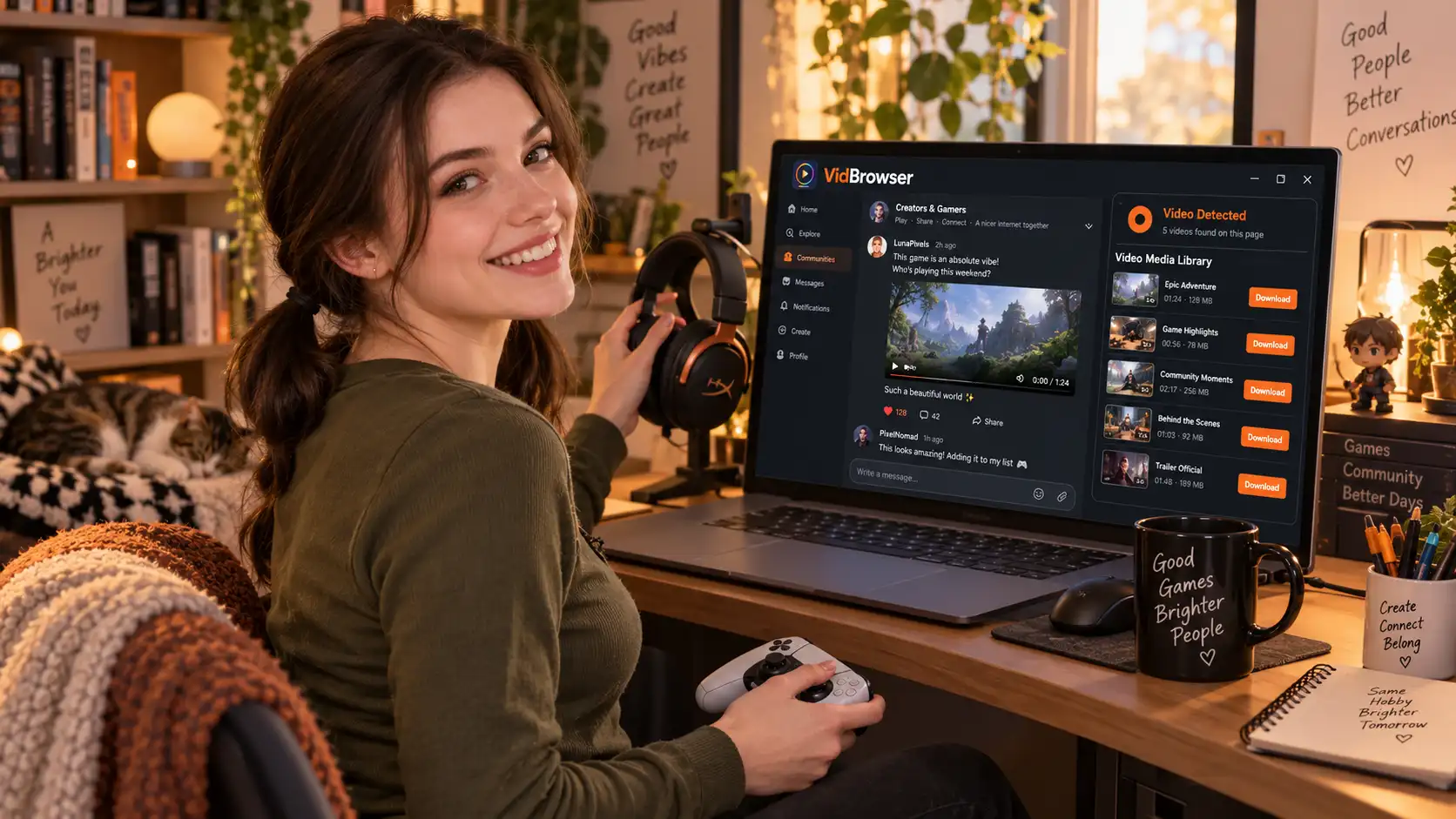
VidBrowser is a desktop video browser for Windows and Mac, built for watching and saving subscription content, with both download and recording built in. The free plan allows 5 downloads per day and recording up to 5 minutes per session.
Step 2: Open the platform and log in to your account
Type the platform's web address into the address bar and log in with your own account — subscriptions and purchased access work exactly as in a regular browser.
Step 3: Open the video you want to save offline
Open the target video from your subscription feed or the creator's profile and let it play normally for a few seconds.
Step 4: Use the recording feature (the first choice for protected content)
Videos on subscription platforms are mostly copyright-protected, which ordinary downloaders can't grab, so recording is the most reliable route: move your mouse over the video and the recording controls appear as an overlay — pick a recording speed (1x real time, or 2x/4x to finish faster), click "Record All" to capture the entire video, and the record button on the left lets you start or pause anytime. Anything that plays can be recorded. If the page offers a directly downloadable source, the "Video Library" panel on the right lists entries with an orange "Download" button — one click saves it as MP4 (you can pick a resolution first if you prefer).
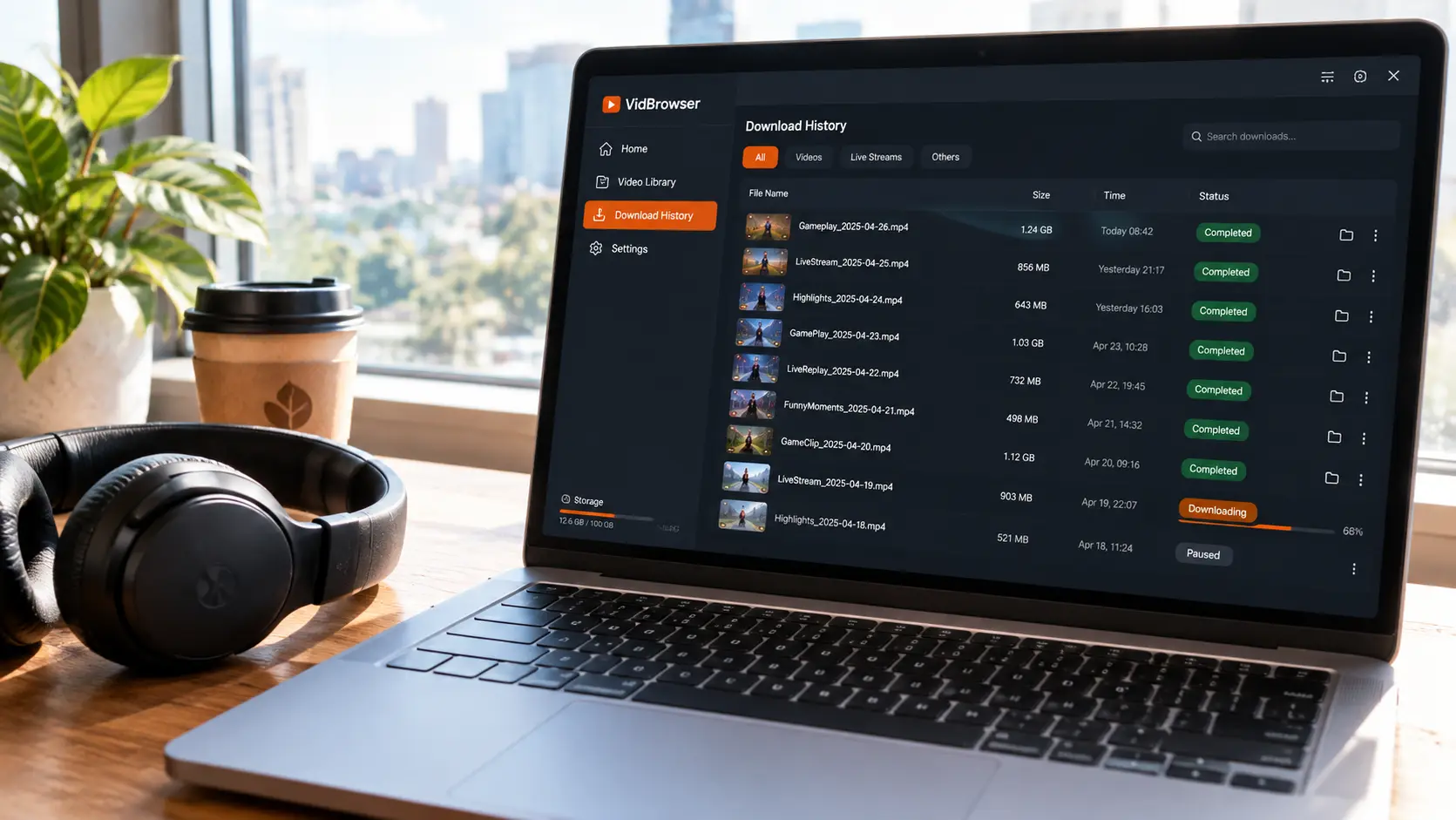
After saving, check the clock icon in the left navigation for download history — file name, size, and save location all in one view. Content you have permission to view is for personal organizing and offline viewing; reposting or redistribution is out of scope. Where exactly that line falls — platform terms, technical protection measures, and copyright are three separate rules — is broken down in the legal boundary of saving subscription content.
Don't Lose Your Offline Files Twice: Organizing, Backup, and Safety Reminders
Saved files can still be lost: accidental deletion, a device change, or a failed drive can each wipe your offline library to zero, so don't skip these three habits.
- Archive by date: put the save date in file names and create monthly subfolders — the bigger your library gets, the faster a timeline beats guessing folder names from memory;
- Back up: keep a second copy of what matters on an external drive or private cloud — one local copy, one backup, and a single point of failure can't hurt you;
- Move to your phone: for viewing on the commute, just transfer the files over — transfer methods and player picks are covered in our PC-to-phone video transfer guide.
Finally, the bottom line on tool safety: in 2023, multiple websites impersonating subscription-platform downloaders spread trojans (see StreamFab's write-up on the fake downloader incident). The trick is getting you to log in inside their interface, then quietly harvesting your password or session credentials; anything claiming to "unlock for free" is either a scam or malware (for how online parser sites, extensions, and command-line tools each fail on subscription platforms, our LoyalFans downloader comparison tested them category by category). Download tools only from official sites and log in to your account only in environments you trust — hold that line, and your offline library stays safe.
FAQ
What happens to offline files after I switch computers or reinstall my system?
Copy the files to an external drive or private cloud, import them on the new computer, and they keep playing — MP4 runs in any player, with no need to log back into the platform or re-save anything. A second copy also pays off here: migration and disaster recovery use the same backup.
Can I batch-save an entire subscription feed?
There's no one-click batch option yet; saving is per item: click once where the page offers a download source, and record protected content one by one. The practical approach is to prioritize — save time-limited and soon-expiring content first, then evergreen posts, batching along your subscription period. Far more realistic than "save everything".
How good is the quality of offline-saved videos?
Recording follows the quality the playback page actually provides — you get what the page offers. For direct downloads, pick a resolution in the "Video Library" filter first, then save. For better quality, set the playback page's quality to maximum before you start.