FliFlik parses what it can — but not a link you never had
Most people who search for FliFlik are standing at a fork: on one side you paste a link into a box and wait for the file to come back; on the other you let the content play in your own browser and keep it while it plays. The two paths split very early.
FliFlik's online version and desktop app are two different products
FliFlik walks on two legs: an online version you reach by opening a page and pasting a link, and a desktop app you install on your machine. Its own product page puts them side by side, because they do not do the same things. By that page's account, the online version covers 1,000+ sites, outputs mainly MP4 and MP3, and tops out at 720p; the desktop app is where the 10,000+ site list, higher resolutions and more formats live.
What the free online version actually allows is described differently on different pages: the comparison page mentions a daily cap, while some platform sub-pages say there is no daily limit. Do not get stuck on that — go by the page you actually open, and check the site for the desktop version number and system support. the official side-by-side comparison sits on that same page, and reading it tells you which of the two you belong to.
In fairness: for these cases, pasting a link really is easier
When the content sits behind a public, copyable link and you only save something once in a while, the online version is hard to beat: nothing to install, no local space used, and it works from any computer with a browser. Saving a public short video from a social platform, or grabbing just the audio, is exactly that case.
This piece compares the shape of the tools and how you use them. It does not go into anyone's content policy or pricing.
For these categories a parser cannot even get the link to paste
The input to a parsing tool was never the content itself — it is an address that can be copied. For that address to hold up, three things have to be true at once: you can copy it, it still opens on another machine, and the other side does not need your login. Our free-tier comparison already landed one conclusion — pasting a link does nothing for content that requires a login; here we step back and look at which categories get stuck.
- Content you only see after logging in: the address is fine, but the login credential is not inside it. how HTTP cookies work puts it plainly: the browser sends it along with every later request, and the server recognises the browser, not the link. Hand the address to another machine and the credential does not travel with it.
- Time-limited temporary addresses: plenty of media URLs are generated on the spot and expire minutes later. Copying one and pasting it elsewhere is already that round trip.
- A page address is not a content address: a creator's profile URL points at dozens of items under their name; a parser gets a page, not the one you wanted. The address for a single item often never surfaces in the feed.
- Things that just play when opened, with no separate address: embedded players, media sent in a chat — there is no single address you can copy out of them.
These are not cases of cannot be decoded — they are cases where there is no input at all. Browser extensions hit the same wall: a stream the page never hands over cannot be taken. The extension alternatives breakdown lists more of them.
The next difference: whose machine does the work
The online version fetches the file on the other party's server and sends it back to you; a desktop tool and your own browser do the same job on your machine. Draw that line and a lot of the difference in experience explains itself.
When their server runs it, their ceiling applies: daily counts, task queues, output resolution (720p in the free online column).
Move it onto your own machine and the ceiling becomes your bandwidth and your disk. One more layer: that address passes through a third-party server once. That is not good or bad, it is just something to know. The desktop version also lists a built-in browser — and that is the same split again: one asks you to feed an address in from outside, the other puts a browser inside the tool.
To keep content on your own device, here is the play-and-save path
Playing and saving skips the address step entirely: the content plays inside your own browser, and the saving happens in the moment it plays. Nothing gets handed to anyone else, and the categories from the last section stop being obstacles here. The path is four steps:
Step 1: Download and install VidBrowser
VidBrowser is a desktop video browser for Windows and Mac with downloading and recording built in; installation takes a few minutes.
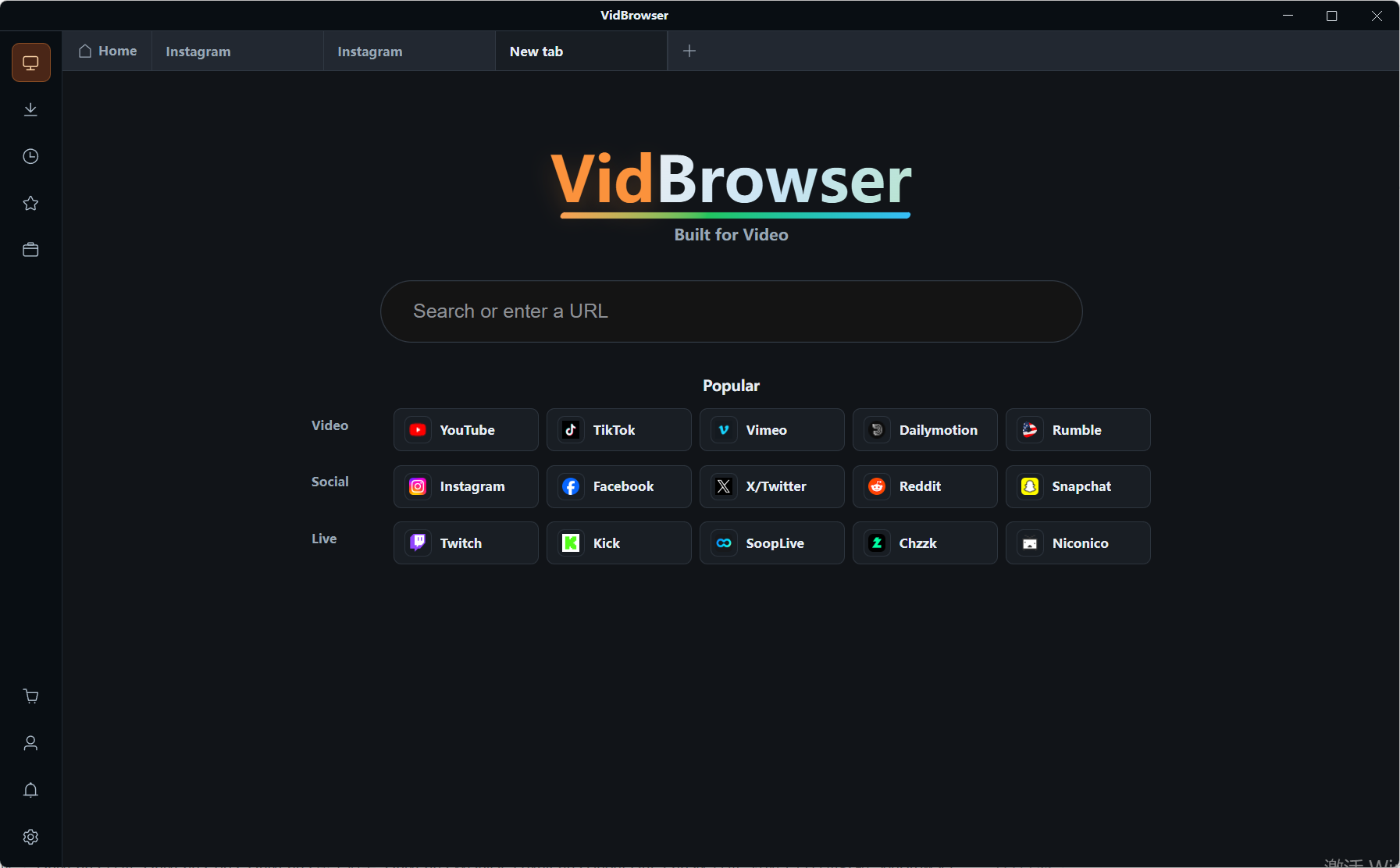
Step 2: Open that page inside VidBrowser and log in with your own account
Then type the address into VidBrowser and sign in, the same as in any browser. The login session stays on this machine and goes to no outside service.
Step 3: Get the content actually playing
No playback, no picture to keep. This step looks ordinary but it is the fork: a parser wants an address, this path wants the picture.
Step 4: With it playing, there are two ways to save
For content that can be downloaded, the video library panel on the right lists entries with an orange Download button — pick a resolution, click once, and it lands as an MP4. For content that is not detected, or that counts as protected, moving your mouse over the picture overlays recording controls: choose 1x in real time, or 2x and 4x to finish faster, hit Record all to capture the whole run, and the record button on the left lets you start or pause whenever. Every job is logged in the download history on the left, where file name, size and location can be checked afterwards. The recording download guide goes deeper on speed and pausing.
Which content suits a parser, and which has to be saved while it plays
There is exactly one test: does this content have an address that can be handed over?
- Fine to hand to a parser: public videos on public pages, single items with their own share link, anything that opens without logging in;
- Must be saved while playing: what you only see after subscribing, what arrives in a direct message, what you unlock by paying, live streams in progress, and anything only visible on the picture.
The two paths solve different problems; neither replaces the other. What to avoid is taking content that only the second path can handle and trying it on a tool built for the first.
FAQ
Does FliFlik have a free version, and how does it differ from the paid one
There is a free online version — open the page and use it, no registration; the desktop app can be trialled first. The two differ quite a bit: the online version covers fewer sites and outputs at lower resolution, with the official page citing 1,000+ sites and a 720p ceiling. For quotas go by the current page on the official site, and for prices as well.
Why does pasting my link give a parsing failed error
Check three things in order: whether the content only appears after logging in, whether the address was generated on the spot, and whether you copied this one item or a whole page. If any of them holds, a parsing tool has no usable input — switching tools or brands makes no difference, because what is stuck is the address step, not the strength of the algorithm.
The files I saved are on my own computer, that is fine, right
Personal offline keeping is the most common use of tools like this. The line to hold is outside the door: no re-uploading, no reposting to other platforms, no commercial distribution. Platform terms and local law differ, so whether you can use it is your call. VidBrowser keeps what you are watching on your device; it does not move other people's work somewhere else.