Is Video DownloadHelper Enough? A Different Route for the Content Extensions Can't Grab
Install a browser extension, click once when a video shows up — that's most people's first setup for saving videos. Video DownloadHelper is the best-known name on this route. But use it long enough and you'll hit snags: the icon stays dark, the saved file won't play, or it asks you to install something extra. The problem isn't that you installed the wrong thing — the extension route itself has a ceiling. This article covers how far it actually goes, and which path to switch to for content it can't grab.
Video DownloadHelper's real level: veteran and wide-reaching, but not a master key
Video DownloadHelper is the most veteran and widest-reaching of the extension-class download tools — good enough for most everyday web videos, but it has never been a master key that takes every video. Launched around 2007, the extension supports Chrome, Firefox and Edge; per the independent review site Tooltivity, combined installs across the three have surpassed 8 million, with a 4.46 rating on the Chrome store (33,000+ reviews); the official site claims support for 1,000+ sites, covering MP4 direct links as well as adaptive streams like HLS and DASH.
The basic experience is genuinely easy: video on the page, toolbar icon lights up, pick a quality and save. Public, no-login videos succeed fairly often. Its real strength is adaptive-stream recognition — many lightweight extensions only recognize MP4 direct links, while it can follow HLS/DASH to the stream and remux it, which is the core edge it has built over the years.
The extension's principle sets its ceiling: it can only take what the page hands over
Extensions work by "sniffing" — listening for media streams during page loading and taking whatever the page hands over; what the page doesn't hand over, they can never get. That principle draws the capability boundary directly:
- Protected platform content: videos on mainstream paid streaming platforms use encrypted segments, so all an extension sniffs is encrypted data — the saved file either won't open or plays black-screen. This applies equally to every browser extension, no exceptions
- The Chrome version can't download YouTube: not a technical issue — Chrome Web Store policy explicitly forbids it, and independent reviews list it as a known limitation
- Complex player pages go undetected: some sites wrap their players deeply or restructure the page, the extension's sniffing rules can't keep up, and the icon simply stays dark
To understand "why it can't grab" at the mechanism level — blob links, expiring links and encrypted segments — we've broken these three layers down in our explainer on why streaming videos can't be downloaded; we won't repeat it here.
The free tier's hidden costs: watermark, rate limits and a companion app
"Free" is the most attractive label for extensions, but Video DownloadHelper's free tier has a few bills to count in advance. Its free policy has tightened noticeably in the last year or two, and multiple reviews agree:
- Converted files carry a QR watermark: videos converted on the free tier get a QR-code watermark; removing it requires a one-time paid license
- Rate limits on the free tier: recent versions throttle free downloads — download several in a row and you're asked to wait, a frequent complaint among longtime users
- Advanced features depend on a companion app: converting HLS/DASH streams requires installing a separate companion app on your computer — one more install and authorization
- The license is bound to a single browser: to use full features on both Firefox and Edge you may need to buy twice
You won't hit all four at once, but stacked together they mean: for light, occasional saving of public videos the free tier is enough; the moment usage gets frequent or the content is special, you either pay or change routes. We've laid out the scenarios for each route in our comparison of five types of video download tools; if you've already decided on a desktop tool, the selection logic in our StreamFab alternatives piece applies too.
Four content types where you can skip extensions entirely
Instead of trial and error, just remember the list — for these four types, the extension route isn't worth another try.
- Subscription-platform login content: videos on OnlyFans, Fansly and similar platforms are mostly protected — extensions sniff encrypted segments and save broken files
- Paid streaming platform content: same story — encrypted segments plus permission checks, no solution for extensions
- Live streams: a live stream is real-time; there's no "complete file" to sniff, so extensions catch at most the last few seconds
- When black screens and half files keep appearing: the content is protected at the page-loading level, and trying another extension just repeats the mistake (if you already have such files, check our black screen video fix guide first to confirm the cause)
The common thread: this content either protects picture output at the system level or never offers a sniffable complete stream at all. For content that plays normally, switching to a "recording" route still gets you a copy — that's the most essential division of labor between desktop tools and extensions.
For what extensions can't grab, record with a desktop video browser
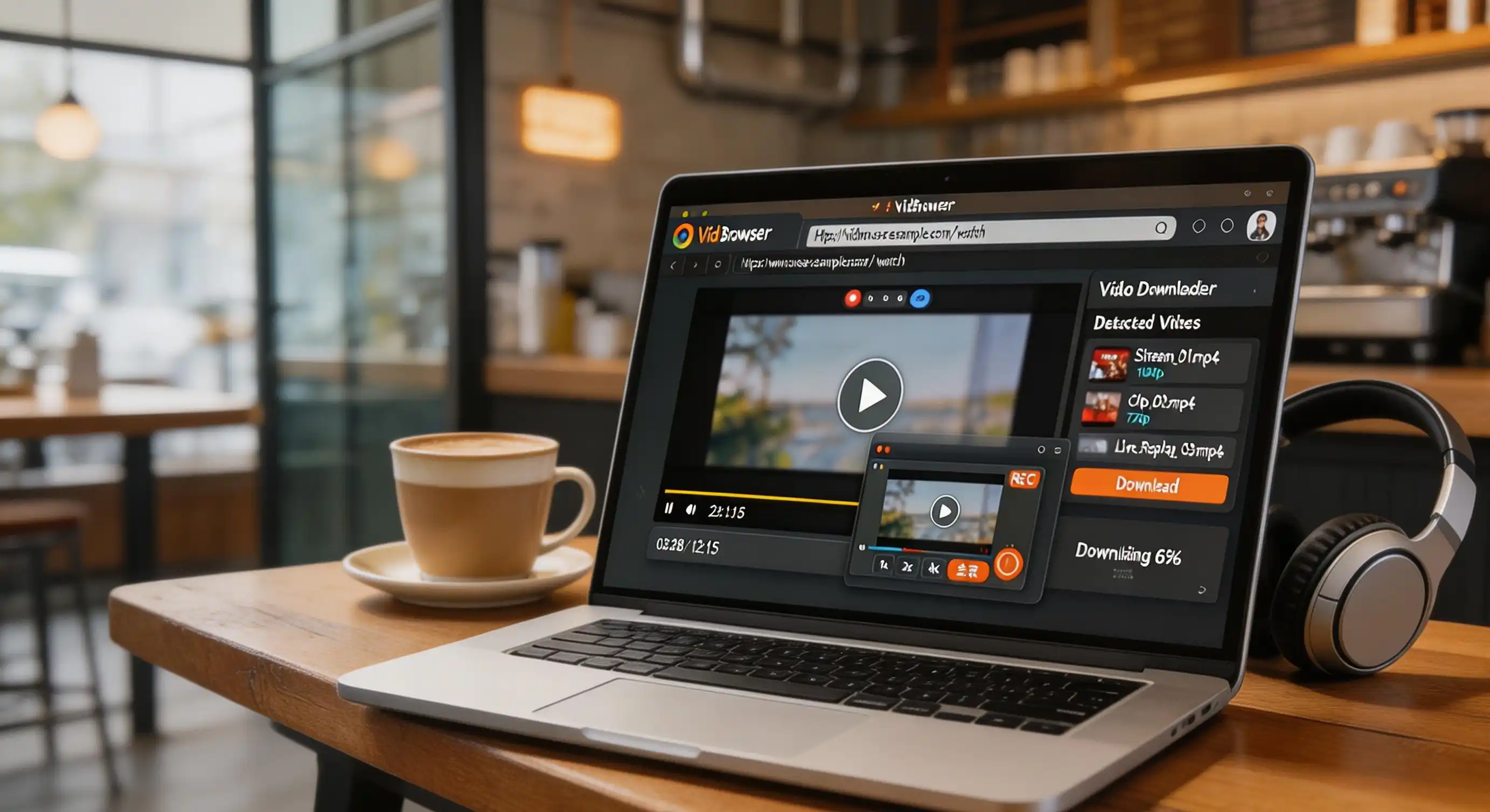
The extension's ceiling is exactly where the desktop video browser starts. VidBrowser is a desktop video browser with download and recording built in — the "save while playing" that extensions can't do is its main route. Only a few steps:
Step 1: Download and install VidBrowser
Works on Windows and Mac, installs in minutes, no companion app or extra components required.
Step 2: Open the target site in VidBrowser and log in
Use it to visit the site whose content you want to save, log in with your own account — the viewing experience is identical to a normal browser.
Step 3: Play the video and save with the recording feature
Hover over the video and the recording controls appear as an overlay — choose a recording speed (1x real time, 2x or 4x to finish faster), click "Record All" to record the whole video, and the record button on the left can start or pause anytime. Anything that plays can be recorded, regardless of how the page loads it.
Step 4: For videos that can be downloaded directly, the library panel is faster
If the video supports direct download, the "Video Library" panel on the right lists entries with an orange "Download" button — one click saves it as MP4 (you can filter by resolution first). The download history (clock icon on the left) logs each task's filename, size and location for later reference.
FAQ
What's the difference between Video DownloadHelper's free and paid versions?
The free version installs, works and covers 1,000+ sites, but converted files carry a QR watermark, downloads are rate-limited, and HLS/DASH conversion needs a companion app; a one-time paid license removes the watermark and lifts the limits. The license binds to a single browser — using several browsers may mean buying separately.
Can videos the extension can't grab still be saved?
Yes. Extensions depend on the page handing over media streams, while the recording route saves picture and sound directly at playback — as long as the content plays normally on your screen, VidBrowser's recording feature can keep a local copy, protected content and live streams included.
Is Video DownloadHelper safe?
Installing from official channels like the Chrome Web Store or Firefox Add-ons is safe — it's been around nearly 20 years, has 8 million+ combined installs, and officially states it doesn't collect browsing data. The risk lies in imitation sites: trust only the official store listings, and never install any "downloader" that asks for your account password.