Zoom cloud recordings will not sit there waiting for you: download before the deadline closes
The meeting ends, the host drops the cloud recording link into the group, it plays fine that day, and two weeks later the page says the file has been deleted - this is nothing unusual on Zoom. Cloud recordings sound dependable, yet where they live, how long they stay and how you download them each follow their own set of rules, and those rules are often taken for granted.
To download a Zoom cloud recording to your computer, the official entry lives in the web portal, not the desktop client.Before you click anything, sort out which side the meeting was recorded to, learn the three deadlines, and only then reach for the download button.
Zoom recordings first split into two paths: saved to the computer, or saved to the cloud
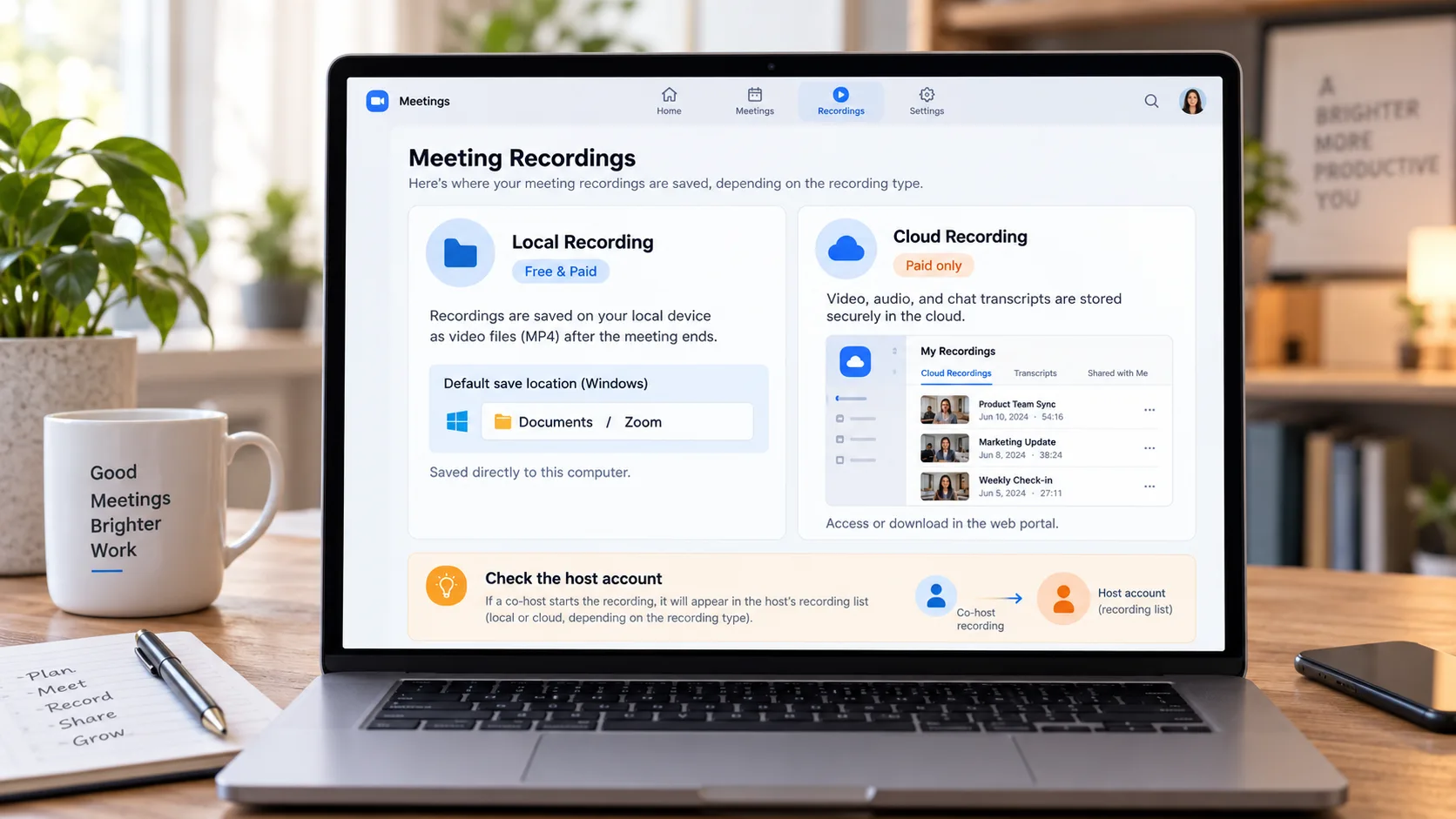
Zoom recording splits into local and cloud paths, the files end up in completely different places, and this is the first thing to check when a recording goes missing.The official help center states it plainly: local recording is available to free and paid accounts alike, the file lands on the machine right away, and on Windows the default spot is the Zoom folder inside your documents directory; cloud recording is for paid accounts only, with the video, audio and chat text stored on Zoom's cloud, viewed and downloaded through the web portal.
There is one more easily missed difference between the two paths: a recording started by a co-host only shows up in the host's portal recording list. If you arrange meetings on someone else's behalf and the recording never appears in your own list, go look in the host's account. Once you know which side it was recorded to, every later step tells you which screen to work in.
The download entry for cloud recordings sits in the web portal, not the desktop client
Cloud recordings are managed through the web portal, and the official download path is: sign in to the portal, open "Recordings and Transcripts", switch to the "Cloud Recordings" tab.Recordings that have finished processing are listed here, searchable by meeting ID, topic or keywords from the transcript; click a recording thumbnail, hit "Download" on the recording file page, confirm once, and the download begins.
Three details are worth remembering. First, a recording still processing cannot be accessed, so right after the meeting ends you may have to wait a bit; second, users with scheduling permission can also access and download recordings of meetings hosted by the user they represent, but cannot delete those files; third, one cloud recording is often not a single file - video, audio and chat text live separately, and the recording page shows the file list. The official management page walks through this process item by item, see the Zoom support center cloud recording management page.
Cloud recordings are not stored forever, keep the three deadlines in mind
How long a cloud recording stays on Zoom's cloud is decided by three deadlines together, and once any one of them closes, the link dies.This is the question that matters more than "how to download" - when you must download:
- Auto-delete: once the account turns on "delete cloud recordings after a specified number of days", every recording on the management page shows its remaining days, and after the deadline there is 1 day of grace before it moves to the trash; a single recording can be exempted by clicking "disable auto-delete" on its own.
- Trash: deleted cloud recordings go to the trash in the web portal, stay 30 days, and are permanently erased within 24 hours after that, shutting the recovery door for good.
- Subscription: after a paid subscription ends, cloud recordings are kept for 30 days; to keep them you have to download before expiry or renew.
The official deletion rules page spells out the grace period and the recovery window in detail, worth a read before you act (the Zoom support center recording deletion management page). The three deadlines all point to one sentence: the cloud copy is not yours to keep, the one on your machine is.
Cloud recordings without a download button: keep a copy with the recorder
When all you hold is a playback link and no download permission, recording is the path that keeps the picture on your own machine.Four steps take you through it:
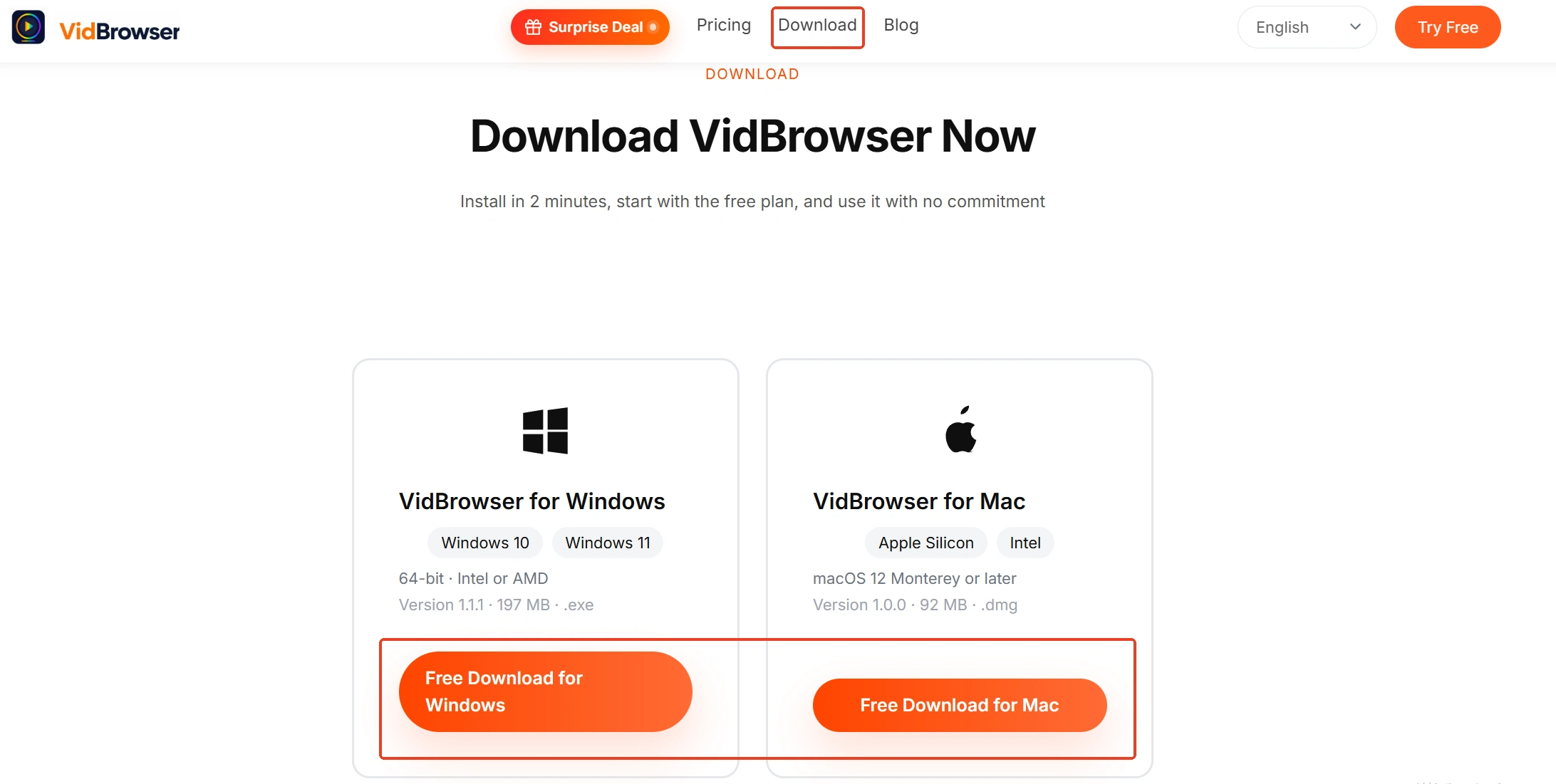
Step 1: Download and install VidBrowser
The desktop video browser VidBrowser is built for watching videos, trimming clips and saving to local disk on Windows and Mac, with download and recording built in as its two main functions; installation takes a few minutes.
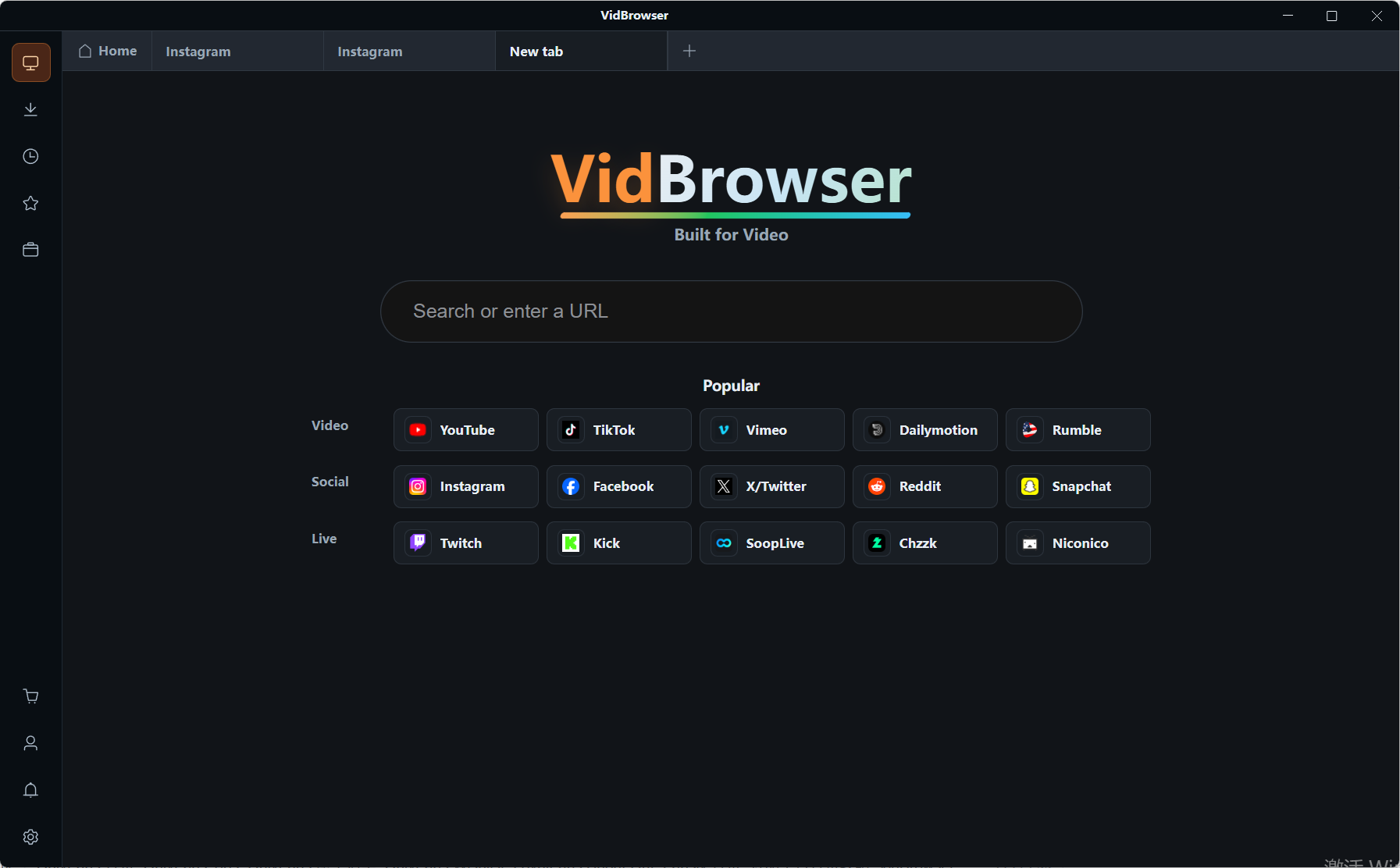
Step 2: Open the cloud recording playback page in VidBrowser
Paste the shared link or the playback address from the portal into the address bar and sign in with your own account; with the permission in place, the playback page runs normally.
Step 3: Items that allow downloading go straight through download
The "video media library" panel on the right lists the detected video items, each with an orange "download" button; one click saves it as MP4, or pick the resolution first and then download.
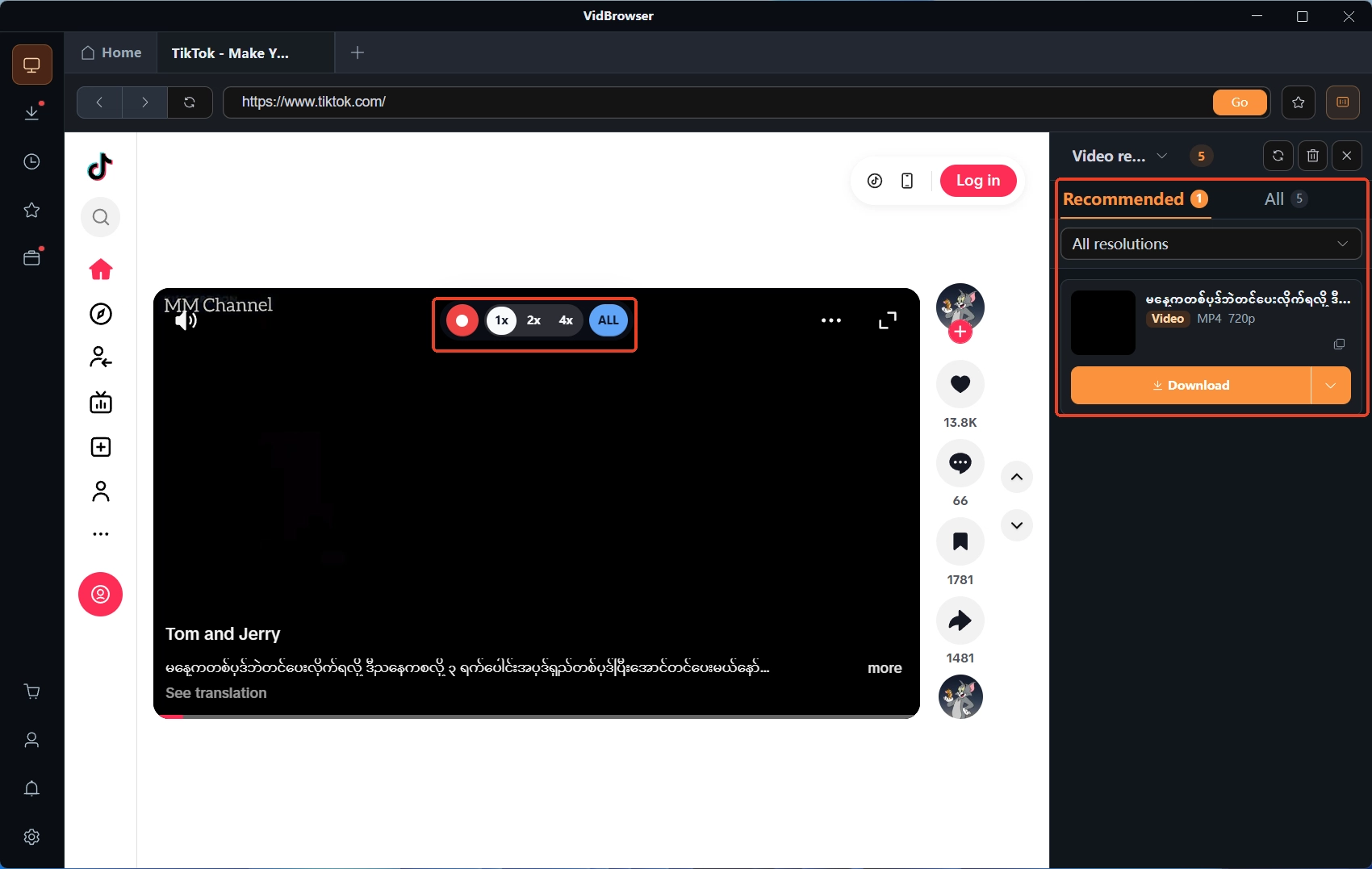
Step 4: If download is not available, go through recording
Move the mouse over the video and the recording controls appear as an overlay - pick a recording speed (1x real time; 2x or 4x finishes faster), press "record all" to capture the whole video from the current position, and the button on the left starts or pauses at any time. After recording, check the download history under the clock icon in the left navigation, the file is already local. If the recorded file plays with no sound, the first layer to check is system audio capture, and the no-sound troubleshooting guide goes through playback, device occupation and audio routing in order.
Summary
The rules of Zoom cloud recordings boil down to two sentences. First sort out which side was recorded: local recordings sit in the Zoom folder of your documents directory, cloud ones download through the web portal; download early: auto-delete days, 30 days of trash, 30 days after the subscription ends, all three deadlines point the same way - the cloud is not a warehouse. For playbacks you cannot download, recording is the most direct way to keep an archive. Online courses and webinars live under the same "copy in the cloud, deadline waits for no one" logic, and the offline course saving guide takes the course side apart in finer detail.
Frequently asked questions
Why is there no download entry for cloud recordings in the Zoom client?
Cloud recordings are managed by the web portal; what appears in the desktop client are local recordings. Local recordings by default sit in the Zoom folder of the Windows documents directory; once you tell the two entries apart, finding a recording stops being a detour.
A recording link shared with me - can I download it directly?
It depends on whether the sharer opened download permission in the sharing settings. Without it, watching online stays online, and if you want the picture on your machine the recording path is the way; if a downloaded file will not open, check the container and codecs first, and the downloaded video format guide lists the order of checks.
Can free accounts use cloud recording?
Cloud recording is only for paid accounts (Pro, Business or Enterprise). Free accounts record locally, the file lands on the machine directly, and that leaves one fewer cloud deadline to worry about.