Before you delete that SRT and redownload: garbled text and desync are both fixable
Subtitles passed around through forums and file-sharing sites open as a wall of question marks; when the Chinese finally shows, it drifts further out of sync the longer you watch. The video is fine, the file is there, but together they just do not line up — most of these SRT problems are not the player's fault but the file's: the encoding gets misread, the timing line gets written wrong, and each has its own fix.
When an SRT acts up, open the file first and tell garbled text from timeline desync
Triage with Notepad: text lines you cannot read mean an encoding problem; readable text that misses the beat means a timing problem — two separate roads.SRT is a plain-text format whose structure has four layers: in the common conventions of the SubRip format, each subtitle consists of a number line, a timing line, and one or more lines of text, with blank lines between entries. The timing line reads "hours:minutes:seconds,milliseconds --> hours:minutes:seconds,milliseconds" and is the skeleton of the whole file — every breakpoint you will fix later sits in that line or the blank line that separates. Get the direction right first and the effort will not be wasted.
Garbled text means the encoding was misread; re-saving as UTF-8 usually rescues it
When the text is garbled the bytes in the file are not broken — the reading is: the player picked the wrong charset, so the Chinese looks unrecognizable.Two typical patterns: a line turns into mojibake mixed with Latin letters, meaning UTF-8 content is being read as a single-byte encoding; a page of question marks or boxes usually means the reverse mix-up. The SRT format itself does not mandate an encoding; older tools saved with the local codepage (GBK on Chinese systems), which falls apart in an environment that reads UTF-8 by default. The fix takes two steps in Notepad: open the file, and when saving as, manually pick UTF-8 as the encoding. On Windows it is best to pick UTF-8 with BOM — the official Unicode FAQ explains that the BOM exists precisely to help the reading program identify the encoding. Two pitfalls to dodge along the way: never save subtitles with Word, which stuffs layout data into the file and destroys the structure; and always pick the encoding manually, because the default on older systems is ANSI, not UTF-8.
Timeline trouble comes in two kinds: a constant offset is a shift, a growing gap is drift
Align once at the start, then check the middle and the end — the same gap everywhere is a shift, a growing one is drift, and the fixes are completely different.Shifts usually mean the subtitle and the video do not match: the same film was cut, the intro ads removed, so the subtitle starts late by a fixed amount. As a stopgap use the subtitle delay control in the player; to repair the file itself, shift the whole timeline once with an open-source tool like Subtitle Edit — dozens of timing lines without touching them by hand. Drift is when the start is right but the end is off by over ten seconds, usually caused by mismatched frame rate versions — the common 23.976 vs 25 fps handoff of films, or a sped-up video. Drift cannot be fixed by hand: re-scale by ratio, using two known alignment points as anchors and letting the tool linearly rescale the whole axis.
Arrow, comma, blank line: three high-frequency breakpoints on the timing line, fixed by batch replace
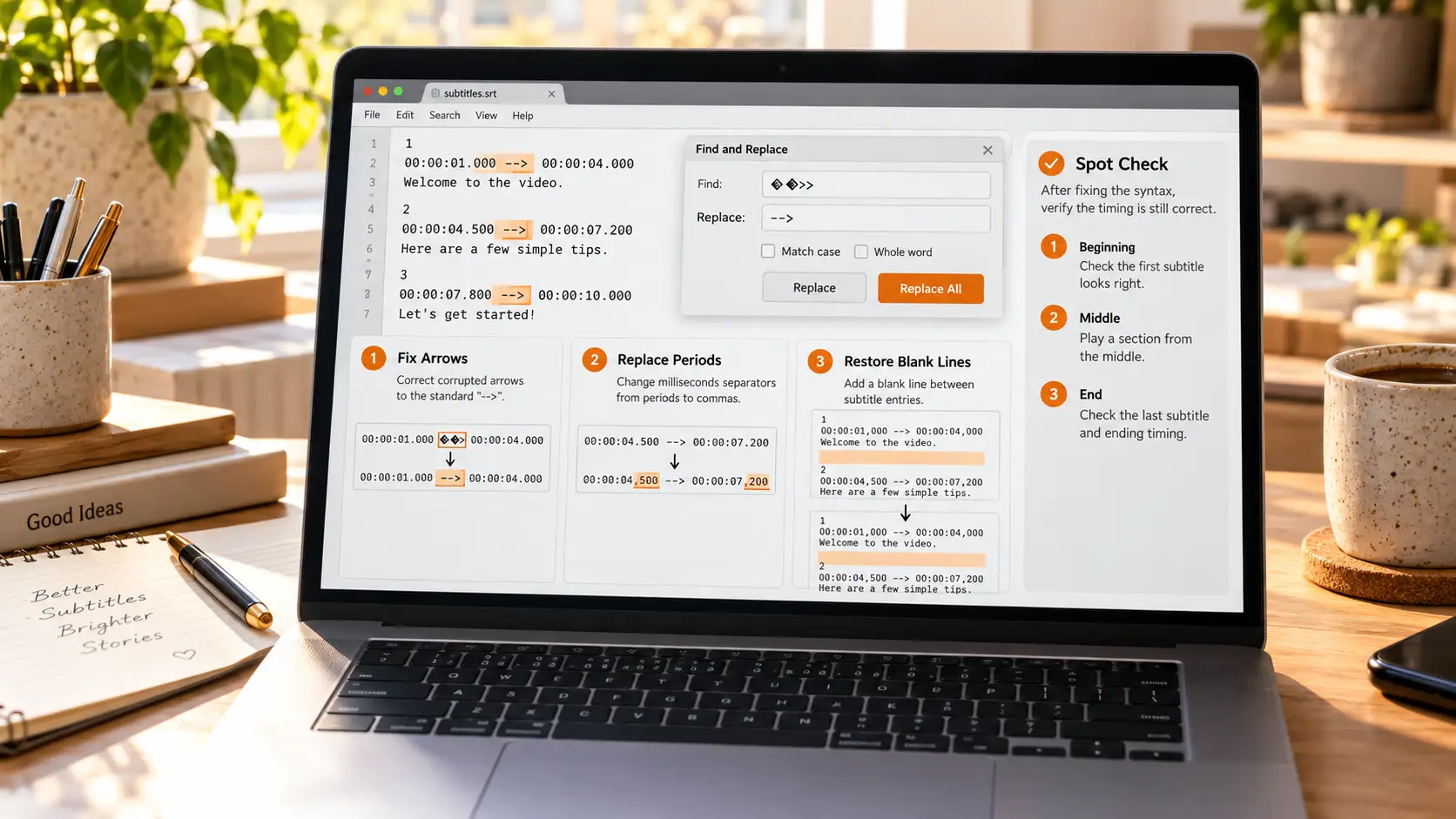
All three breakpoints can be fixed with find-and-replace in Notepad, provided you know what each one should look like.
- Broken arrow: the arrow in the middle of a timing line is always two hyphens plus a greater-than sign; in transit it often becomes a Chinese dash plus an arrow, or loses a character — find and replace back to the standard form;
- Comma turned period: the millisecond separator is an English comma by format rules; some software exports a period, and strict players reject the entire timing line;
- Missing blank line: entries are separated by a single blank line; if copy-paste eats it, the player merges two subtitles into one jumping mess.
After the repair, spot-check: pick one entry each at the beginning, middle, and end and verify the display timing against the video. Batch replace fixes the form, the spot-check verifies the result — both done means the repair is done.
Pair the repaired subtitle with the full video: get a clean base script and save the main feature
Once the subtitle is settled the video is still missing — get the base script clean from the source, and save the feature via download and recording.
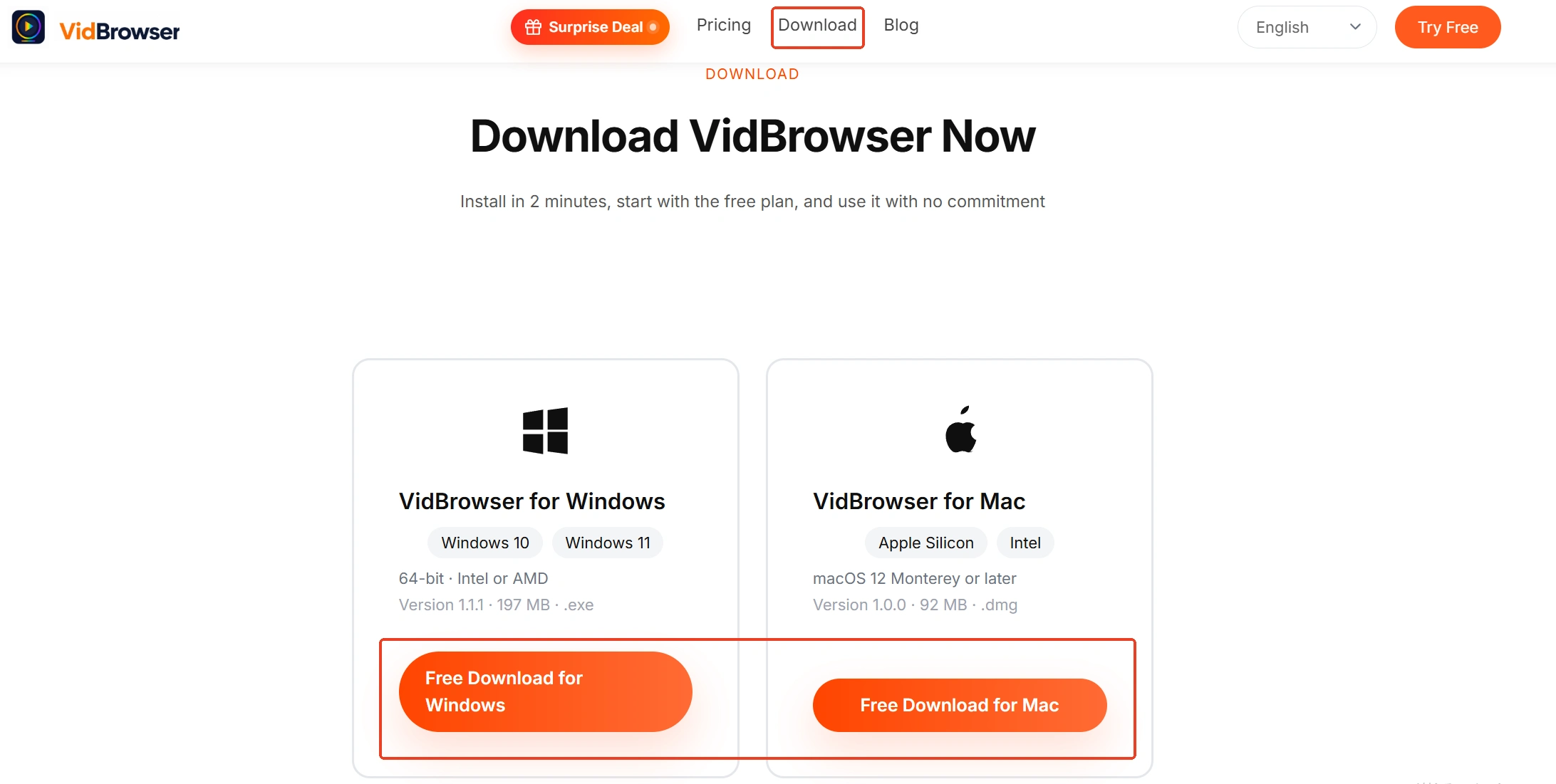
Step 1: Download and install VidBrowser
VidBrowser is a desktop video browser for watching and saving videos on Windows and Mac, with built-in download and recording features.
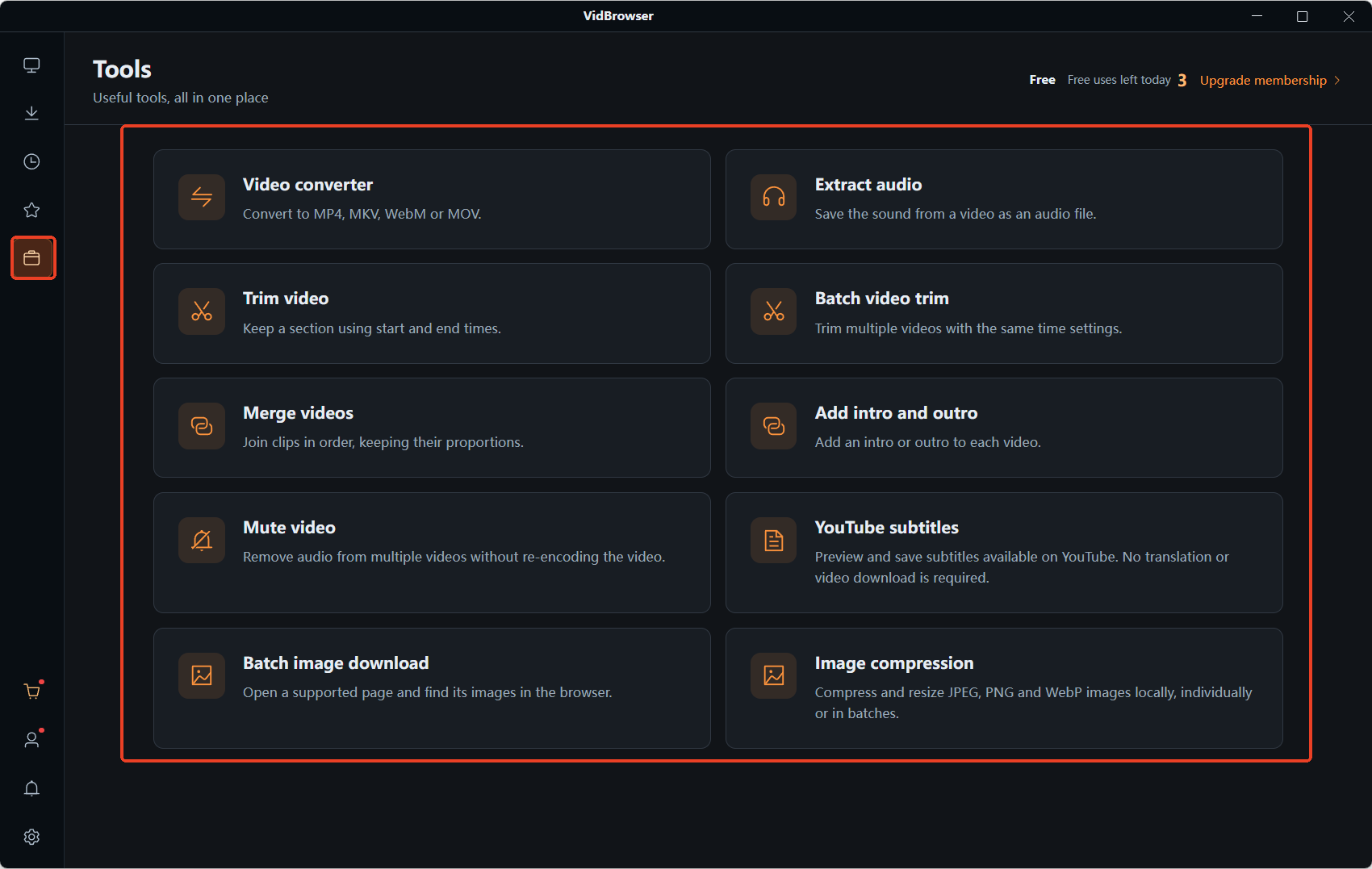
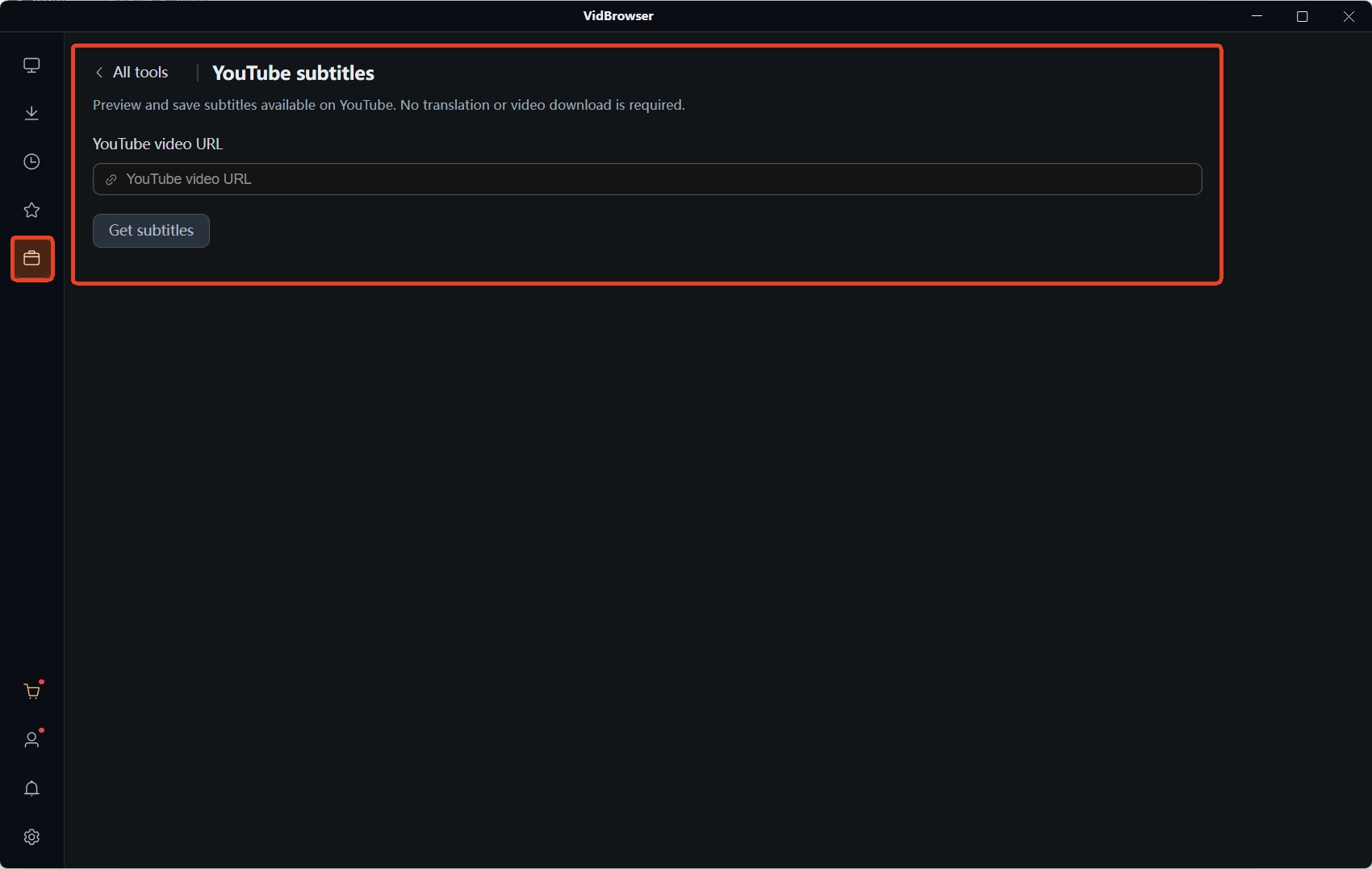
Step 2: Use the YouTube Subtitle Download tool to get a clean base script
Switch to the Tools page in the left navigation, open YouTube Subtitle Download, and paste a video link to save the SRT. Native YouTube subtitle tracks have tidy encoding, much cleaner than files passed around; the four-step walkthrough of the tool is in the YouTube subtitle download article.
Step 3: Back on the video page, save the feature with the download button
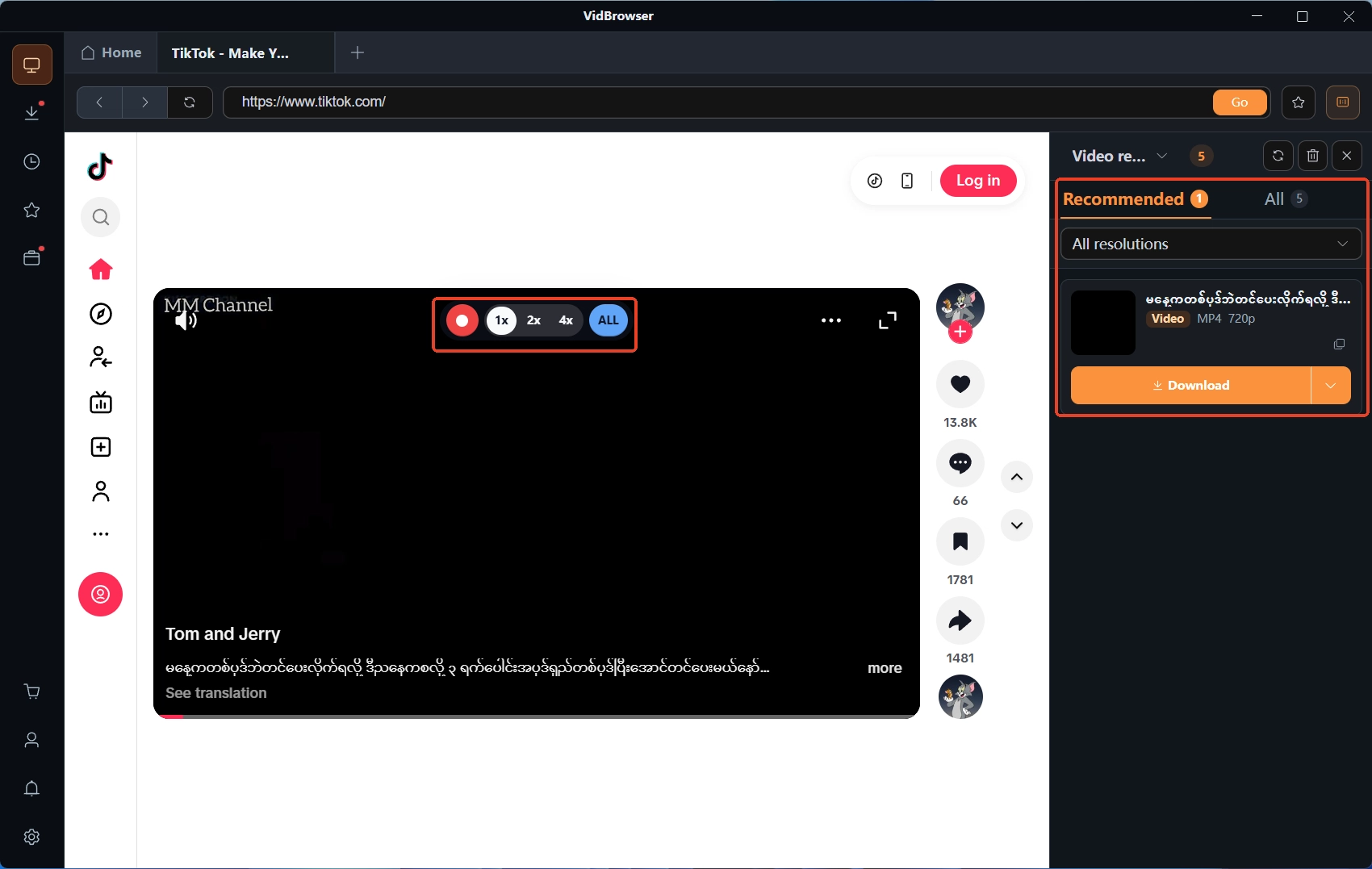
While the video plays, the Video Media Library panel on the right lists entries with an orange Download button — click once to save as MP4, or pick a resolution first and then download.
Step 4: For content without a download entry, fall back on recording
Hover the mouse over the video and the recording controls overlay on screen — pick the recording speed (1x real time, 2x or 4x finishes faster), hit Record All for the entire video, and the recording button on the left starts and stops anytime. After saving, check the download history under the clock icon in the left navigation; where files land and how to find them again by time is mapped in the where are my downloaded videos article.
Summary
When an SRT misbehaves, open the file and triage first: garbled text is a misread encoding, rescued by re-saving as UTF-8; off-beat timing splits into shift and drift — the former moves once as a whole, the latter is re-scaled by ratio. The three breakpoints — arrow, comma, blank line — get batch-replaced, then spot-checked one entry each at start, middle, end. Then complete the set: the subtitle is a few KB, the video hundreds of MB — only with both in hand is the content whole.
FAQ
Still garbled after saving as UTF-8?
Two common omissions: the encoding option in the save-as dialog must be picked manually, since older systems default to ANSI rather than UTF-8; and some players read with their own default encoding — specify the charset once in the subtitle settings. Also, if a few strange symbols appear at the start of the file, do not delete them — that is the BOM marker, exactly what helps the player recognize the encoding.
The saved subtitle has a .txt suffix — is it still usable?
The suffix does not affect the content; rename it back to .srt. Before renaming, confirm the structure in Notepad: only a file with number, timing, and text is a usable subtitle; if there is no timing line at all, it is a plain transcript and you need to find a version with a timeline.
The subtitle lags two seconds overall — do I have to edit line by line?
No. First use the subtitle delay control in the player, enough for temporary viewing; to fix the file itself, shift it once with Subtitle Edit. Line-by-line hand edits are slow and breed new errors; what really needs proportional re-scaling is the drift that starts right and ends up more than ten seconds off.