The recording plays back with the picture intact and the audio track empty: ten seconds to tell where it went
You just finished a screen recording and hit play: every visual step is there, and the sound is gone entirely. Before swapping recorder apps — recording captures the audio your computer is actually playing; if the playback side never sends it out, there is nothing for the recorder to pick up. This guide orders the checks across playback, occupancy, and routing, from the most common mixer mute to exclusive mode and Bluetooth routing; most cases land within two to three minutes.
No audio in a screen recording: spend ten seconds on a binary check first
Before touching any setting, replay the scene once: while you were recording, was the computer itself making sound? If yes, the problem sits in routing or occupancy; if no, it sits on the playback side. That single step cuts the search area in half, so the moves that follow never go to waste.
Sound coming from speakers or headphones while the recording stays silent means audio was flowing and the recorder missed that lane — common right after an output device switch. A computer that is completely silent has a playback-side problem, so the mixer and app volume come first. Two boundaries help here: a downloaded file with no audio track that stays silent in any player is a file-side issue, unpacked in the earlier no-sound fix guide; a black screen with sound is the picture half missing, covered by the black screen guide. This piece handles the sound half.
Playback side silent: the mixer muted that one app
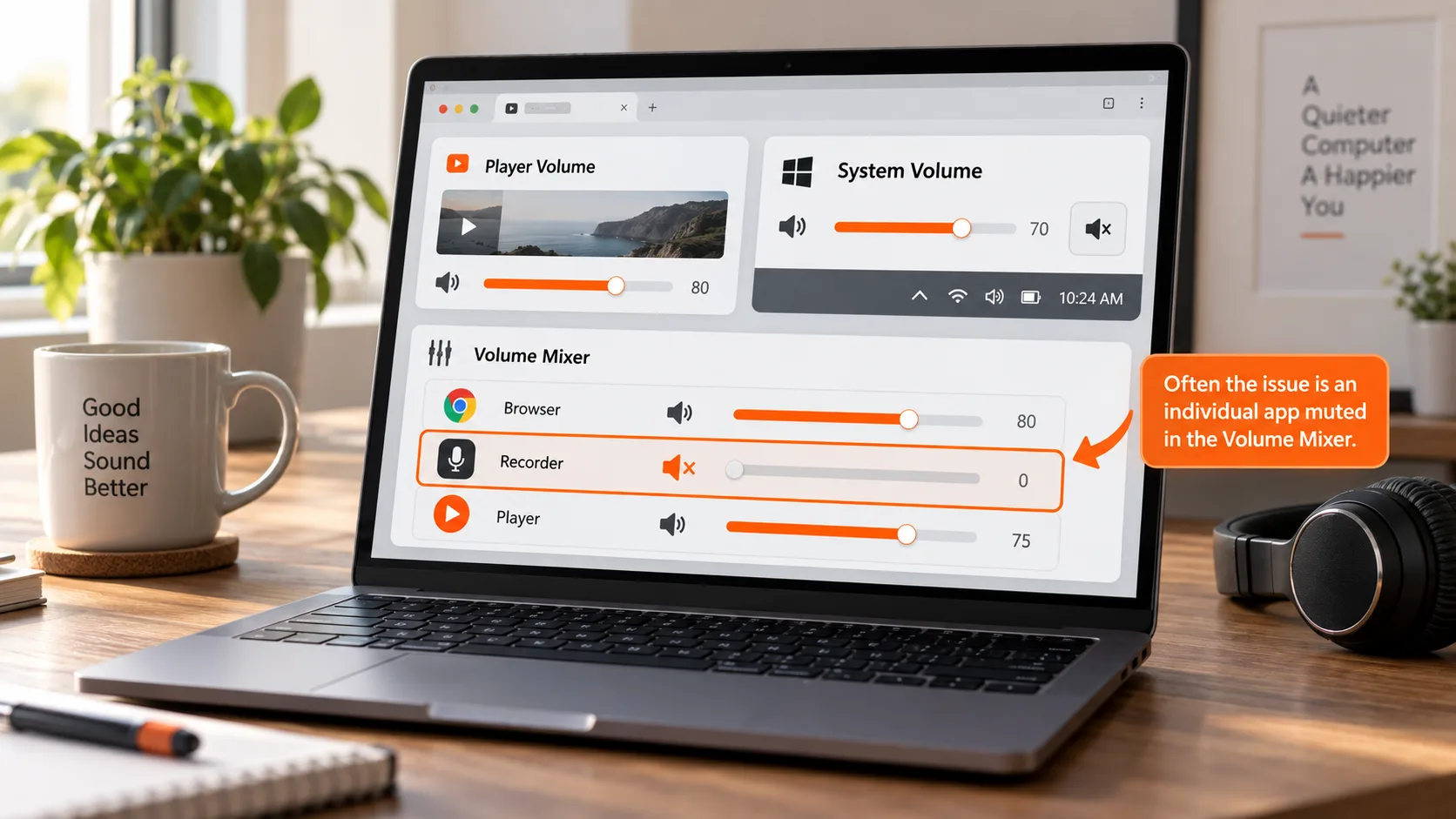
The most common cause of a silent computer is not broken hardware — it is the volume mixer having the playing app turned down or muted on its own. The wording in Microsoft Learn's official community reply points the same way: quiet screen recordings usually trace to a single app or device-level volume, not the system master volume, so checking starts with each app's volume bar in the mixer.
Windows volume really has three layers; run through them before recording:
- The player or browser tab's own volume control, dragged to minimum or toggled mute
- The taskbar system volume, where the master slider and the mute state live
- The mixer in Settings: go app by app and confirm the one actually playing has not been muted on its own
The mixer layer gets missed most often because it remembers per-app history — a volume you casually lowered last week keeps that app silent this week, and nobody remembers touching it.
The sound took another road: default device, exclusive mode, and call lowering
The computer is clearly audible yet the recording is not — the sound likely took a different road, or another program claimed it. Three common cases, each sneakier than the last.
First is routing. Plug in Bluetooth headphones or an external sound card and the default output follows, sending audio down another path. Screen-recording vendor Bandicam's official FAQ also notes that Bluetooth devices acting as both speaker and microphone frequently break recording, and suggests choosing a playback device other than Bluetooth. Confirming which device is actually sounding before you record beats guessing afterward.
Second is exclusive mode. Some players and call apps seize the audio device exclusively, leaving nothing for other programs. The fix path: press Win+R, type mmsys.cpl and hit Enter; on the Playback tab select the current device, open Properties, switch to Advanced, untick "Allow applications to take exclusive control of this device", then restart and record again.
Third is call lowering. Windows automatically ducks or mutes other sounds once it detects call activity; the telltale recording has normal voice with a tiny background track. In the same mmsys.cpl window, open the Communications tab and set "When Windows detects communications activity" to "Do nothing", then record once more.
Recording with VidBrowser: keep picture and sound on one track
With the sound chain checked, what remains is picking the right way to save: recording covers the widest ground, and anything that can play can be recorded. Four steps:
Step 1: Download and install VidBrowser
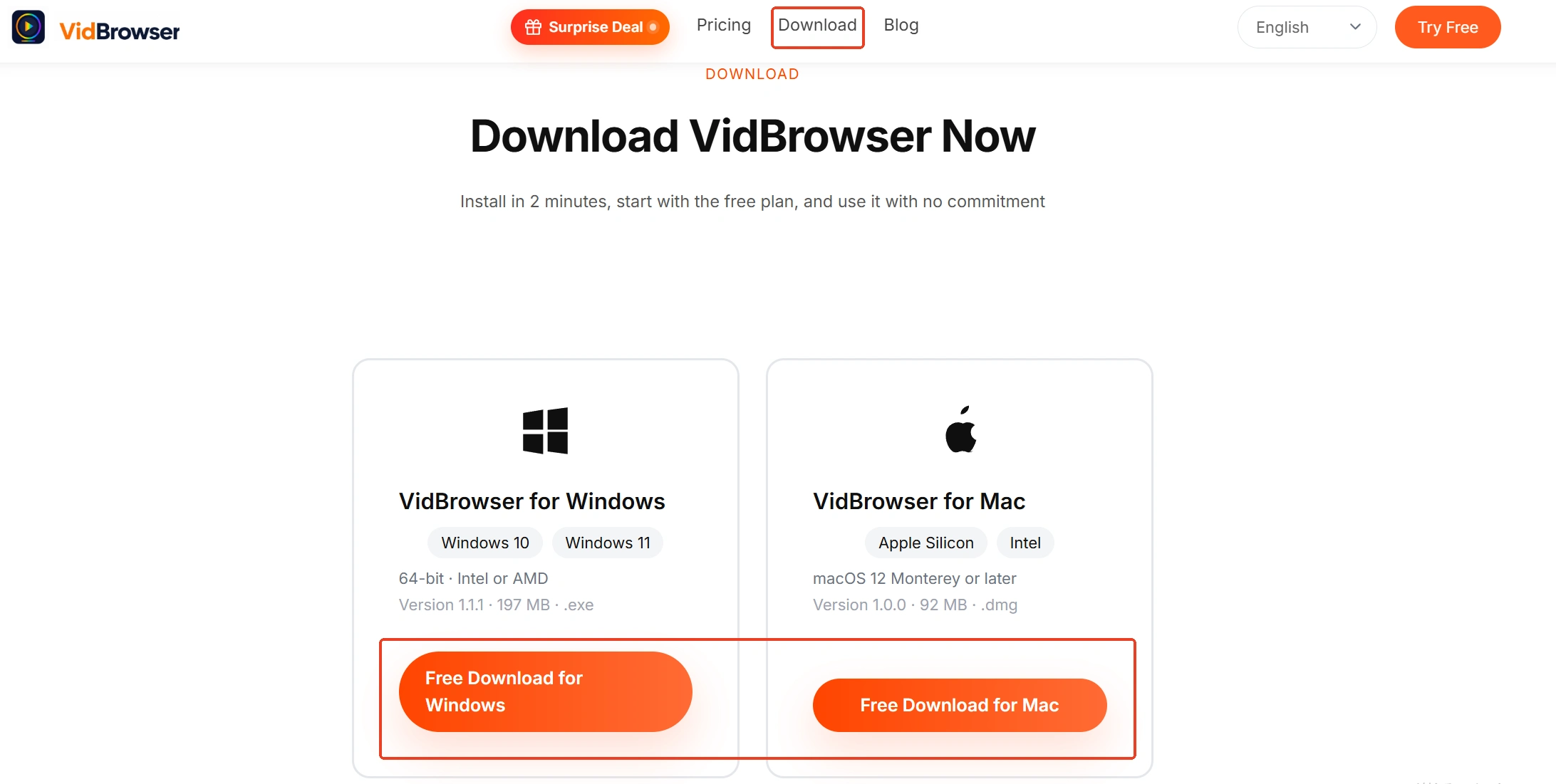
Get the Windows and Mac versions from the VidBrowser website; downloading and recording are built in as its two core functions, and installation takes a few minutes.
Step 2: Open the page in VidBrowser and play it
Before playing, run the ten-second binary check once: confirm the computer is sounding and the output device has not switched away.
Step 3: Save with the recording function
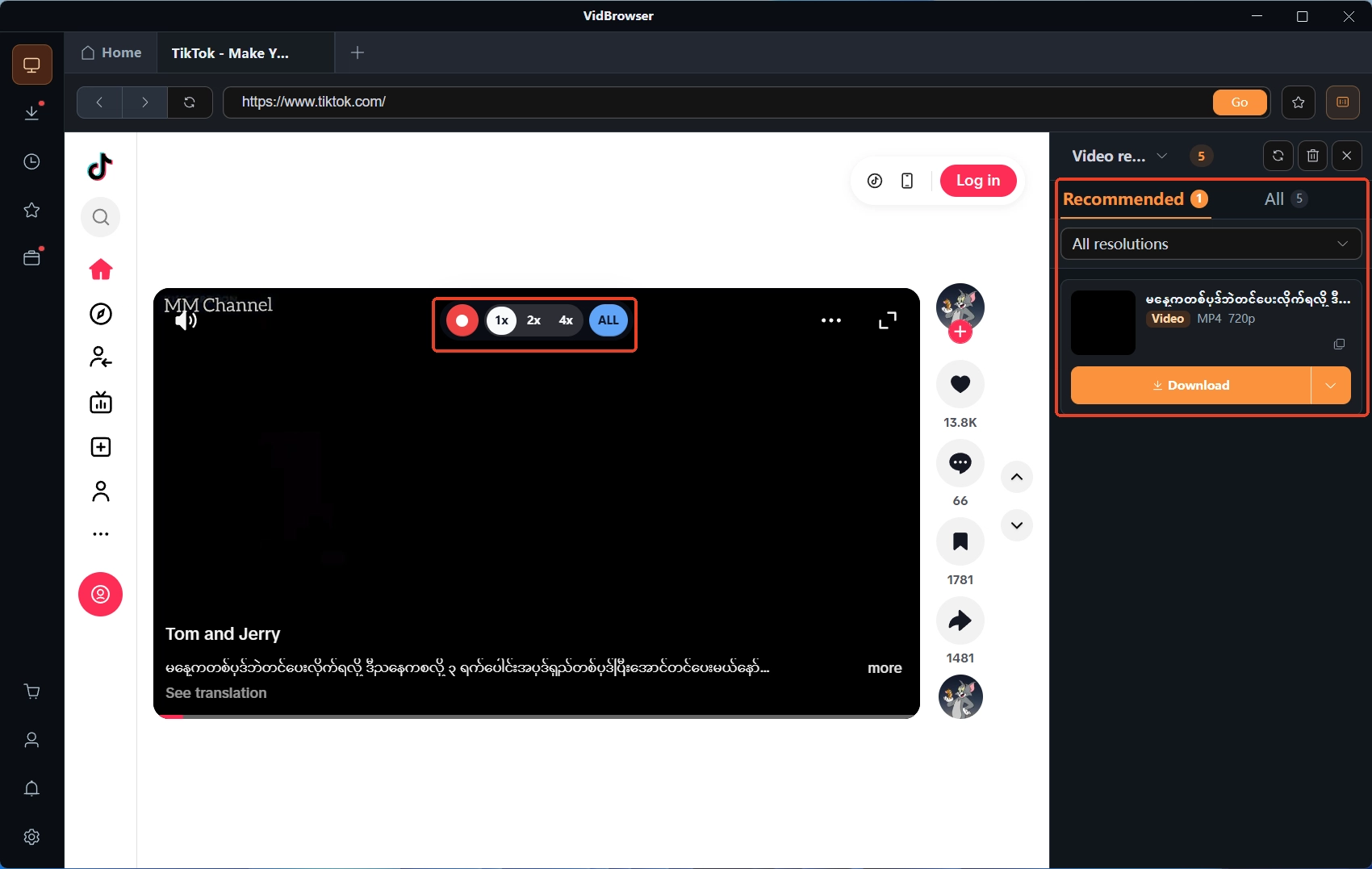
Move the mouse over the video and the recording controls overlay — pick a recording speed (1x real time, or 2x/4x to finish faster), press Record All to capture the whole video, and the record button on the left pauses anytime. Videos on subscription platforms are mostly copyright-protected and out of reach for ordinary downloaders, so recording is the most dependable way to keep them.
Step 4: Where direct download works, go through download
The Video Library panel on the right lists detected video entries with an orange Download button and lets you pick a resolution first; the clock icon in the left navigation holds the download history so you can confirm the file landed. The full comparison of the two roads sits in the record-or-download guide.
The takeaway
For a silent screen recording, start with the ten-second binary: a silent computer points to the mixer and that one muted app; an audible computer with a silent output means checking default output device, exclusive mode, and call lowering in order. Get the playback side sounding before you touch record — far easier than patching it afterward.
Frequently asked questions
Sound was audible while recording, but the playback has none?
Most likely the output device switched mid-recording, or the captured lane and the sounding device were not the same one. Stop, confirm a stable output device, and record again.
Recording with Bluetooth headphones on came out empty?
Bluetooth headphones changed the output route, and the sound took another road. Switch the output back to the speakers and record again, or follow the vendor FAQ: choose a playback device other than Bluetooth.
Is a downloaded video with no sound the same problem?
No. A silent screen recording means sound never entered the file at record time — playback and devices are the suspects. A downloaded file with no sound usually traces to audio encoding or the file itself, and the two checklists do not transfer.