OnlyFans Keeps Buffering? Here's How to Fix It (2026)
You're mid-video and it stops. That spinning wheel. The quality drops to a blurry mess. It buffers again. You wait. It starts. It stops.
Buffering on OnlyFans is one of those problems that feels personal — like the platform is specifically out to get you. It's not. There are real technical reasons it happens, and most of them are fixable. Here's everything that actually works, from the quick one-minute fixes to the permanent solution that makes buffering irrelevant.
Why OnlyFans Videos Buffer in the First Place
Buffering happens when your device can't receive video data fast enough to keep up with playback. On OnlyFans specifically, there are a few common culprits:
Your internet connection is the bottleneck
OnlyFans streams video in real time. Standard definition content needs around 3-5 Mbps to play smoothly. HD content (720p-1080p) needs 10-20 Mbps. If your actual speed — not what your plan says, your actual measured speed — is close to those thresholds, any dip causes a buffer.
Wi-Fi adds variability. A connection that tests at 50 Mbps at 3pm might drop to 8 Mbps at 9pm when your neighbors are all streaming Netflix and gaming at the same time. Your plan didn't change. Your available bandwidth did.
The browser is the problem, not the connection
Chrome in particular is a memory hog. If you have 15 tabs open, Chrome extensions running in the background, and a browser cache that hasn't been cleared in months — the browser itself becomes the bottleneck. Video decoding is CPU-intensive, and a bogged-down browser handles it poorly.
OnlyFans server load
OnlyFans' servers aren't infinitely scaled. Peak hours — evenings, weekends — put more load on their infrastructure. Content from very popular creators gets more concurrent requests. You can't fix this from your end, but knowing it's the cause helps you stop chasing a problem you can't solve.
Your device is struggling
Older laptops, budget PCs, and phones with limited RAM can struggle with HD video playback in a browser. Video decoding in a browser requires both CPU and GPU. If your device is old or underpowered, the hardware itself becomes the constraint.
Quick Fixes to Try First
Before anything complex, run through these. They solve most buffering issues in under five minutes.
Check your actual internet speed
Go to fast.com or speedtest.net and run a test. If your speed is under 25 Mbps, that's likely your problem. If it's well above 25 Mbps and you're still buffering, move on to browser and device fixes.
Switch from Wi-Fi to a wired connection
Ethernet is more stable than Wi-Fi, full stop. If you have an ethernet port on your laptop, plug in. If you're on a desktop, you should already be wired. A direct connection eliminates the interference and congestion that causes Wi-Fi speeds to fluctuate.
Restart your router
Sounds basic. Works more often than it should. Routers accumulate connection state over time and can develop memory issues that slow throughput. A full power cycle — unplug, wait 30 seconds, plug back in — clears the slate. Give it two minutes to fully reconnect before testing.
Close other tabs and apps
Every open browser tab uses memory. Video streaming from another tab (YouTube, Spotify, Twitch) directly competes with OnlyFans for bandwidth. Close what you're not actively using. Same goes for applications — close anything downloading files in the background.
Lower the video quality
If the video player offers a quality selector, drop it down. Going from 1080p to 720p cuts bandwidth needs roughly in half. Not ideal, but it immediately tells you whether bandwidth is the issue — if dropping quality stops the buffering, your connection is the bottleneck.
Browser-Level Fixes
If the quick fixes didn't solve it, the problem is likely in your browser setup.
Clear your browser cache
A bloated cache can slow down how your browser processes video. In Chrome: Settings → Privacy and Security → Clear Browsing Data → check Cached Images and Files → Clear Data. Takes 30 seconds. Worth doing if you haven't done it recently.
Disable extensions one by one
Browser extensions run in the background and consume CPU and memory. Some extensions — ad blockers, VPNs, password managers, screenshot tools — can interfere with video streaming. Open an incognito window (where extensions are disabled by default) and try OnlyFans there. If it streams fine in incognito, an extension is your culprit. Re-enable them one at a time to find which one.
Disable hardware acceleration (or enable it)
This sounds counterintuitive, but hardware acceleration can cause conflicts with some GPU drivers that result in video stuttering. In Chrome: Settings → System → toggle "Use hardware acceleration when available." If it's on, try turning it off and restarting Chrome. If it's off, try turning it on. Either direction can fix certain playback issues depending on your setup.
Try a different browser
If Chrome is your default, try Edge or Firefox. Different browsers handle video decoding differently. If one browser buffers constantly and another plays the same video smoothly, you've found your answer — and your old browser needs either a clean reinstall or a replacement.
The Permanent Fix: Download It and Watch Locally
Here's the truth every other fix dances around: streaming will always be dependent on your internet connection, OnlyFans' servers, and your browser's health at any given moment. Good conditions mean smooth playback. Bad conditions mean buffering. You don't control most of those variables.
Local playback eliminates all of them.
When a video is saved to your device, it plays back from your local storage — not from a server on the other side of the country, not through a browser decoding a live stream, not subject to whatever your ISP is doing at 9pm on a Saturday. It plays instantly, at full quality, with zero buffering, every time.
VidBrowser makes this a one-click process.
VidBrowser is a desktop browser built specifically for video. When you're watching an OnlyFans video, it detects the content and shows an orange badge: "Video Detected · 1-Click Save." Click it. The video downloads to local storage.
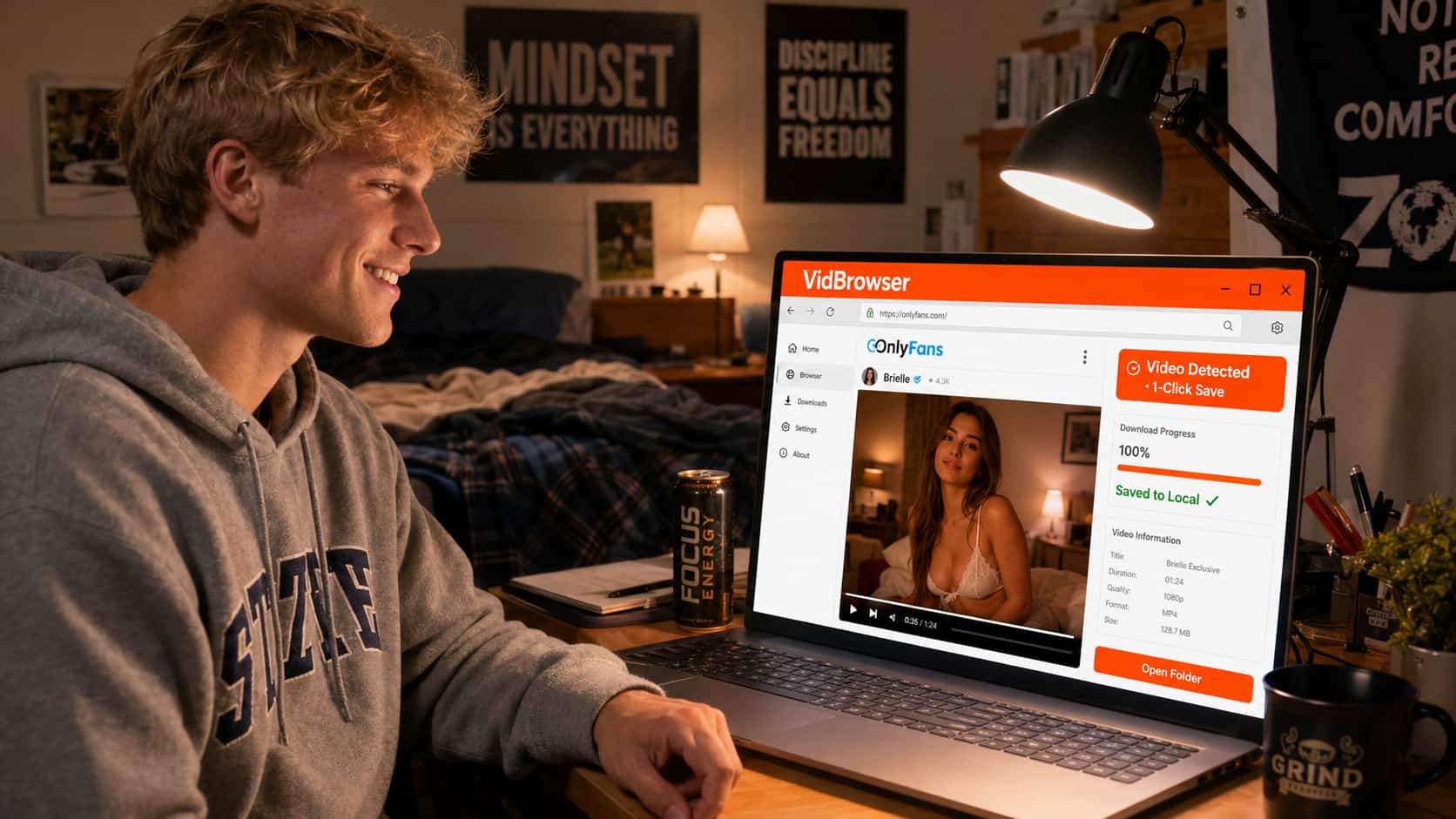
The DRM side: OnlyFans uses Widevine encryption, the same standard Netflix uses. Standard download tools grab an encrypted file that won't play. VidBrowser handles decryption as an authorized browser — what you save is a real, playable video file. Open it in VLC, Windows Media Player, or any media app. No internet required, no buffering possible.
For creators you subscribe to regularly, the workflow becomes: watch once in VidBrowser, save what you want to keep, watch locally from then on. One buffering incident. Zero after that.
Download VidBrowser free — the free version includes video saving, no setup required.
If the Problem Is OnlyFans' Servers
Sometimes buffering isn't your internet, your browser, or your device. Sometimes it's OnlyFans' infrastructure having a rough evening. Signs this is the case:
- The problem started suddenly and affects all creators, not just one
- Your internet speed tests fine and other streaming platforms (YouTube, Netflix) play without issues
- Other people online are reporting the same problem at the same time
In this case, there's nothing to fix on your end. You can check if OnlyFans is having an outage via Downdetector. Otherwise, wait it out or — better yet — catch up on content you've already saved locally.
FAQ
Does a VPN make OnlyFans buffering worse?
Almost always yes. A VPN routes your traffic through an additional server, adding latency and reducing effective bandwidth. If you're using a VPN while watching OnlyFans and experiencing buffering, try disabling it. If you need a VPN for privacy, connect to the nearest server to minimize the performance hit.
Why does OnlyFans buffer more than YouTube or Netflix?
Netflix and YouTube have massive global CDN (Content Delivery Network) infrastructure — servers close to you geographically that cache content. OnlyFans' infrastructure is less distributed. Content hosted on OnlyFans may be serving from servers farther away from your location, increasing latency and reducing available throughput.
Does OnlyFans have a quality setting?
It varies by creator and device. Some video players on OnlyFans offer a quality selector; others don't. If you see a gear icon on the video player, that's where to find it. Lowering quality is an effective short-term fix for bandwidth-limited connections.
Will downloading videos with VidBrowser affect my subscription?
Downloading for personal use with VidBrowser doesn't interact with your subscription status. Your account remains active, your subscription billing is unchanged. VidBrowser operates as a regular browser from OnlyFans' perspective.
My connection is fast but OnlyFans still buffers — why?
Fast download speeds don't always translate to good streaming performance. Latency (ping), packet loss, and connection stability matter as much as raw speed. A connection that tests at 100 Mbps but has high latency or frequent packet drops can buffer more than a stable 25 Mbps connection. Try a wired ethernet connection and check if the problem persists.