
A photo stuck in the send box — it is usually the size, not the quality
You try to send a batch of photos and the chat spins for a minute before popping up "file too large"; or an ID photo gets rejected by a form over its dimensions. Oversized originals are the norm now: a casual shot runs three to four thousand pixels and several MB, while chats, mail and web forms each draw their own line, and neither side budges. The image compressor in the VidBrowser toolbox exists for exactly this, and the page says it plainly: local compression and resizing for JPEG, PNG and WebP images, single or batch.
Two ways images get stuck: rejected attachments and upload limits
Oversized images usually get stuck in two places: attachment limits on chats and mail, and upload validation on web forms.Post to a chat or an album and the platform often re-compresses the image on its own, with quality you do not control; attach to an email or fill in a visa or job form and it rejects by size or pixel count outright, no spinning wheel even. The root is the same thing — an image's size comes from total pixels and save format, while the other side enforces limits by its own standard.
Shrinking an image comes down to three routes: cut the pixel count, lower the storage precision, or switch to a leaner format — exactly the dials on the compression panel. Doing it yourself has a bonus: once an image passes through a chat app, quality follows the platform's algorithm and blurs a layer each handoff; compress to size first, send the original file, and the loss is decided by your quality slider.
One boundary first: if the images are still on a web page and you want them onto your disk, that is another lane — saving web images to your device in batches covers it. This piece handles images already on your drive that need to get smaller.
Quality and longest edge are two dials — decide which one to turn first
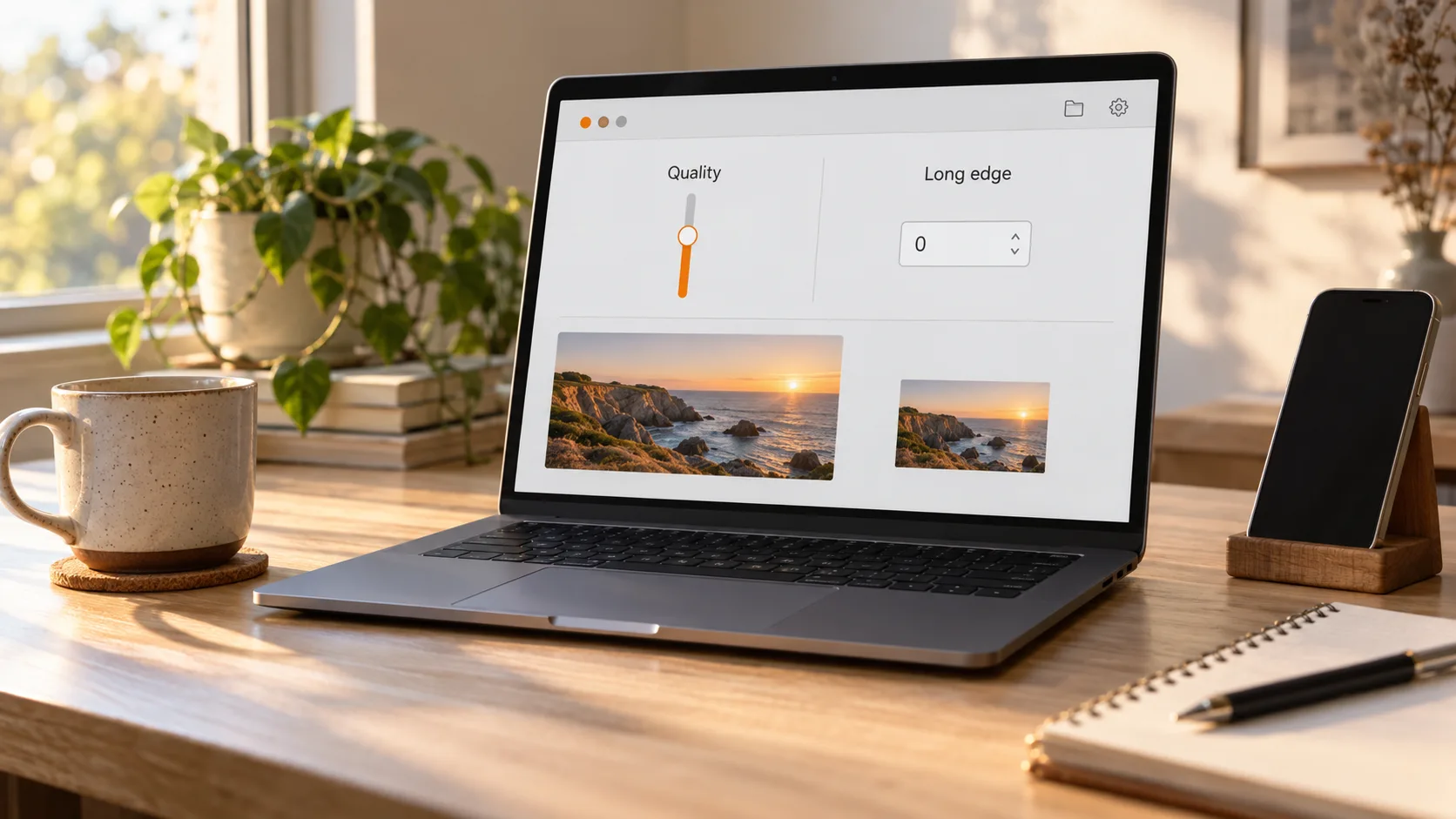
Quality controls how fine each unit of the picture is; the longest edge controls how many pixels the whole image has. The two dials are independent and their gains stack.
The longest edge field is flexible: 0 keeps the original size, keeps the aspect ratio and never upscales — compress without shrinking. Enter a concrete number like 1600 and the long edge drops to it, the short edge following proportionally. Total pixels are length times width, so halving the long edge lands the total at roughly a quarter — the most direct cut for a smaller file.
The quality slider defaults to 80. Lower values mean smaller files and more visible blocks and detail loss. Ask where the image is going first: for print or later cropping, leave the longest edge alone and fine-tune quality; for web and chat, cut the longest edge first — the gain is the most visible — then lower quality if needed. If unsure, compress a batch at defaults and compare file sizes in the file properties before deciding.
Output format: JPEG, PNG or WEBP
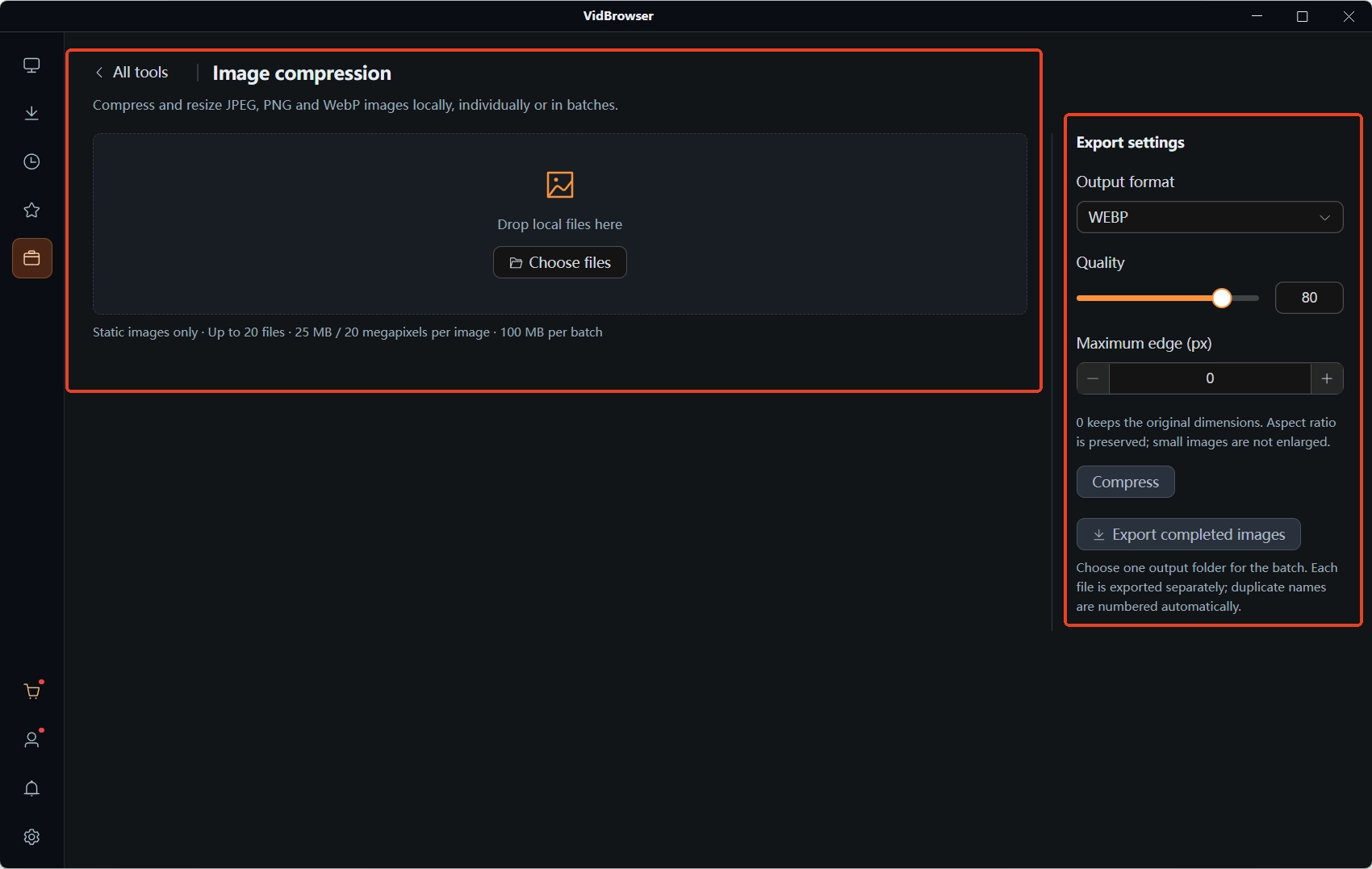
The same panel lets you swap the format in passing; the dropdown has three entries — JPEG, PNG, WEBP — with WEBP as default.
The division is clear: PNG is lossless and supports transparency, right for screenshots and charts with text; JPEG is the most universal photo format with the steadiest compatibility; WEBP is the smallest at equal quality — per Google's official WebP page, about a quarter to a third smaller than comparable JPEG, best for shipping batches to the web. A few older programs cannot open WebP; if you hit one, switch back to JPEG and compress again.
Batch limits: 20 images at a time, and what to do past that
The small print under the drop zone is the whole boundary: static images only, up to 20 at a time, 25 MB / 20 megapixels each, 100 MB per batch.
Each number means something: animated GIFs are out of scope; the 20-megapixel line blocks camera originals far beyond phone shots; 25 MB per file and 100 MB per batch decide how much one run holds. Past the limit, just split into two runs — exports auto-number same-name files, so the two batches never overwrite each other.
One more thing to watch is quota: the tool page shows today's remaining free quota at the top right, so check the balance before a heavy run.
Compressing a batch in VidBrowser and saving it locally
The whole flow is five steps, and the compressed images land in a folder you choose.
Step 1: Download and install VidBrowser
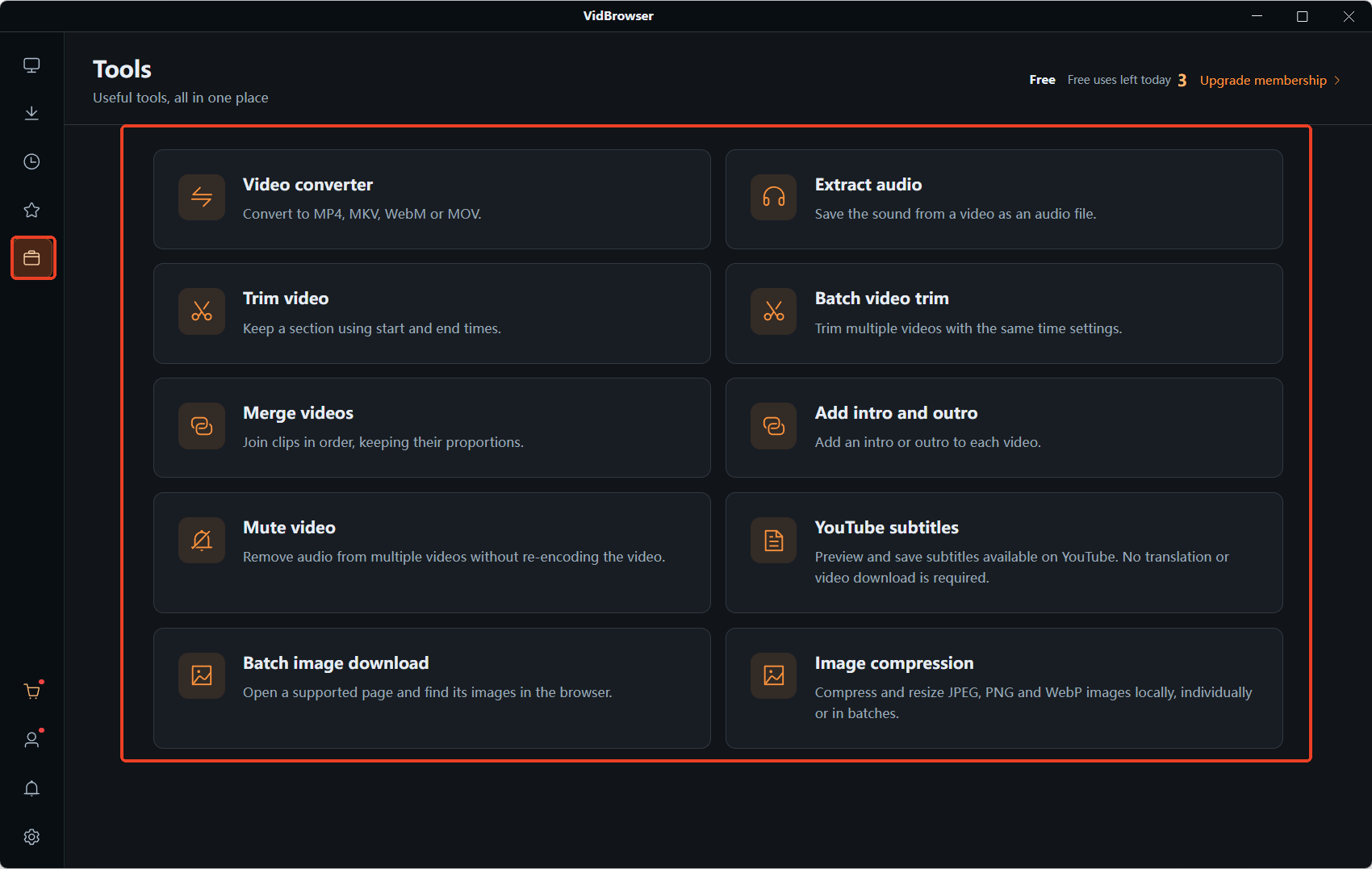
The install entry is on the VidBrowser site. It is a desktop video browser for Windows and Mac to watch, clip and save videos locally, with a "Tools" page carrying small local utilities like image compression; installing takes minutes.
Step 2: Open Image Compression and drop your files in
Enter the "Tools" page from the left navigation, open "Image Compression", and drag files onto the "drag local files here" area or add them one by one via "Choose Files", up to 20 at a time.
Step 3: Pick the output format
In "Export Settings" on the right, open the "Output Format" dropdown — WEBP by default, JPEG for compatibility, PNG for transparent images.
Step 4: Set quality and longest edge
Start the "Quality" slider at 80; for "Longest Edge (px)", leave 0 to keep the original size or enter the target long-edge value to shrink.
Step 5: Hit "Compress", then "Export completed images"
The tool picks a folder for the whole batch and exports each file separately, auto-numbering same-name files. Take the whole folder to send or upload, and image size stops blocking you.
From drag-in to files in hand, it is choosing a format, turning two dials, clicking two buttons. Photos that fail to send rarely need deleting or one-by-one conversion. If what is oversized is a video, the thinking differs — the video format conversion piece covers the routes and trade-offs.
FAQ
Will compressed images lose visible quality?
The quality slider defaults to 80, a steady starting point; cut the longest edge first and check, and for everyday chat and web use the difference is usually invisible. Blocks and blur appear only at very low values — compare once after compressing, then send.
How many images per run, and what if I have more?
Up to 20, 25 MB / 20 megapixels each, 100 MB per batch. Split into multiple runs past that; exports auto-number same-name files so nothing overwrites.
The exported WebP will not open in another program — what now?
A few older programs still lack WebP support. Go back to "Output Format", switch WEBP to JPEG or PNG, and compress again; keep PNG for transparent images.


