
How to Download ManyVids Videos (2026 Guide)
ManyVids works differently from OnlyFans or Fansly. Instead of a subscription feed, it's built around a clip store model — you browse, you find a video you want, you buy it. That individual purchase feels more like ownership than a monthly subscription does.
It isn't, though. ManyVids retains control over the content you've paid for. Creators can delete videos from their stores. Accounts get removed. Content you bought last year may simply not be accessible anymore. And like every other major adult platform, ManyVids encrypts its videos in ways that make standard downloading approaches fail.
Here's what actually works.
Why ManyVids Videos Are Hard to Download
ManyVids delivers video content through encrypted streaming — the same Widevine DRM infrastructure that Netflix, YouTube Premium, and OnlyFans use. When you purchase and play a ManyVids video, a few things happen in sequence:
Your account authentication is verified. A license request goes to ManyVids' content servers. A temporary decryption key is issued, tied to your device and session. The video streams in encrypted segments that are assembled and decrypted in your browser in real time.
The result: what you see playing on your screen exists in a protected environment. No single, accessible video file is sitting on a server waiting to be grabbed. The decryption key lives in memory and expires when your session ends.
This is why the approaches most people try don't work — they're reaching for something that isn't accessible from outside the authorized playback environment.
Methods That Don't Work on ManyVids
Right-click save
ManyVids' video player doesn't expose a downloadable file link. Right-clicking the video element gives you player controls or nothing useful — not a path to the video file.
Browser extensions
Download extensions that work on YouTube or Vimeo typically detect video stream URLs. On ManyVids, they either detect nothing or capture the encrypted stream URL. Downloading that URL gives you an encrypted file that no media player can open.
Online download tools
Paste-the-URL sites face the same problem — they can reach the stream URL, but without the session-specific decryption key, the file they download is unplayable encrypted data.
Screen recording
Widevine L1 hardware protection, active on most modern Windows PCs and Macs running Chrome, routes video through a protected output path that screen capture software cannot access. You record a black rectangle. The rest of your screen records fine — just not the video.
yt-dlp
yt-dlp doesn't have native ManyVids support, and even with cookie-based authentication workarounds, Widevine-encrypted content is outside yt-dlp's capabilities. You'll get errors or an unplayable file.
The Method That Works: VidBrowser
VidBrowser takes the approach that actually works on DRM-protected content: operating as a full authorized browser inside the protected playback flow, not as an external tool trying to intercept it.
When you open ManyVids in VidBrowser and play a video you've purchased, VidBrowser completes the full authentication and decryption cycle exactly as Chrome would. Your account is verified, the license is issued, the video plays. At that point, VidBrowser — as the browser itself — captures the video for local storage.
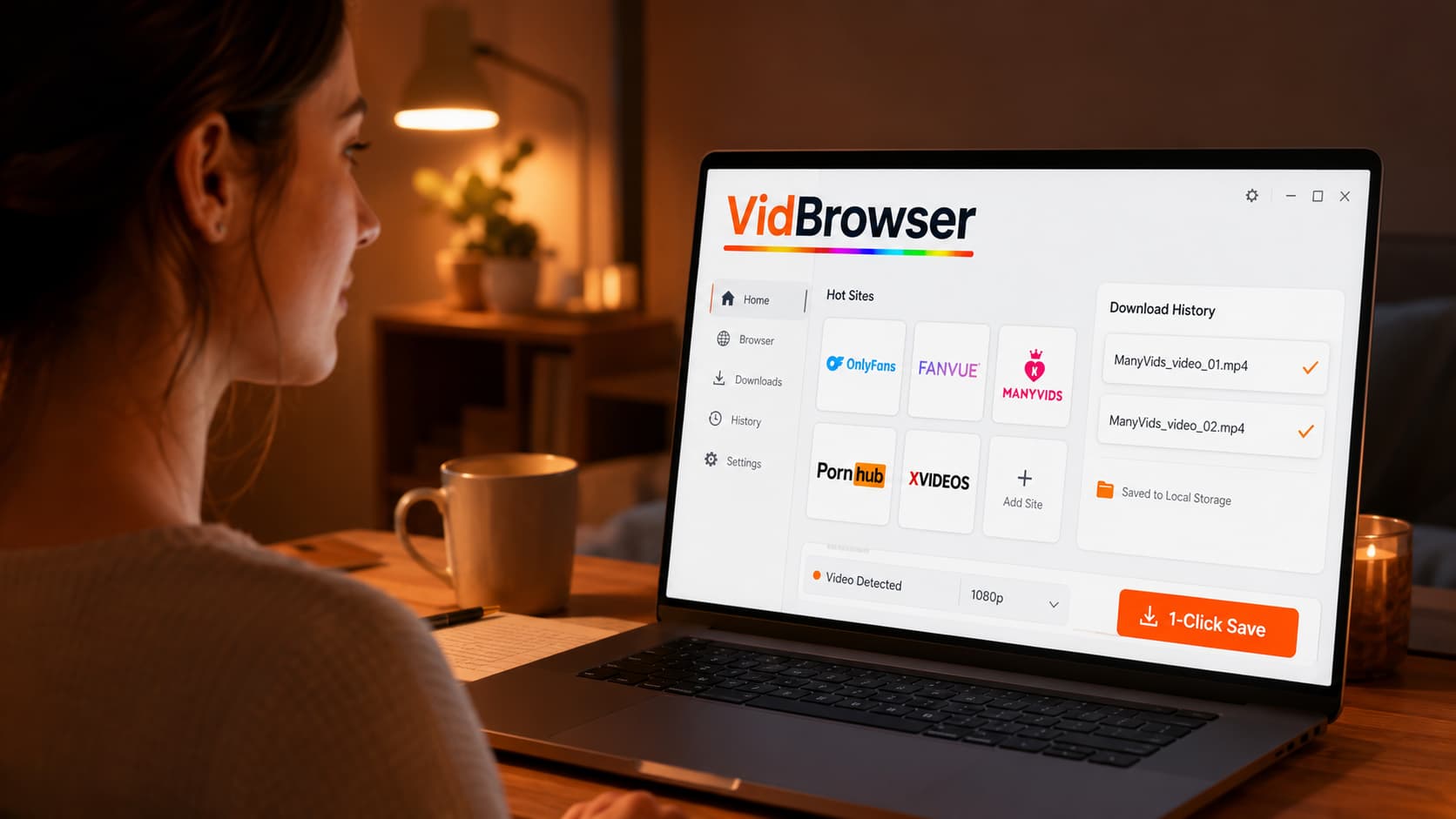
The orange "Video Detected · 1-Click Save" badge appears on the page. Click it. The video downloads to your device as a standard MP4 file. Play it in VLC, Windows Media Player, or any media app — no ManyVids account required, no internet connection needed, no expiration.
This is the distinction that matters: VidBrowser isn't circumventing DRM. It's the authorized endpoint for playback, which gives it legitimate access to content that external tools cannot reach.
Beyond ManyVids, VidBrowser blocks all ads by default — relevant on ManyVids where advertising can appear around content — and supports one-click saving across 1,000+ platforms including OnlyFans, Fansly, Fanvue, Patreon, and more.
Step-by-Step: Download a ManyVids Video with VidBrowser
Step 1: Download and install VidBrowser
Go to vidbrowser.net/download and install the app. Free to download, available for Windows and Mac. Standard installation — nothing unusual.
Step 2: Open ManyVids in VidBrowser
Launch VidBrowser and navigate to manyvids.com. Log in with your ManyVids account credentials.
Step 3: Find and open the video you want to save
Navigate to a video you've purchased. You'll find purchased content in your ManyVids library or by going directly to the creator's store and accessing your purchase.
Step 4: Play the video
Click play. Let the video start loading and playing. VidBrowser monitors the page and detects the video stream as it initializes.
Step 5: Click the download badge
The orange "Video Detected · 1-Click Save" badge appears. Click it, choose your save folder, and confirm. VidBrowser downloads the file to your local storage.
Step 6: Verify playback
Open the downloaded file in VLC or Windows Media Player. Full video with audio, saved locally. The file is now on your device independently of ManyVids.
Why Saving ManyVids Purchases Matters
ManyVids' clip store model creates a specific illusion: because you paid for an individual video rather than a subscription, it feels more like a purchase than an access fee. It isn't. The reality is the same as every other platform.
Creators delete their stores. When a creator leaves ManyVids — voluntarily or otherwise — their entire clip store disappears. Every video you purchased from them is gone. ManyVids doesn't maintain purchased content access after a creator removes it.
Individual videos get removed. Creators routinely update their stores, pulling older content to keep things fresh or to sell it elsewhere. A video in their store today may not be there in three months.
Platform policy changes. ManyVids has changed its content policies over the years. Content that was previously available has been removed in waves following policy updates.
The math is simple: if you've spent money on ManyVids content, the only way to guarantee that investment is to save the content locally. Paid-for access that evaporates when a creator deletes a file is not ownership. A local file is.
FAQ
Does VidBrowser work on ManyVids subscription content as well as purchased videos?
Yes. ManyVids has both a clip store (individual purchases) and "MV Crush" subscription memberships. VidBrowser handles video content from both access types — as long as you're logged in and have access to the content, VidBrowser can detect and save it.
Can I download ManyVids content on my phone?
VidBrowser is currently a Windows and Mac desktop application. Mobile browsers have more restricted access to DRM content saving. For reliable downloads, use VidBrowser on desktop.
What video quality does VidBrowser save from ManyVids?
VidBrowser saves at whatever quality ManyVids streams to your account. ManyVids typically delivers at the quality the creator uploaded — often 1080p for newer content.
What happens to videos I've purchased if a creator deletes their ManyVids account?
If a creator deletes their account, purchased videos become inaccessible. ManyVids does not maintain access to creator-deleted content for purchasers. This is the strongest argument for saving content locally at the time of purchase — not after a creator has already left.
Is it legal to save ManyVids content I've paid for?
ManyVids' terms of service prohibit downloading. For personal, non-commercial use of content you purchased, the practical legal risk in the US is minimal — enforcement focus is on redistribution and commercial use. This is not legal advice.
Does VidBrowser also work on OnlyFans, Fansly, and Fanvue?
Yes. VidBrowser supports 1,000+ platforms including OnlyFans, Fansly, Fanvue, Patreon, Twitch, and more. One browser handles all of them.


