
How to Download Telegram Videos: Save Channel Content to Your PC in 2026
You follow a few Telegram channels and have piled up a bunch of videos you want to watch — courses, assets, documentaries — only to find that downloading them one by one is slow and messy: on your phone you save one at a time, and after dozens of taps your fingers are sore; moving them to your computer in bulk is no better, since the web version only lets you go one by one. Telegram isn't a video platform, and its videos are scattered across channels and groups, which makes saving them more complicated than you'd expect.
This article explains how saving Telegram videos really works — what you can download and what you can't, plus how to batch-save them to your PC in 2026.
Telegram Videos Are Completely Different from a Video Platform
Telegram is fundamentally a messaging app, not a video website. Videos exist in three forms:
- Channels: one-way broadcasts. The channel owner posts content and members watch it — many course, asset, and news channels distribute videos this way.
- Groups: every member can post, so videos get mixed into the chat history.
- Chats: videos in private chats or small groups are personal content.
Unlike YouTube or TikTok, where you open a page and start watching right away, Telegram videos can only be seen after you enter the channel or group they belong to — which is exactly why saving them is more roundabout.
The App Can Download, but It Has Three Limits
The Telegram apps (mobile and desktop) can indeed download videos — one tap and it's saved. But in practice you run into three problems:
- One by one, no real batch option: channels can hold dozens or hundreds of videos, but on mobile you can only tap each one to save. There's no "Download All" button, so bulk archiving is done mostly by hand.
- Files land scattered across your device: videos saved on your phone end up spread between the gallery and the Telegram folder, with no unified media library, so organizing them is a chore.
- Channels can disable saving: when a channel owner turns on "Disable saving media", videos can't be downloaded or forwarded. This is a permission setting the platform explicitly provides, and it should be respected.
So "being able to download" and "conveniently saving videos to your computer and keeping them organized" are two different things — the app handles the first, but the second calls for a browser-based solution.
Three Scenarios, Sorted Out First
Before you start, figure out which category the video you want to save falls into:
- Videos in regular channels/groups: no save-restriction setting, so if you can play it, you can save it.
- Videos in channels that disable saving: the owner has enabled content protection, so they can't be downloaded — and don't try to work around it. Respect the channel's rules.
- Videos in private chats or small groups: if you can see them you can save them, but they're personal content — keep strictly to your own use.
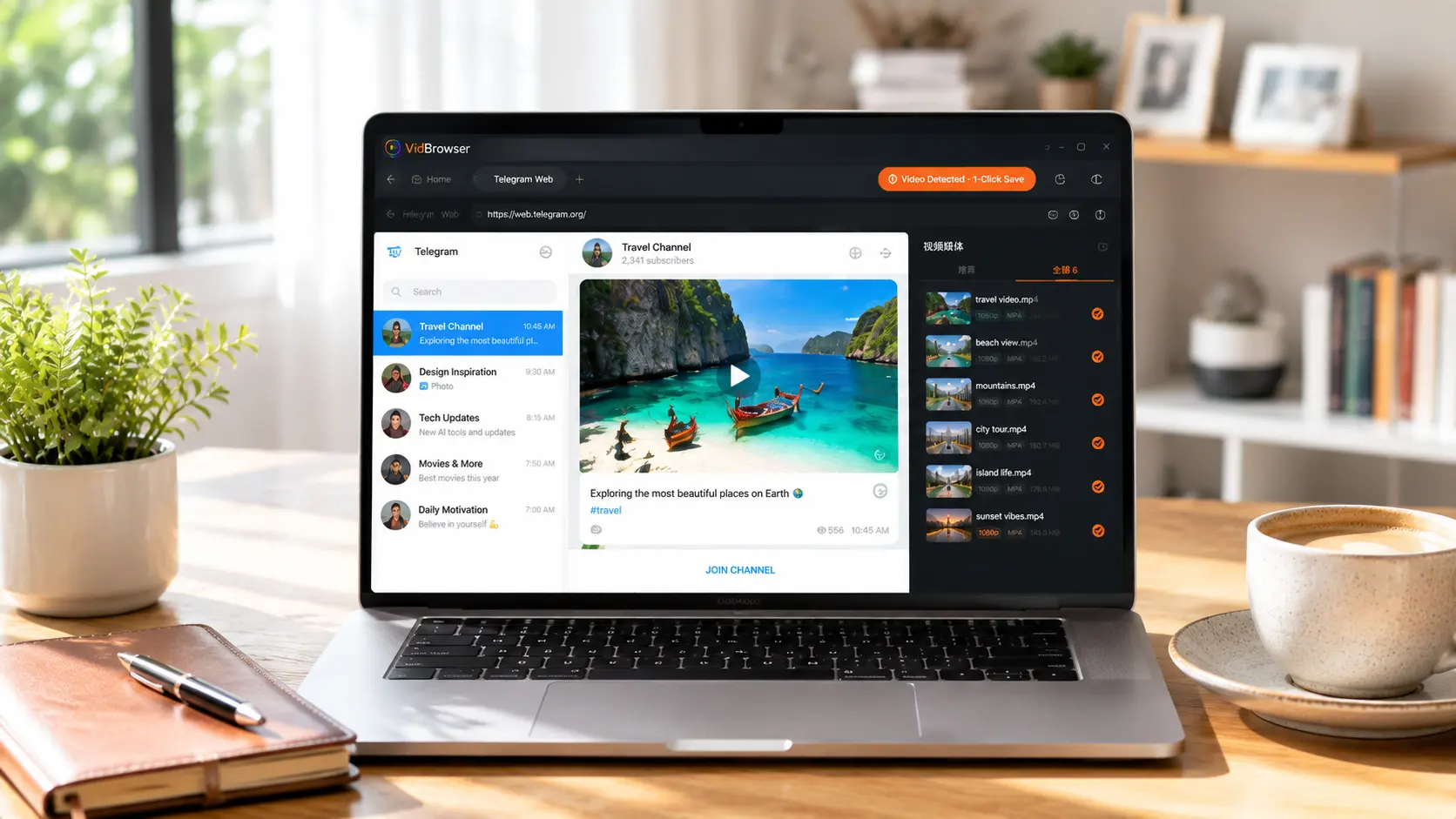
How VidBrowser Batch-Saves Telegram Videos
The approach is the same as before: Telegram Web (web.telegram.org) can play videos in your browser, and you simply save the video stream while it plays.
VidBrowser is a desktop browser built for video, available on Windows and Mac. Log in to Telegram Web normally, play the video you want to save, and once playback starts an orange one-click save badge appears in the top-right corner — click it and the video is saved as an MP4 file.
It only takes a few steps:
Step 1: Download and install VidBrowser
VidBrowser is a desktop video browser for watching videos, clipping segments, and saving them locally on Windows and Mac. Installation takes just a few minutes.
Step 2: Log in to Telegram Web inside VidBrowser
Launch VidBrowser, go to web.telegram.org, and sign in with your own account by QR code or password. Then enter the channel or group you want.
Step 3: Play the video you want to save
Open the video in the channel and let it play for a few seconds. VidBrowser automatically detects video resources on the page in the background, and once it identifies a saveable video stream, it lists it in the Video Media Library panel on the right.
Step 4: Save from the right-side Video Media Library
Once playback starts, the Video Media Library panel on the right side of VidBrowser automatically lists all the videos detected on the current page, each with an orange Download button. Play each one and click Download — the video is saved as an MP4 on your computer.
Step 5: Find the files in your media library
When saving is done, you can open the file from the folder you selected, or find it in VidBrowser's download history. Batch-saved videos land together in your local media library, which is far easier to organize than files scattered across your phone.
One Bottom Line to Remember
Video copyright on Telegram channels belongs to the channel owner or creator. Saving videos for your own offline viewing or personal study is fine; republishing, reposting, or commercial use is infringement. Respect the settings on channels that disable saving, keep private content strictly to yourself, and don't forward it around.
FAQ
Can I batch-download videos from a Telegram channel?
The Telegram app has no "Download All" button, but you can use VidBrowser to play and save videos one by one on Telegram Web, with everything landing in one local media library — much easier to manage in bulk than saving tap by tap on your phone.
Can I download from channels that disable saving?
No. Once the channel owner enables "Disable saving media", videos can't be downloaded or forwarded. It's a permission setting provided by the platform, so don't try to bypass it.
Will downloading Telegram videos notify the channel owner?
No. Telegram has no download notification mechanism. VidBrowser saves videos to your local device and never sends any save record to the channel or group.


