
How to Save Instagram Reels on PC for Offline Viewing (2026)
Instagram Reels are easy to watch and easy to lose track of. You may find a tutorial you want to revisit, a Reel from your own account, or content a creator has explicitly allowed you to keep. But when you are using Instagram on a computer, there is no simple, built-in way to organize those videos for offline viewing.
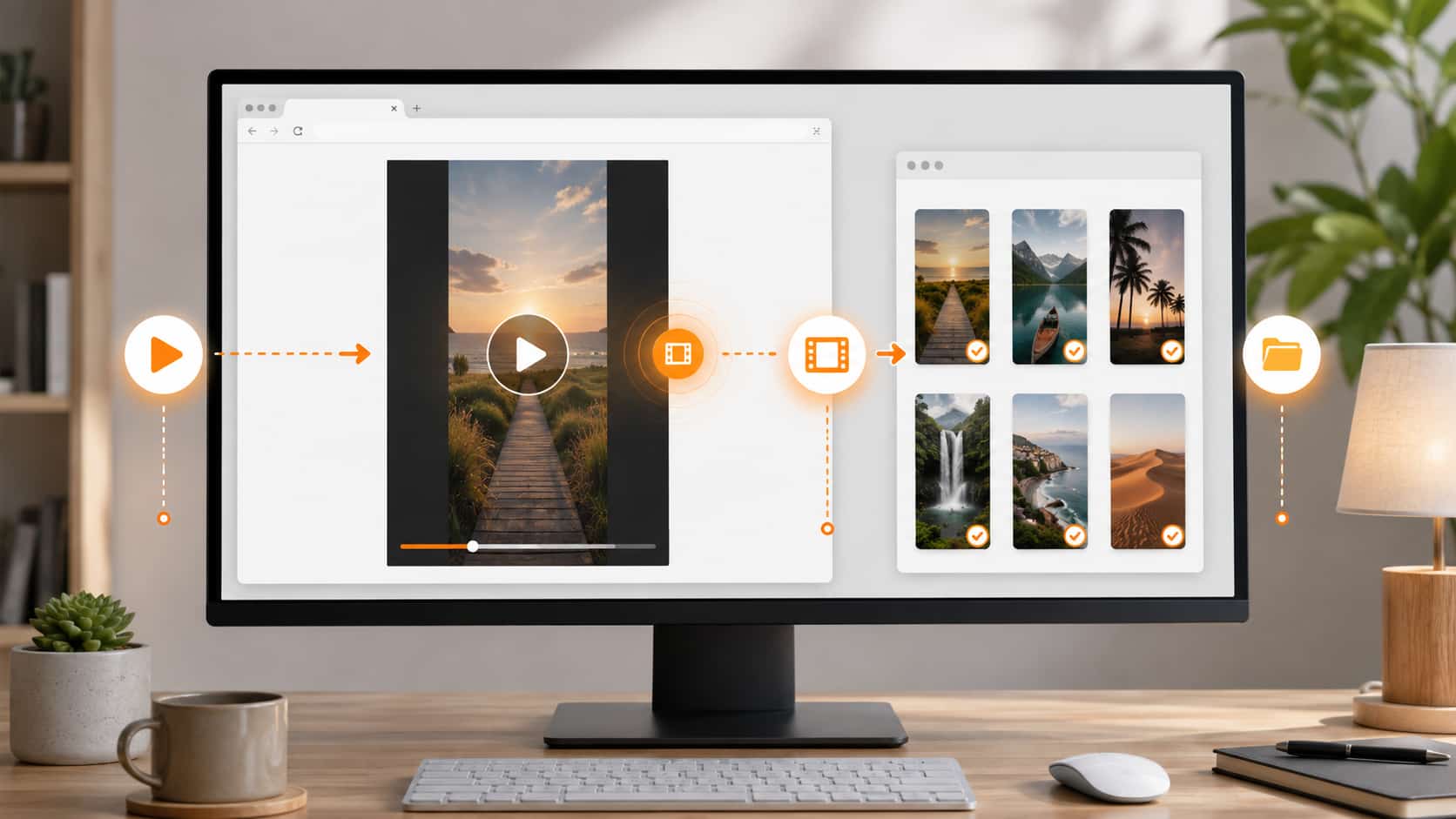
This guide explains a practical desktop workflow for saving Reels you are authorized to access and keep.
Important: Only save videos you created yourself or have permission to save. Do not redistribute, repost, or use someone else’s content commercially without the creator’s authorization.
Can You Save Instagram Reels on a PC?
Instagram lets users save posts inside the platform, but that is different from keeping a local video file on your computer. Saved posts still require an active Instagram session and an internet connection.
For your own Reels or videos you have permission to retain, a local copy can be useful when you want to:
- Watch without relying on an internet connection
- Keep your own published content organized
- Reference a tutorial while traveling or working offline
- Preserve creator-approved content for personal viewing
- Avoid searching through a long list of saved posts later
How to Save Instagram Reels with VidBrowser
VidBrowser is a desktop browser for video viewing, clipping, and local saving. It works on Windows and Mac.
Step 1: Download and install VidBrowser
Download VidBrowser for Windows or Mac, then complete the standard installation.
Step 2: Open Instagram in VidBrowser
Launch VidBrowser and go to Instagram. Sign in to the account that has authorized access to the Reel you want to save.
Step 3: Open the Reel and start playback
Navigate to the Reel. Let it play normally for a few seconds so VidBrowser can detect the playable video resource.
Step 4: Choose the detected video
When a video is available to save, VidBrowser displays the orange “Video Detected · 1-Click Save” badge. Select it, choose a destination folder, and start the save.
Step 5: Find it in your local library
After the save finishes, open the file from your selected folder or use VidBrowser’s download history to locate it. You can then watch it offline in a compatible media player.
Why Not Just Use Instagram’s Saved Posts?
Instagram’s in-app Saved collection is useful for bookmarking. It is not a personal media library.
A bookmarked Reel can become unavailable if the original post is deleted, the creator changes access, or you lose access to the account. A locally saved copy of content you are authorized to keep gives you a separate personal reference file.
For creators, this is also a simple way to maintain a backup of your own published Reels before editing, archiving, or repurposing them elsewhere.
Common Problems When Saving Reels
The video is not detected
First, make sure the Reel is actually playing. Refresh the page, wait a few seconds, and try again. Some videos load after the surrounding page content.
The Reel is private or unavailable
VidBrowser can only work with videos your account can legitimately access in the browser. If you cannot play the Reel normally, do not attempt to bypass the creator’s privacy settings or platform access controls.
The saved file is not where you expected
Check the folder selected during saving, then review VidBrowser’s download history. Keeping a dedicated folder such as Instagram Reels makes future searches much easier.
You want only part of a Reel
Use VidBrowser’s clipping tools to keep the relevant segment of a video you are authorized to edit and retain. This is useful for your own Reels, approved creator clips, and internal reference material.
A Better Way to Organize Video References
If you frequently collect video inspiration, tutorials, or your own social content, do not let everything disappear into browser bookmarks.
A simple structure works well:
- Create one folder for your own Reels
- Create one folder for creator-approved references
- Name files by topic, creator, and date
- Save only content you can legally and ethically retain
- Review your library regularly and remove anything you no longer need
VidBrowser combines browsing, video detection, clipping, and local saving in one desktop workflow, so you do not need to switch between a browser, a downloader, and a separate editor.
FAQ
Can I save Instagram Reels on Windows and Mac?
Yes. VidBrowser is available for both Windows and Mac desktop computers.
Can I save private Instagram Reels?
Only if your account already has legitimate access and you have permission from the creator to keep the content. VidBrowser does not grant access to private content.
Can I save my own Instagram Reels?
Yes. Saving your own Reels locally is a practical way to keep a backup and organize your published work.
Can I save Reels to watch offline?
Yes, for videos you are authorized to save. Once a compatible file has been saved locally, you can watch it without an internet connection.
Can I repost a saved Reel?
Not unless you own the content or have clear permission from the copyright holder. Local saving does not transfer ownership or reuse rights.
Save the Videos You’re Allowed to Keep
Download VidBrowser for Windows or Mac to browse, clip, and save authorized video content in one place.


