LoyalFans Screen Recording Goes Black — Here's the Fix (2026)
You set up your screen recorder. You hit record. You play the video. Everything looks fine — until you check the recording and find a black rectangle where the LoyalFans video was supposed to be. The rest of your screen recorded perfectly. Just not the video.
This isn't your screen recorder malfunctioning. It's working exactly as it should. The problem is at the platform level — and fixing it requires a different approach entirely.
Why LoyalFans Videos Record as a Black Screen
LoyalFans protects its video content at the hardware level. When a LoyalFans video plays in your browser, the platform routes the video output through a protected layer that sits between the video decoder and your display. This protected layer is invisible to screen capture software.
Your screen recorder captures your display's regular output buffer — the same one that shows your desktop, your taskbar, your browser tabs. LoyalFans video is rendered in a separate protected layer that doesn't appear in that buffer. What your recorder sees in that area: black.
This is why the rest of your screen records normally. It's not a software bug, a settings issue, or something wrong with your computer. The black screen is the protection working as intended.
Why This Happens on Modern Hardware Specifically
Older computers and some budget devices may not support hardware-level video output protection. On those systems, screen recording sometimes works on LoyalFans. On most modern Windows PCs and Macs running an up-to-date browser, the protection is active and screen recording doesn't capture the video.
This is also why the problem may have appeared suddenly for some users — a browser update, a Windows update, or a driver update can activate hardware video protection that wasn't previously enforced. You didn't break anything. The protection level changed.
Things People Try That Don't Work
Switching screen recorders
OBS, Bandicam, ShareX, the Windows built-in Game Bar, third-party capture cards — they all face the same wall. This is not a software limitation that a better recorder can overcome. The video simply doesn't appear in the screen output buffer that all of these tools access.
Lowering browser or display settings
Adjusting hardware acceleration, changing color profiles, lowering display resolution — these don't affect the video protection layer. The black screen persists regardless.
Using a second monitor
The protection follows the video content, not the display. Dragging your browser to a secondary monitor and recording that monitor produces the same result.
Recording from a phone camera pointed at the screen
This works in the sense that you capture whatever light comes off the screen. The quality is poor, the result is shaky, and you're limited to what's physically visible in the room. It's not a real solution.
Browser extensions that claim to fix this
Extensions marketed as "screen recording unblockers" or "video capture helpers" for protected platforms don't work on LoyalFans. They typically either do nothing or capture the encrypted video stream — which produces an unplayable file, not a recording.
The Fix That Actually Works: VidBrowser
The screen recording black screen exists because recording tries to capture video from outside the protected playback environment. The way around this isn't to find a stronger recorder — it's to capture the content from inside the authorized playback flow.
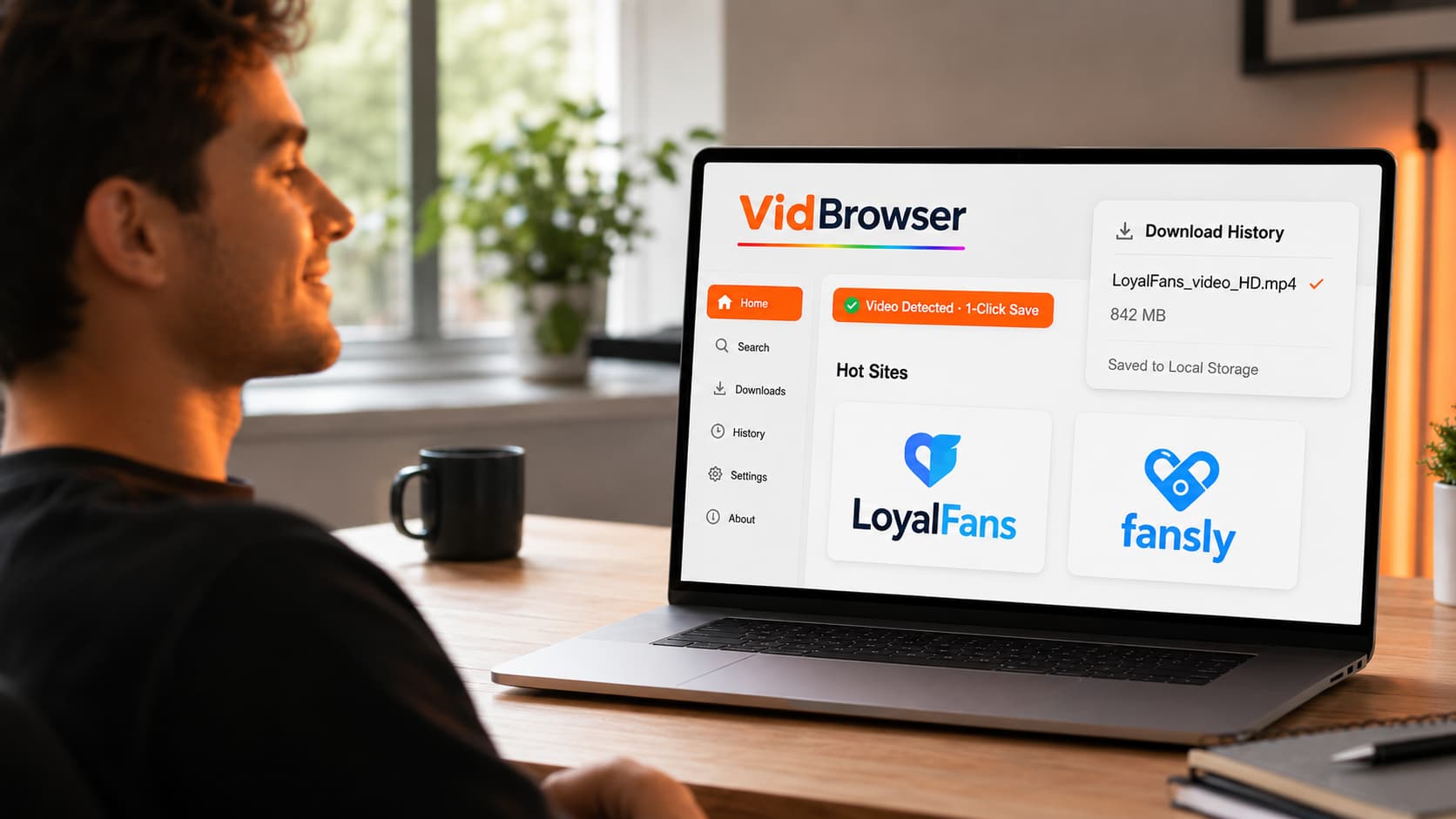
VidBrowser is a desktop browser built specifically for video. When you play a LoyalFans video inside VidBrowser, the browser detects the video and shows an orange "Video Detected · 1-Click Save" badge. Click it. The video saves directly to your local storage as a standard MP4 file.
This works because VidBrowser operates as a full authorized browser — it goes through LoyalFans' complete authentication and playback process legitimately. It captures the content at the point where it's been authorized for display, not by intercepting the protected output stream that defeats screen recorders.
The result: a real video file, full quality, full audio, saved to your hard drive. Play it in VLC, Windows Media Player, or any media app. No internet connection required, no LoyalFans account needed, no expiration.
VidBrowser also blocks all ads by default across every site you visit — a side benefit worth mentioning if you browse LoyalFans regularly.
Download VidBrowser free — available for Windows and Mac.
Step-by-Step: Save LoyalFans Videos With VidBrowser
Step 1: Download and install VidBrowser
Go to vidbrowser.net/download and install the app. It takes about two minutes. Standard installation — nothing unusual.
Step 2: Log into LoyalFans inside VidBrowser
Open VidBrowser and navigate to loyalfans.com. Log in with your LoyalFans account. Your subscriptions and purchased content are all accessible exactly as they are in Chrome.
Step 3: Open and play the video you want to save
Navigate to the creator's page, find the video, and click play. Let it start loading.
Step 4: Click the orange save badge
As the video plays, VidBrowser shows the "Video Detected · 1-Click Save" badge. Click it, choose your save location, and confirm.
Step 5: Open your saved file
The download completes in your chosen folder. Open it in VLC or any media player — full video, full audio, saved permanently to your device.
FAQ
My screen recorder worked on LoyalFans before — why did it stop?
A browser update or operating system update likely activated hardware-level video output protection that wasn't previously enforced on your device. This is increasingly common as platforms update their protection requirements. VidBrowser's local save approach is unaffected by these changes.
Does this happen on all browsers, or just Chrome?
The video output protection is active in Chrome, Edge, and most Chromium-based browsers on modern hardware. Firefox handles video protection differently but still produces a black screen on LoyalFans in most cases. The browser isn't the variable — the platform's protection is.
Can I use VidBrowser alongside my regular browser?
Yes. VidBrowser installs as a separate application and doesn't replace your existing browsers. Many users keep Chrome for general browsing and use VidBrowser specifically for video platforms like LoyalFans.
Does VidBrowser work on OnlyFans and Fansly too?
Yes. The same one-click save feature works on OnlyFans, Fansly, Fanvue, ManyVids, and 1,000+ other platforms where standard screen recording produces a black screen.
What video quality does VidBrowser save?
VidBrowser saves at the quality LoyalFans streams to your account — typically whatever quality the creator uploaded, often 1080p for recent content. This is full playback quality, not a compressed screen capture.
Is VidBrowser available for Mac?
Yes — VidBrowser is available for both Windows and Mac. The LoyalFans black screen issue affects both platforms on modern hardware, and VidBrowser's local save feature resolves it on both.