
Before you pick an alternative, run three tests in the SnapDownloader free trial
Most people shopping for a video downloader alternative get stuck at the same spot: they have skimmed seven or eight comparison tables, yet none of the checkmarks in those tables says anything about how they actually use the tool. SnapDownloader has a solid reputation as a desktop utility — the official site claims support for more than 900 sites across Windows and macOS, with video trimming built in. Whether to hand your daily downloads to it is a question the tables cannot answer; the 48-hour trial period it advertises can. This piece shows how to turn those two days into an exam — three tests, and the conclusion surfaces on its own.
What SnapDownloader is: the strengths first
SnapDownloader is a paste-a-link desktop client, and the capability list on its official site is dense.The official homepage lists them item by item: support for over 900 sites, downloads up to 8K, YouTube playlists and channel grabbing, batch queueing and scheduled downloads, audio extraction, and a built-in trimming tool that keeps only the part you want, running on Windows 11/10/8 and macOS 11.0 or newer. The workflow is the classic three steps: paste a video link, choose format and quality, start the download. All of these are backed by the official pages, not third-party retellings.
Worth noting is how the trial works: the official site states that the trial needs no payment details, and after installation every feature is open for 48 hours. Whatever you can do in the paid version, you can do during these two days.
Two capability boundaries to know before the trial
The paste-a-link working style means its capability starts from the address the page is willing to hand over.When a page serves the video address directly, tools like this parse it reliably; but when the address needs a login session, or is assembled during playback, the link itself cannot carry that information and parsing breaks at that step. The mechanics were covered in the piece on the free quota of 4K Video Downloader, so they are not repeated here.
The second boundary is about content type: videos on subscription platforms are mostly protected, and ordinary parsing tools generally cannot get them — the reason many downloaders fail collectively on such sites, a layered mechanism broken down in the piece on why downloaders stop working. The official site also lists proxy settings among its features, for reaching sites restricted in your region — but a proxy changes the network path, not the authorization boundary of the content itself. That layer has nothing to do with the tool; it depends on your rights to the content.
Three tests worth running in the trial
Rather than spending two days on whether the interface feels smooth, run three tests aimed at the decision.
Test one: take the three kinds of content you actually download, one each.Do not use the public demo videos the vendor suggests; they carry no reference value. Pick from your real daily download list — say one long video, one short video, one audio extraction — and check the parse success rate. The 900-site coverage figure is a total; in your scenario only seven or eight sites may be high-frequency, and the figure only means something once those sites pass.
Test two: paste several links at once, and test batch and queueing.Official support covers playlists, channels and batch queues, exactly where this tool distances itself from single-link downloaders. Paste a playlist in and watch how the queue arranges itself, whether you can keep adding tasks in the background, and how failed tasks are marked — if your daily routine is whole-list downloads, this step matters more than any spec.
Test three: test the output you care about most.8K sounds tempting, but most sources have no 8K tier at all; real daily life sits around 1080p. Download one item each in your usual resolution and format, then play the files on the device where you normally watch — smooth preview inside the downloader does not mean the saved file plays just as well on your TV or tablet.
Three kinds of trial result, three corresponding decisions
The conclusions from the three tests fall into three directions, each with a clear next step.
First, everything smooth. All three content types parse, batch queueing is stable, and the output plays directly on your usual devices — the tool is good enough for your scenario, and the remaining decision is simply arranging the purchase before the trial expires. Do not let the judgment window slip away unused.
Second, partly smooth. Site tests all pass but batch is unstable, or one type of output keeps failing. That result means only partial overlap with your scenario, and a full replacement is not worth it — hand the paste-a-link work to it, leave playback-time saving to another route, and let the two split by scenario.
Third, nothing smooth. If the three tests fail one after another, do not rush to download the next alternative — that is how you fall into a loop of trial and error. Before switching tools, settle three questions: how many items you truly download per day, which kinds of sites host your content, and whether the paid capabilities get used. The full version of these three questions lives in the piece on the three-question method for switching tools.
The no-link route: downloading and saving in one window
If your test conclusion is that the paste-a-link road cannot cover your content, browser-shaped tools are the other road.VidBrowser does not ask you to copy an address first: open the page and play the video as usual, and the tool detects resources during playback and offers a save entry, keeping downloading and recording inside one desktop app. The workflow takes four steps:
Step 1: Download and install VidBrowser
VidBrowser is a desktop video browser for Windows and Mac that watches video, clips segments and saves them locally, with downloading and recording built in; installation takes a few minutes.
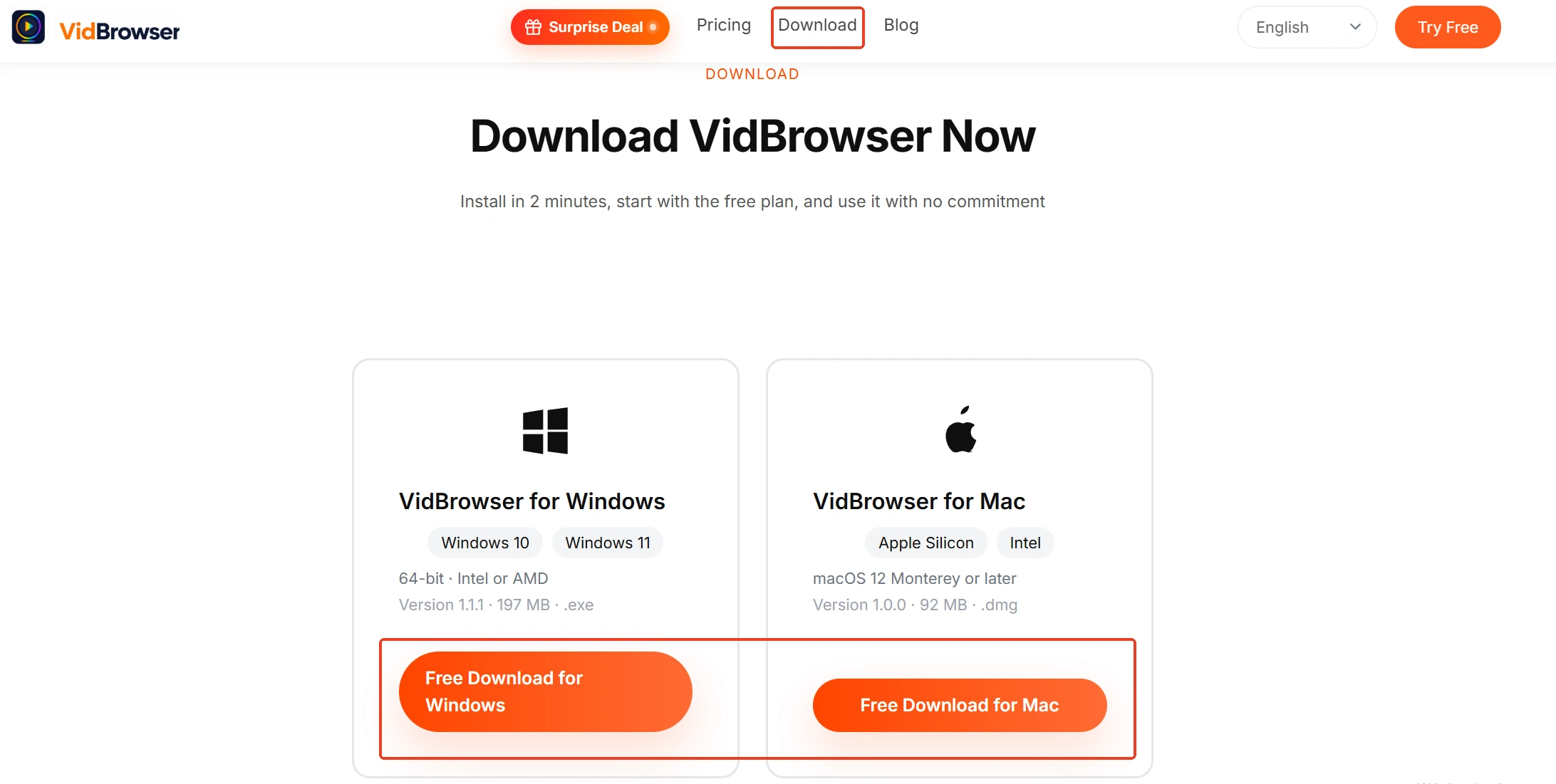
Step 2: Open the sites you tested inside VidBrowser and sign in
Inside the app, open sites and reach the video page you want to save and sign in as usual — no need to copy links separately.
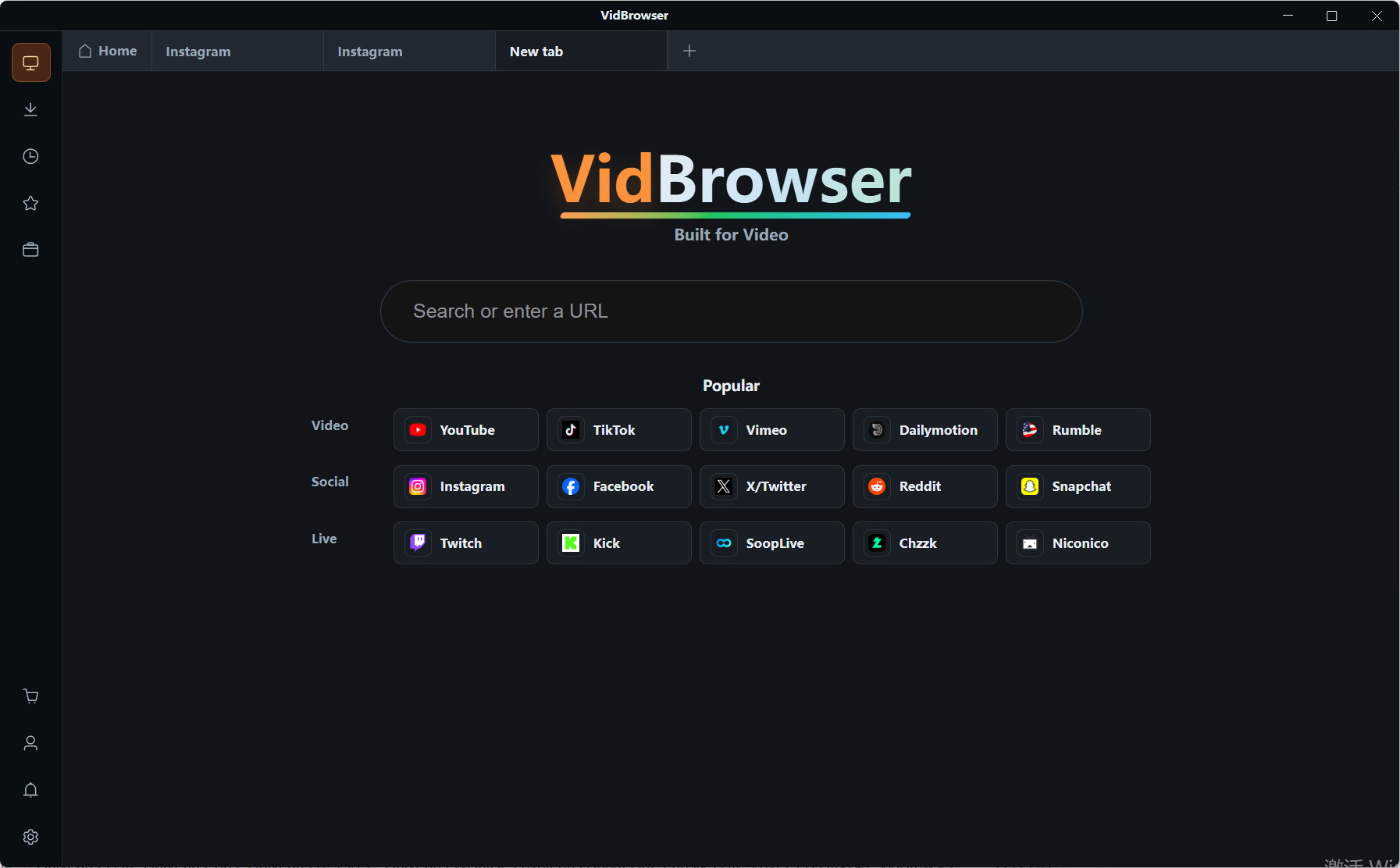
Step 3: Download directly, or save with recording (first choice for protected content)
For videos that can be downloaded directly, the "Video Media" panel on the right lists entries with an orange "Download" button — click to save as MP4, or pick a resolution before downloading. For content that needs login or is protected, use recording: move the mouse over the video and recording controls appear as an overlay, choose a recording speed (1x real time, or 2x and 4x to finish faster), click "Record All" to capture the whole video, and the record button on the left can pause at any moment.
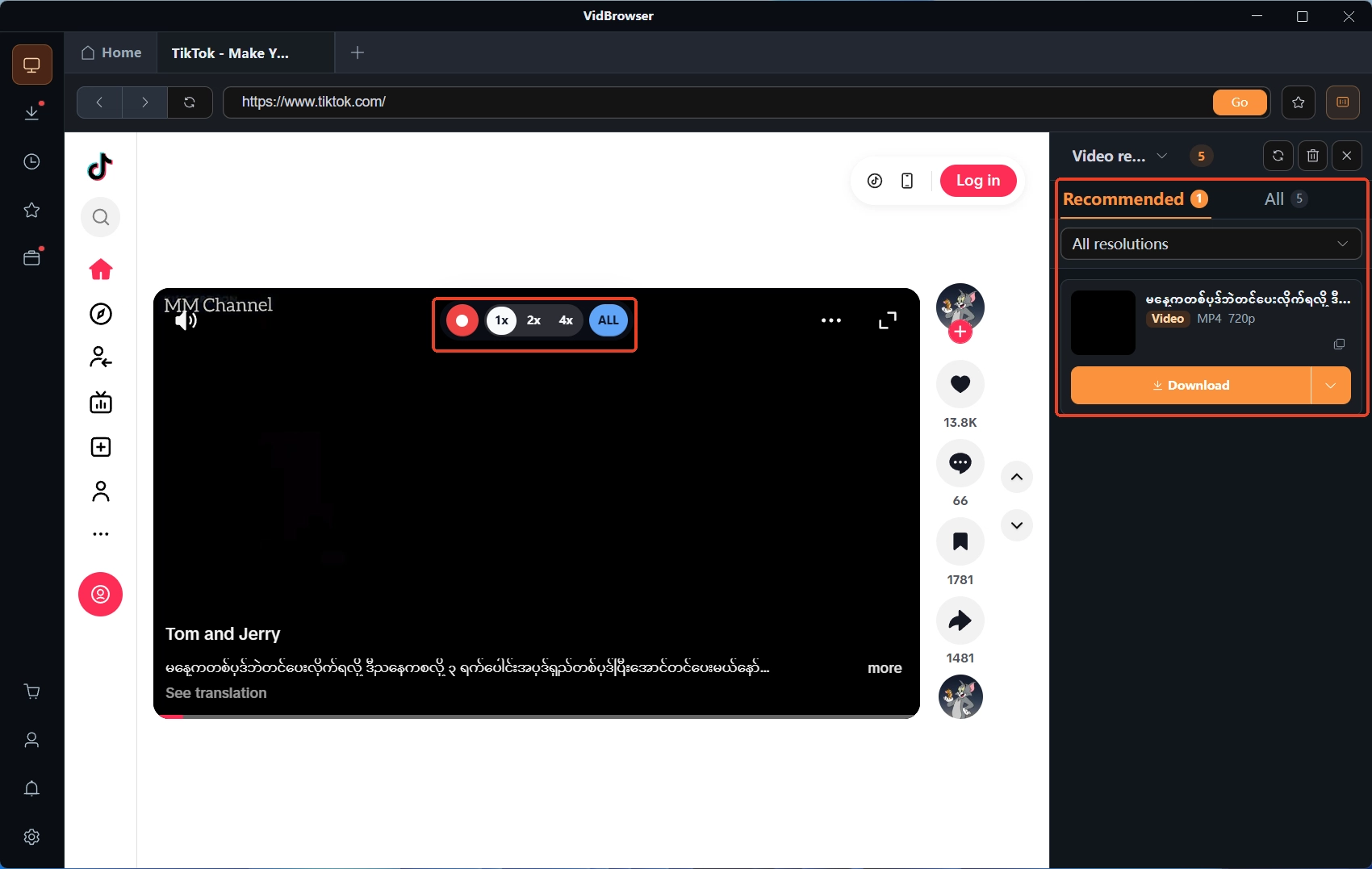
Step 4: Manage files in Download History
Download History in the left navigation lists every task with file name, size and status at a glance; archive what you have saved however suits your habits.
The two routes are not mutually exclusive: paste-a-link tools handle whole-list jobs on public sites, while the browser shape handles the see-it-then-save-it scenario — for many people the best answer is keeping one of each.
Frequently asked questions
Does the trial charge automatically when it ends
The official site states the trial requires no payment details, so there is nowhere to leave a charge on file; after expiry the software stops working, and whether to buy is entirely your call.
How do I verify the list of 900-plus sites
The official homepage lists the mainstream platforms, and the full list is subject to the official page; rather than checking the list item by item, running the three tests from the previous section with your own content is far more reliable.
It cannot download content that needs login — what then
That is a structural limit of the paste-a-link style, not a settings issue; such content must play before it can be saved, and browser-shaped tools or the recording function are the matching routes.


