
Which VideoProc alternative fits your task? Match it by download, convert, or compress
People searching for a VideoProc alternative usually start from a different place than those hunting for a downloader replacement: downloaders compete on which sites they can handle, while VideoProc presents itself as an all-in-one suite - conversion, compression, editing, DVD ripping and AI enhancement lined up side by side, with downloading as an add-on module. When the input changes from a URL to the files sitting on your disk, the criteria for picking a replacement have to change with it. This guide breaks the choice down by task.
The main business of VideoProc is a file-processing bench, with downloading as the side module
The official positioning is "one-stop video processing": the VideoProc homepage lists 370 input codecs and 420+ output formats for its conversion module, while compression, editing, screen recording, DVD ripping and AI enhancement each get their own panel - and the download module's claim reads 1,000+ popular sites plus 2,000+ smaller ones. Once the structure is laid out, the center of gravity is obvious: file processing is the home turf, and downloading is a convenient attachment.
That center of gravity shapes how you look for a replacement: if your frequent tasks are converting formats, shrinking file sizes and organizing footage you have shot, what you are comparing is not site coverage but three things a file tool must do - take the file in, let you verify the result, and keep a batch moving.
Fairness first: the suite is complete, and the acceleration work is real
For anyone who works with local video files all day, the everything-included design is a genuine benefit: one task, one module, no need to install a separate app for converting, compressing and trimming. The input side lines up too - the official site names iPhone, GoPro, drone and camera high-bitrate footage as its processing targets, and phone verticals plus camera HEVC files, the ones desktops handle badly, are exactly its staple diet.
The acceleration claims come with official numbers: Level-3 hardware acceleration covers Intel, AMD and NVIDIA graphics plus Apple silicon, transcoding is rated at up to 47x real-time speed, and the same page cites a figure that 39% of video programs ship without GPU acceleration support. Put together, the message is plain: when you compare file tools, acceleration support is worth one look.
This piece compares tool shapes and selection criteria; it stays away from pricing and content policy of any vendor, and module capabilities follow the current official pages.
Picking the wrong direction usually means not knowing which half you want to replace
Its capability splits into two halves, and the two halves follow completely different criteria: the downloading half is judged by URLs, the file half by the files themselves.
- The downloading half: the criteria sit in site coverage and parsing style, and the in-house downloader review series has covered them thoroughly - how to read big site-coverage numbers takes the large figures apart, and three questions before switching downloaders handles the self-check; read those two together and you are set.
- The file-processing half: the criteria are input compatibility, output verification and batch handling - three questions downloader reviews never ask, and exactly the gap this piece fills.
If your bottleneck lands on a URL, follow the downloader route; if it lands on a file, keep reading.
For the file half, choose by three criteria: takes it in, verifiable, keeps the queue moving
All three questions can be verified on the spot with your own footage, which makes them far more honest than a spec sheet.
- Takes it in (input compatibility): dig out the most awkward file in your folder - camera HEVC, a 4K phone vertical, an MKV exported from a screen recording - and feed it to each candidate. If it reads the file with correct duration and picture, it counts as taken in; the one that throws an error on the spot is out.
- Verifiable (output check): do not stop at the word "done". Three checks: play the result on another device; compare the size change against the quality preset; sample the first and last ten seconds, because dropped frames love to hide at the edges. How presets change file size is broken down in the piece on remuxing versus re-encoding.
- Keeps the queue moving (batch handling): one file is easy; ten files test the queue - the batch limit, whether tasks survive an exit, and where finished files are collected. Downloader reviews never ask these; a file tool must answer them.

GPU acceleration helps heavy re-encoding, not remuxing that was fast to begin with
"It converts slowly" is a common reason to hunt for a replacement, but the cause of slowness needs sorting first: re-encoding tasks eat compute, while stream-copy tasks should be fast already.
Converting formats and shrinking sizes are re-encoding jobs - that is where hardware acceleration does its work, and the 47x rating is measured in exactly these scenarios; remuxing a container without re-encoding is capped by disk speed, and no tool changes that much. When testing, run the same file through both task types: only if both speeds look normal has the acceleration actually landed.
Your machine is on the list too: Intel, AMD and NVIDIA graphics plus Apple silicon are the officially supported acceleration range - check the support list before installing on an older computer.
Get the file first, then convert: download and conversion in one pipeline
A desktop video browser connects "getting the file" and "processing the file" inside one app, in four steps:
Step 1: Download and install VidBrowser
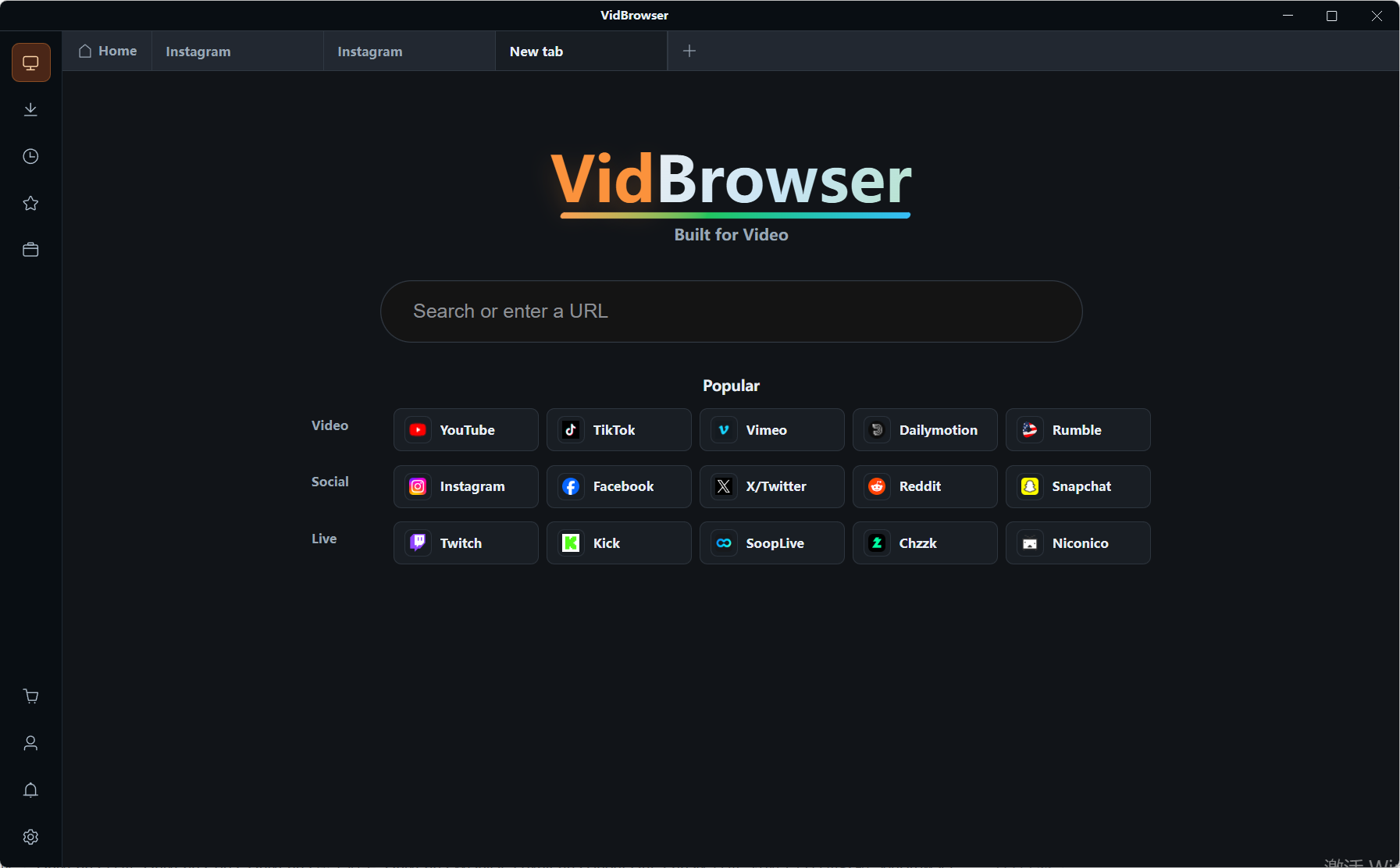
VidBrowser is a desktop video browser for Windows and Mac with built-in download and recording, and installation takes a few minutes.
Step 2: Bring the video you need onto local disk first
Open the video page in the built-in browser; the video library on the right lists detected items, each with an orange "Download" button - one click saves it as MP4, and you can filter by resolution to set quality first. For protected content, switch to recording: move the mouse over the video and a recording overlay appears - pick 1x real-time, or 2x/4x to finish faster, hit "Record All" to capture from start to end, and the record button on the left pauses any time. Download tasks are all logged in the download history on the left.
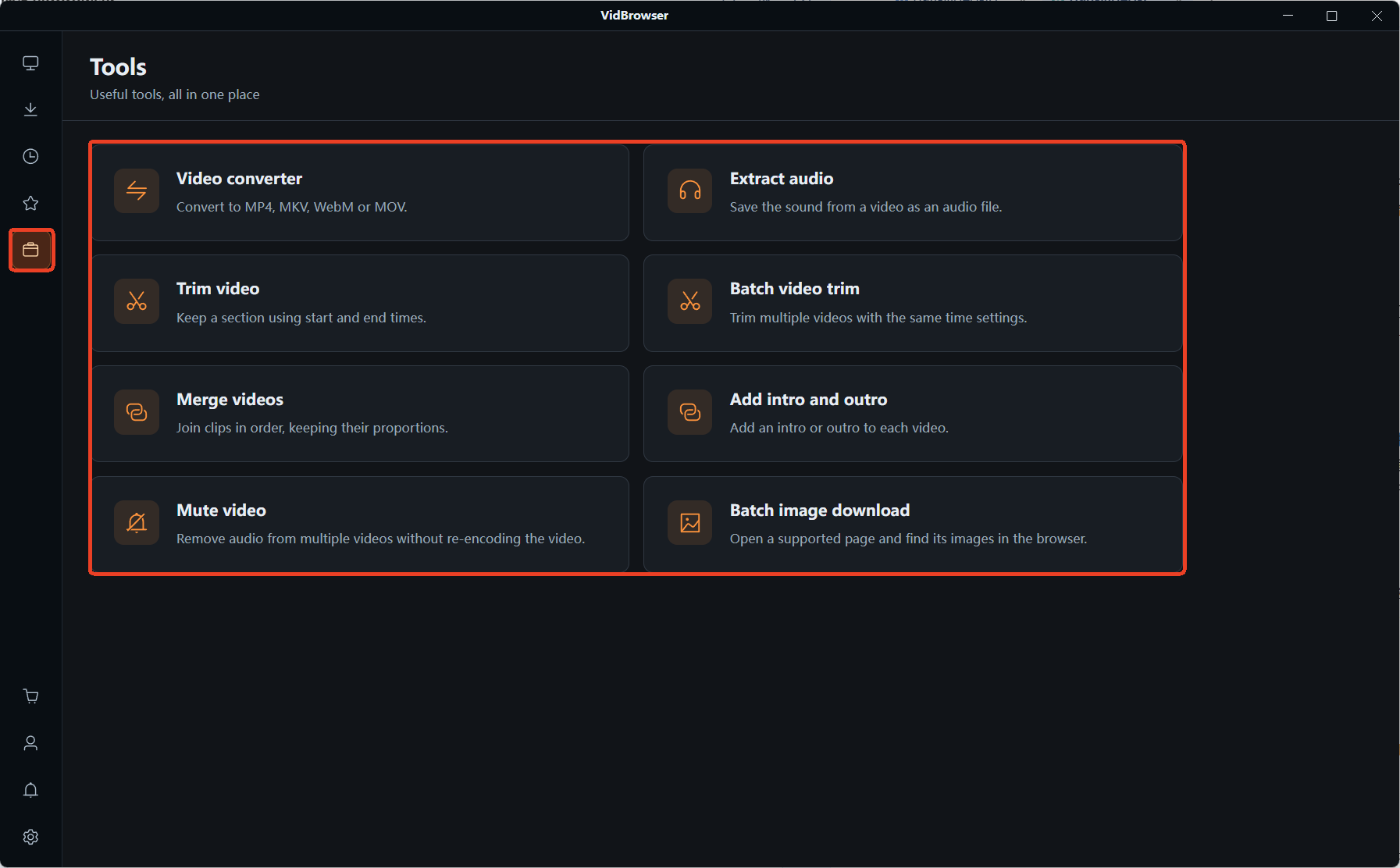
Step 3: Open the "Tools" page on the left and choose "Video Convert"
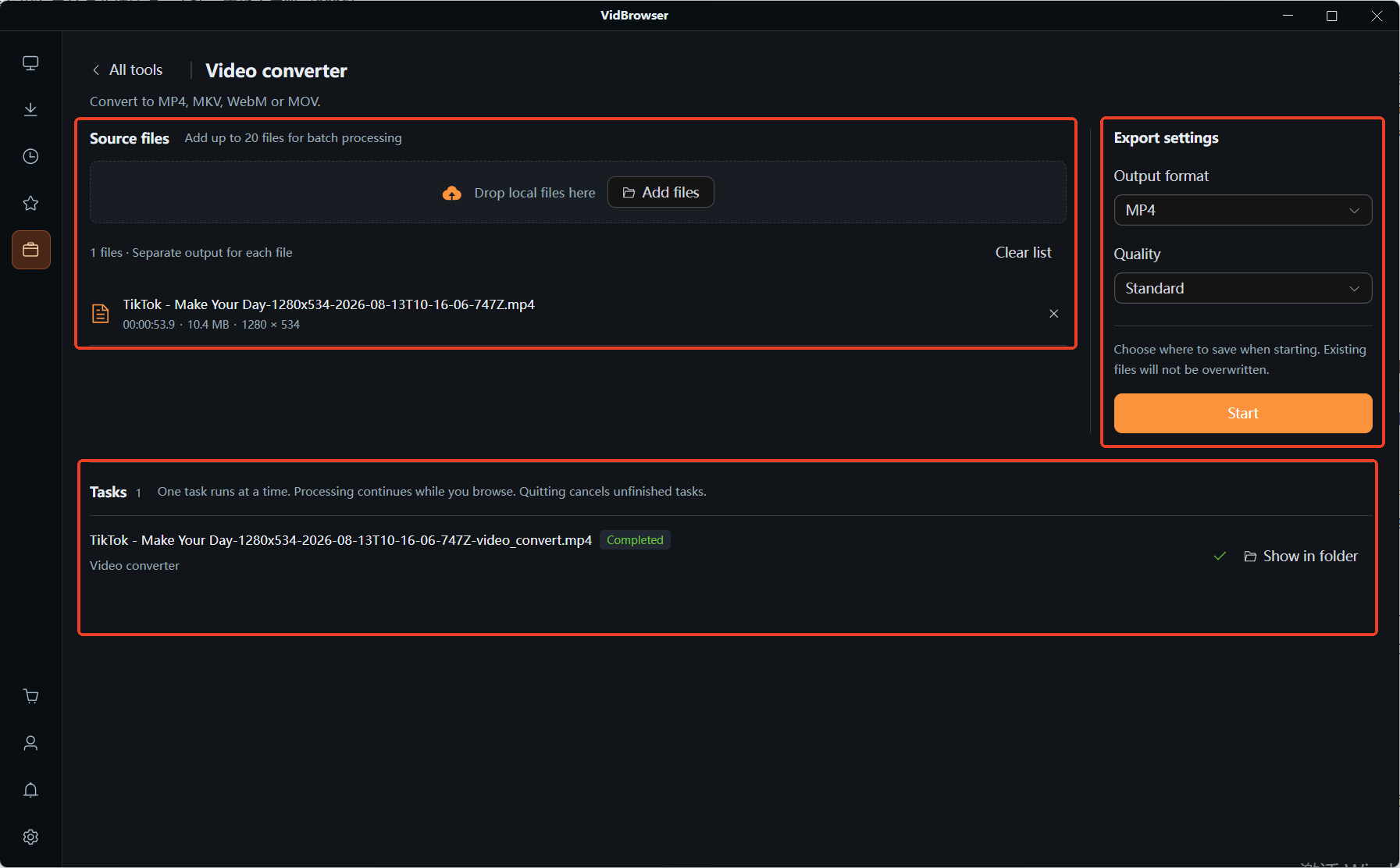
Drag files into the list; batch adding is supported, up to 20 files, each exported separately.
Step 4: Set the export parameters, then start
Output format sits among MP4, MKV, WebM and MOV, with quality split into standard and high; choose a save location when starting, and existing files will not be overwritten. Tasks run in order, keep running after you switch pages, and finished items are marked "Completed" - click "Open Folder" to collect the files.
Frequently asked questions
When picking a VideoProc alternative, should you chase a full-featured match?
Sort the triage first: downloading and file processing follow two different sets of criteria. If both are frequent needs, pick each shape separately - two tools used apart beat one all-in-one gamble.
The converted file is much smaller - is that normal?
Re-encoding compresses size, so a drop is a normal outcome; check it against the quality preset, where a lower preset predicts a smaller file. If the preset is high yet the size collapses, run the three output checks again before drawing conclusions.
Slow transcoding - is that a reason to switch tools?
Check three things first: is the task re-encoding, is the queue loaded with a large batch, and are your graphics card and chip inside the supported acceleration range. If all three look normal and it is still slow, then consider switching.


