YouTube Screen Recording Black Screen: How to Fix It in 2026
You hit record, play the YouTube video, and when you check the footage — black screen. The audio is there, your webcam feed is there, but where the YouTube video should be, there's just a dark rectangle.
This is one of the most searched frustrations on YouTube, and the fixes floating around online mostly don't work. Here's what's actually going on and what does fix it.
Why YouTube Shows a Black Screen When You Screen Record
The short answer: YouTube protects its video output at the system level for certain content. When a screen recorder tries to capture the video, the platform detects this and replaces the video feed with a black frame while audio continues normally.
This isn't a bug in your screen recorder. It's not a driver issue. It's not a permissions problem. YouTube is deliberately blocking capture — and it's particularly aggressive on YouTube Premium content, where the platform locks its video output so the content stays inside the authorized viewing environment.
The black screen appears in OBS, Bandicam, QuickTime, Xbox Game Bar, ShareX, Camtasia, and every other capture tool for the same reason: they all hit the same wall.
Does This Affect All YouTube Videos?
Not equally. There are a few different scenarios:
YouTube Premium content is the most consistently affected. If you're trying to screen record a YouTube Premium video — content behind the Premium subscription — the black screen is almost certain regardless of which recorder you use.
Regular public YouTube videos are more inconsistent. Some record fine; others black out depending on your browser, graphics settings, and how the video is being rendered.
Hardware-accelerated video rendering causes black screens even on regular YouTube in many setups. When your browser uses your GPU to render video (which most modern browsers do by default), screen recorders that capture through Windows/Mac graphics APIs can't see the video layer — they only see a transparent or black placeholder.
Why the Common Fixes Don't Actually Work
Search for this problem and you'll find the same suggestions recycled everywhere:
"Turn off hardware acceleration in Chrome/Firefox" — This sometimes helps with regular YouTube videos, but it doesn't fix the underlying issue with YouTube Premium content. YouTube's protection on Premium content operates independently of hardware acceleration.
"Use a different screen recorder" — Switching from OBS to Bandicam to ShareX to Xbox Game Bar doesn't help. They all face the same restriction.
"Change capture mode to Window Capture instead of Display Capture" — Sometimes helps with the hardware acceleration issue on regular videos, doesn't help with protected content.
"Update your graphics drivers" — Unrelated to this problem.
"Record in a different browser" — Chrome, Firefox, Edge, and Brave all implement the same video output protection. The browser doesn't change what YouTube does with its video feed.
The Actual Fix: Stop Recording, Start Saving
Screen recording is the wrong tool for this problem. Here's why: screen recorders work by capturing what's displayed on screen — they're inherently external to the video. YouTube's protection works precisely by intercepting that external capture attempt.
VidBrowser takes a completely different approach. It's a desktop browser with built-in video saving — it doesn't record your screen. Instead, it works inside the playback process itself, where it has authorized access to the video as it streams.
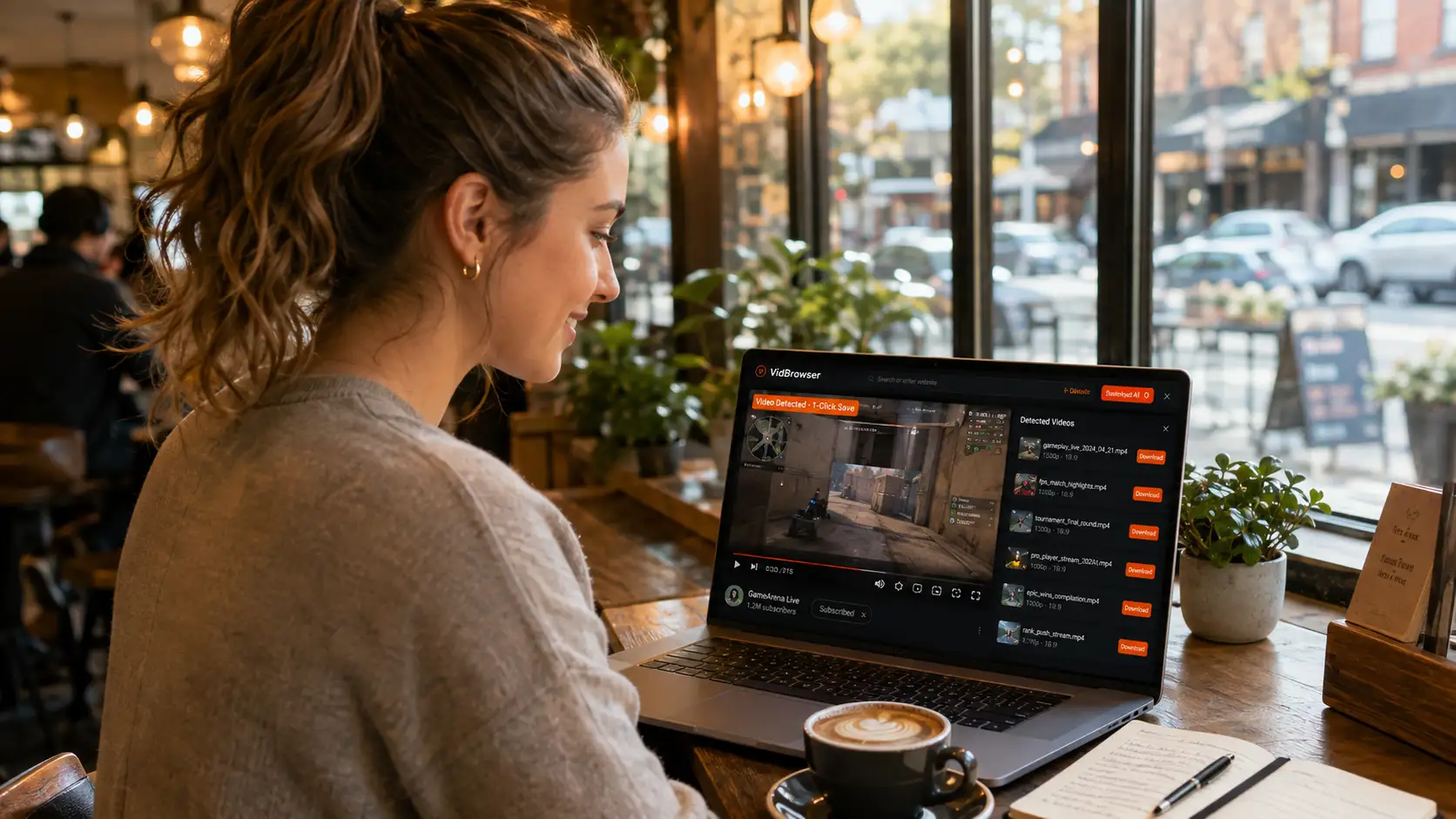
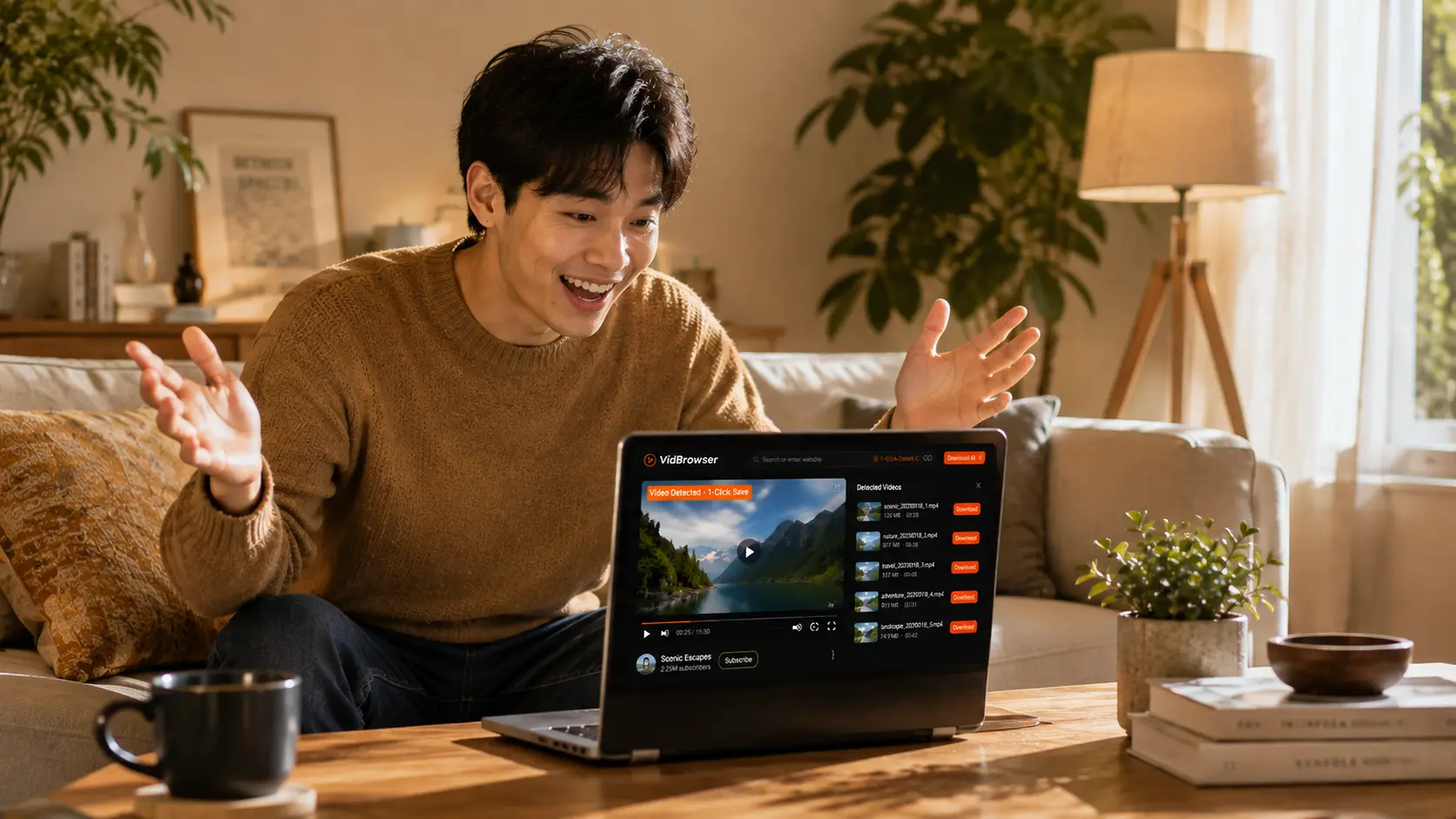
When you play a YouTube video in VidBrowser, an orange "Video Detected · 1-Click Save" badge appears in the top-right corner. Click it, and VidBrowser saves the video as a local MP4 file — full quality, no black screen, no audio-only file, no workaround required.
Step 1: Download VidBrowser free and install on Windows or Mac.
Step 2: Open youtube.com in VidBrowser. Log into your YouTube or YouTube Premium account.
Step 3: Play the video you want to save.
Step 4: Click the orange "Video Detected · 1-Click Save" badge.
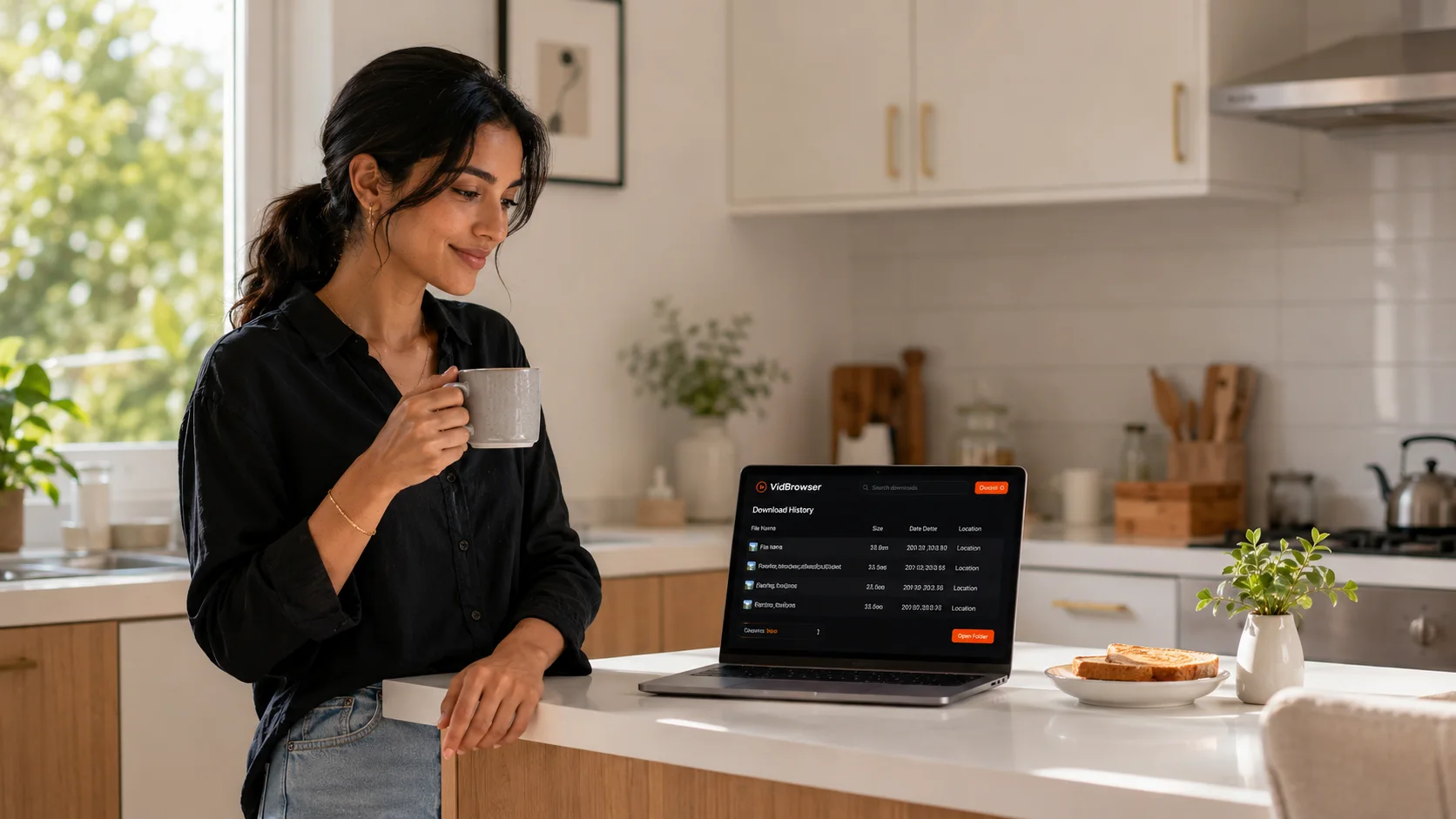
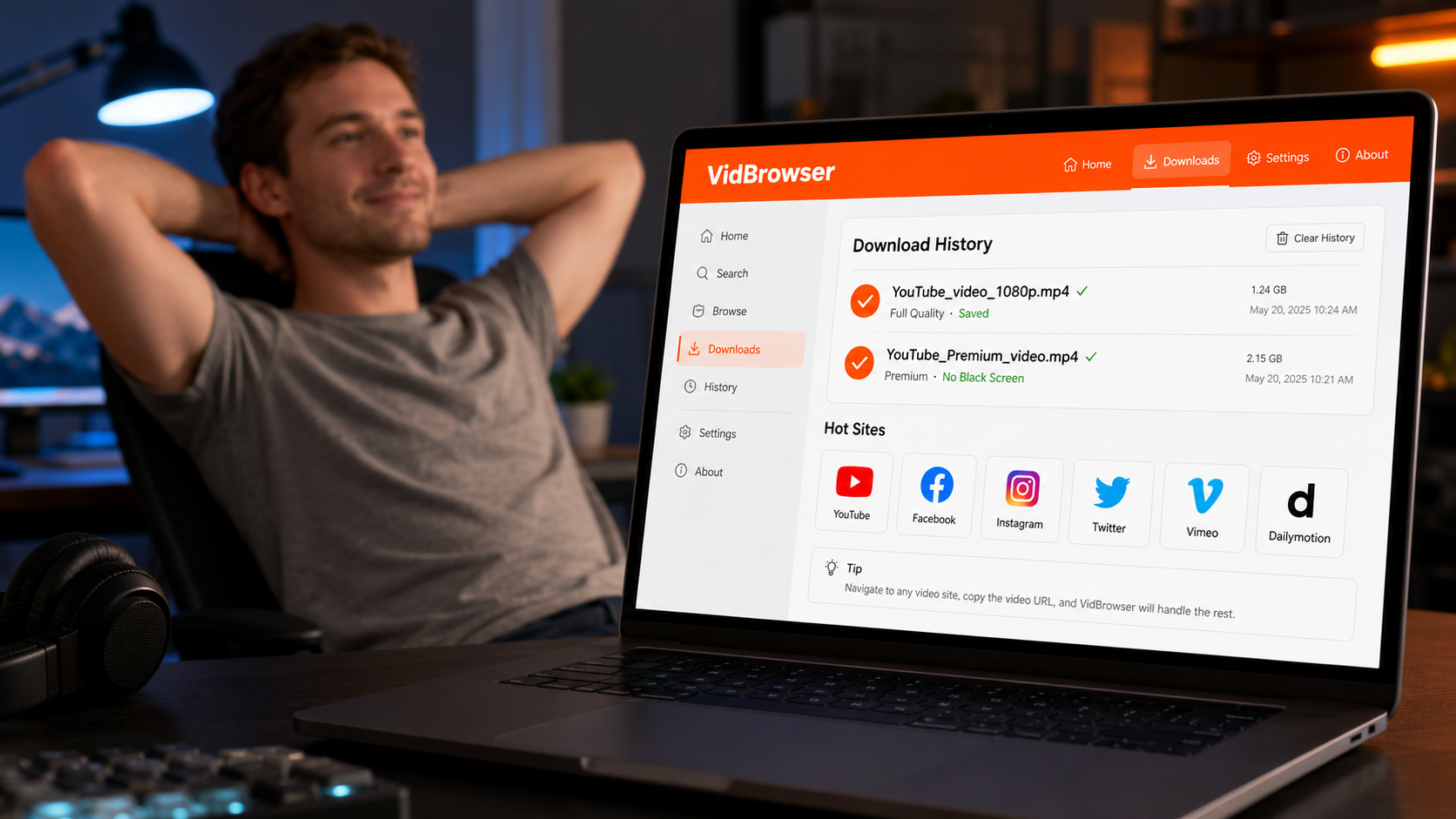
Step 5: The video saves to your local storage as an MP4. Play it in any media app, any time, no internet required.
This works on regular YouTube videos and YouTube Premium content equally. The saved file is permanent — it doesn't expire when your subscription renews or lapses.
What About YouTube Live Streams?
Live streams add another layer of complexity. Active live streams can't be saved mid-stream by most tools. After a stream ends and becomes a recorded video on YouTube, VidBrowser handles it the same way as any other video.
For capturing a live stream as it happens, the approaches vary in reliability — but for already-recorded content, including Premium videos and any video that black-screens your recorder, VidBrowser's save function resolves it directly.
Does VidBrowser Work on Other Platforms Too?
Yes. The same protection that blocks screen recording on YouTube exists on Netflix, Disney+, Hulu, OnlyFans, Fansly, and most major streaming and content platforms. VidBrowser's one-click save handles all of them the same way — 1,000+ platforms supported, one browser.
FAQ
Why does YouTube black-screen my OBS but not other apps?
OBS uses display or window capture methods that YouTube's protection specifically intercepts. The protection targets the video output pipeline that screen recorders depend on — OBS, Bandicam, ShareX all use similar capture methods.
Turning off hardware acceleration didn't fix it — why?
For regular YouTube videos, hardware acceleration is often the culprit and disabling it helps. For YouTube Premium content, the protection operates independently of how video is rendered. Turning off hardware acceleration doesn't affect Premium content protection.
Can I screen record YouTube if I use a virtual machine?
Some users try this as a workaround. It's technically possible in some VM configurations, but the setup is complex, quality degrades significantly through the virtualization layer, and it's not reliable across setups. VidBrowser saves at full stream quality with no VM required.
Does VidBrowser bypass YouTube's recording protection?
VidBrowser doesn't bypass anything — it operates as a fully authorized browser with legitimate access to the video during playback. It saves the video through the same access a browser has when streaming, not by capturing your screen.
Does this work on Mac and Windows?
Yes, VidBrowser is available for both. No mobile version — desktop only.
Will the saved file have the same quality as what I was watching?
Yes. VidBrowser saves at the quality streamed to your browser — for YouTube Premium subscribers with fast connections, this includes 1080p and 4K where available.