
How do you extract audio from a video? And mute one?
You saved an interview video and only want the audio for the road; or a folder of game recordings has original sound so noisy the footage is unusable until it is gone. One keeps the sound, the other deletes it — opposite directions, yet both land on the same spot in the file: the audio track. The VidBrowser toolbox has two tools aimed at exactly those two directions: extract audio saves the sound on its own, and mute video removes the sound while the picture stays as is.
Extract audio or mute video: decide whether you want the sound or the picture
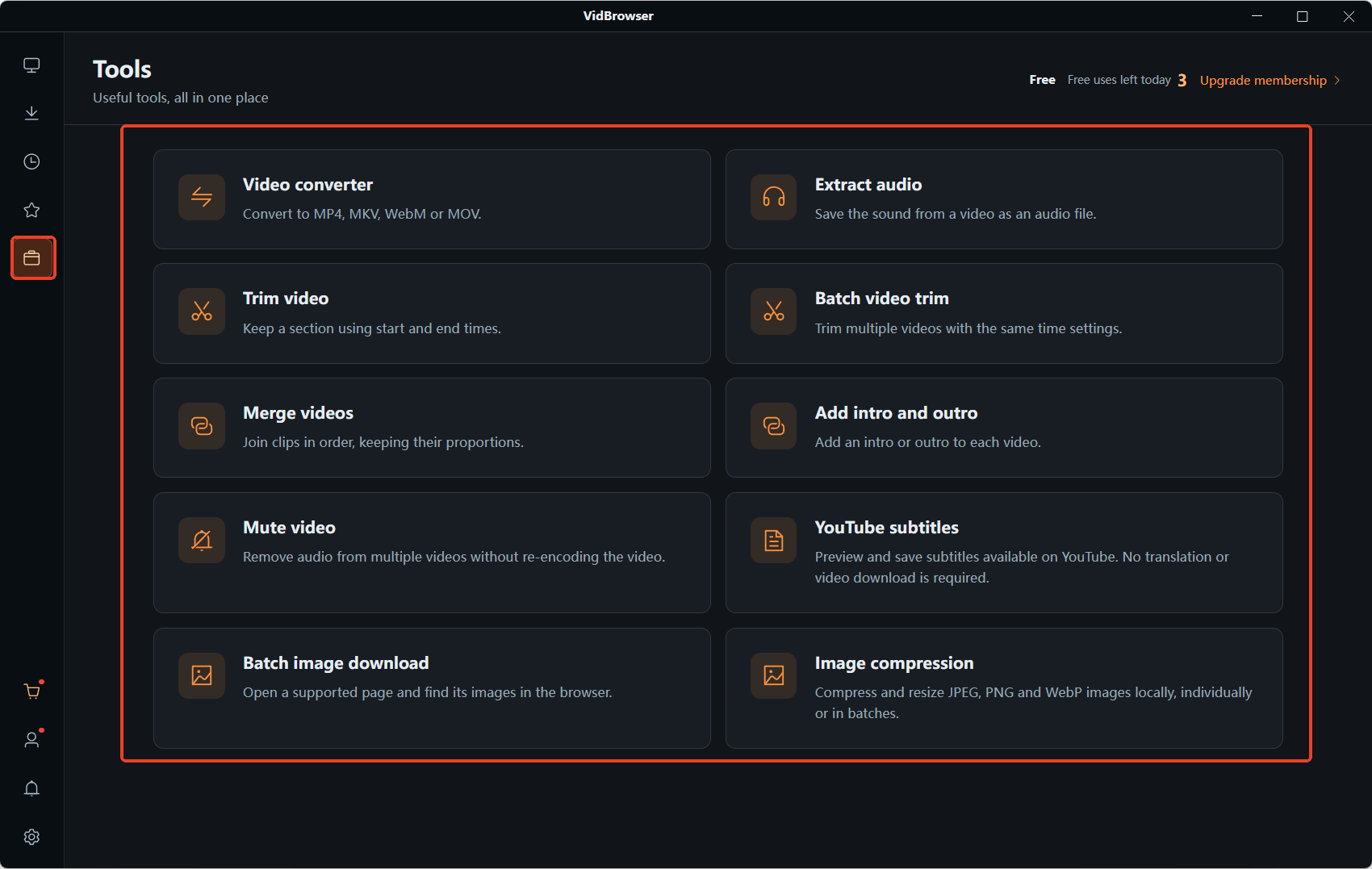
Both entries sit side by side on the "Tools" page in the left navigation, and the test is simple: if you want the sound, use Extract Audio; if you want the picture without sound, use Mute Video.
Extract audio saves the sound inside a video as a standalone audio file and leaves the original video untouched — a fit for interviews, podcasts and live-stream segments where the sound is more useful than the picture. Mute video is the reverse: the picture is kept in full while the audio track is removed — a fit for footage you plan to score yourself, or clips you want people to watch without the original sound.
Neither operation touches the picture itself. Extract audio reads the track and saves it as a new file; the mute output keeps the picture without re-encoding. That is also the essential difference from format conversion: converting reworks the whole file, while these two only work on the one audio track.
Lossless copying is where the speed comes from, and the output format follows the source
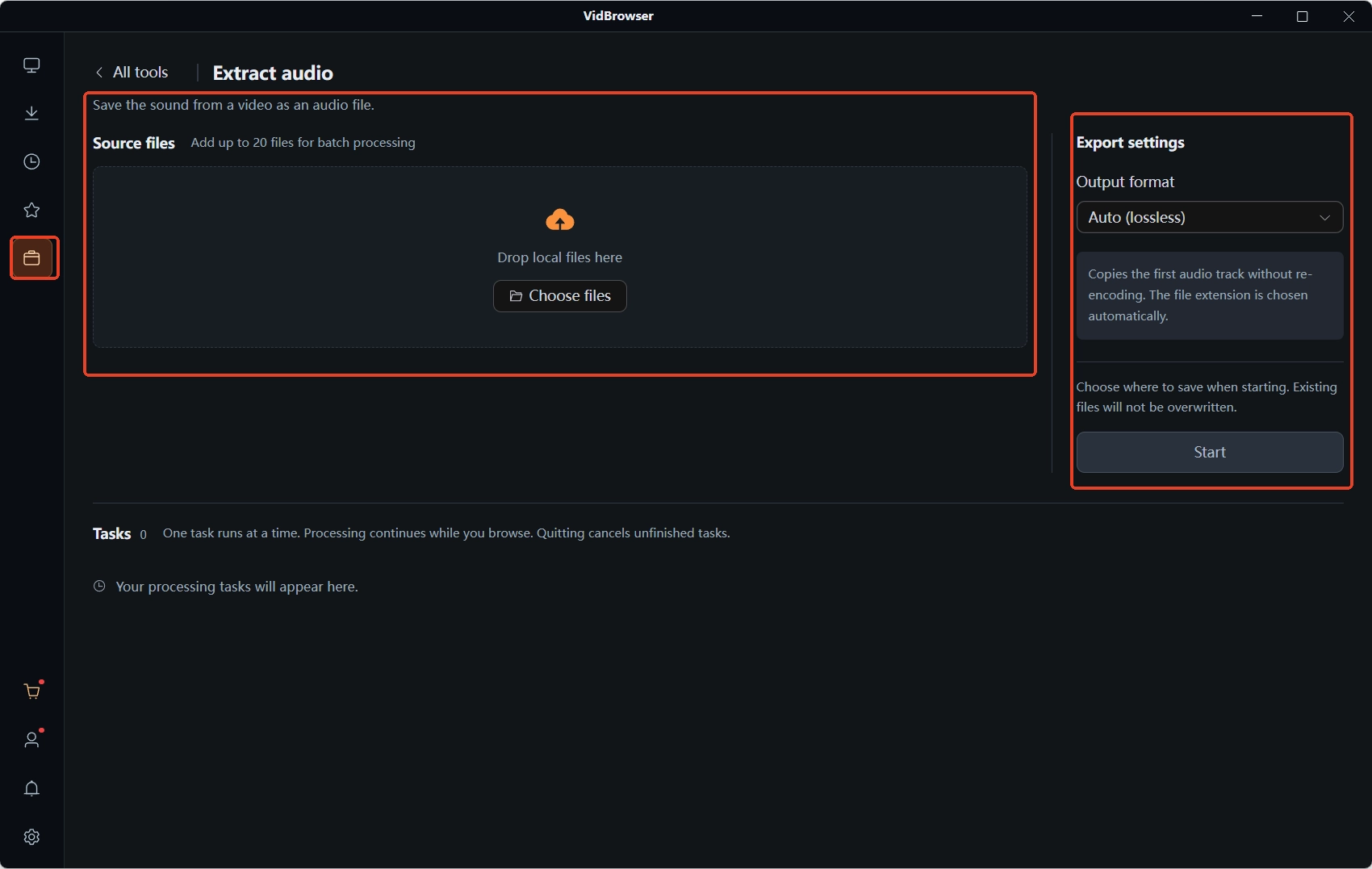
The "Auto (lossless)" mode in Extract Audio copies the first audio track directly, with no re-encoding.
What does no re-encoding actually mean? The FFmpeg official documentation calls this stream copy: the data moves as is, skipping the decode-then-encode round trip, so it runs much faster and the sound never passes through an extra round of compression. In the same official Wiki's audio encoding guide, recommended bitrates start at 128Kbps for AAC while MP3 needs 192Kbps to reach the recommended tier — AAC is the newer codec and holds the same listening quality at a lower bitrate, which is why most audio tracks inside videos today are AAC rather than MP3.
One search habit is worth clearing up here: many people search "mp4 to mp3" when what they actually want is "save this video's sound on its own". A lossless extract hands you whatever format the source track uses — for MP4 files that is usually the AAC family, not necessarily MP3. For listening the difference is tiny, and players and editing software accept both.
Handling the original sound before upload beats getting muted after the fact
Removing the original sound and scoring it yourself is a step worth taking before you upload.
Platforms like Twitch are famously strict about background music: when an audio recognition system flags an unauthorized track, a replay can be muted in whole or in part, taken down, or deleted outright, and rights holders can follow up with a DMCA notice. An earlier piece on why Twitch VODs get deleted covered how platforms enforce this after the fact; this one fills in the step before — strip the original sound before uploading and add music you are licensed to use, so the recognition system has nothing to match. Game recordings, stream clips and vlogs with background music all fit this order.
Another set of scenes is more everyday: a stream recording covered private moments you do not want to keep, so mute the whole track before archiving; horizontal footage heading for a remix sounds cleaner once the original audio is gone and your own narration goes on top.
Silencing a whole batch at once, without going one by one
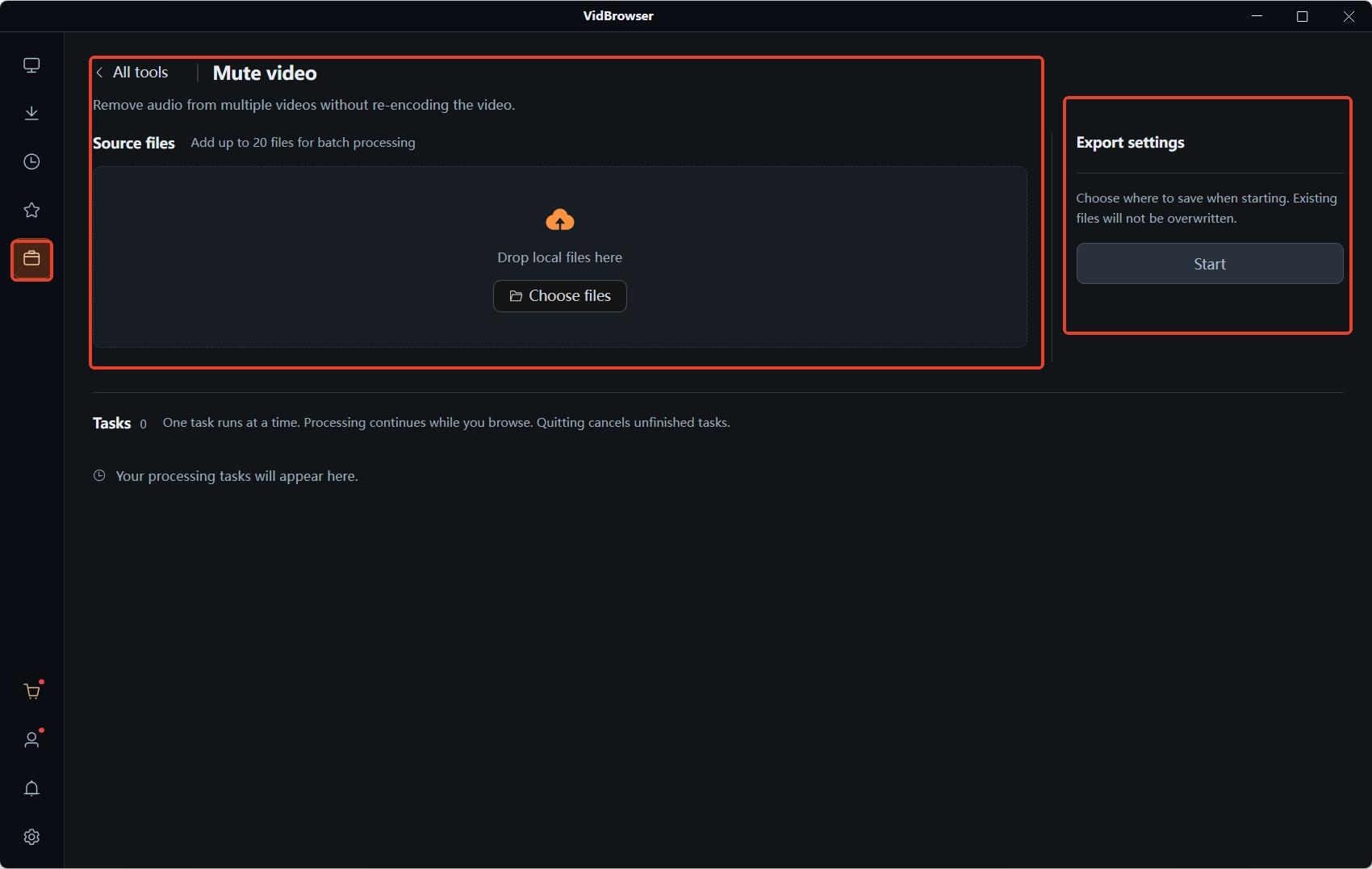
The mute tool's description says it plainly — "batch remove video audio tracks, picture not re-encoded" — and the batch part is its main division of labor against Extract Audio.
The batch advantage only shows when a pile of similar footage needs the same treatment: add once, output the whole batch, no babysitting in between. The fitting scenes are concrete — a month of stream recordings muted in one go for archiving, a stack of horizontal shorts stripped of original sound before entering the editing flow, or a batch of noisy clips cleaned first so you can decide later whether to narrate.
Extract Audio does not push batch, but a lossless copy of a single file is already fast, and pulling audio from a few videos back to back takes little time.
From the tools page to the files, in five steps
Step 1: Download and install VidBrowser
VidBrowser is a desktop video browser for watching videos on Windows and Mac, clipping segments and saving them locally, with built-in download and recording. Installation takes a few minutes.
Step 2: Open the "Tools" page in the left navigation
The Extract Audio and Mute Video entries sit side by side here; click the one you need.
Step 3: Add the local videos to process
Drag the files into the list or pick them with the add-file button; when processing several files, add them one by one.
Step 4: Choose the operation by your goal
For Extract Audio pick "Auto (lossless)" — it copies the first audio track directly with no re-encoding; for Mute Video, confirm and start — it batch-removes the audio tracks and the picture is not re-encoded.
Step 5: Wait for the tasks to finish and collect the files
Tasks run one after another; when done, take the files from the save location you selected.
How to keep the separated sound and picture
The extracted audio and the muted video are both new standalone files, the sources stay as they were, so archive them by purpose in separate places.
For an asset library, keep source videos, extracted audio and muted videos in three folders, with dates and sources in the names so they are easy to find later. Videos downloaded from the web with VidBrowser also land in the download folder — where they are and how to sort them is covered in where my downloaded videos went.
One case to tell apart: if a video comes back from a download with no sound at all, that is not an audio-track job — it is usually decoding or container compatibility, and the troubleshooting lives in fixing downloaded videos with no sound.
FAQ
Does extracting audio damage the original video?
No. Extract audio reads the track and saves a new file; the original video is never modified. Mute also outputs a new file and keeps the source.
Is "mp4 to mp3" the same thing as extracting audio?
Most of the time it is the same need under a different name. With lossless extraction the output format follows the source track, and the track inside an MP4 video is commonly AAC, not necessarily MP3; the listening difference is small and common players and editors support it.
Can the sound come back after a video is muted?
The track in the output file is removed and cannot be recovered from that file itself; the source is still there, so processing it again brings the sound back. Confirm all sources are on hand before a batch run — that is the easiest safety net.


