
TikTok Videos Always Have Watermarks? How to Download Without Watermark in 2026
You find a video on TikTok you want to save — a dance, a tutorial, a funny clip. You tap Share, then Save; the saved file has a rotating username watermark in the corner. You switch to an online watermark remover — either it fails to parse, or the quality turns to mush. You try the URL-tweaking trick from some post; after half an hour it still doesn't work. If you want a clean, watermark-free original in 2026, what should you actually do?
Let's start with the conclusion: the watermark isn't baked into the video. Once you understand that, everything becomes clear.
TikTok's Watermark Isn't Actually Part of the Video
First, understand where the watermark comes from — this determines whether the methods below will work at all.
The original video stream TikTok's servers deliver is clean, with no watermark. The rotating username, the white music-note icon, and the song label you see in the app are overlaid in real time by the player while it plays. That also explains why "official save" always includes the watermark: the official share feature saves a re-encoded version, and the watermark is already baked into the picture.
So the question changes from "how to remove the watermark" to "how to get the original stream before the player overlays it." Once you reframe it, the method becomes obvious.
Popular "Watermark Removal" Methods and Why They're Failing
- Online watermark remover sites. They work by parsing TikTok's stream URL and re-hosting it, but TikTok keeps changing the structure and format of its video streams, so these sites fail more and more often; even when they succeed, many serve a compressed version with noticeably worse quality than the original. (For the common reasons download tools fail, see our video downloader not working guide.)
- URL parameter tricks. The old trick of swapping "video" for another path worked years ago, but it broke after TikTok updated its video address system. Most tutorials still circulating in 2026 are outdated — following them just wastes your time.
- Screen recording. Recording the screen is the most direct workaround, but the file always contains the watermark — the watermark is overlaid during playback, so recording captures it along with the picture, and you can't remove it later. Quality is also limited by your screen resolution.
These methods share one thing: they all work from outside the player — but the watermark is precisely what the player adds.
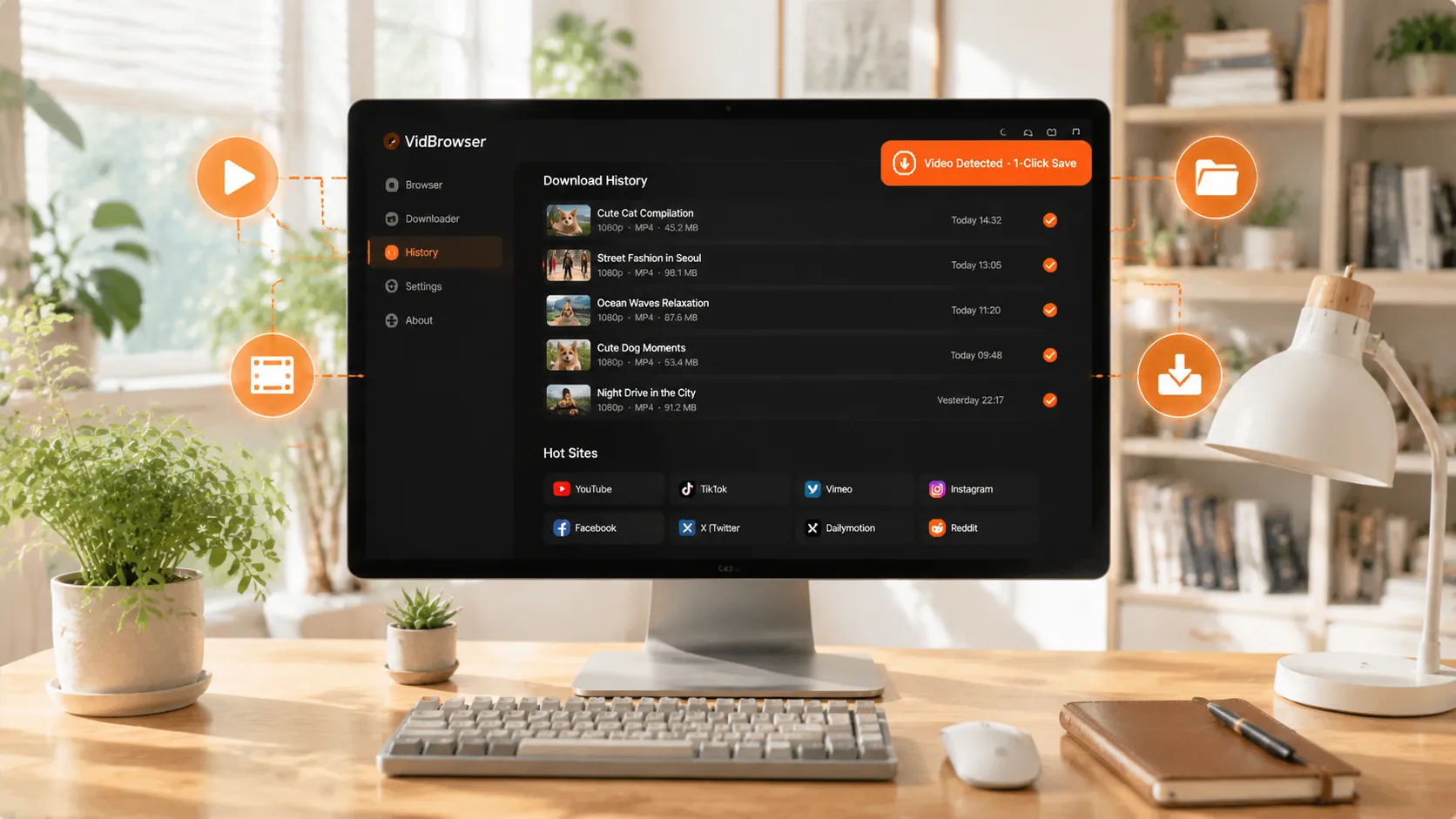
Get the Real Watermark-Free Original: Save the Stream Inside Your Browser
If the watermark is overlaid by the player, then bypass the player and grab the raw video stream from inside the browser — what you get is the watermark-free version.
VidBrowser is a desktop browser built for exactly this, supporting Windows and Mac. Open tiktok.com and play a video normally; once playback starts, an orange one-click save button appears in the top-right corner. Click it, and the saved file is the original video stream converted to MP4 — no watermark, no re-compression.
It takes just a few steps:
Step 1: Download and Install VidBrowser
VidBrowser is a desktop video browser for watching videos, trimming clips, and saving them locally on Windows and Mac. Installation takes just a few minutes.
Step 2: Open TikTok in VidBrowser and Log In
Launch VidBrowser, visit tiktok.com, and log in with your own account as usual. Logging in is needed to watch the full TikTok For You feed.
Step 3: Browse the For You Feed and Open the Video You Want to Save
Scroll through the TikTok For You feed and tap videos you like to play them full-screen. VidBrowser automatically detects video resources on the page in the background.
Step 4: Save from the Video Library on the Right
Once playback starts, the "Video Library" panel on the right lists all videos detected on the page, each with an orange "Download" button. Click the "Download" button of the video you want and it saves as an MP4 file containing the original stream, with no watermark.
Step 5: Find the File in Your Library
After saving, you can open the file from the folder you chose, or find it through VidBrowser's download history. Then watch it offline anytime with compatible players like VLC or QuickTime.
Why does it get a watermark-free video? Because the watermark is added by TikTok's player, while VidBrowser saves the raw stream the browser receives during playback — and that stream never contained a watermark. It's like keeping the raw material before the "processed picture" even exists. The same flow also works for creators who want to back up their own videos after posting.
What Can You Do With Watermark-Free Videos
- Creator backups. Your own videos get compressed by TikTok, and the version downloaded from your profile is the platform's copy; this method saves a file closer to original quality — handy for archiving or migrating.
- Material for derivative work. For editing, remixing, or commentary reference, a clean watermark-free file is far easier to work with than a watermarked one.
- Offline collection. Save videos you like locally and watch offline anytime, without depending on the app or network, and without worrying about the creator deleting them.
One Boundary to Keep in Mind
The copyright of videos on TikTok belongs to their creators. Saving them for personal offline viewing or personal study is fine; republishing, commercial use, or re-uploading to other platforms is infringement. Save for yourself and respect the creators.
FAQ
Are online watermark remover sites reliable?
Less and less. TikTok frequently changes its video stream structure, online parsers fail often, and some sites sneak in ads or even request permissions, which is a privacy risk. To reliably get a watermark-free original, saving the raw stream from inside the browser is the safer path.
Does watermark-free downloading notify the video creator?
No. TikTok has no download notification mechanism. VidBrowser saves the video to your local device and sends no save records to the platform.
Will the saved video quality be worse?
No. It saves the original video stream TikTok's servers deliver — the same resolution you see when playing, no re-encoding, no watermark. What you see on screen is what you get in the file.


