Vimeo Videos Can't Be Downloaded? VidBrowser One-Click Save: If It Plays, You Can Save It
You find a video you want on Vimeo — a photographer’s portfolio, a course, a brand film — and you’d like to save it locally. Then you notice some videos have a download button and some don’t; some require payment, and some have no button at all. Unlike all-or-nothing platforms like YouTube or Facebook, Vimeo’s download rules are special: whether a video can be downloaded is up to the uploader.
This article first explains how Vimeo’s download permissions work, then highlights a far easier approach: with VidBrowser, as long as a video plays, you can save it locally with one click.
Vimeo Download Permissions: Three Scenarios
Vimeo was built from the start for creators and professionals, and its download permissions carry that “creator-oriented” character: uploaders decide in the video settings who can download, usually in three ways:
- Anyone can download: a download button appears directly on the video page and anyone can grab it. Creators offering free assets or sample clips often set it this way.
- Subscribers/members only: Pro accounts can enable “paid download” — downloading is possible after subscribing or purchasing. Many creators selling courses or assets use this model.
- No download allowed: the most common case. The work is for online viewing only, and the page has no download entry at all.
There’s also a special category: Vimeo OTT (pay-per-view films and rentals). This content is protected by the platform, has a viewing period, and its download paths are closed.
So whether you can “download” on Vimeo is essentially the uploader’s authorization decision, not a platform feature gap. This also means: a video without a download button doesn’t mean the video itself can’t be saved.
Having a Download Button Doesn’t Mean You Get the Original File
Even when download permission is enabled, there’s an easily overlooked detail: the download button may not give you the original file.
- Uploaders can limit the downloadable resolution or file version — the page shows “Download” but it may just be a compressed version.
- When “allow download” is on, uploaders can also specify which files are downloadable (original file, transcoded version, or audio only).
- So before downloading, it’s worth checking for a “Source File” label near the button — that’s the version closest to original quality.
For people who care about quality (and most Vimeo users do), this matters more than whether you can download at all.
Common Methods and Why They Fail on Vimeo
- Online download sites: Vimeo’s video stream structure is tightly coupled to its permission system; generic parsing sites often fail, and what you get may be an incomplete file. (For the common reasons download tools fail, see our video downloader not working guide.)
- Screen recording: recording re-captures the picture, and the quality loss is nearly fatal for professional content like Vimeo’s — not to mention the risk of stutter and out-of-sync audio.
- Tools demanding authorization: tools that ask you to log in with your Vimeo account hand your account data to strangers — the risk far outweighs the benefit.
These methods all work from outside the player, and Vimeo’s permission system is precisely what locks those workarounds down.
How VidBrowser Saves: If It Plays, One-Click Save
Take a different approach: instead of fighting the permission system head-on, let the browser save the video stream it’s playing while you watch.
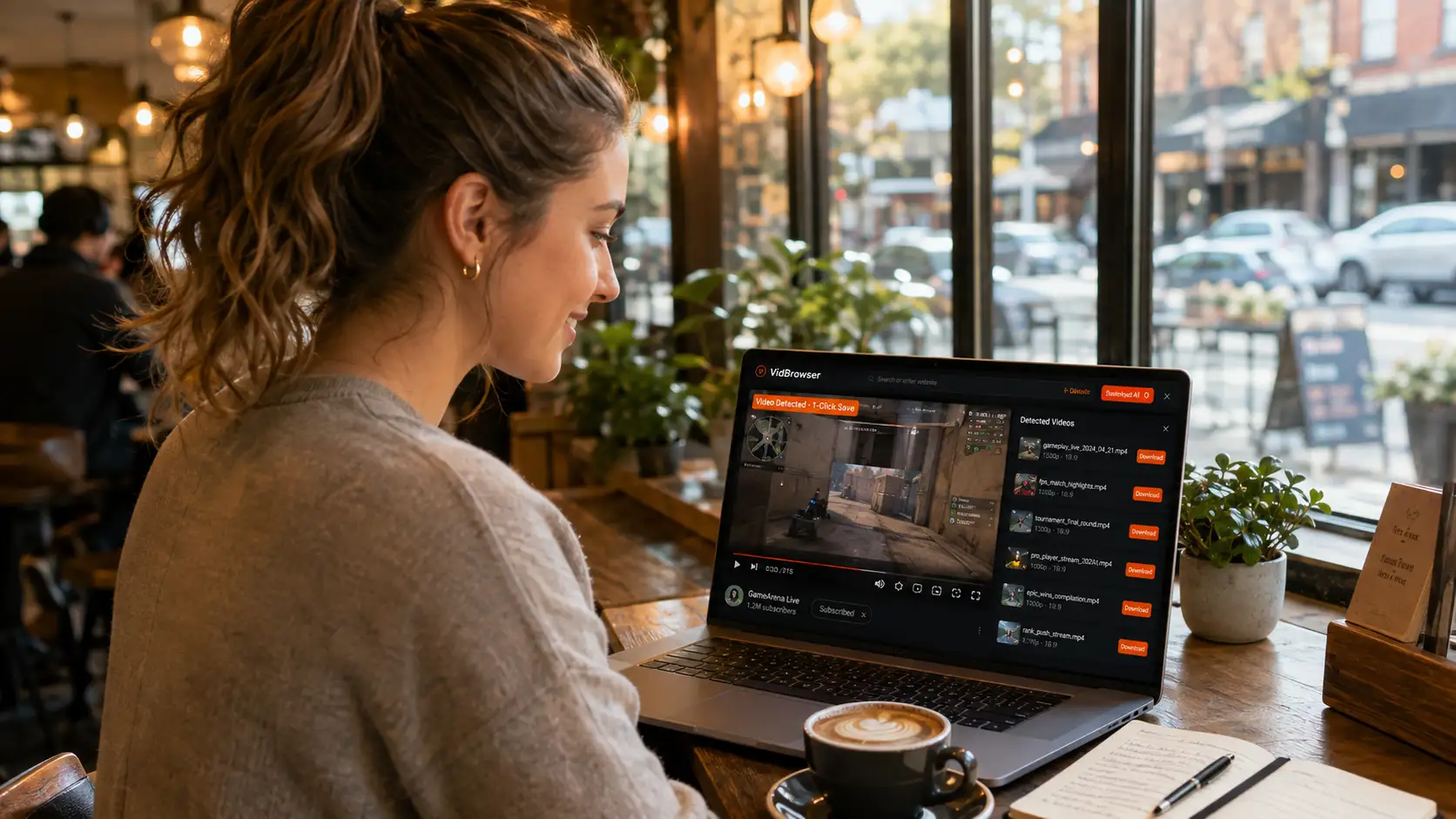
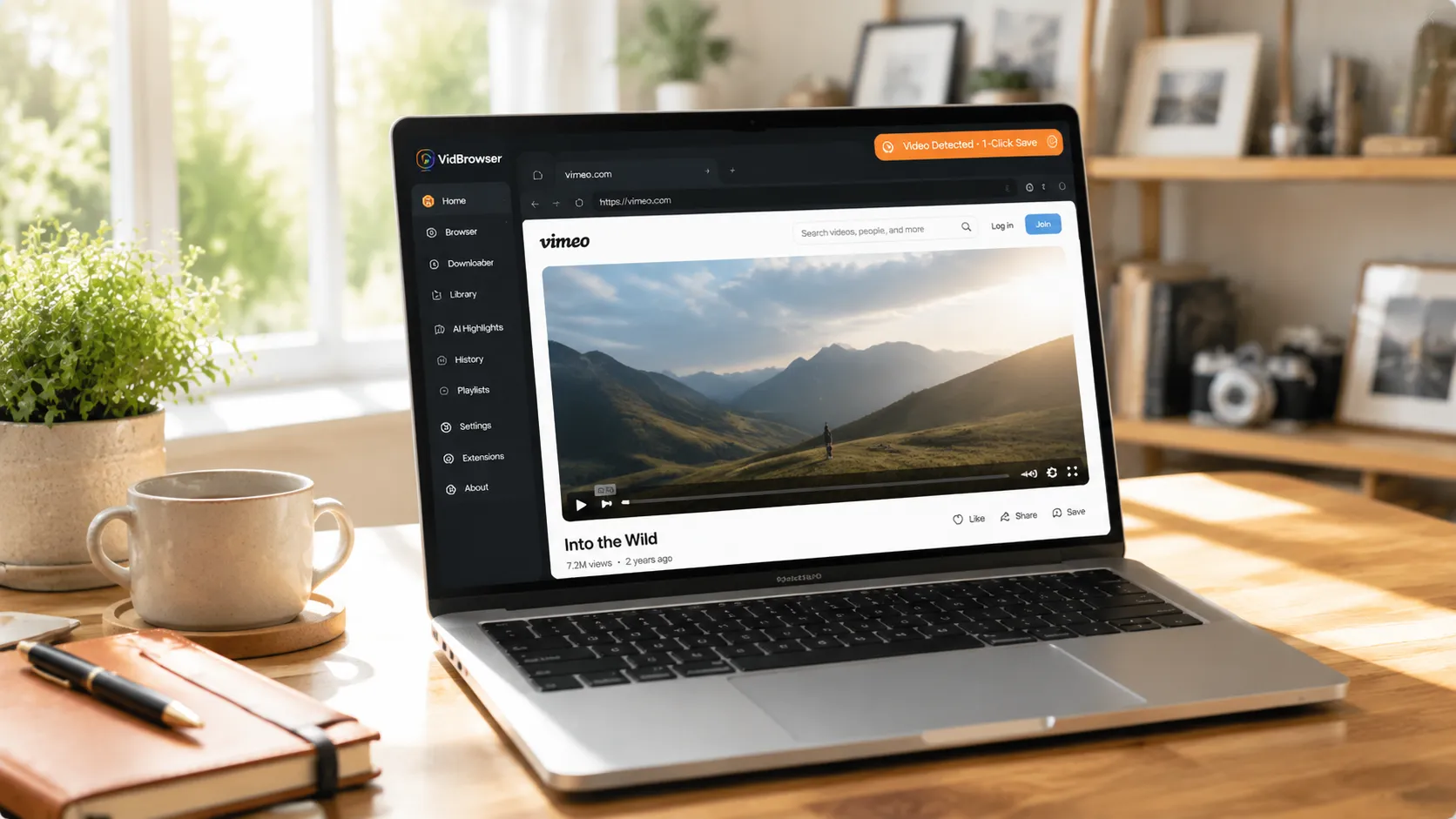
VidBrowser is a desktop browser designed for video, supporting Windows and Mac. It has built-in automatic video detection: open vimeo.com, log in with your account, and play the video you want to save. Once playback starts, an orange “Video Detected · 1-Click Save” indicator automatically appears in the top-right corner — click it, and the video being played is saved as an MP4 file. (Download VidBrowser for free)
It takes just a few steps:
Step 1: Download and Install VidBrowser
VidBrowser is a desktop video browser for watching videos, trimming clips, and saving them locally on Windows and Mac. Installation takes just a few minutes.
Step 2: Open Vimeo in VidBrowser
Launch VidBrowser, visit vimeo.com, and log in with your own account as usual. This step is necessary for both public videos and subscription content — once logged in, the browser knows what you “can see”, and that’s exactly the scope VidBrowser can help you save.
Step 3: Open the Video and Play It
Go to the video page you want to save and let it play for a few seconds. VidBrowser automatically detects video resources on the page in the background; once it identifies a savable video stream, it lists it in the “Video Library” panel on the right.
Step 4: Save from the Video Library on the Right
Once playback starts, the “Video Library” panel on the right lists all videos detected on the page, each with an orange “Download” button. Click the “Download” button of the video you want and it saves as an MP4 file containing the original stream, with no re-encoding.
Step 5: Find the File in Your Library
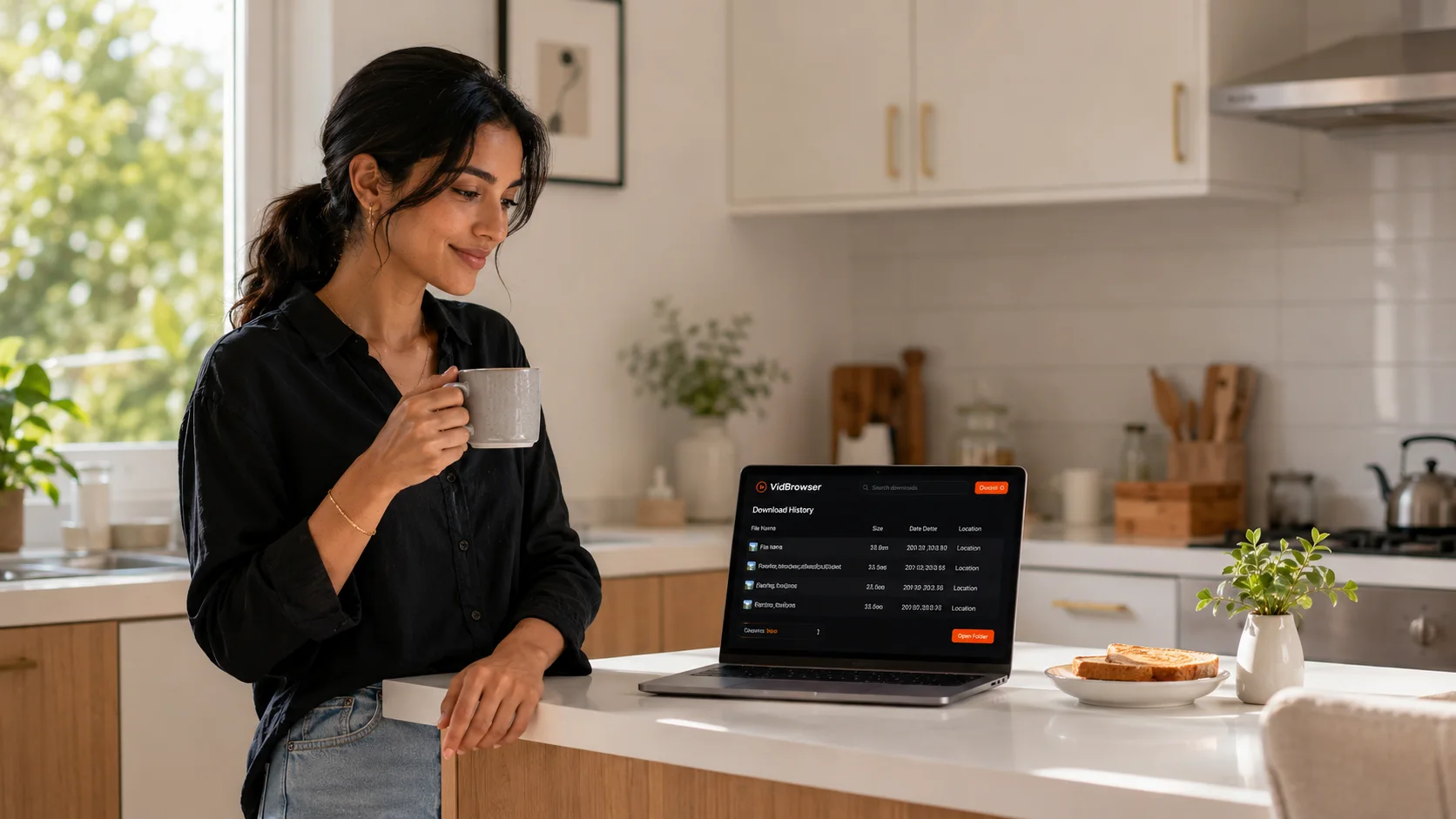
After saving, you can open the file from the folder you chose, or find it through VidBrowser’s download history. Then watch it offline anytime with compatible players like VLC or QuickTime.
Compared with traditional downloaders, this mechanism has three differences:
- Doesn’t depend on the download button. Whether the uploader enabled download permission doesn’t matter — if you can play it, it can save it.
- Saves original quality. It saves the stream you’re currently watching, at the same quality as playback, no re-encoding, no watermark.
- Multiple files queue up. The download queue handles files automatically, so you can save many videos in a row without babysitting.
Saving Isn’t the End: Highlights, Clipping, and Library Management in One App
Downloading is just the starting point for VidBrowser. In the same software, the Vimeo videos you save can keep working for you:
- AI highlight detection: automatically marks the best moments in videos, so you don’t have to scrub through long videos from the start.
- Built-in clipping: trim segments right in the browser and save a separate copy — no need to open a separate editing app.
- Library management: videos are automatically filed into the media library, with search, tagging, and sorting — no mess no matter how much you save.
- Offline viewing anytime: saved files are local MP4s that play in VLC, QuickTime, and more, without needing network or an account.
In other words, from “seeing a video” to “saving it” to “clipping and organizing it,” you never switch software.
Before Downloading, Respect the Word “Authorization”
Most content on Vimeo is work creators put their hearts into — sometimes it’s literally their business. Before downloading, remember two things:
First, the permission boundary. A video without download permission essentially says “I want you to watch, not to take.” Personal offline viewing is understandable, but don’t treat it as free stock material.
Second, copyright. The work belongs to its creator. Personal reference is fine; republishing, commercial use, or reposting all require authorization. Respecting creators is also protecting the whole creative ecosystem.
FAQ
Can I still download a Vimeo video that has no download button?
As long as you can play it normally in your browser, you can save it with VidBrowser in one click. Whether a download button exists only reflects whether the uploader proactively opened downloads — it doesn’t mean the video itself can’t be saved.
Can I download subscribed Vimeo membership videos?
Yes. After logging in with your account, as long as the video plays normally, you can save it with the same method. But keep downloaded content strictly for personal use, don’t share it, and respect the creators’ paywall.
Does downloading Vimeo videos with VidBrowser notify the uploader?
No. Vimeo has no download notification mechanism. VidBrowser saves the video to your local device, sends no save records to the platform, and doesn’t affect your account.