
How to Download YouTube 4K/8K Original Quality: Resolution Filtering and Expanded Downloads
Those 4K/8K documentaries, nature scenes, and movie trailers you see on YouTube — you want to save them for big-screen playback, creative assets, or wallpapers. But when you grab them with a generic download tool, what you get is often a low-quality 360p or 720p version, even though the 2160p/1440p/1080p high-res sources are right there on YouTube. This is the real pain point most people hit when saving high-quality YouTube videos.
This article explains how YouTube's quality system works, why generic tools can't get the 4K original, and how to save original quality directly through resolution filtering in 2026.
YouTube's Quality Options Are More Complex Than You Think
YouTube doesn't just have "HD" and "SD" — the same video is cut into multiple resolution versions by the server and stored at once, and whichever you pick is the stream the player serves. Common tiers run from 144p all the way to 2160p (4K), and newer content even goes up to 4320p (8K). Between tiers of the same video, it's not just resolution that differs — the bitrate does too: the high-bitrate 2160p version is finely detailed, while a low-bitrate 1080p version may show compression artifacts.
There are also quality tiers exclusive to YouTube Premium: 1080p Premium and 4K Premium — regular accounts can't see either option; you must subscribe to Premium to select them. In short, a regular account can choose 1080p, but only Premium unlocks the higher-bitrate options.
So "saving original quality" requires that you can actually select that quality tier first; otherwise what you save is low quality too.
Why Generic Download Tools Can't Get the 4K Original
Most generic download tools work by guessing — they look for some interface addresses on the video page, default to 1080p if that's the highest they find, and often fail to parse 2160p or settle for 720p. The reason: YouTube video streams are delivered in segments, and high-quality versions (2160p) and low-quality versions (720p) use different interface paths — the tool has to identify the right one to get the matching version.
Another common pitfall is file size: a minute of 4K video easily runs into the hundreds of MB, and a several-minute documentary can hit multiple GB — generic tools often error out before the download finishes.
VidBrowser's Resolution Filtering and Expanded Downloads
VidBrowser does it differently: instead of guessing how many tiers a video has, it lists every resolution version YouTube offers for that video and lets you choose.
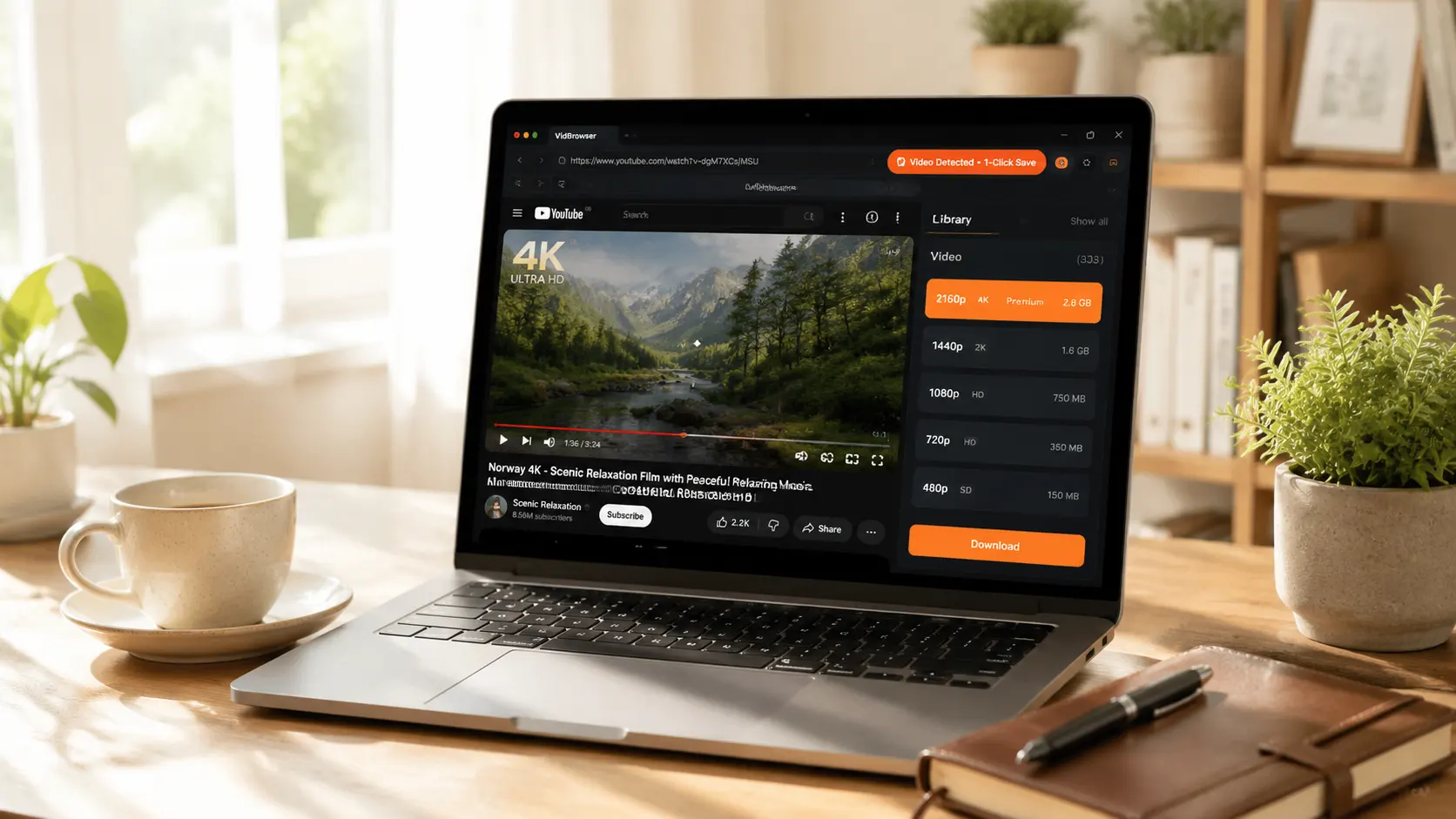
Open any YouTube video and the Video Media Library panel on the right automatically lists all resolution versions of the current video — from 144p all the way to 2160p, each labeled with format (MP4 / WebM / AV1 / VP9 / H.264) and file size, each with an orange Download button.
What matters more is resolution filtering:
- At the top of the panel there's an "All resolutions" dropdown, showing every version by default.
- Only want 4K? Pick 2160p. Only 1080p? Pick 1080p. Just want something small for your phone? Pick 720p or 480p.
- After filtering, the list only shows matching versions, and an "Expand" button appears to the right of the download button — click it to see the specific formats for that resolution (different encoders may vary in quality).
- Click Download on the matching version to save it as MP4 (or the original WebM format).
The core benefit of this design: what you see is what you get — whatever resolution you see in the list is what you can download. No guessing, no wrong picks, and the 4K original never "quietly becomes 1080p".
The general flow is the same as for any other YouTube video (for how to open it and use VidBrowser's basics, see our guide to downloading YouTube videos) — the key to 4K downloads is selecting the right resolution in the panel, then clicking download on the matching version.
How to Pick a Resolution, by Use Case
- Big-screen TV / creative assets: pick 2160p or 1440p — quality first, but the files are large and eat disk space.
- Computer screen / re-edit footage: pick 1080p — best value, good enough quality with a relatively small file.
- Mobile viewing / saving space: pick 720p or 480p — saves data and disk.
- Audio only (music/podcasts): pick the lowest 144p/240p video stream and extract the audio separately (see the audio extraction tutorial for how).
Decide what you need before downloading, so you don't end up with a pile of 4K files and no disk space.
One Bottom Line to Remember
YouTube videos are copyrighted to their creators. Saving them for your own offline viewing or personal creative assets is fine; republishing, reposting, or commercial use is infringement.
FAQ
How big are 4K videos, and how much disk space do I need?
A minute of 4K video is roughly 100-200 MB, and an hour-long 4K documentary can be 8-10 GB. It's wise to keep at least 100 GB of free space before batch-downloading 4K.
If I don't have a 4K screen, is downloading 4K worth it?
Yes. 4K video can be cropped in editing (cutting 4K down to 1080p still leaves plenty of quality), or kept as a long-term asset library to "unbox" when you upgrade to a 4K screen. But if you only watch on a small screen, 1080p is enough — no need to spend disk space on 4K.
What's the difference between 1080p Premium and regular 1080p?
The bitrate — 1080p Premium has a noticeably higher bitrate with richer detail (especially in dark areas, textures, and fast motion). But it requires a YouTube Premium subscription; regular accounts can't see the option.


